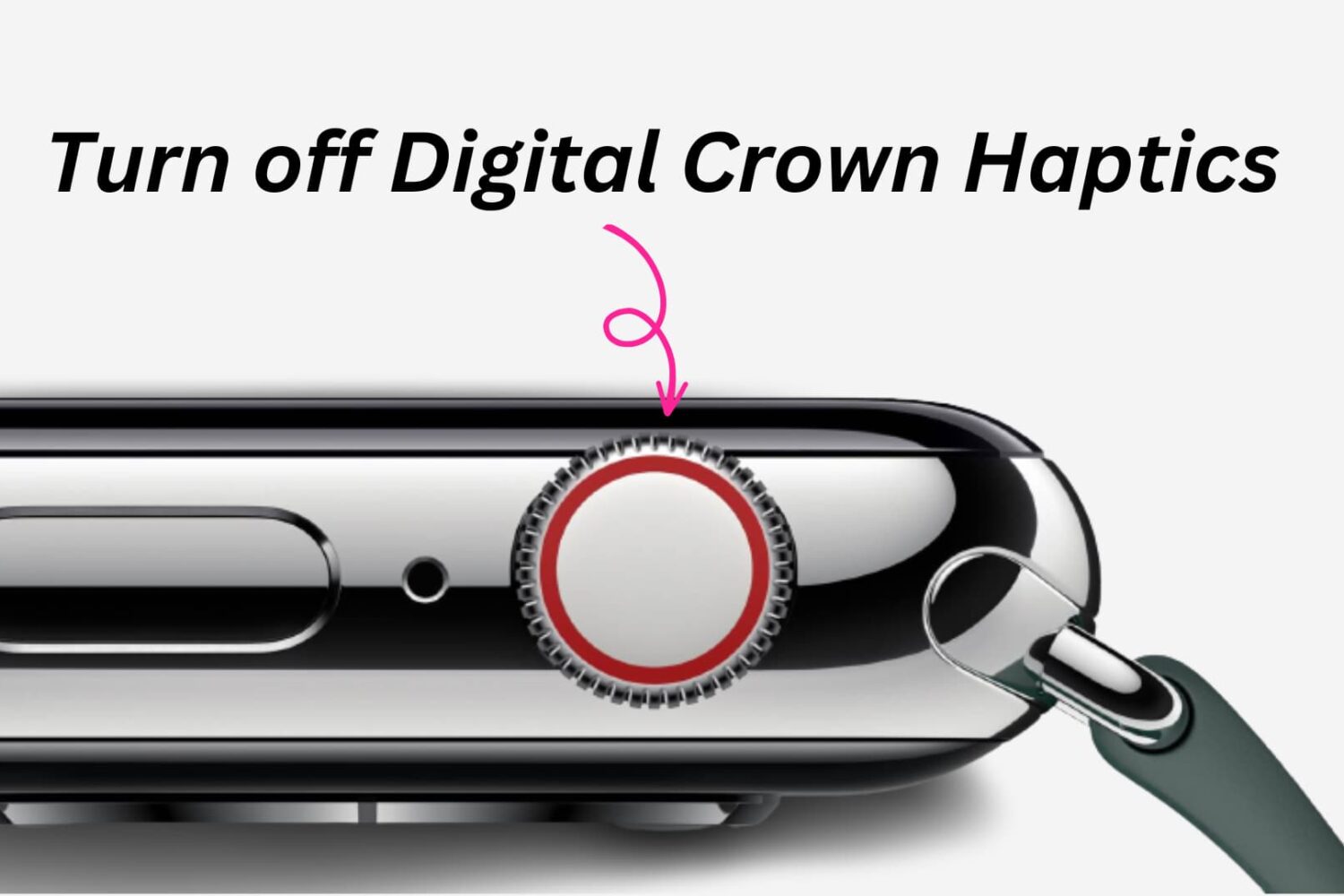
Learn how to turn off haptic vibration when rotating the Digital Crown button on your Apple Watch to disable tactile feedback when scrolling and extend battery life.
How to turn off the Digital Crown haptic feedback on Apple Watch
Learn how to master your Apple devices with our comprehensive tutorials. From iPhone and iPad to Mac, Apple Watch, AirPods, and more, our expert guides will help you unlock the full potential of your Apple products. Discover new features, tips, and tricks each day to enhance your user experience.
Learn how to turn off haptic vibration when rotating the Digital Crown button on your Apple Watch to disable tactile feedback when scrolling and extend battery life.

The iPhone and iPad Photos app includes powerful search options to help you quickly find whatever pictures your need from your vast library. In this article, we will go over these options and show you how to use them to search and find pictures like a pro.

In this tutorial, we will share how to adjust the HDR (high dynamic range) settings for your iPhone camera. You can choose to turn it on so your iPhone can take better shots in high-contrast situations or turn it off if you prefer that.
If you own an Apple computer, especially a modern one, then you’ve probably come to notice how particularly thin these machines have become. Despite that, most Macs still sport internal cooling fans to keep the CPU and GPU temperatures in check.
By default, Apple’s internal cooling fans run as silently as possible for a quiet user experience, but this isn’t without its caveats. Thinner machines like the MacBook Pro are more susceptible to heat soak because the cooling capabilities of such a compact chassis are limited; this is something you’ve undoubtedly felt while the machine sits on your lap during intensive tasks.
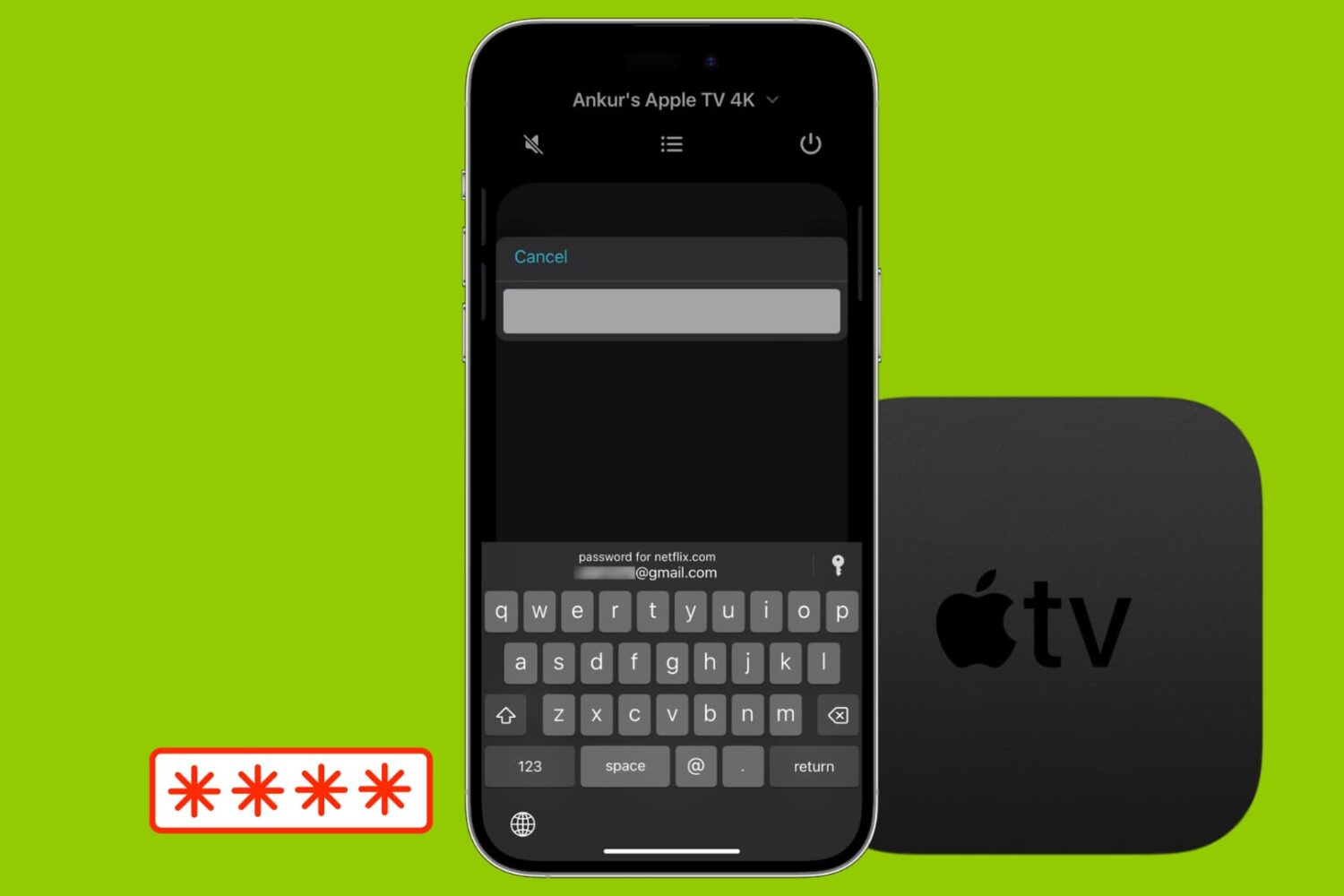
Most likely, you're already familiar with the password autofill on your iPhone and iPad. But this feature goes one step further, and you can use AutoFill Passwords to log into apps on your Apple TV straight from your iPhone or iPad.
Curious? Here’s how to use that AutoFill Passwords feature on your Apple TV.

Looking for some extra motivation to get in shape? With Apple Watch activity competitions, you can have week-long Move contests against others to win awards. In this tutorial, we will share how you can do this and engage in friendly competition with your friends, family members, or trainer.
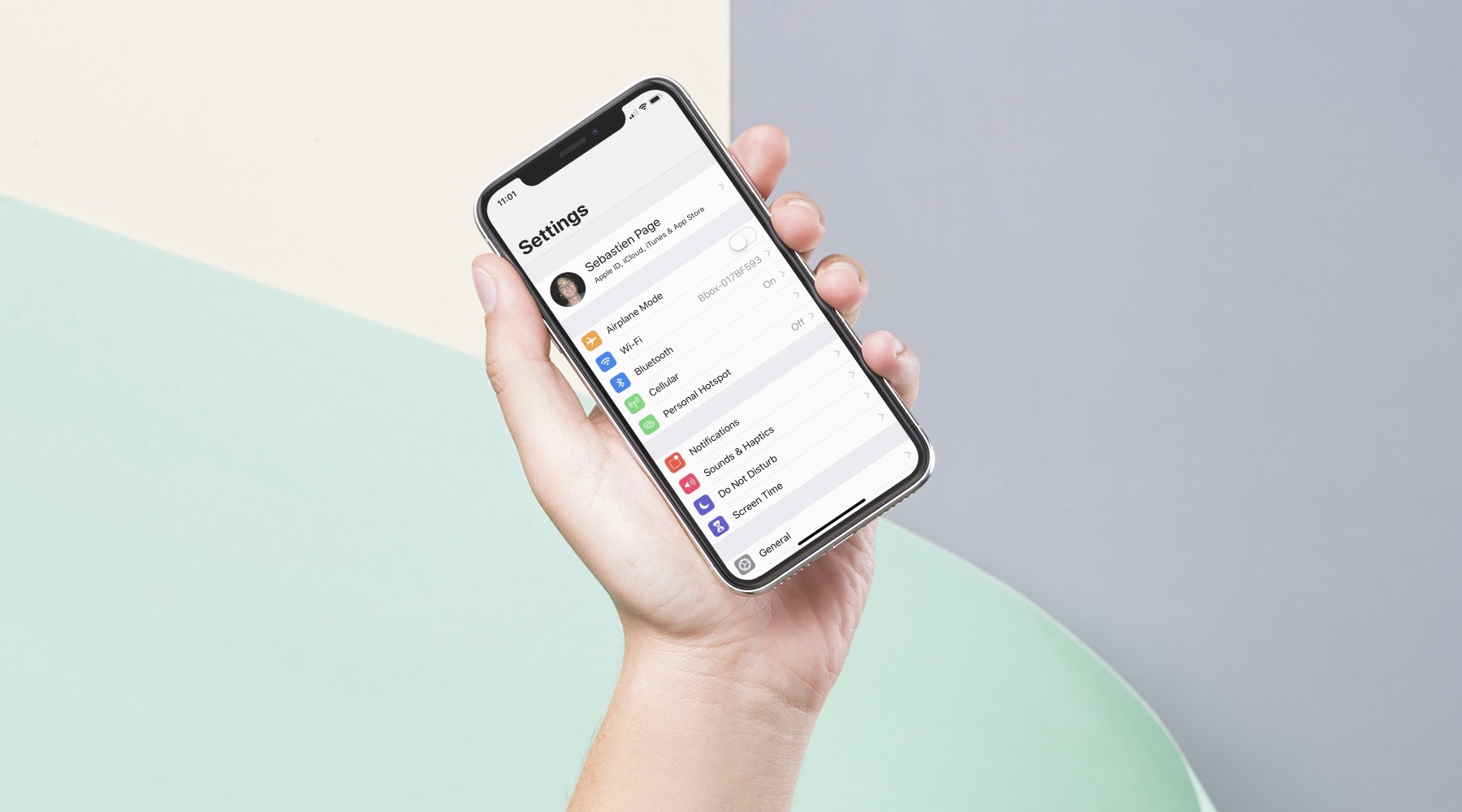
In this post, I will share my process for setting up a new iPhone or iPad. While it may not suit everyone, I'm hoping it will give some ideas or inspiration to a few of you.
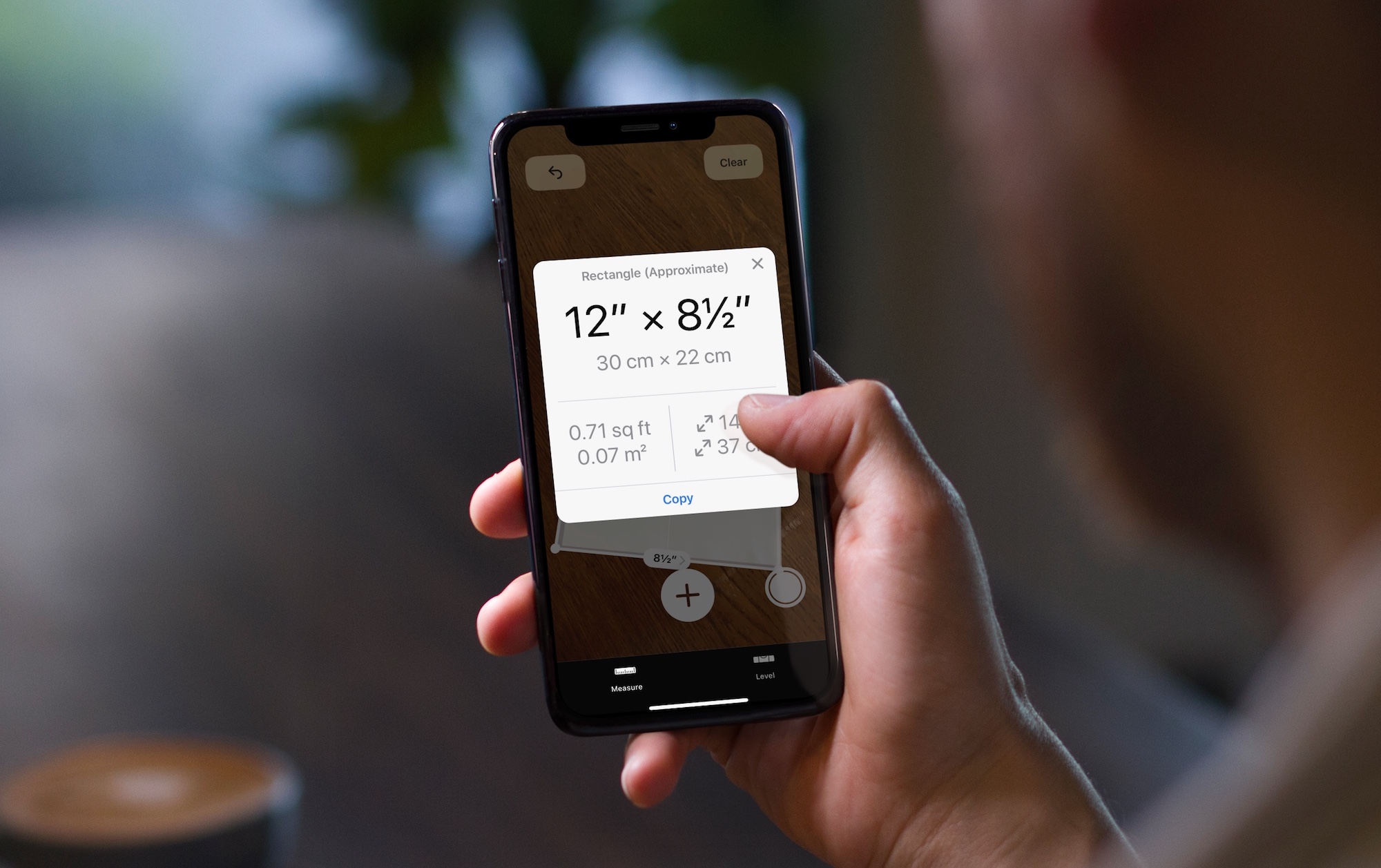
In this tutorial, we will show you how to measure objects, people's height, areas, and more using the built-in Measure app on your iPhone or iPad.
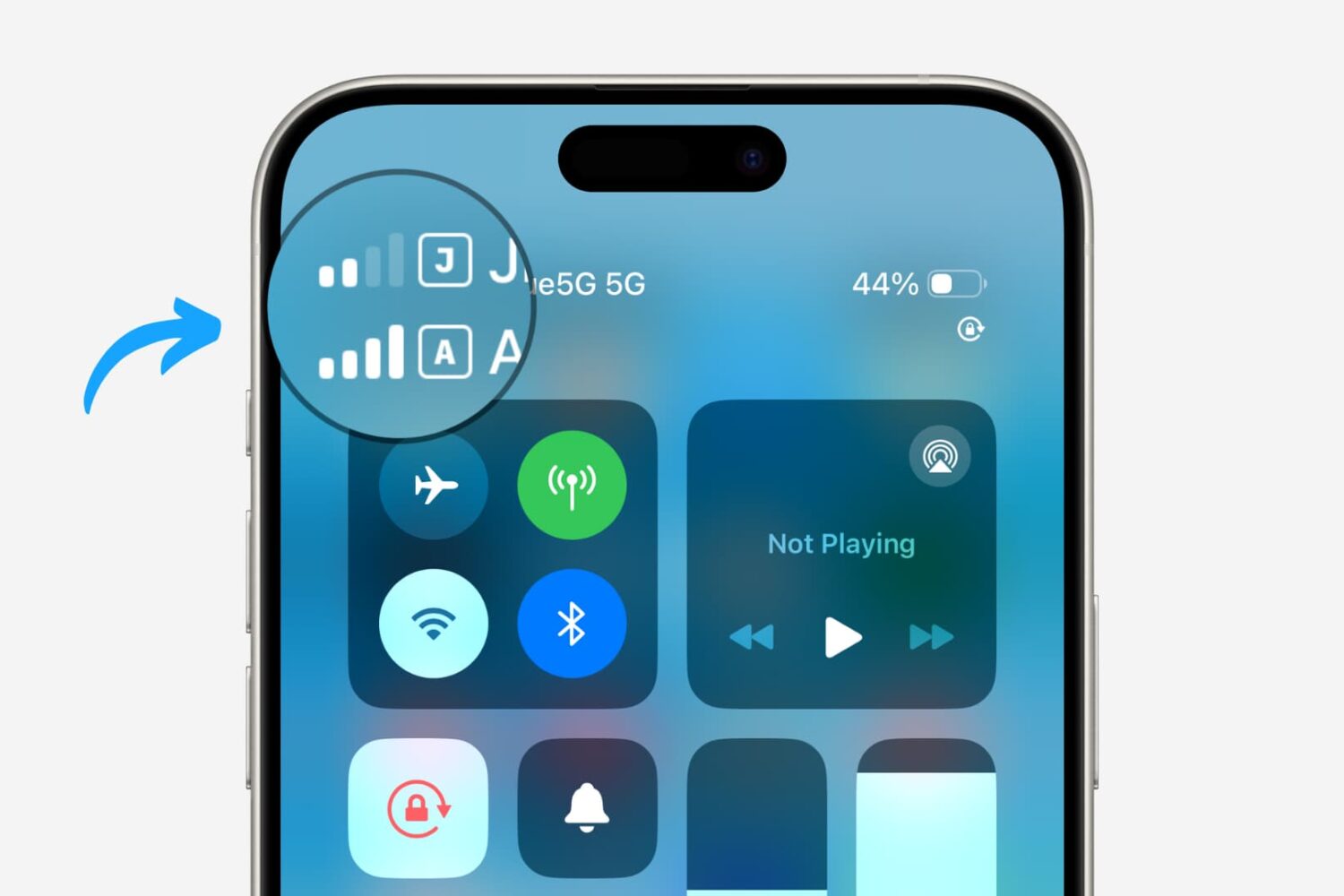
Learn how to add, configure, and use two or more SIM cards on your iPhone or cellular iPad to keep your personal, business, and other lines on one single device.
One nice thing about working with Microsoft applications like Word and Excel is that you can customize your tools. From the status bar at the bottom to the ribbon at the top, you can remove and add exactly what you need.
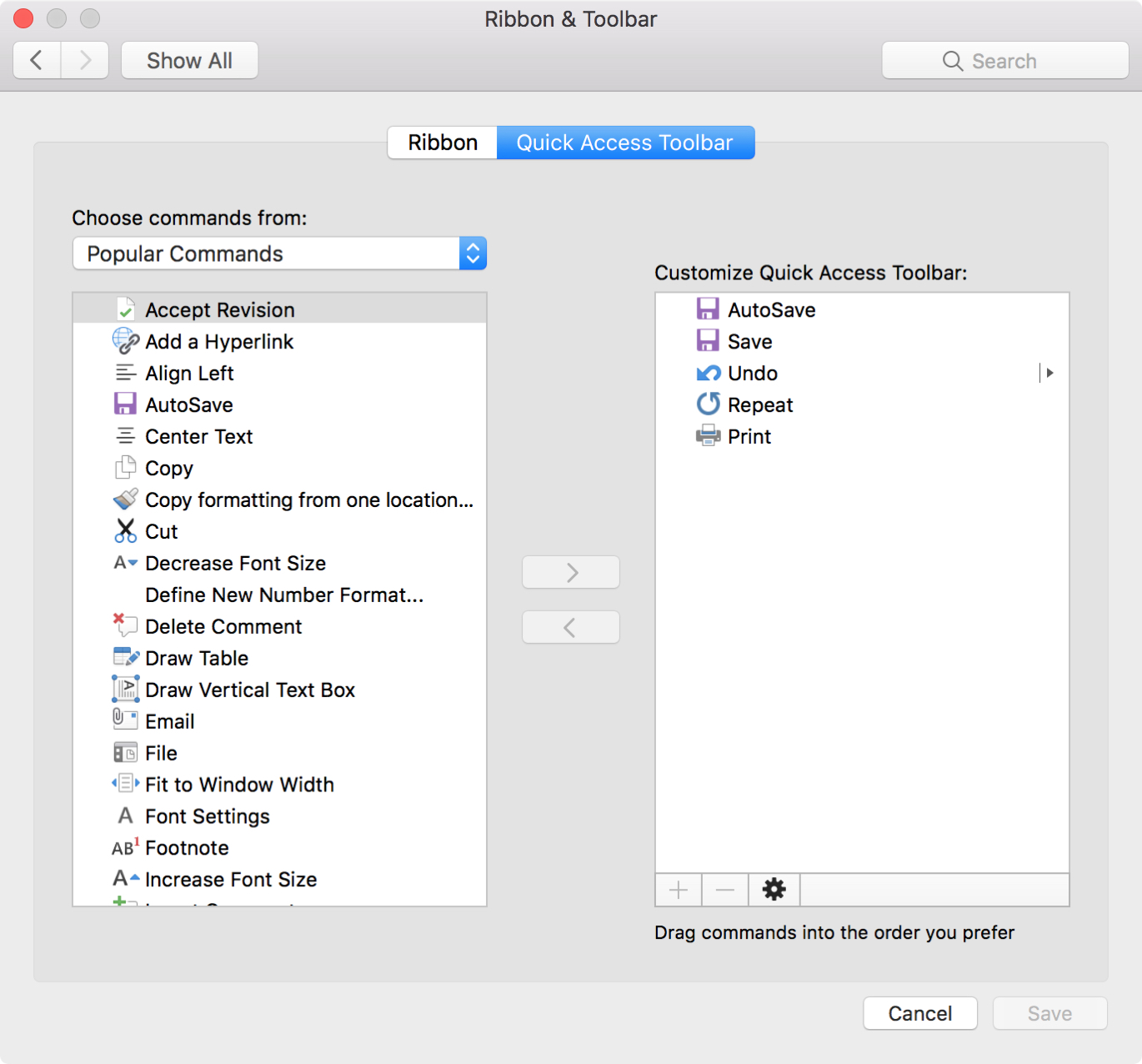
Another area you can customize is the Quick Access Toolbar. This is the small toolbar above your ribbon on the top left of the window. The point of this toolbar, as its name implies, is for quick access to tools you use most.
To help you make the most out of this area, this tutorial explains how to customize the Quick Access Toolbar to suit your specific needs.