Learn what to do if your Text Replacement phrases and shortcuts are not syncing across all your iPhone, iPad, and Mac.
Fix Text Replacement phrases not syncing across Apple devices

Stay up-to-date on the latest Mac news, and tutorials. Get expert tips and tricks to optimize your Mac’s performance and learn about the latest Apple products and software updates. Discover the best Mac apps and accessories to enhance your user experience.
Learn what to do if your Text Replacement phrases and shortcuts are not syncing across all your iPhone, iPad, and Mac.
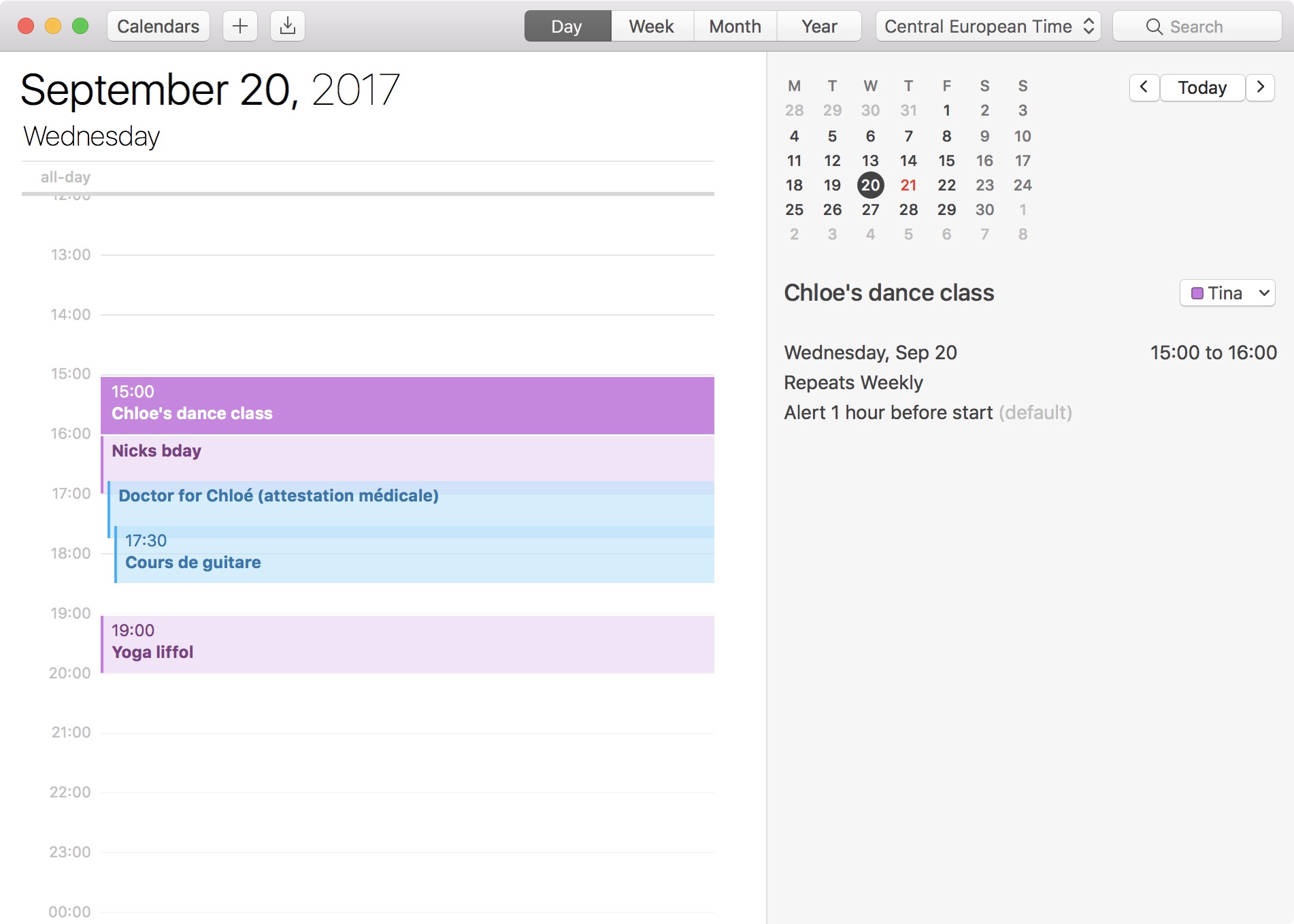
The 24-hour clock is the most commonly used time notation in the world. That is if you're not living in the US or any of the few countries that sill operate on a 12-hour clock system. Also called military time in the US, 24-hour time format arguably makes more sense than anything else as it divides the day into -- you guessed it -- 24 hours.
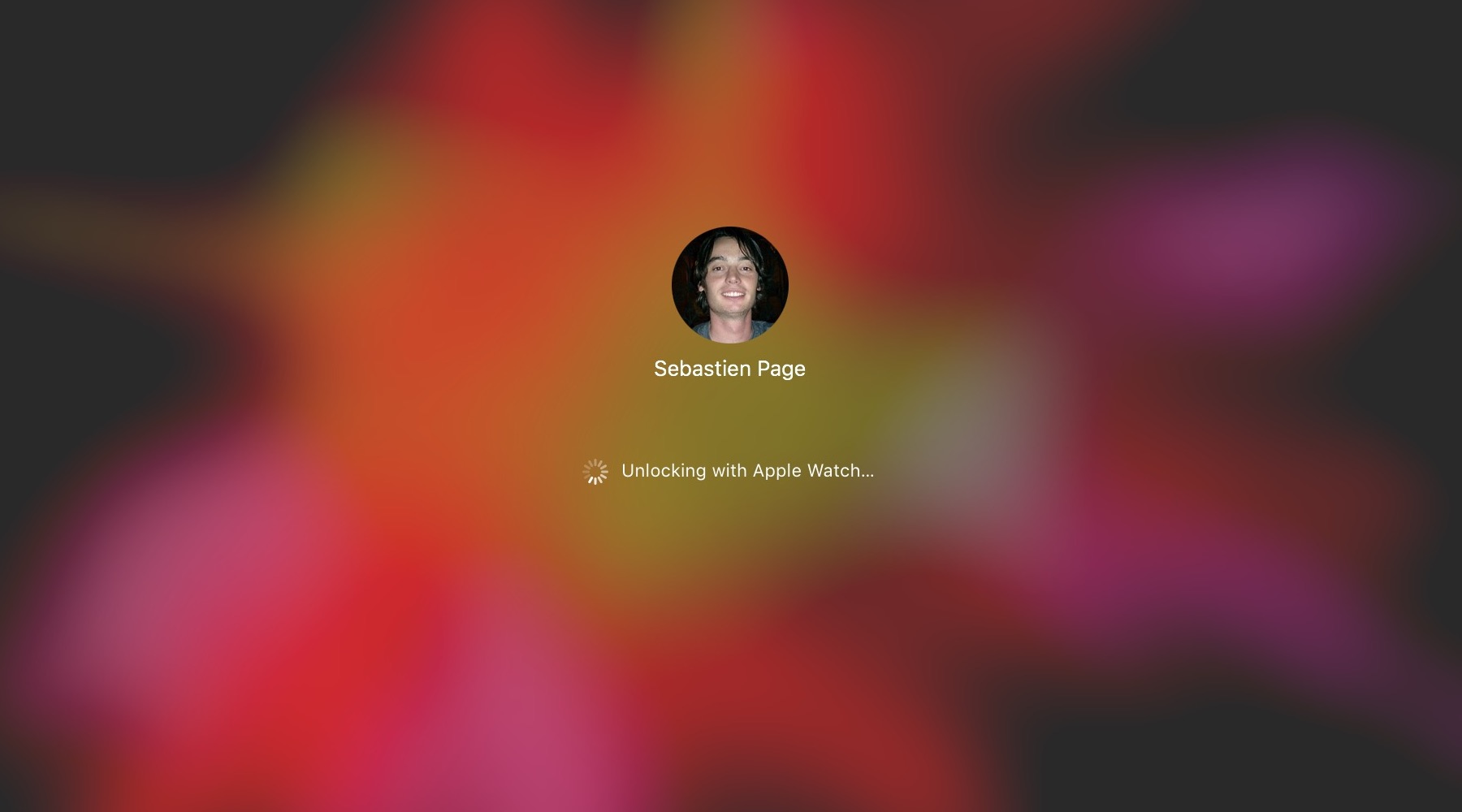
The macOS feature that allows you to unlock your Mac with your Apple Watch offers security and convenience. The problem may arise when that feature doesn't work as expected.
If you have set up your Mac to be unlocked with your Apple Watch and are having issues with the feature not working properly, there are a few things you can try.
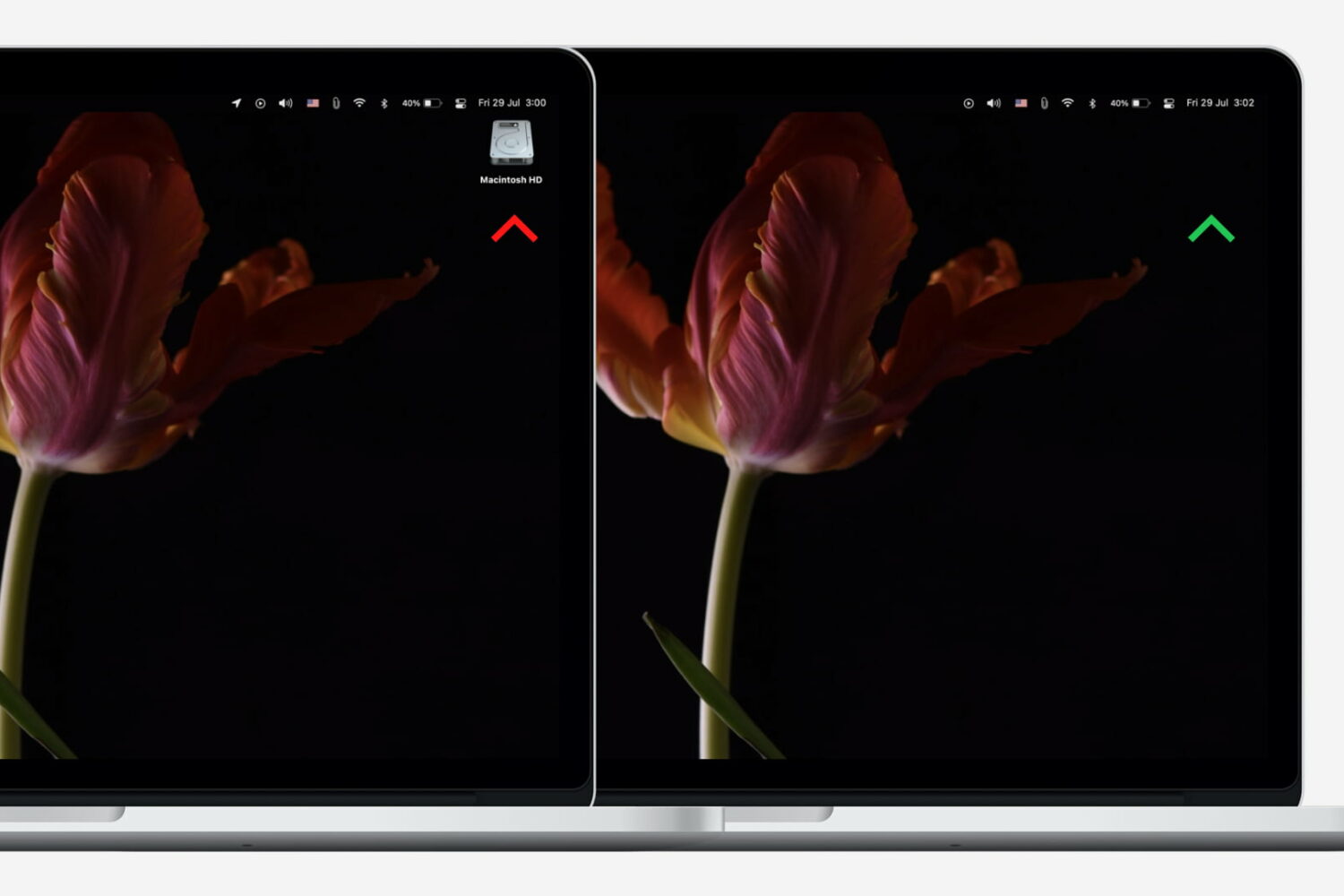
Neat freaks like me like to keep the desktop of their computers free of any clutter. That includes files, folders, and of course, the Macintosh HD icon. As a matter of fact, removing the Macintosh HD icon from the desktop is one of the first few things I do when setting up a new Mac.
Although pretty simple to do, hiding that icon is not very obvious to less tech-savvy people. So in this post, I will describe how to remove the Macintosh HD or the hard disk/SSD icon from the desktop on your Mac.

Learn how to free up storage space on your Mac by deleting unneeded email attachments in the Apple Mail app, such as PDF documents, images, videos, and other large files.

iCloud Photo Library is an optional feature on iPhone, iPad, iPod touch and Mac that uploads every photo and video you take or import to iCloud and keeps everything synchronized across all your Apple gear. I've been using it for years and it really “just works”.
On iOS 10 and earlier, Photos syncs with iCloud each time your device connects to Wi-Fi and the battery is charged. On iOS 11 and later, Photos can also use your iPhone's cellular data connection to sync and update the image library.
Do you take many photos on the go? Are you on a metered rather than an unlimited plan? Then you don't need me to tell you that you must ensure you're not wasting huge amounts of cellular data to this feature.
Here's how to stop the Photos app from eating into your iPhone's cellular data plan.
Before we get to it, keep in mind the following:
iOS 10 and earlier—Your Photos library syncs with iCloud each time your device connects to Wi-Fi and the battery is charged. iOS 11 or later—You decide if Photos syncs with iCloud via cellular or Wi-Fi only.In other words, you should double-check that cellular updates for iCloud Photo Library are turned off only if you're on iOS 11 or later. Folks on older iOS editions needn't do that because Photos syncs with iCloud only when their iPhone is connected to power and Wi-Fi.
How to stop iCloud Photo Library on iPhone from using cellular data12-megapixel images and 4K videos captured on your iPhone take up quite a bit of storage space. For most people, there's no point allowing iOS to gobble up cellular data just to keep the image library synchronized with iCloud at all times.
Thankfully, you can prevent this from happening, and here's how:
1) Launch the Settings app on your iPhone or cellular iPad.
2) Tap Photos in the list.
3) Tap Cellular Data.
4) Slide the button labeled Cellular Data to the OFF position.
This device will no longer use your carrier's cellular data for updating the Photos library. Any changes to your image library will automatically upload to iCloud as soon as the device connects to power and Wi-Fi.
TIP: If you really need Photos to be in perfect sync with iCloud at all times, even on the go, via cellular and Wi-Fi, be sure to slide the toggle labeled Unlimited Updates to the ON position.
The feature's description says “unlimited updates may cause you to excess your quota“.
Need help? Ask iDB!If you like this how-to, pass it along to your support folks and leave a comment below.
Got stuck? Not sure how to do certain things on your Apple device? Let us know via help@iDownloadBlog.com and a future tutorial might provide a solution.
Submit your how-to suggestions via tips@iDownloadBlog.com.
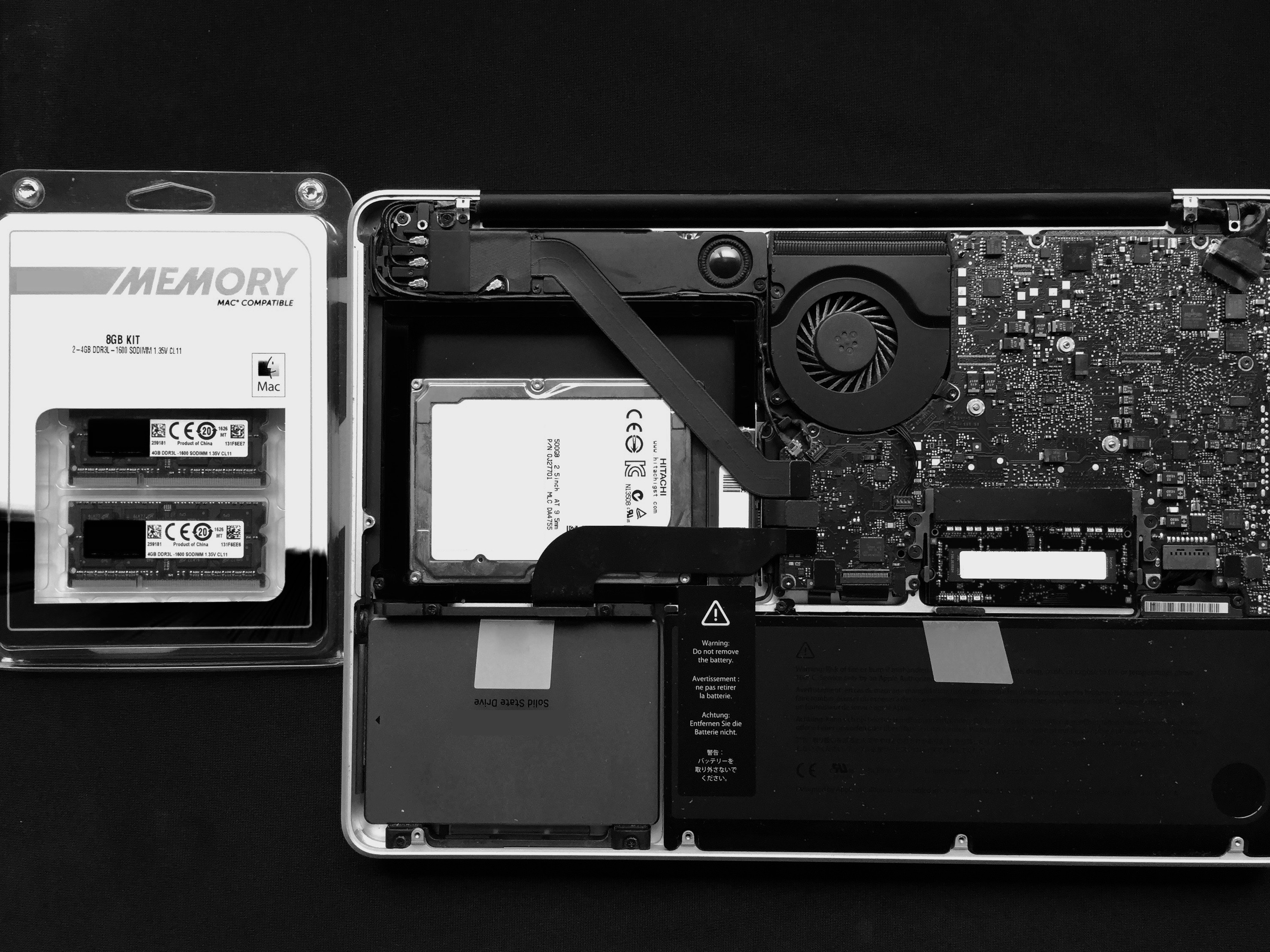
If you've been experiencing strange behaviour from your computer, or have recently upgraded or replaced your RAM, it might be a good idea to test its integrity. This ensures that it is installed correctly, that no part of it has failed, and that it has no intermittent problems.
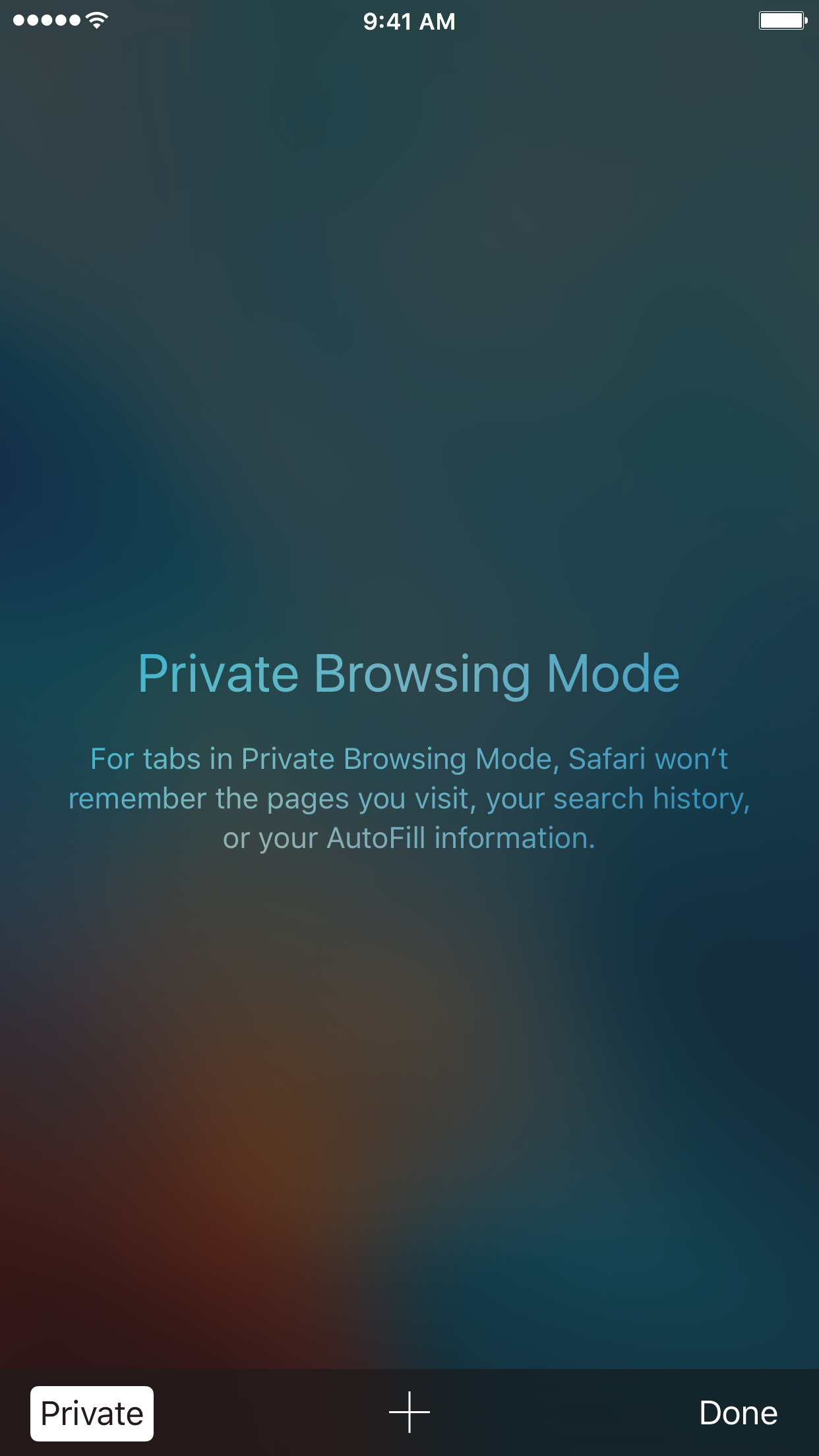
With privacy becoming a hotter topic these days, web users are becoming more and more wary about what they share online. While there are many different steps that can be taken to increase your online privacy, a very simple way to get started is to use a web browser in Private mode.
In this post, you will learn about what Private mode means in Safari, and you will find out how to always open Safari in a private window to make this simple precaution an automatic way of accessing the web on your Mac, your iPhone, or your iPad.

If you don't set up one of the supported payment methods for your Apple ID, you won't be able to upgrade your iCloud storage or buy music, movies and TV shows from iTunes Store, apps from App Store and Mac App Store, books and audiobooks from iBooks Store and more.
That's where an iTunes or Apple Music gift card should come in handy.
Upon redeeming, the amount shown on the card is added to your Apple ID in the form of good-as-cash credit that can be used for each purchase you make in Apple's content stores.
In this tutorial, you'll learn about the types of gift cards Apple supports, how they should be used, as well as how to redeem your iTunes or Apple Music gift card and apply the credit toward an individual Apple Music membership or to top up your Apple ID balance.
About iTunes and Apple Music gift cardsiTunes gift cards and Apple Music gift cards can be purchased from Apple, PayPal, Amazon, eBay, Best Buy and a number of other retailers. iTunes gift cards typically come in $25, $50 and $100 denominations. Apple Music gift cards are currently available in $30 and $100 denominations for three or twelve months of service, respectively.
You can buy them in physical form for delivery via mail or opt for a digital gift card, in which case your redemption code will be delivered straight to your inbox.
The 16-digit redemption code is hidden underneath the label on the card's back.
The redemption code always starts with an “X”.
The redemption code may appear in different places on the back of your card.
Redeeming an iTunes gift card adds store credit to your Apple ID.
Store credit is used for each purchase you make in iTunes Store, App Store or iBooks Store until it's gone. iTunes billing system always uses your store credit first, as long as the value of the item that you're buying is less than or equal to the value of your credit balance.
If you don't have any store credit left, the payment method that you designate when you sign up for an Apple ID is charged for the entire purchase.
You can use your store credit to buy the following items:
Apps from App Store and Mac App Store In-App Purchases Songs, albums, movies, TV shows and more from iTunes Store Books and audiobooks from iBooks Store iCloud storageStore credit cannot be used to purchase more gift cards or iTunes Gifts.
NOTE: Some purchases might require that you have a credit card on file, even if you're using your credit balance to make the purchase. For instance, you must have a credit card on file in order to use store credit to pay for your iCloud storage upgrades.
You cannot use store credits for:
App gifting—When you gift an app or media item to someone else the payment method on file is always billed for the entire purchase, not the store credit. Family Sharing—You cannot share your store credit with other family members.Even if a Family Sharing member buys something and the family organizer has store credit on their account, the item cost is still billed to the organizer's payment method on file rather than being deducted from their store credit.
TUTORIAL: How to gift apps
If a Family Sharing member with a credit on their account buys something from Apple's content stores, the amount is billed to their own account unless there's a remainder, in which case it bills to the family organizer's payment method.
You can use the credit from your Apple Music gift card to:
Sign up for a new Apple Music membership Extend your Apple Music membership by the number of months shown on the card Credit the amount to your Apple ID, like an iTunes gift cardRead Apple's support document for more on how iTunes Store purchases are billed.
How to redeem iTunes or Apple Music gift cards on iPhone and iPad1) Open iTunes Store, App Store or iBooks on your iOS device.
2) In iTunes Store, App Store or iBooks, tap the Featured tab, then scroll to the very bottom of the screen and tap the Redeem option.
3) Sign in with the Apple ID that you use for iTunes Store or Apple Music purchases.
Tip: You can quickly get to the redeem feature by visiting the link below on your Apple device:
To redeem an iTunes gift card, follow this link To redeem an Apple Music gift card, follow this linkTIP: If your device has 3D Touch, you can press the iTunes Store or App Store icon and select the Redeem option from the Quick Actions menu on your Home screen.
4) Choose whether you'd like to type in your code manually or have the card scanned:
Scan the redemption code—If you have a physical gift card with a box around the code, use this option to redeem it via your built-in camera. Tap Use Camera, then hold the back of the card up to your iPhone's camera until it scans the code. Only gift cards with a focus box around the redemption code are redeemable via a camera. This feature is not available in all countries and regions. Type in the redemption code manually—Tap the field labeled ”You can also enter your code manually”, then peel off the label on the back of the card and type in the redemption code or paste the code from your purchase confirmation email.When you redeem an iTunes gift card, your updated store balance appears onscreen. An error message appears if you try to redeem a gift card that's already been used.
Upon redeeming an Apple Music gift card, you're given the choice between topping up your iTunes store credit or using the code toward an individual Apple Music membership.
This is what happens if you choose to use the code for your Apple Music membership:
Apple Music members—Applying the credit to your ongoing membership extends your date of renewal by the number of months shown on the card. Apple Music non-members—Applying the credit signs you up for a membership.If you've never been an Apple Music member, you can still get your free three-month trial in addition to the number of months your Apple Music gift card card is worth.
5) In the upper-right corner, tap Done to finish the process.
If you'd like to redeem another iTunes or Apple Music gift card, tap Redeem Another Code.
TIP: If you received your gift card via email, click the Redeem Now link in the email.
To get information about your iTunes Store or Apple Music balance:
iTunes Store balance—You can find your store balance underneath your Apple ID at the bottom of the Featured tab in iTunes Store, App Store or iBooks on your iOS device. Apple Music balance—To view your Apple Music membership, go to Settings → [your name] → iTunes & App Store and tap your Apple ID at the top of the screen. Tap View Apple ID, then Subscriptions. From the list, choose the subscription that you want to see more information about.Your account balance automatically updates in iTunes Store, App Store and iBooks Store after redeeming the card. If your store credit does not update automatically, sign out and back in on all of your devices for it to refresh properly.
How to redeem Apple Music gift card in iOS Music app1) Open the Music app on your iOS device.
2) Switch to the For You tab at the bottom of the screen.
3) Tap your profile image in the upper-right corner.
4) Tap the Redeem option.
5) Use your iPhone to scan the redemption code on the back of the card or enter it manually, then tap Redeem to continue.
7) Tap Done when finished redeeming the code.
How to redeem Apple Music gift card on Android1) Open the Apple Music app on your Android device.
You can download Apple Music for Android free from Google's Play Store.
2) Tap tap the Menu icon in the upper-left corner.
3) Tap your Apple ID.
4) Tap Redeem.
5) Enter the code from the back of the card, then tap Redeem again.
An error message will appear if you try to redeem a card that's already been used.
How to redeem iTunes or Apple Music gifts card on Mac and Windows PCs1) Open iTunes on your Mac or Windows PC.
2) Choose Music, Movies, TV Shows or Apps from the popup menu near the top-left corner, then click the Store tab near the top of the screen.
3) Click the Redeem link under the Quick Links heading on the right side.
Tip: Alternatively, choose the Redeem option from iTunes' Account menu.
To get to the Redeem feature faster, visit the link below on your computer:
To redeem an iTunes gift card, follow this link To redeem an Apple Music gift card, follow this link4) Enter the password for the Apple ID you use for iTunes Store purchases or your Apple Music membership, then press the Return or Enter key on your keyboard, or click the Sign In button.
5) Choose how you'd like to redeem the code on the card:
Scan the redemption code—Use this option to redeem a physical card via your Mac's built-in camera. Click the Use Camera button, then hold the back of the card up to the FaceTime camera until it scans and redeems the code. Only gift cards with a focus box around the code are redeemable via a camera. This feature is not available in all countries and regions. Type in the redemption code manually—Click inside the field labeled ”You can also enter your code manually,” then type in the redemption code from the back of the card or paste it from your purchase confirmation email.6) Click Redeem to continue.
You'll be asked if you'd like to apply the credit toward your individual Apple Music membership.
If not, select the option Use Credit for iTunes or App Store to add the amount shown on the card to your Apple ID store balance like a regular iTunes gift card.
Your updated store balance appears onscreen.
7) Click Done to finish redeeming the card.
To redeem an iTunes gift card in iBooks or App Store on your Mac:
iBooks—Open the iBooks app from your Dock, Launcher, Spotlight or the Applications folder. In the upper-left corner, click the iBooks Store button, then click the Redeem link underneath the Quick Links heading on the right side. App Store—Open the App Store app from your Dock, Launcher, Spotlight or the Applications folder. Click the Featured tab at the top, then click the Redeem link underneath the Quick Links heading on the right side.An error message appears if you try to redeem a card that's already been used.
Related tutorialsYou may find the following how-tos useful:
How to gift iTunes or App Store credit on iPhone and iPad How to redeem iOS app promo codes How to redeem Apple TV app promo codes Redeeming iTunes gift cards with iPhone's camera Redeeming iTunes gift cards with Mac's camera That's all, folks!If you have a question, post a comment below and we'll do our best to answer it. Please share this tutorial on social media and pass it along to the folks you support.
Submit your ideas regarding future coverage via tips@iDownloadBlog.com.
This guide shows you how to safely delete partitions from a hard drive or SSD using the built-in Apple Disk Utility app on your Mac.
Need to add an extra partition to a hard drive or SSD? We'll show you how to create a disk partition on your Mac using the built-in Disk Utility app.
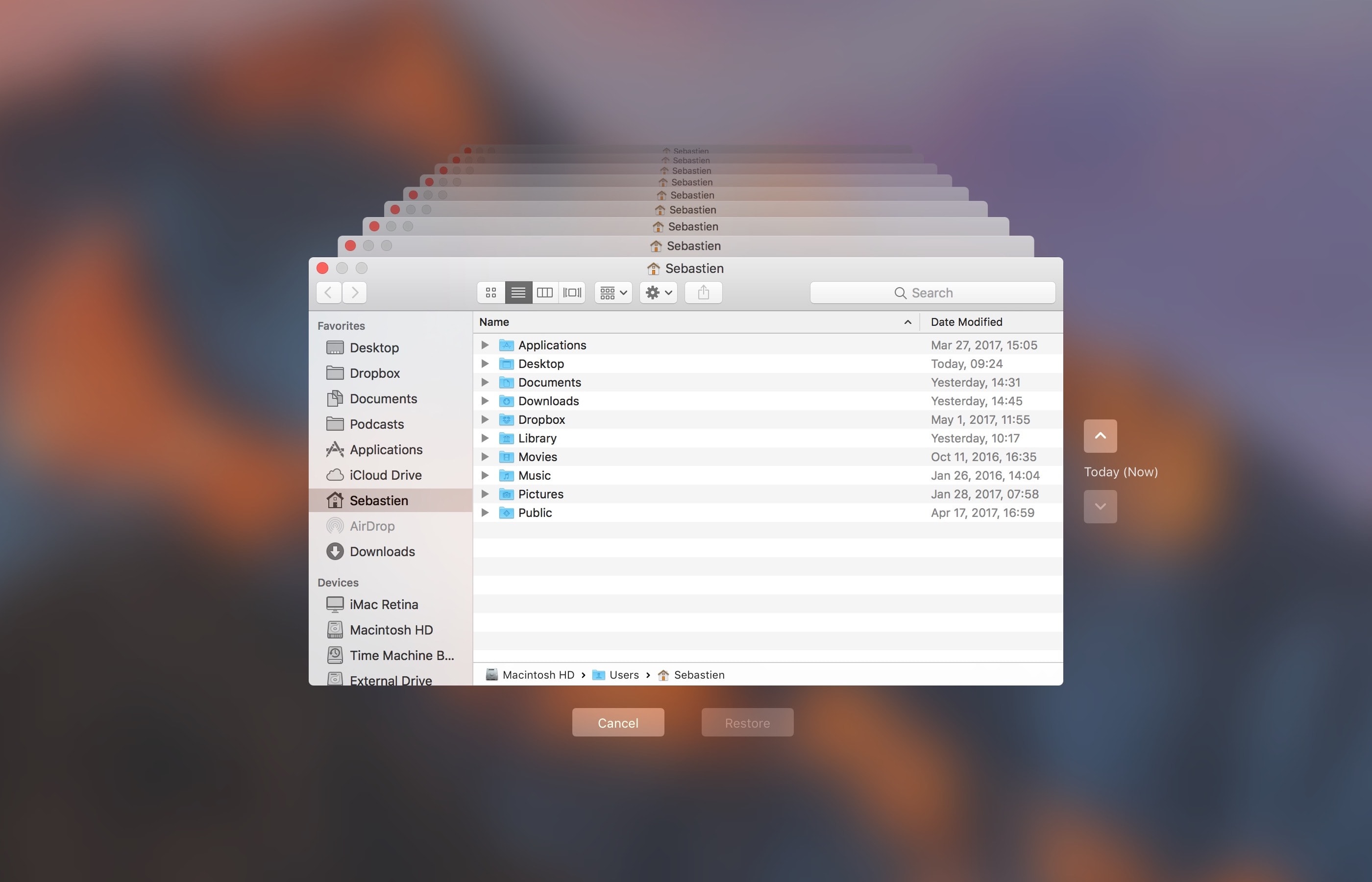
Do you use macOS's incredibly useful zero-configuration Time Machine feature to keep the personal files, settings and documents residing on your Mac safely backed up to an external disk? If so, is your backup disk nearly full? The best way to make room on your backup disk is to delete old Time Machine backups using Finder.
For example, the disk in my AirPort Time Capsule is nearly full because I have backups dating back to 2010. In this day and age of iCloud Drive and other cloud-storage services, keeping years worth of backups is kind of useless. That precious disk space could be put to better use for storing your photos and videos, for example.
In this tutorial, you will learn how to delete old Time Machine backups to help clean up your disk and regain storage space on it.
Deleting old backups should be your first order of business in situations when your Time Machine backup disk runs out of space. By default, Time Machine deletes older backups to make room for new ones as your backup disk fills up.
There are a couple ways to remove entire backups created on specific dates. We will describe both, but note that Apple seem to prefer the first method
How to delete old Time Machine backups1) Click the Time Machine icon in your Menu Bar to enter Time Machine.
2) Navigate through the interface to the desired date.
3) Once you have located the day you want to delete from your backup, click on the gear icon and select Delete Backup.
4) You will be asked to confirm you indeed want to delete the backup, and you may be ask to enter your administrator password too. Once done, the backup for that specific day will be deleted.
How to remove old Time Machine backups using Finder1) Click the desktop and open a new window by selecting New Finder Window from the File menu, or press the Command (⌘)—N keys on your keyboard.
2) Connect the disk containing your Time Machine backups to the computer and wait until its name appears underneath the Devices section in the Finder sidebar, then click it.
You may be asked to enter your administrator name and password to continue. If you use AirPort Time Capsule, you may be asked to enter a password to access the backup disk.
3) Navigate to the “Backups.backupdb” folder on your Time Machine backup disk as you would other folders. It should be a top-level folder of your backup drive.
4) Once inside the “Backups.backupdb” folder, navigate to the sub-folder named with your Mac computer's name. For instance, if your Mac is named “iMac Retina” in System Preferences, Time Machine will store backups inside the “iMac Retina” sub-folder.
TUTORIAL: How to change your Mac computer's name
5) You will see a bunch of sub-folders, each prefixed with the date of the backup in the YYYY-MM-DD format. For example, backups of your iMac created on April 19, 2017 would we stored in the sub-folder with the name beginning with “2017-04-19”. To delete a desired backup sub-folder, right-click or Control (⌃)-click it, then choose Move to Trash from the popup menu.
This will delete all copies of a backed-up file or folder from your Time Machine backup disk.
6) Repeat the process for other full-day backups you'd like to remove. When done, disconnect the disk by selecting its icon on the desktop, then choose Eject from Finder's File menu.
While you can safely delete sub-folders within the “Backups.backupdb” folder, you are not allowed to delete individual items inside the dated folders.
You're wholeheartedly discouraged from using Terminal or any other app other than Finder to move, copy or delete items from the Backups.backupdb folder.
You also cannot delete items from local snapshots stored on your internal drive.
To save space on the backup drive, why not exclude individual files or entire folders of files—like your Applications or Downloads folder—in the Time Machine preferences window?
That's all, folks!If you have a question, post a comment below and we'll do our best to answer it. Please share this tutorial on social media and pass it along to the folks you support.
Submit your ideas regarding future coverage via tips@iDownloadBlog.com.