In case you didn't get the memo, macOS High Sierra is the last release of Apple's desktop operating system that supports 32-bit apps out of the box without any compromise.
How to identify 32-bit apps on your Mac

Stay up-to-date on the latest Mac news, and tutorials. Get expert tips and tricks to optimize your Mac’s performance and learn about the latest Apple products and software updates. Discover the best Mac apps and accessories to enhance your user experience.
In case you didn't get the memo, macOS High Sierra is the last release of Apple's desktop operating system that supports 32-bit apps out of the box without any compromise.
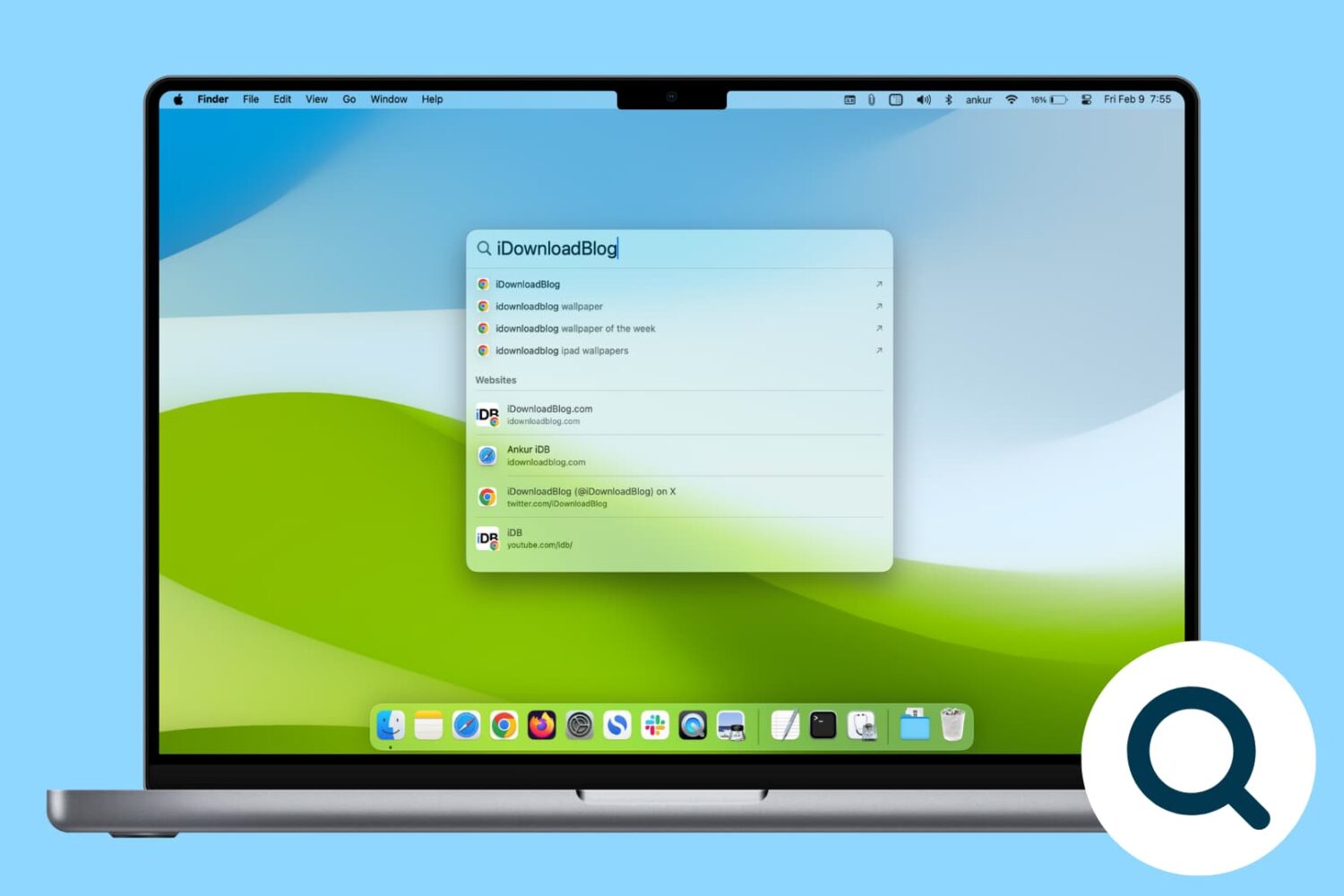
Rebuild the Spotlight index on your Mac if Spotlight isn’t working properly or if searching doesn’t show the expected results.
If you don't plan on installing macOS High Sierra for whatever reason, your Mac will still inform you of the software update every now and then via persisting system notifications.
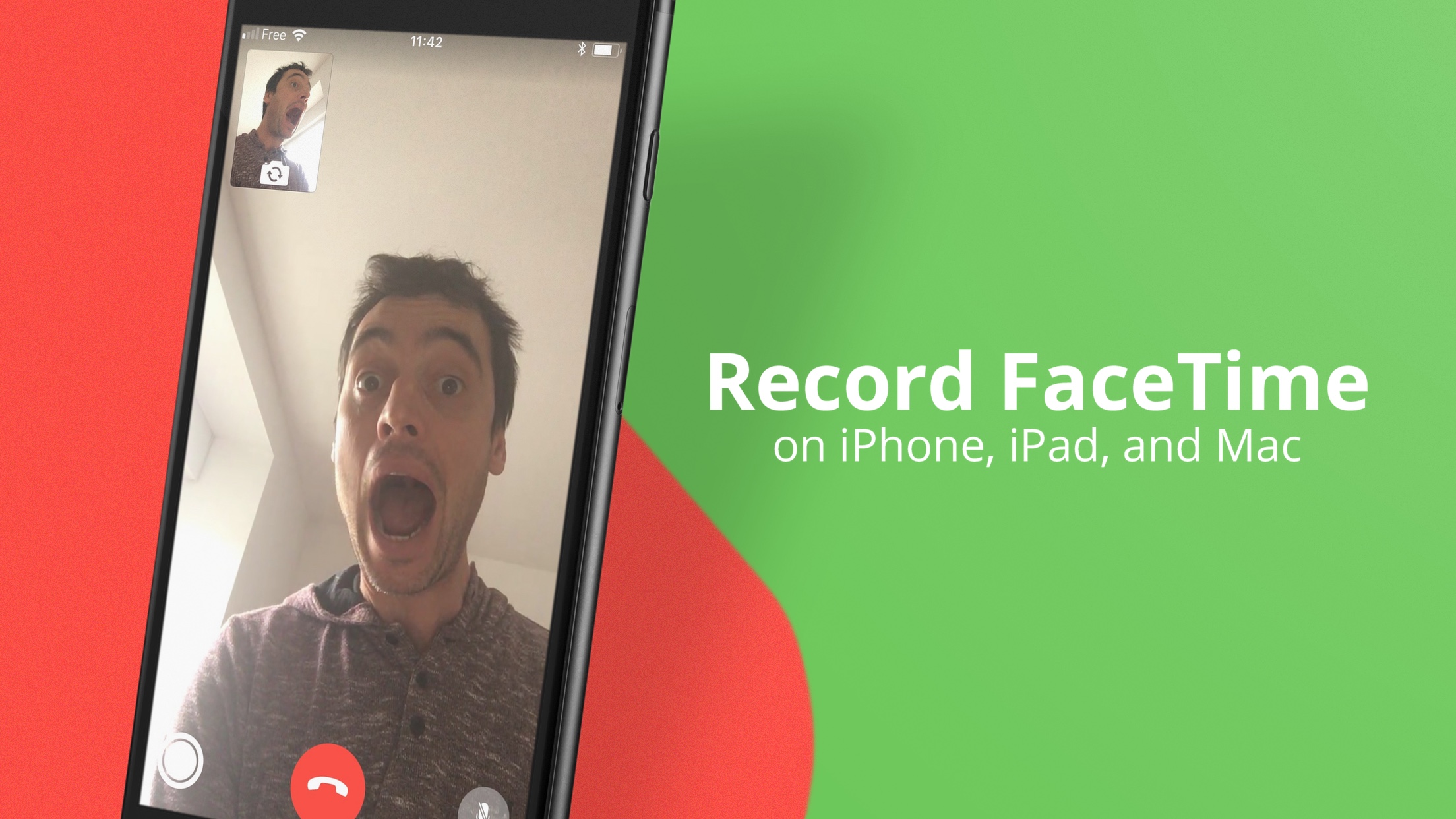
Although there isn’t a built-in option to record FaceTime calls, you can still do that with a simple workaround. In this tutorial, we’ll show you how to record FaceTime calls on your iPhone, iPad, or Mac.
Learn how to manage your T2 Mac's Secure Boot settings to ensure your computer always starts from a legitimate and trusted operating system.
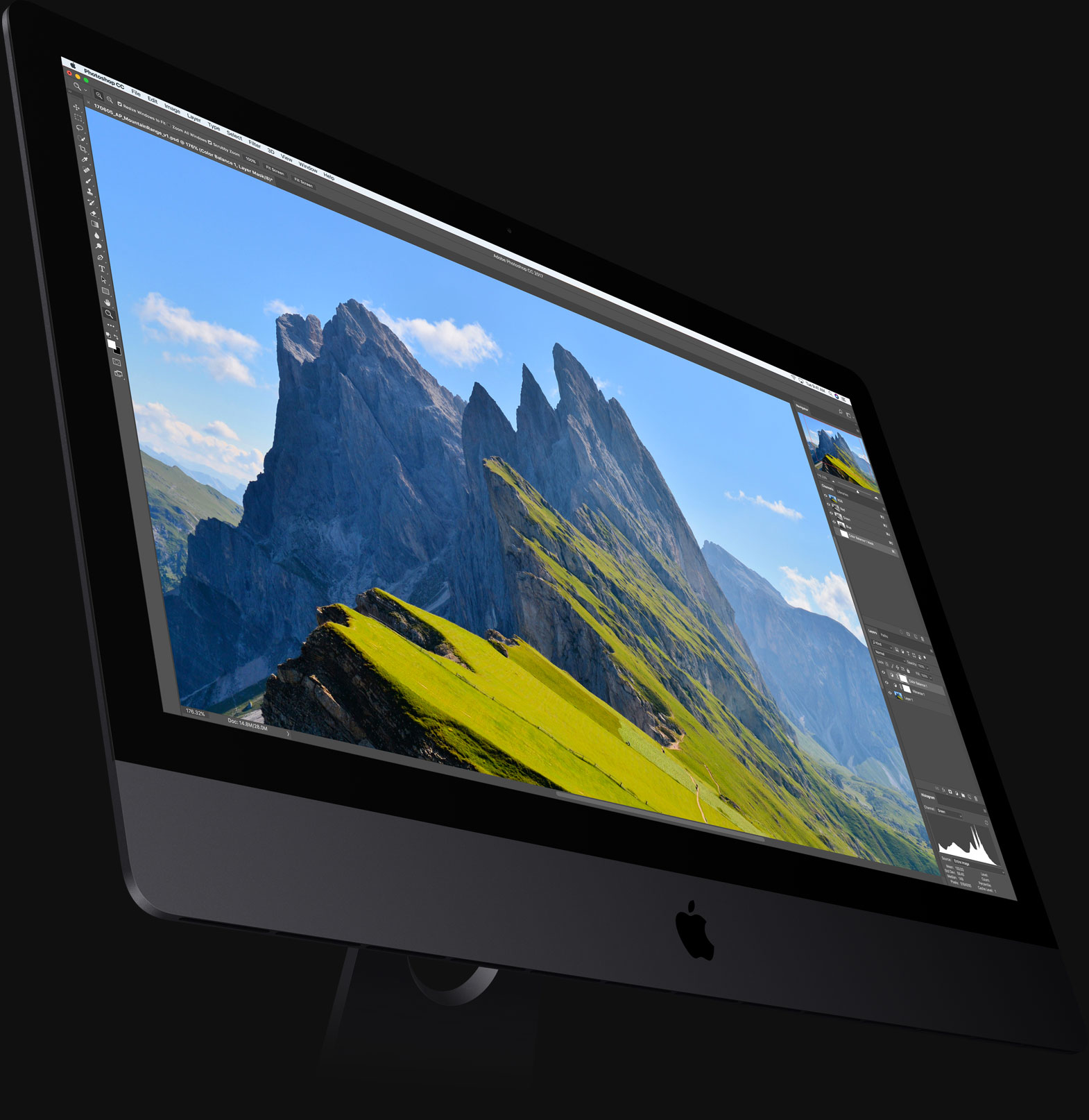
If your iMac Pro is refusing to boot following a power failure during a macOS software update or has stopped functioning properly, which may happen in certain circumstances, you might need to perform a DFU-like restore process using a secondary Mac and Apple Configurator.
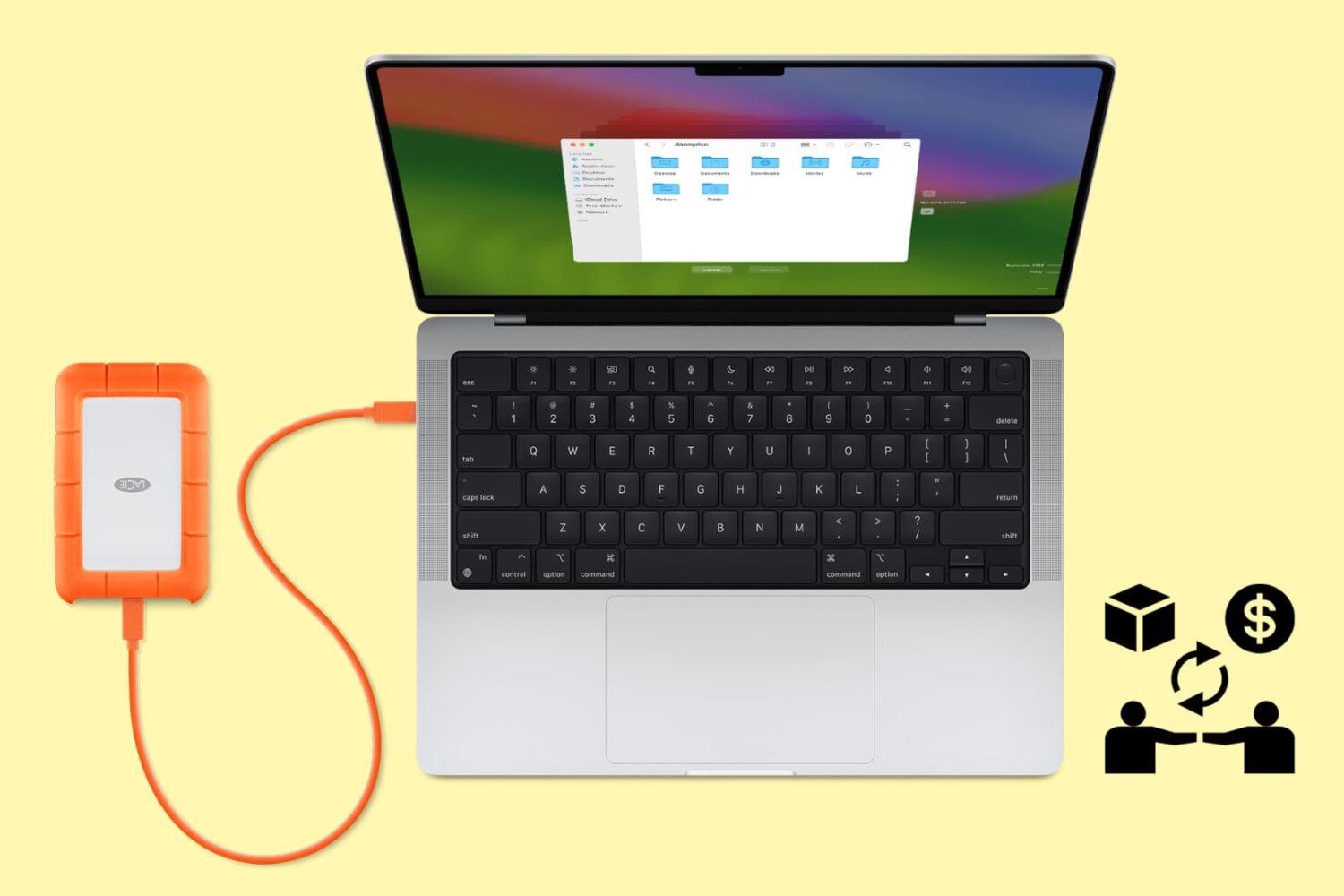
Follow these tips before handing over your Mac notebook or desktop to a new owner or sending it to Apple for trade-in to ensure your personal data is erased and Activation Lock is removed.
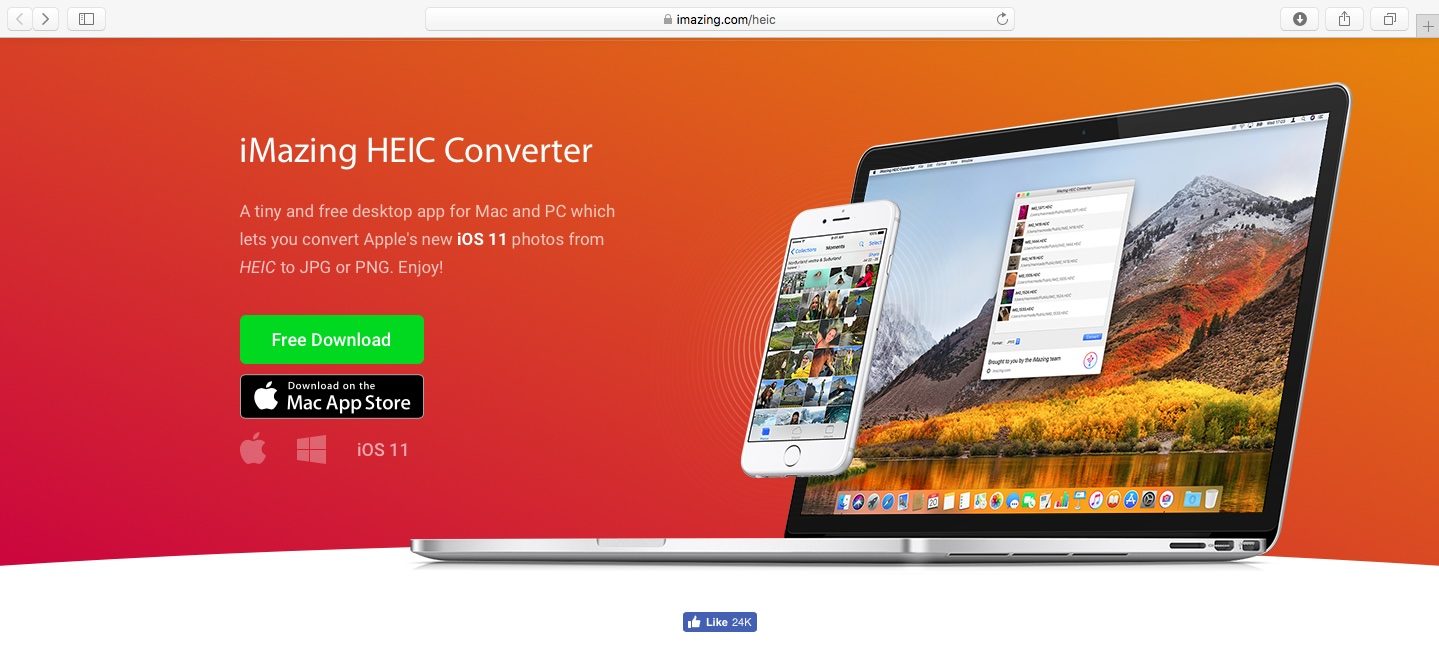
As you might know, Apple with iOS 11 and macOS High Sierra introduced a new space-saving image file format, called High Efficiency Image File Format (HEIF).
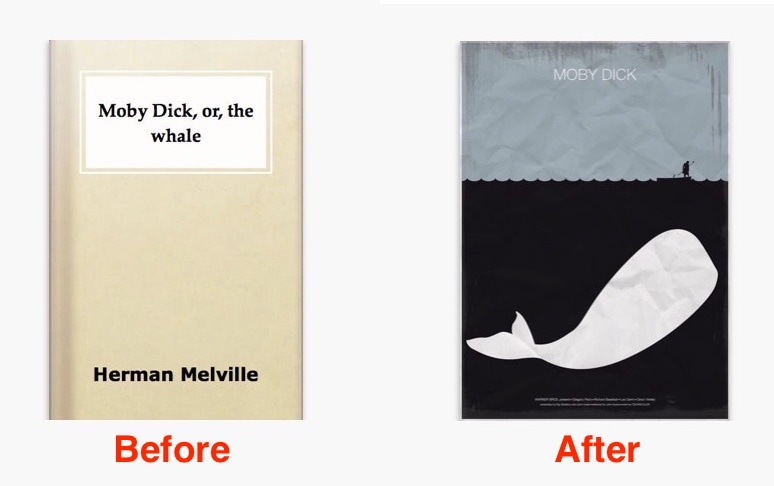
Do you have books in the Apple Books app (earlier called iBooks) for which you would like to change the cover? If so, read on because we are about to show you how to change the cover of a book in the Books app in just a few clicks.
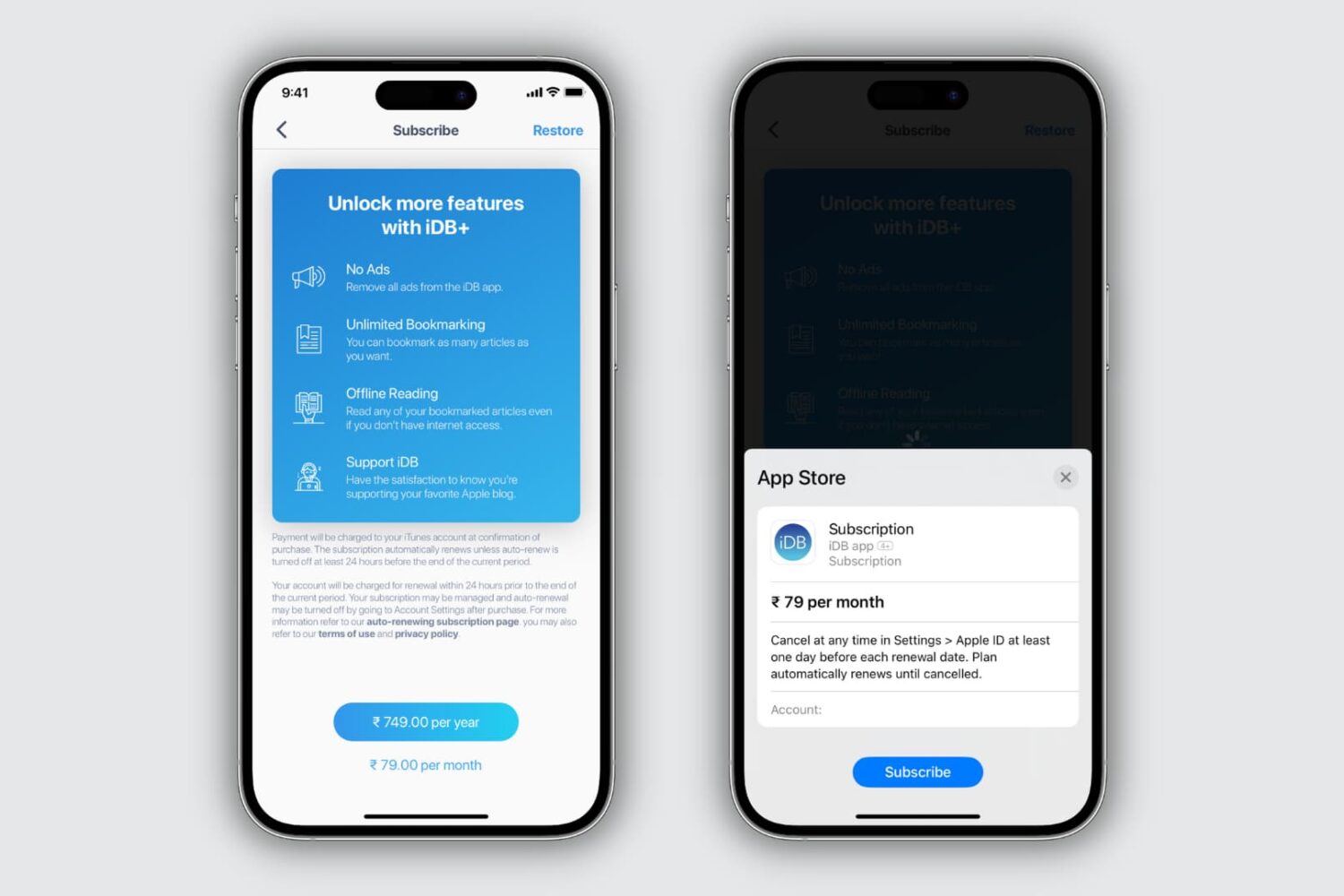
Learn how to view the subscriptions you purchased in App Store apps on your iPhone, iPad, or Mac, and cancel the ones you no longer need.
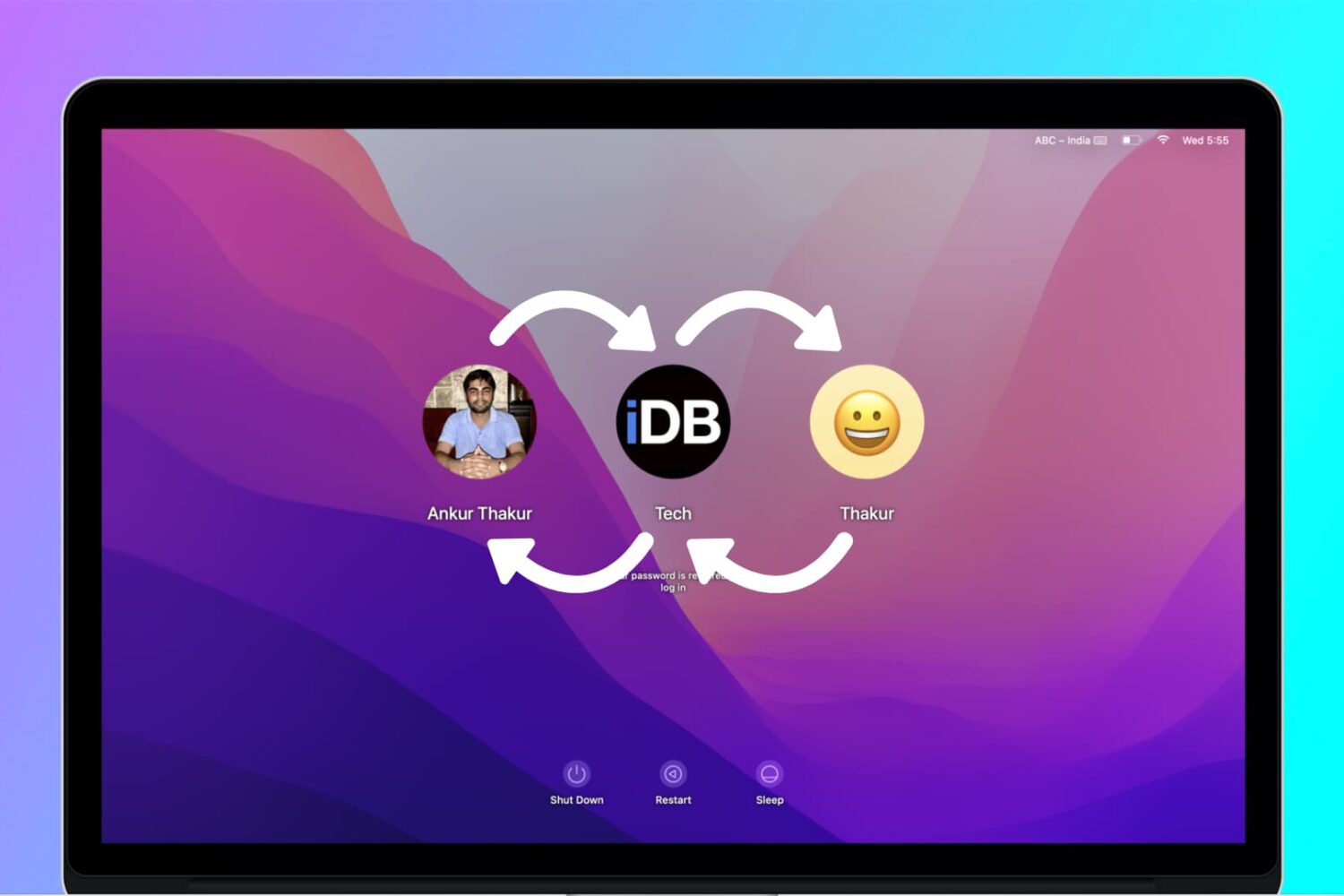
If you have a Mac in your household, chances are it's being shared between several family members. With every family member having his or her own account, each user can then operate the computer without messing up other users' files and settings.
In that kind of situation, users might, at some point, want to share files and documents with each other. This can be done either via a Shared folder, a Public folder available to each user, and a Drop Box folder that is specific to each user. (Not to be confused with cloud storage service Dropbox.)
In this post, you will learn the differences between a Shared folder, a Public folder, and the Drop Box folder. You will find out when and how to use each method to share files and documents between users of the same Mac.
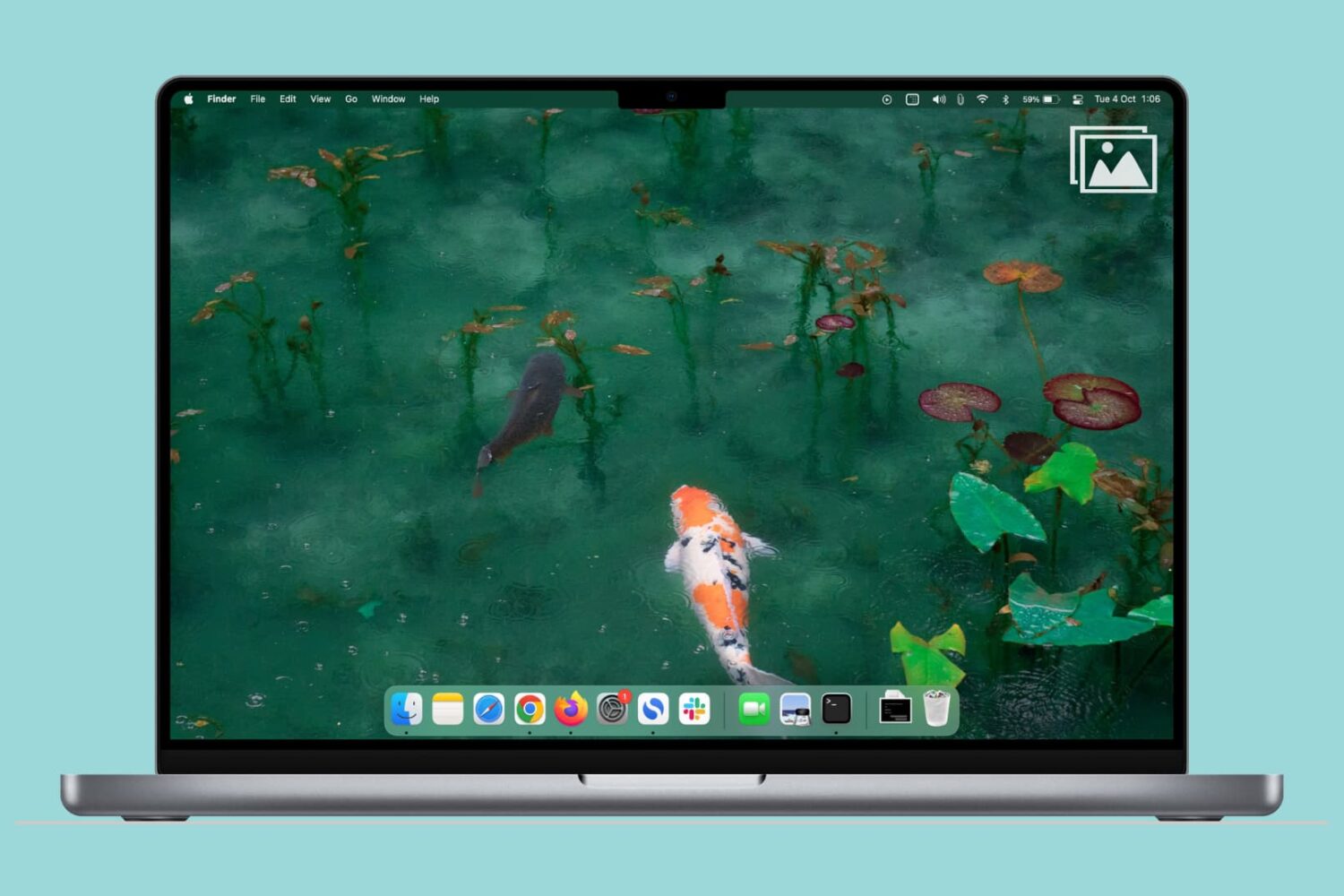
Learn how to quickly find all screenshots taken on your Mac, regardless of their save location, even if you manually moved them to custom folders.