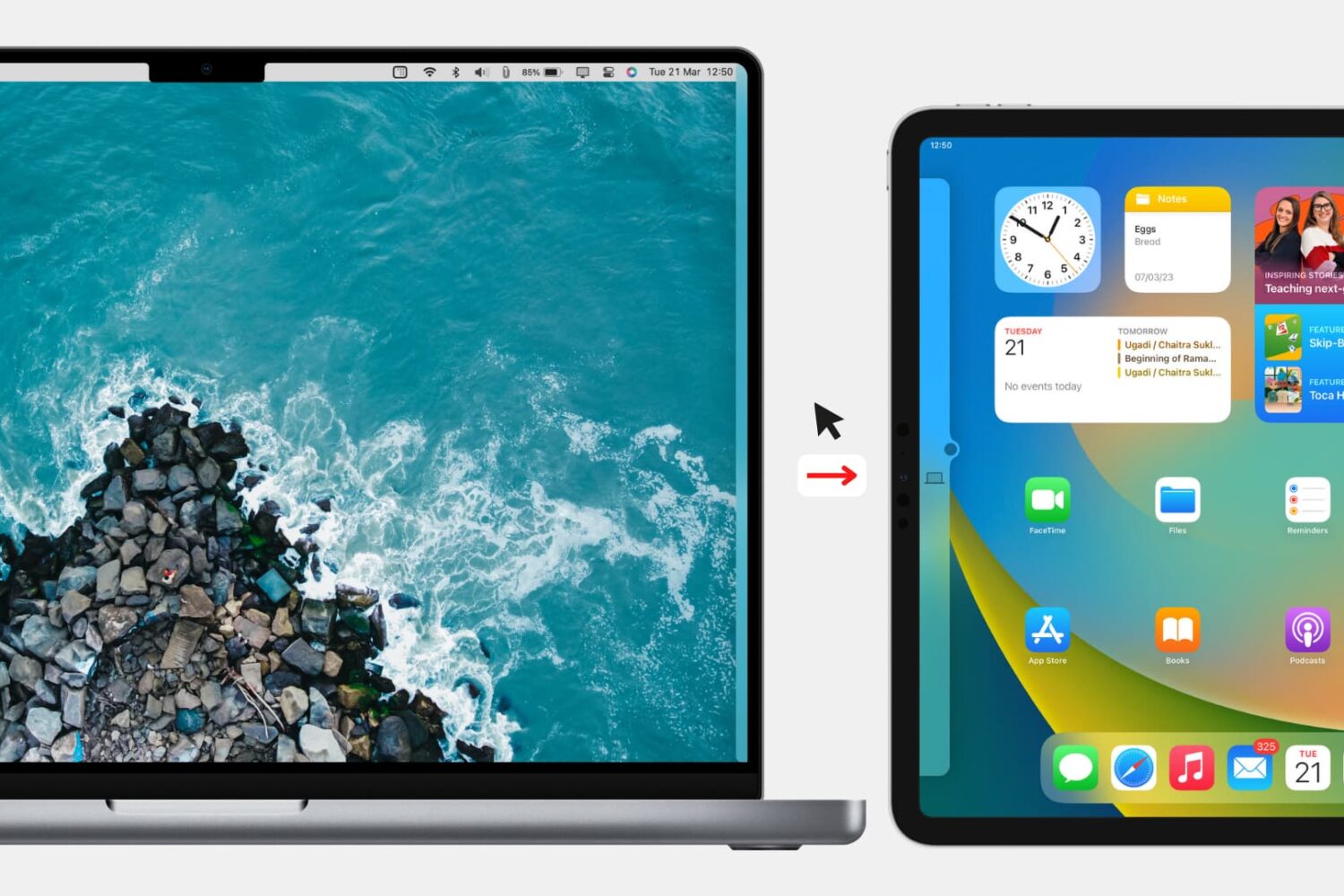
Check out the quick steps to block your Mac’s keyboard, mouse, and trackpad from being used on a nearby iPad or other Mac.
How to block Mac from extending its mouse & keyboard to iPad or other Mac
Stay up-to-date on the latest Mac news, and tutorials. Get expert tips and tricks to optimize your Mac’s performance and learn about the latest Apple products and software updates. Discover the best Mac apps and accessories to enhance your user experience.
Check out the quick steps to block your Mac’s keyboard, mouse, and trackpad from being used on a nearby iPad or other Mac.
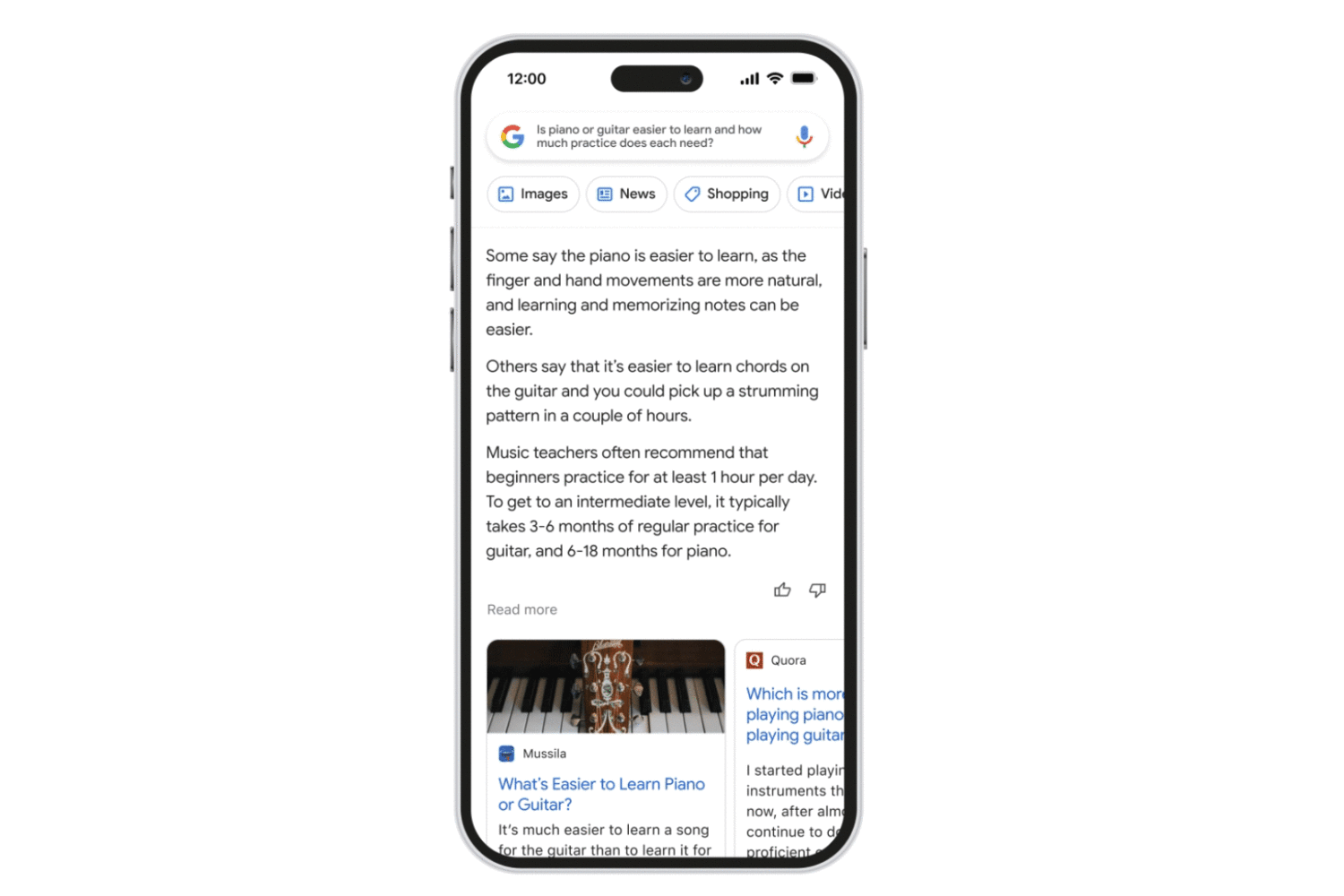
Follow these steps to access the Bard AI chatbot, Google’s ChatGPT rival, using a browser on your iPhone, iPad, Mac or other compatible devices.
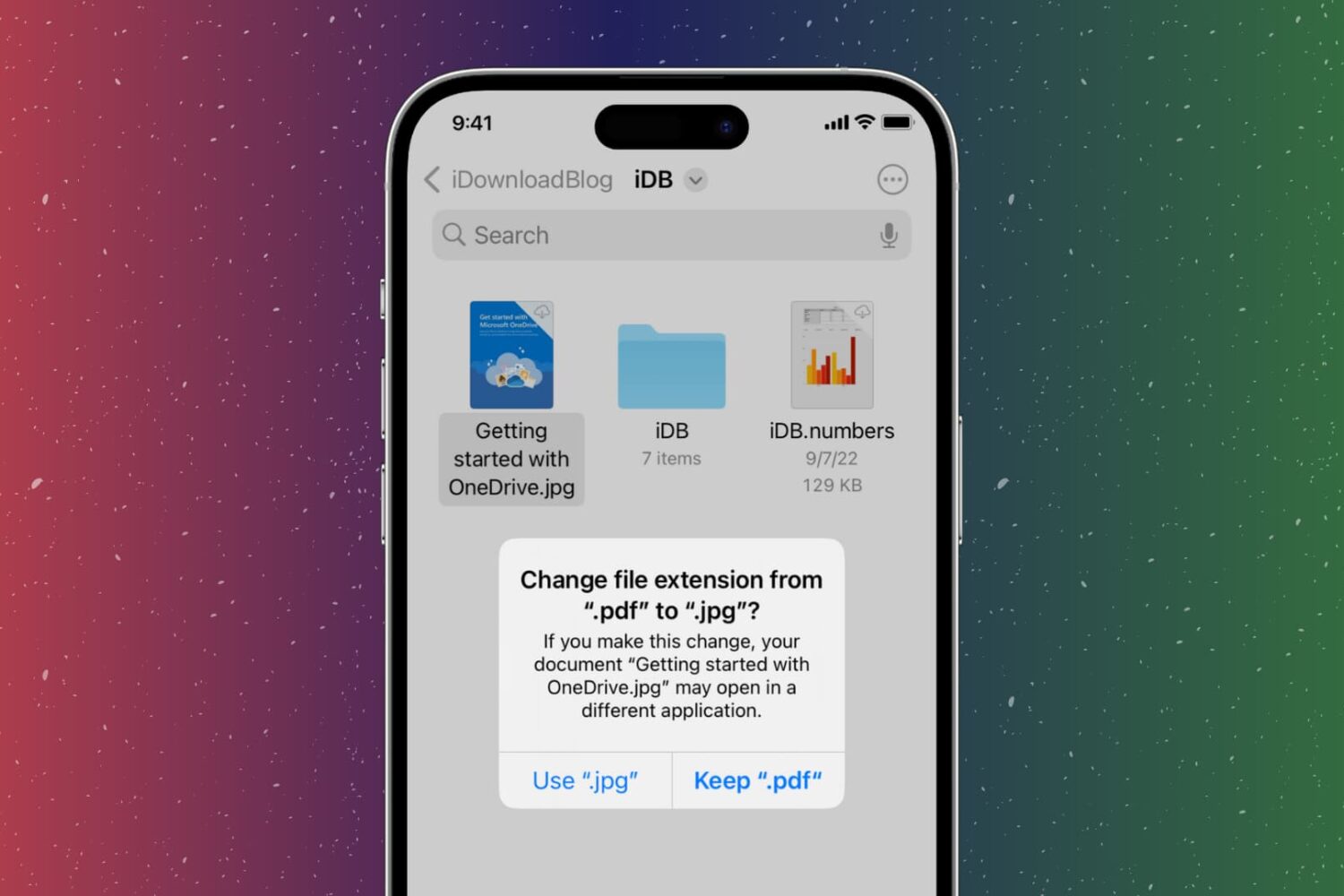
In this step-by-step tutorial, we show you how to change the extension of an image, video, audio, document, or other file on your iPhone, iPad, or Mac, why you might want to do that, and potential issues to avoid.
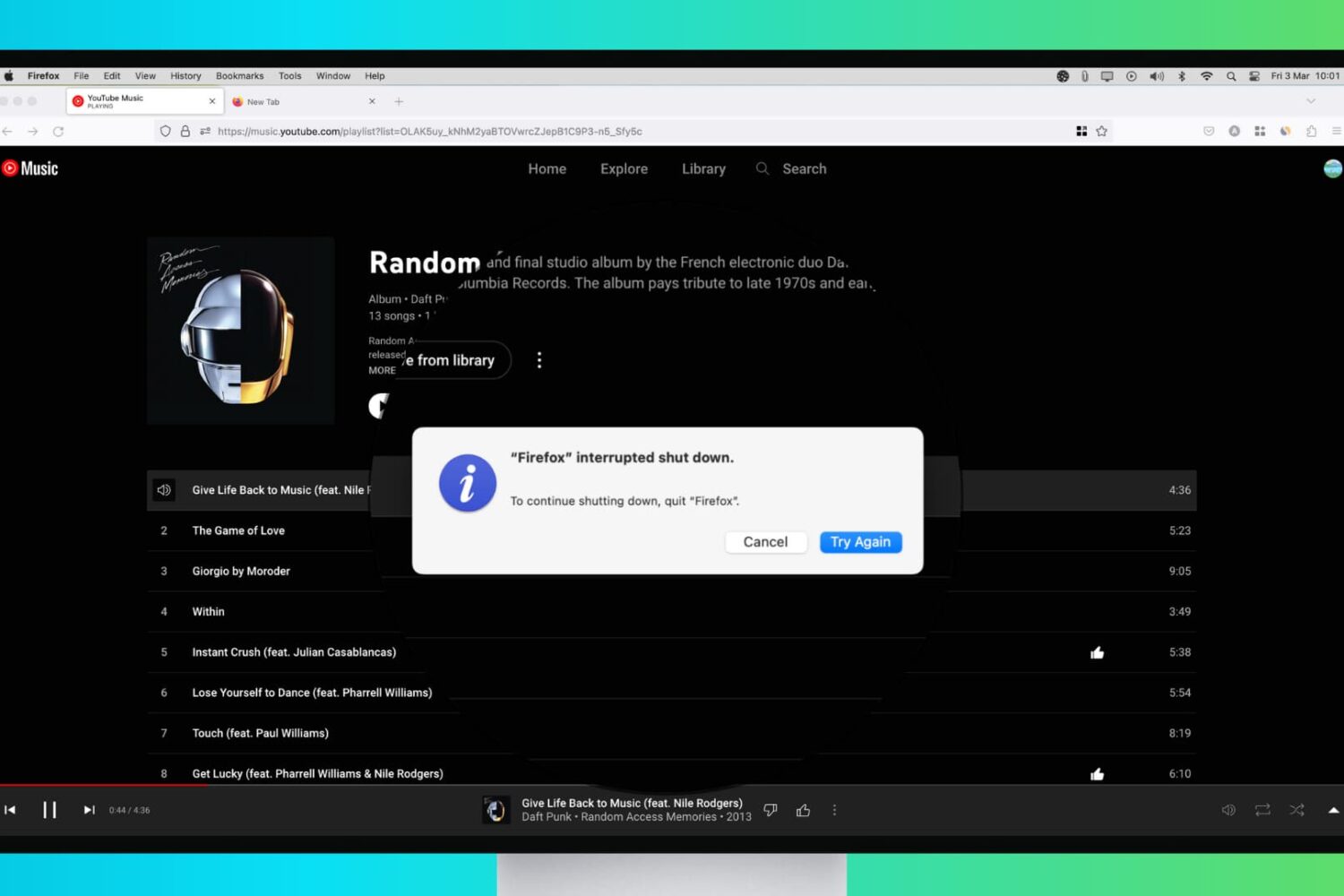
Try these troubleshooting tips to fix your Mac that refuses to shut down or restart, which can happen for a variety of reasons.
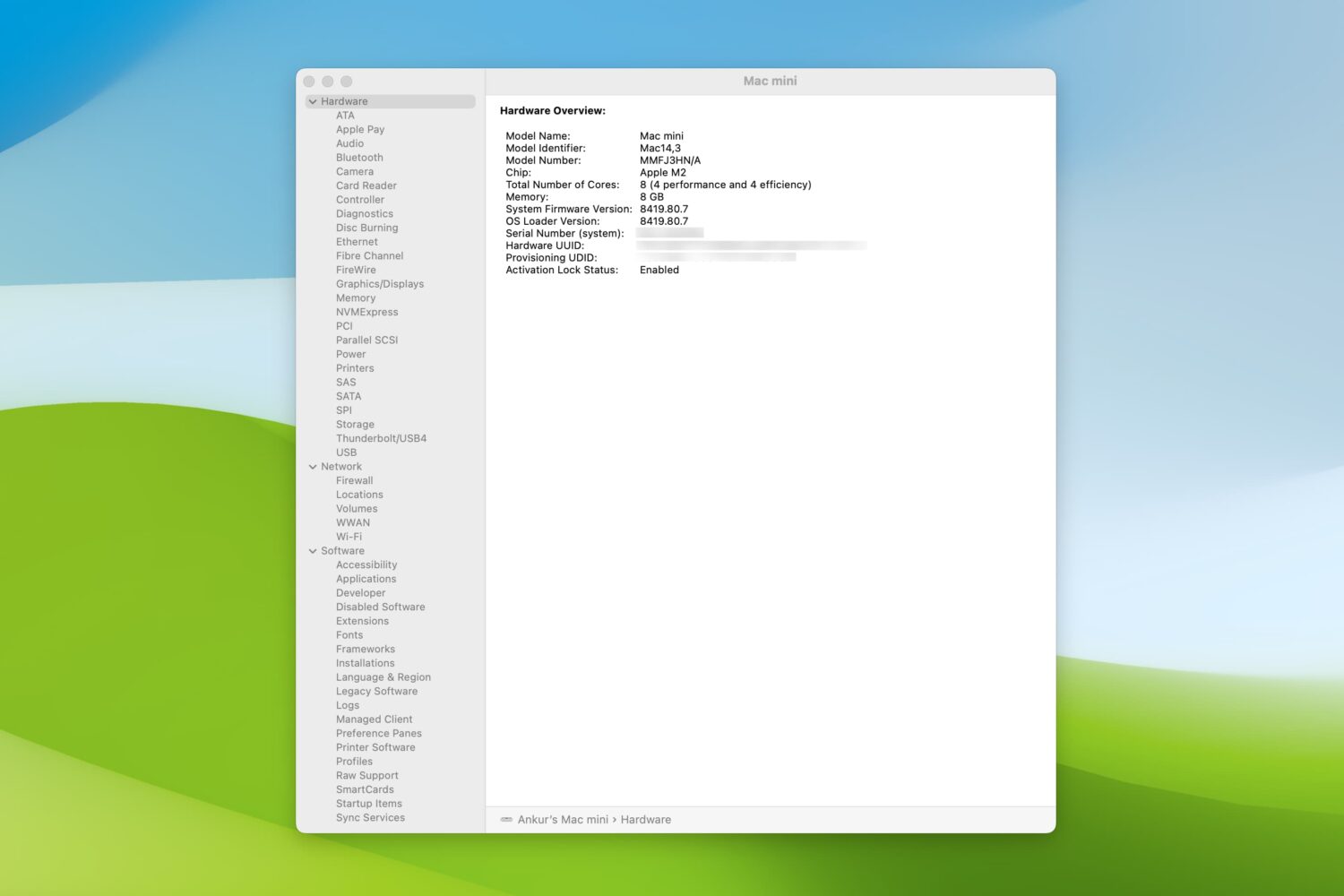
Check out these 5 simple ways to view the system report on your Mac to learn more about your computer or gather useful troubleshooting information.
Learn how to prevent your MacBook Air, MacBook Pro, MacBook Neo, iMac, or external Apple Studio Display from randomly dimming or increasing the screen brightness.

Learn how to manage and customize Telegram's Power Saving Mode on your Mac, including setting the battery threshold to automate the feature.
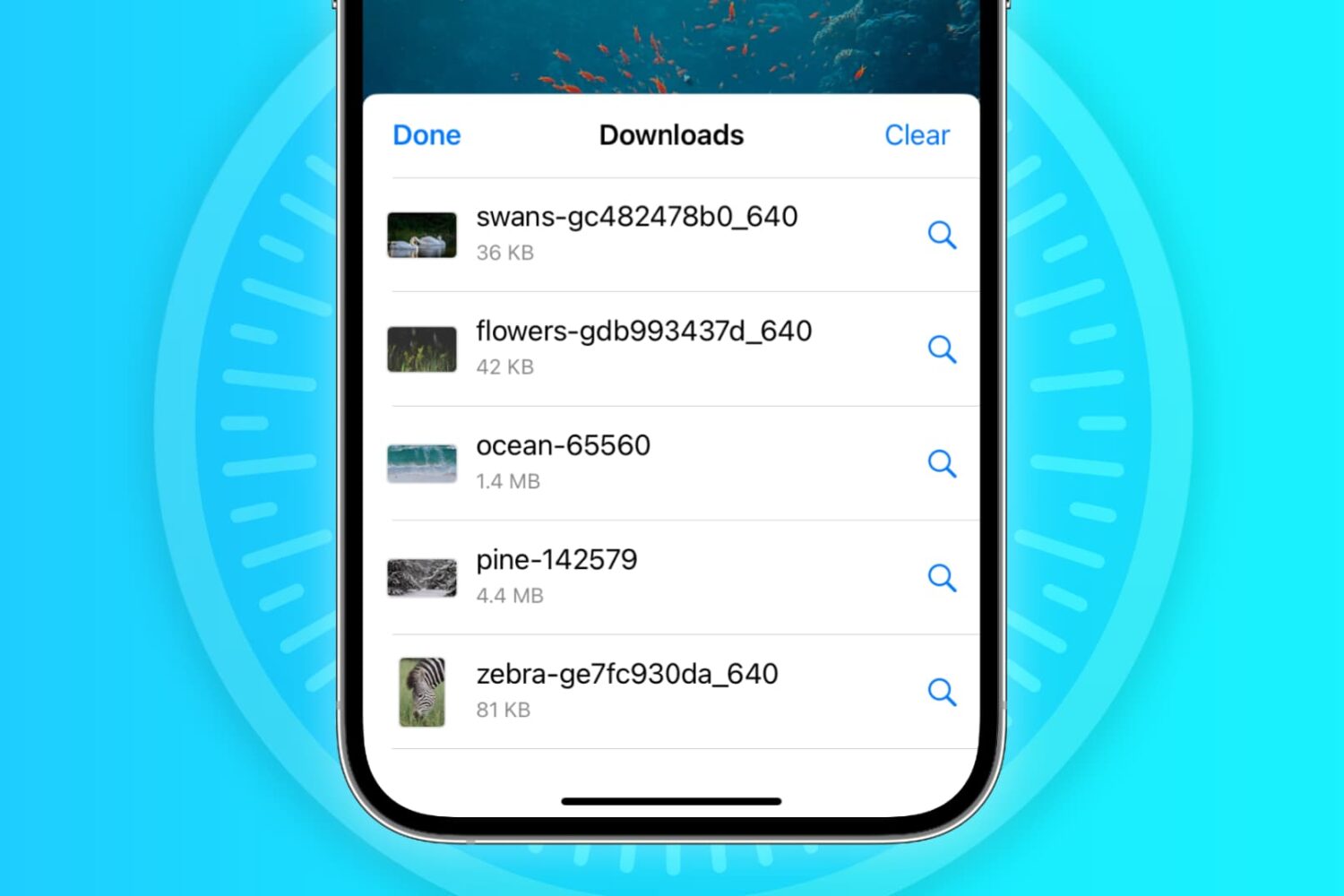
In this troubleshooting guide, we'll explore common reasons why Safari may not be downloading files on your iPhone, iPad, or Mac and provide solutions to help you resume downloading with ease.
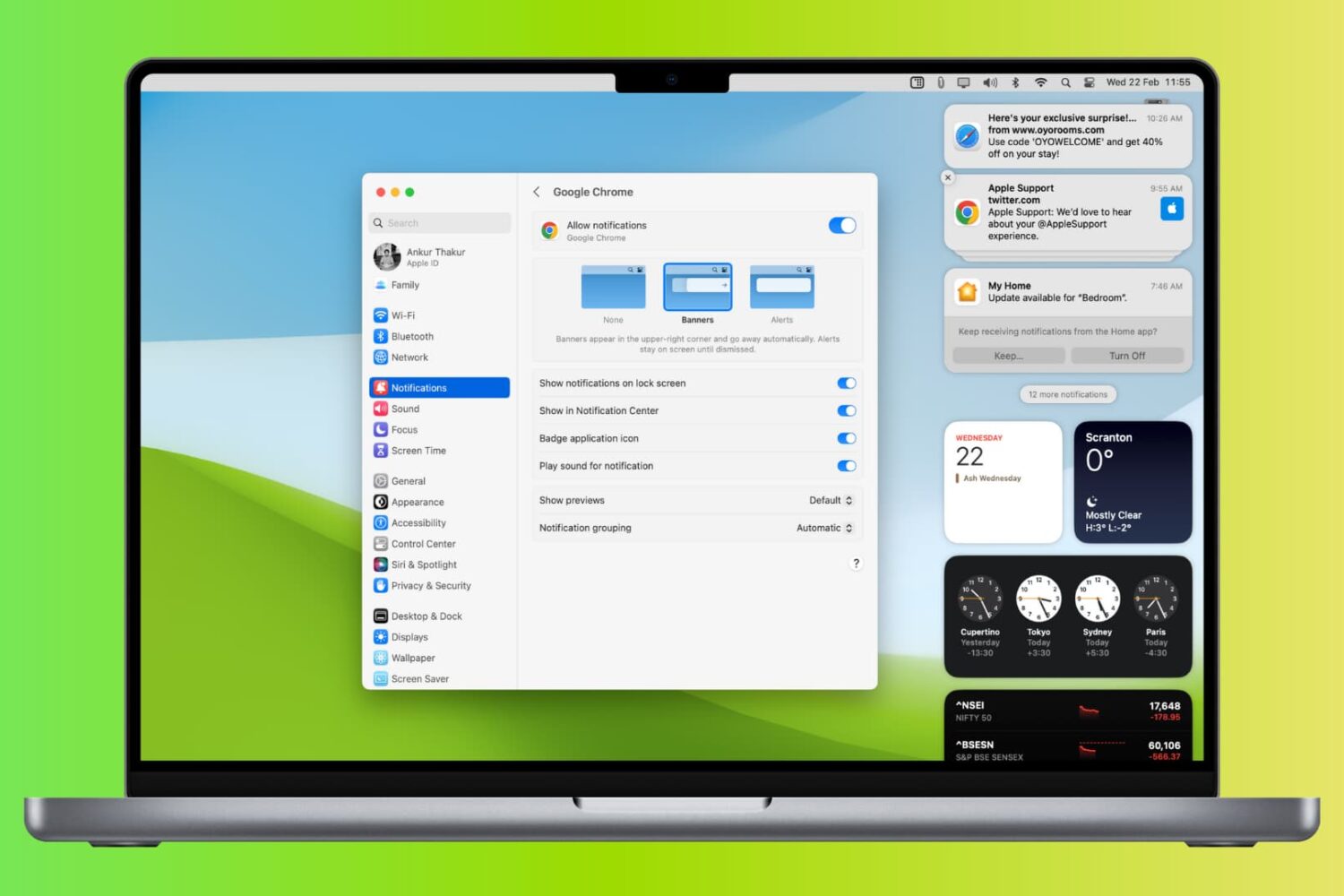
Learn what to do if you’re not receiving new notification banners or sounds on your Mac for all or specific apps and websites.
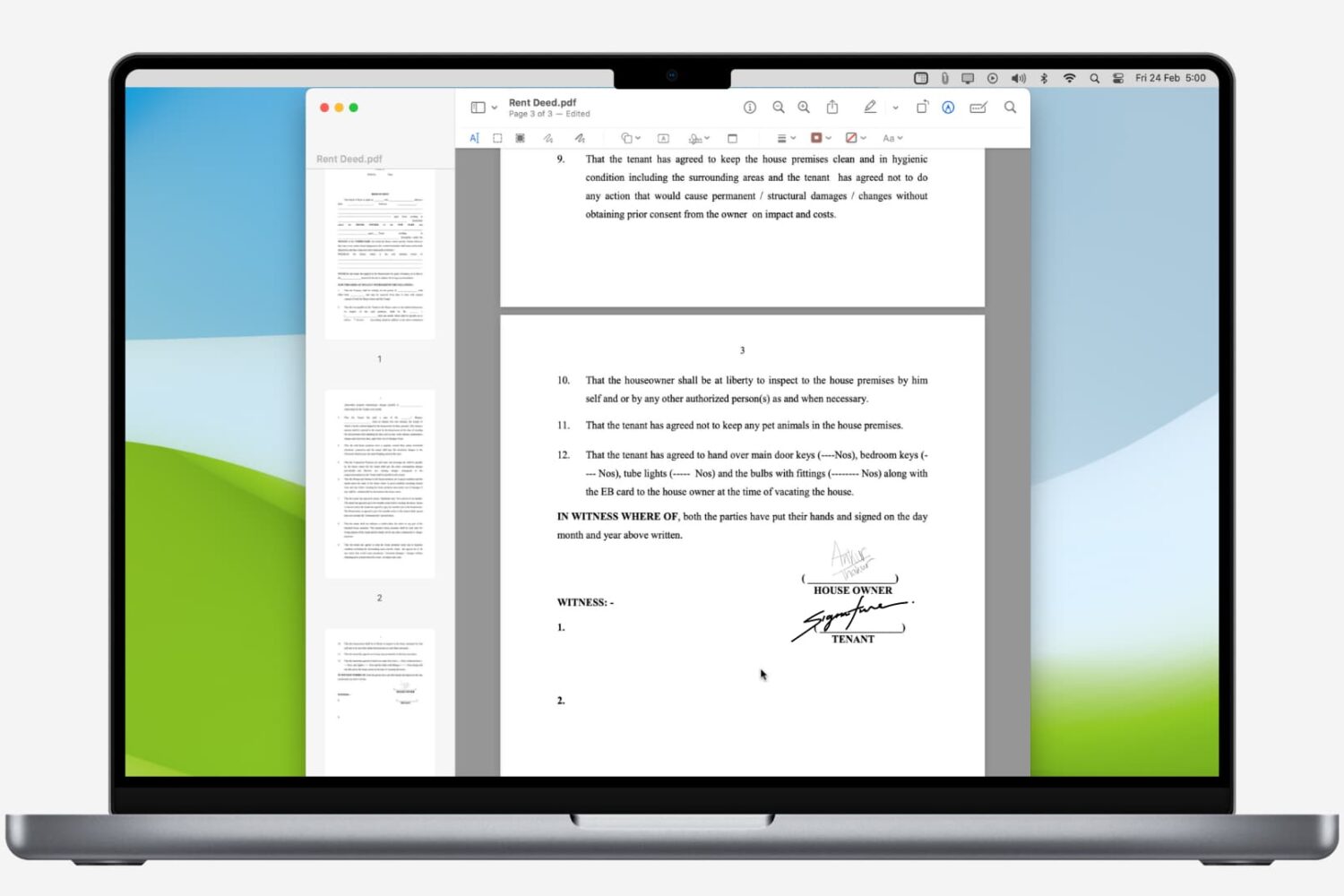
Learn how to digitally sign a PDF on your Mac using built-in apps, and never waste time with printing and scanning again.
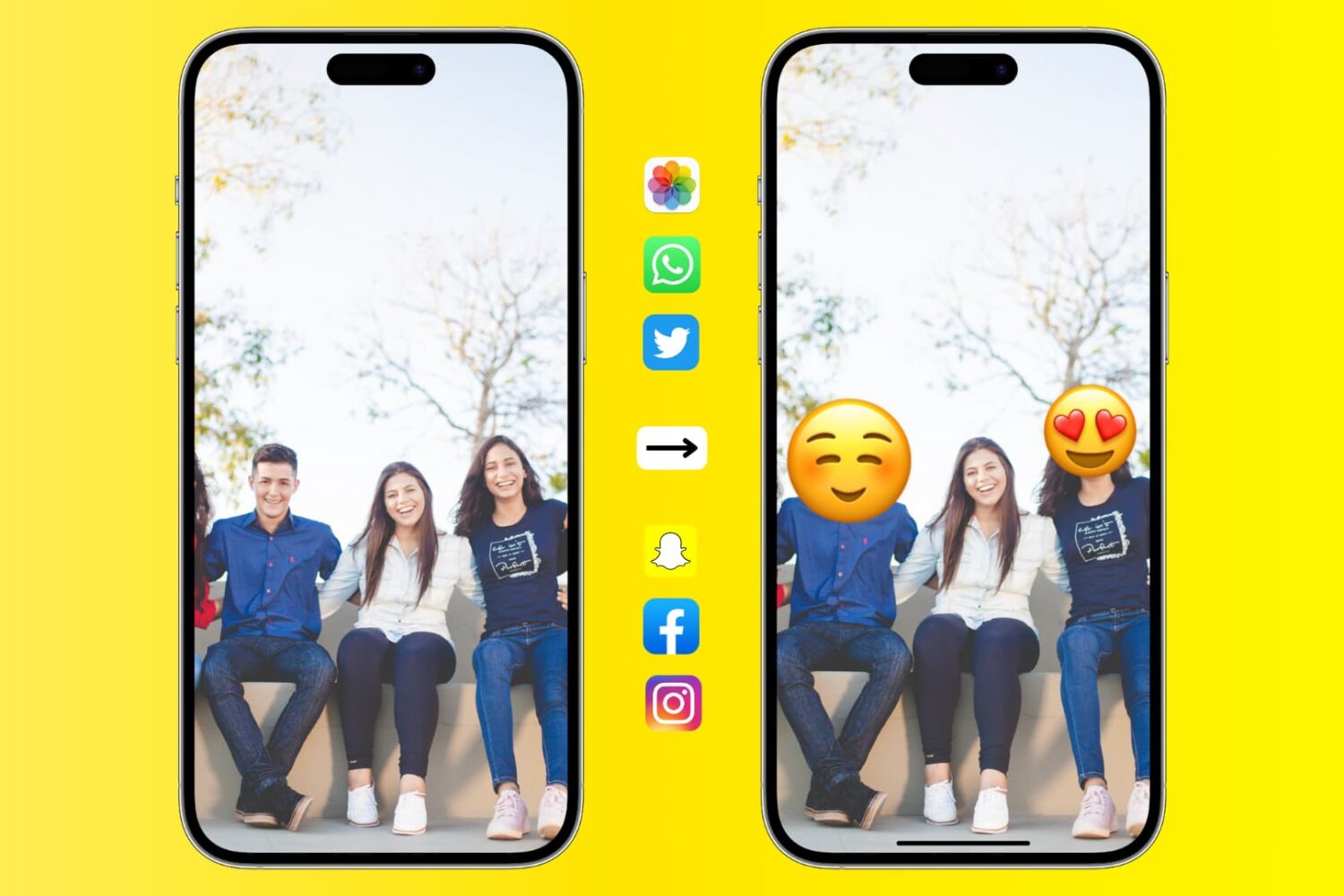
Learn how to add emojis to your photos on iPhone, iPad, and Mac to protect your privacy or creatively enhance your social media presence.
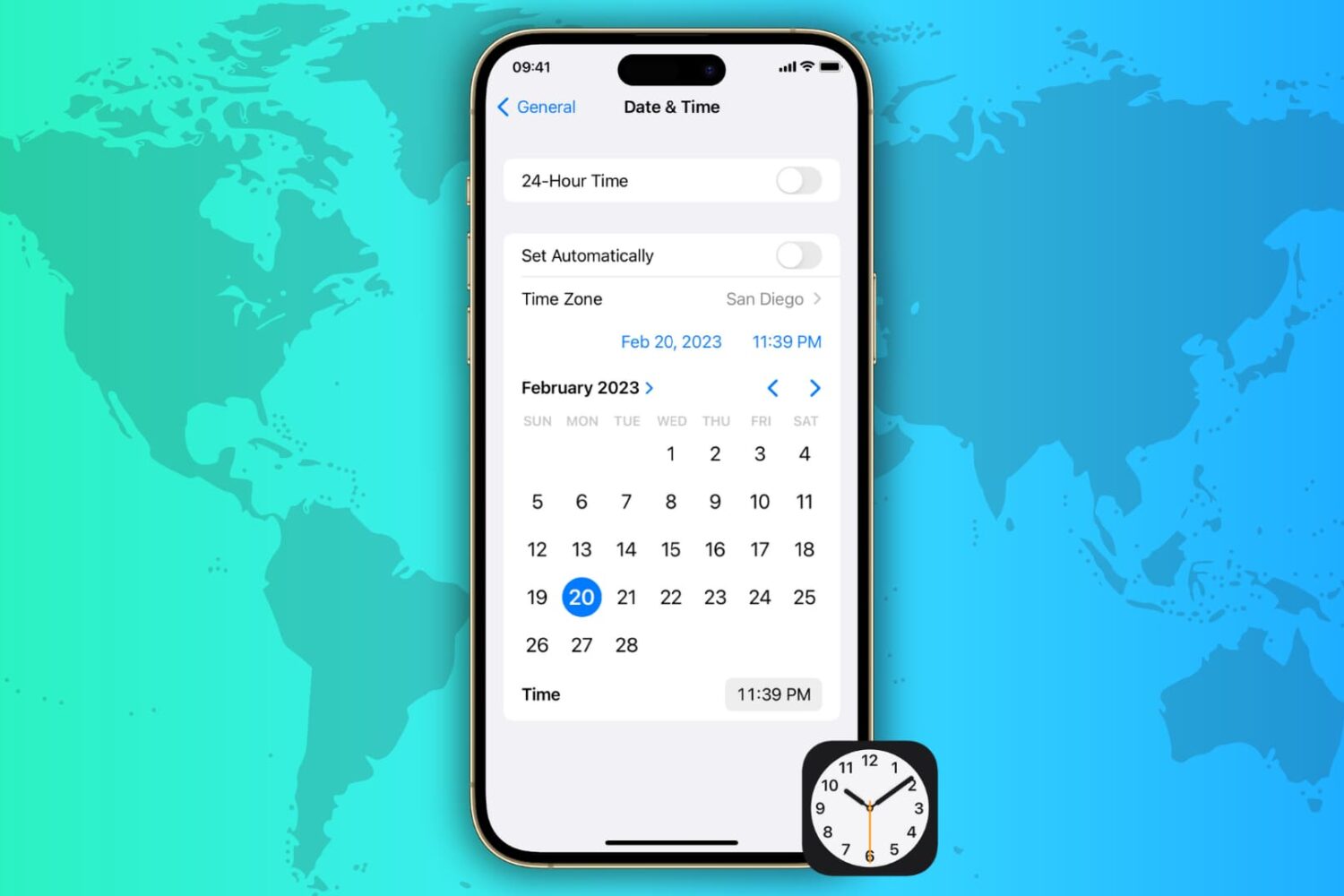
Learn how to automatically or manually change the date, time, and time zone on your iPhone, iPad, Mac, Apple Watch, and Apple TV and Vision Pro.