Learn how to set any bookmarks folder as the location where Safari saves webpages you have marked as favorites on your iPhone, iPad, or Mac.
How to choose where Favorites are saved in Safari

Stay up-to-date on the latest iPhone news and learn new tips and tricks with our comprehensive tutorials. From software updates to new features, we’ve got you covered.
Learn how to set any bookmarks folder as the location where Safari saves webpages you have marked as favorites on your iPhone, iPad, or Mac.

Safari on the iPhone, iPod touch and iPad allows you to post article links to social media and share them through third-party apps that have implemented support for iOS's multi-purpose Share sheet.
But sharing a link won't cut it were you to send the full text of the article in an email message. Selecting everything on a webpage and pasting into Mail isn't the best of solutions because all of the images and other non-related webpage elements get carried over, resulting in a messy email.
Thankfully, there's a better way to accomplish such a seemingly simple task. In this tutorial, we're going to discuss emailing the full, richly formatted text of an article in Safari, without all the clutter.

Safari Start Page, which is the first screen you see when you open Apple's web browser, has a section called Frequently Visited. Under this, you'll see websites you often open on your iPhone, iPad, or Mac. However, for privacy and other reasons, you may want to avoid seeing a list of frequently visited websites every time you open Safari or tap the address field.
In this quick tutorial, we'll show you how to stop frequently visited sites from showing up in Safari.
Safari, one of the most popular stock applications on your iPhone, iPod touch and iPad, has gotten some sweet 3D Touch love in iOS.
If you own an iPhone 7 or later, you can Peek and Pop web links, bookmarks, Shared Links and Reading List items, enter Safari's private-browsing mode or open new tabs right from the Home screen, and then some more.
In this post, we'll take you through the nine ways you can use 3D Touch in Safari to browse the web faster and access popular features with fewer taps than without it.

Learn how to stop videos & GIFs from auto-playing when you browse through your X timeline on your iPhone, iPad, Mac, and web browser.
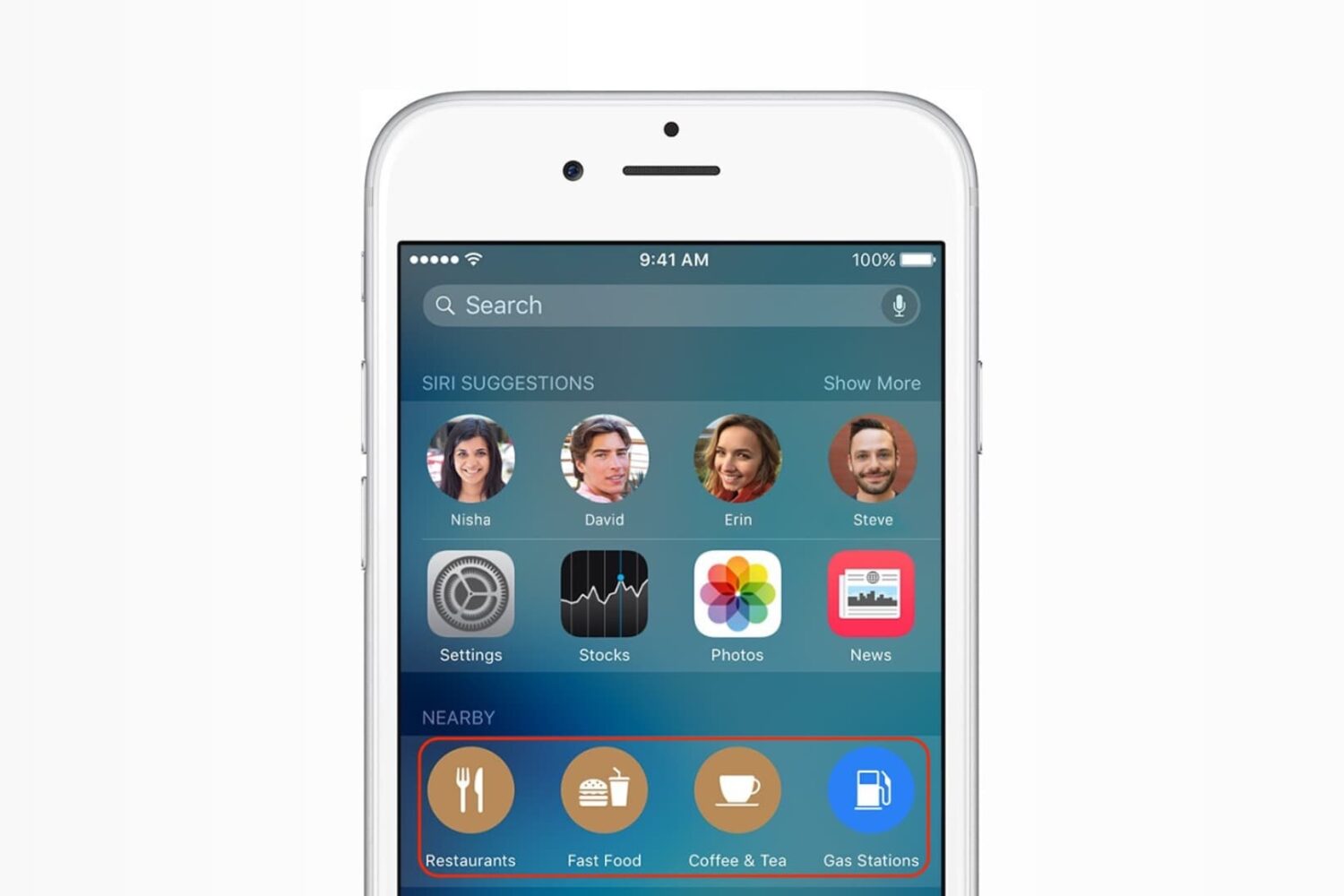
In this post, we'll tell you how to disable suggested locations in Siri and Spotlight Search on your iPhone or iPad if you don't find them useful.
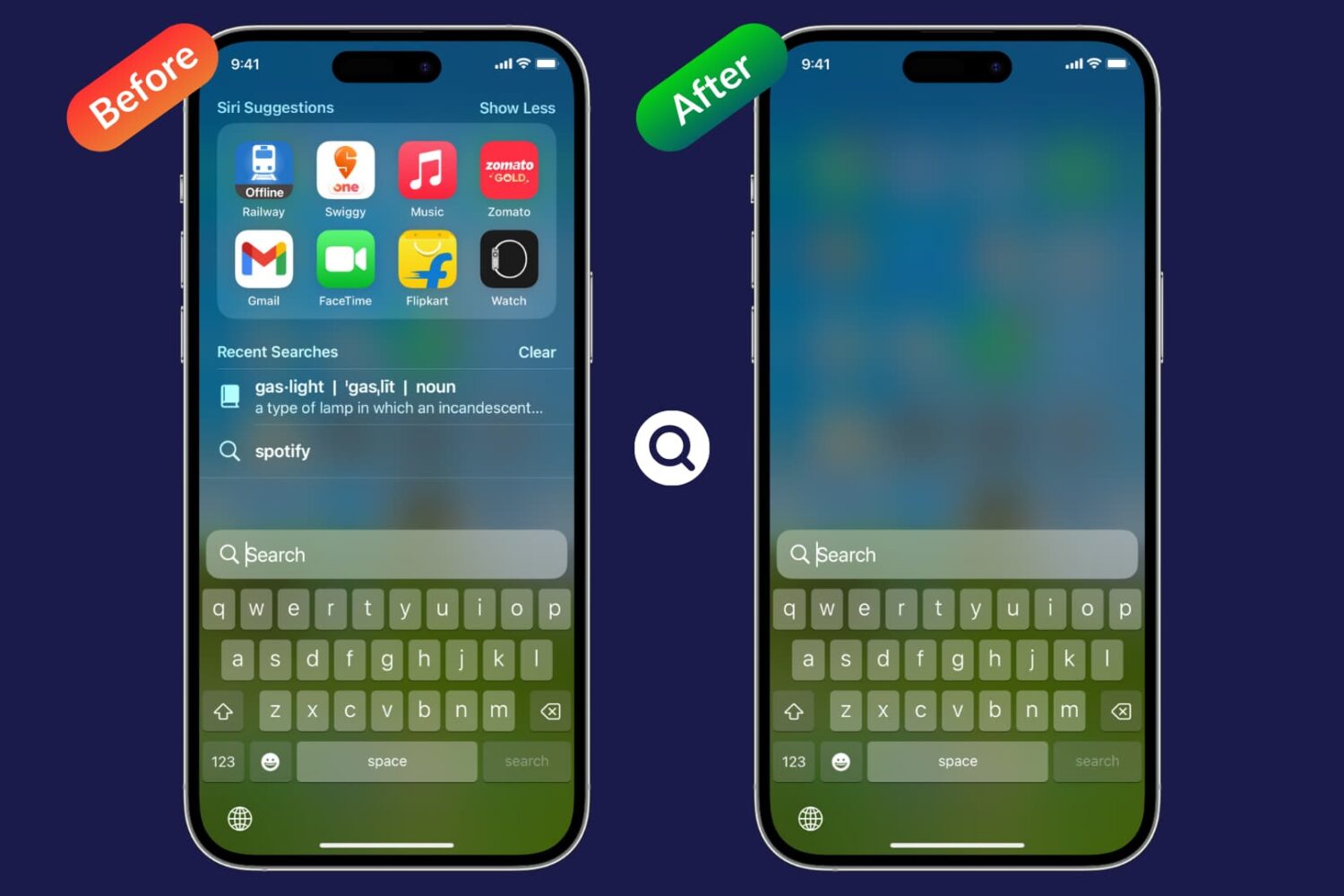
Do you find Siri suggestions distracting, unnecessary, or unhelpful when you open Spotlight Search on your iPhone or iPad? If so, you can stop Siri from showing such recommendations for a clean search screen.

Find out how to disable “Shake to Undo,” a feature that lets you undo typing and other actions by shaking your iPhone and iPad. Additionally, we’ll tell you about five alternate ways to undo a change on your iOS or iPadOS device.
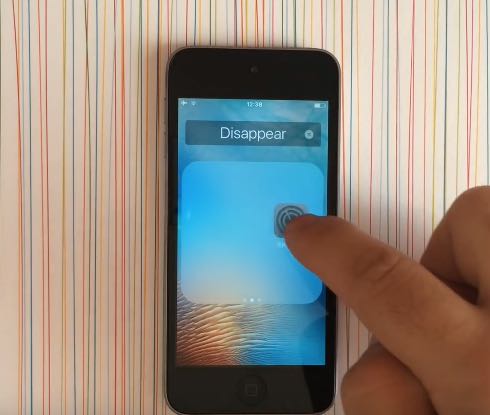
Aside from disabling the iTunes Store, iBooks Store and Podcasts apps on your iPhone, iPod touch or iPad using iOS's Restrictions feature, Apple doesn't yet provide an officially sanctioned way of removing stock apps from your Home screen.
This can be particularly annoying for people who rely on third-party alternatives to Apple's default apps like Reminders, Maps or Calendar.
My preferred way of working around this limitation involves tucking away any unwanted stock app inside a “Junk” folder. Thankfully, YouTubber Jose Rodriguez has found a better way to temporarily hide icons of Apple's stock apps on iOS versions from iOS 9 onward using a simple trick that doesn't require a jailbreak.