Find out how to disable “Shake to Undo,” a feature that lets you undo typing and other actions by shaking your iPhone and iPad. Additionally, we’ll tell you about five alternate ways to undo a change on your iOS or iPadOS device.

“Shake to Undo” is a motion-sensing feature that lets you undo typing and other actions.
It was very popular back when iOS gained copy-and-paste commands. It was, in many ways, the iPhone equivalent of the Command + Z keystroke on Mac.
A remnant of the past, its origins trace back to the iPod nano’s “Shake to Shuffle” feature, which shuffled songs by shaking the device from side to side.
But not everyone is fond of physically waving their iPhones around to undo their involuntary actions, especially if you tend to shake your device by accident. Besides, Shake to Undo makes little sense on iPads, especially with iPadOS’ dedicated Undo and Redo buttons on the iPad keyboard.
Turn off Shake to Undo
- Open the Settings app on your iPhone or iPad.
- Tap Accessibility.
- Scroll down to Physical and Motor, and pick Touch.
- Disable Shake to Undo.
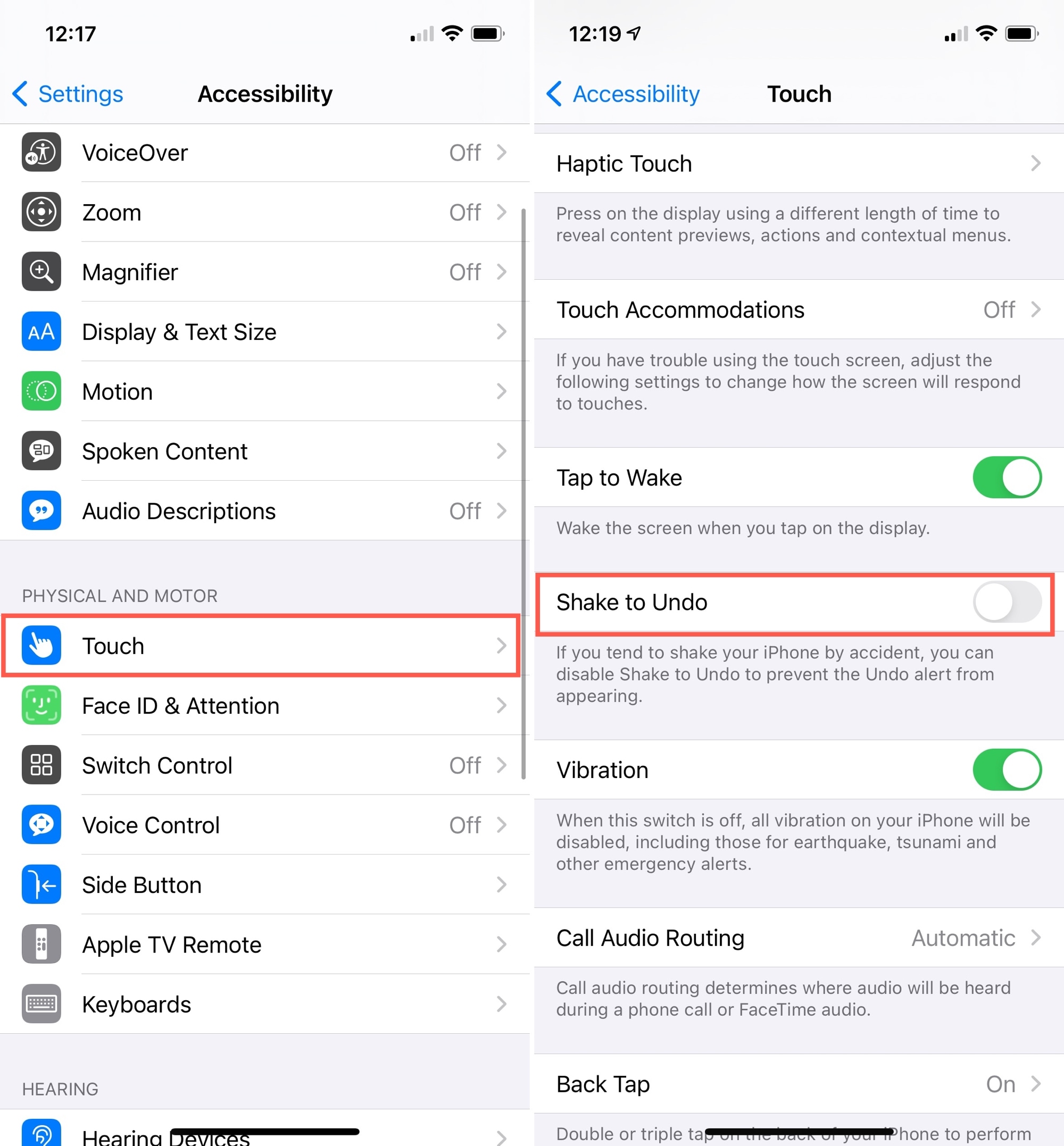
“If you tend to shake your iPhone by accident, you can disable Shake to Undo to prevent the Undo alert from appearing,” reads the description.
For those wondering, Shake to Undo requires a functioning accelerometer sensor to detect the physical motion of the device.
How to undo on iPhone or iPad after turning off Shake to Undo
Before you read further, open the Notes app, create a new note, and type a few random words there. Next, learn how to undo and redo the changes below and perform them on your device.
Method 1: Three-finger double-tap
Double-tap with three fingers anywhere on the screen except the keyboard, and it will perform an undo action. If it doesn’t automatically, tap the undo arrow icon from the top of the iPhone screen or the word “Undo” from the top of your iPad screen.
Method 2: Three-finger swipe
Swipe left with three fingers on the screen (except the keyboard) to undo, and swipe right with three fingers to redo.
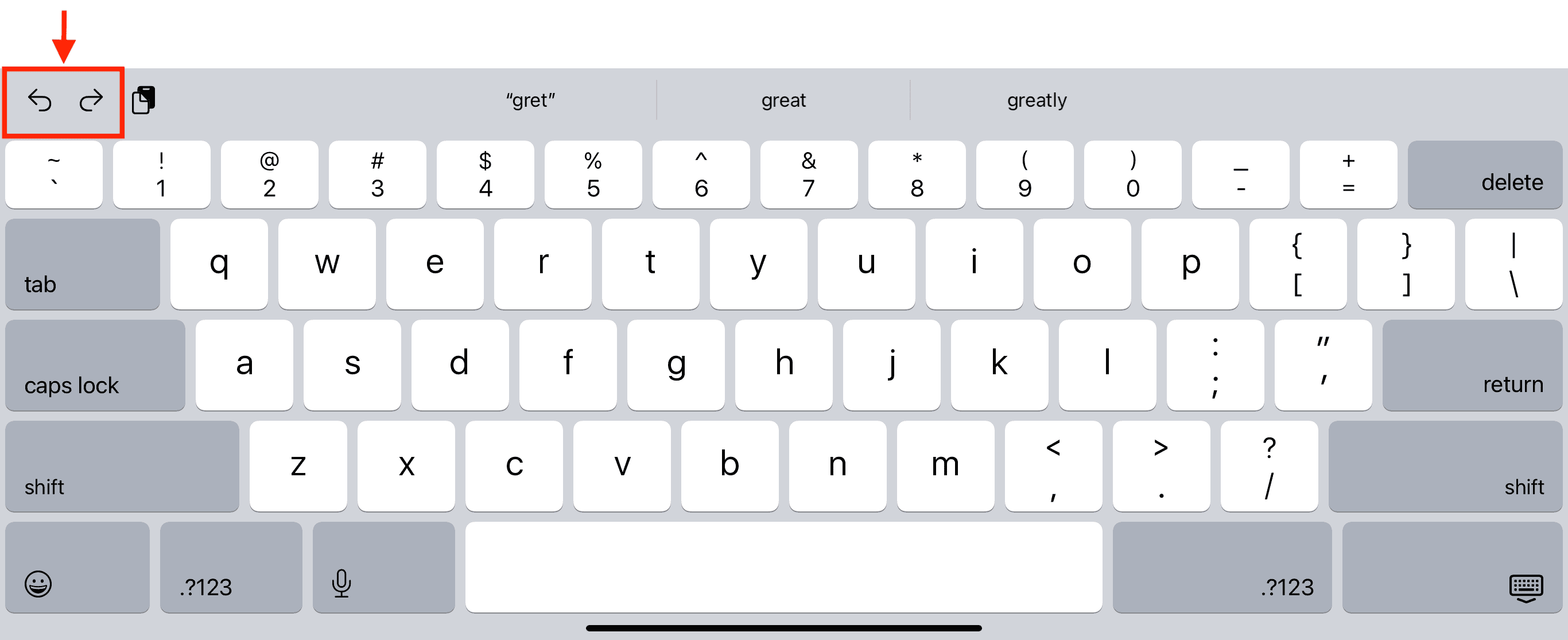
You’ll see the undo and redo buttons in the top left corner of your iPad keyboard. Please note that these buttons won’t appear on an iPhone or if you’re using the small floating version of your iPad keyboard.
Method 4: Keyboard shortcut
If you have a physical keyboard connected to your iPad or iPhone, you can press the familiar Command + Z keys to undo a change.
Some apps like Apple Notes and Pages display dedicated undo and redo buttons. Usually, they appear as curved arrow icons. Use them when needed.
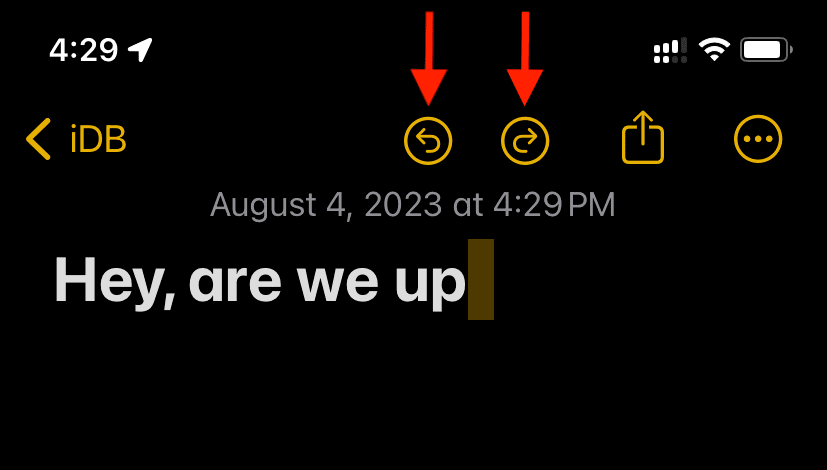
Note: If by chance you see only one button (say, undo), then touch and hold that button to reveal the redo button.

Also, check out: How to use your Mac’s keyboard, mouse, and trackpad seamlessly and wirelessly with your iPad