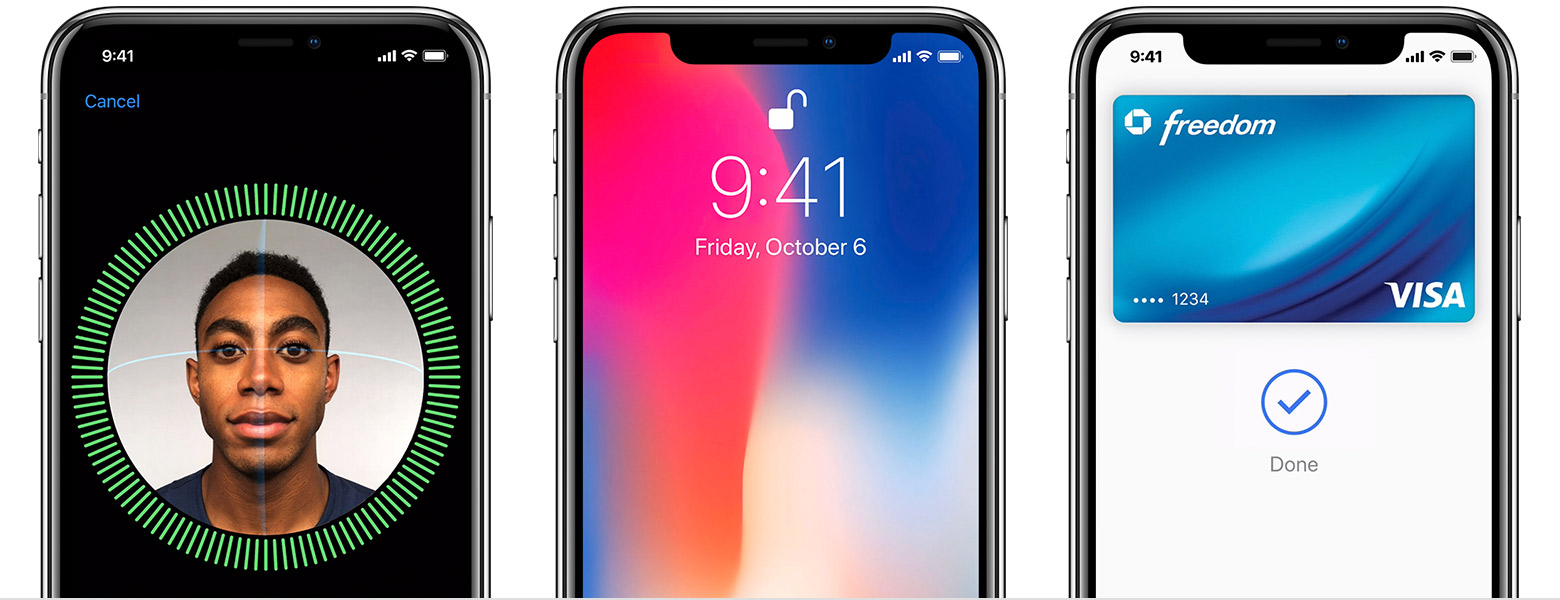
Learn how to turn off the Tap to Wake feature to prevent the screen on your iPhone or iPad from waking when touched, saving the battery.
How to turn off Tap to Wake and prevent your iPhone screen from waking up with a touch
Learn how to turn off the Tap to Wake feature to prevent the screen on your iPhone or iPad from waking when touched, saving the battery.
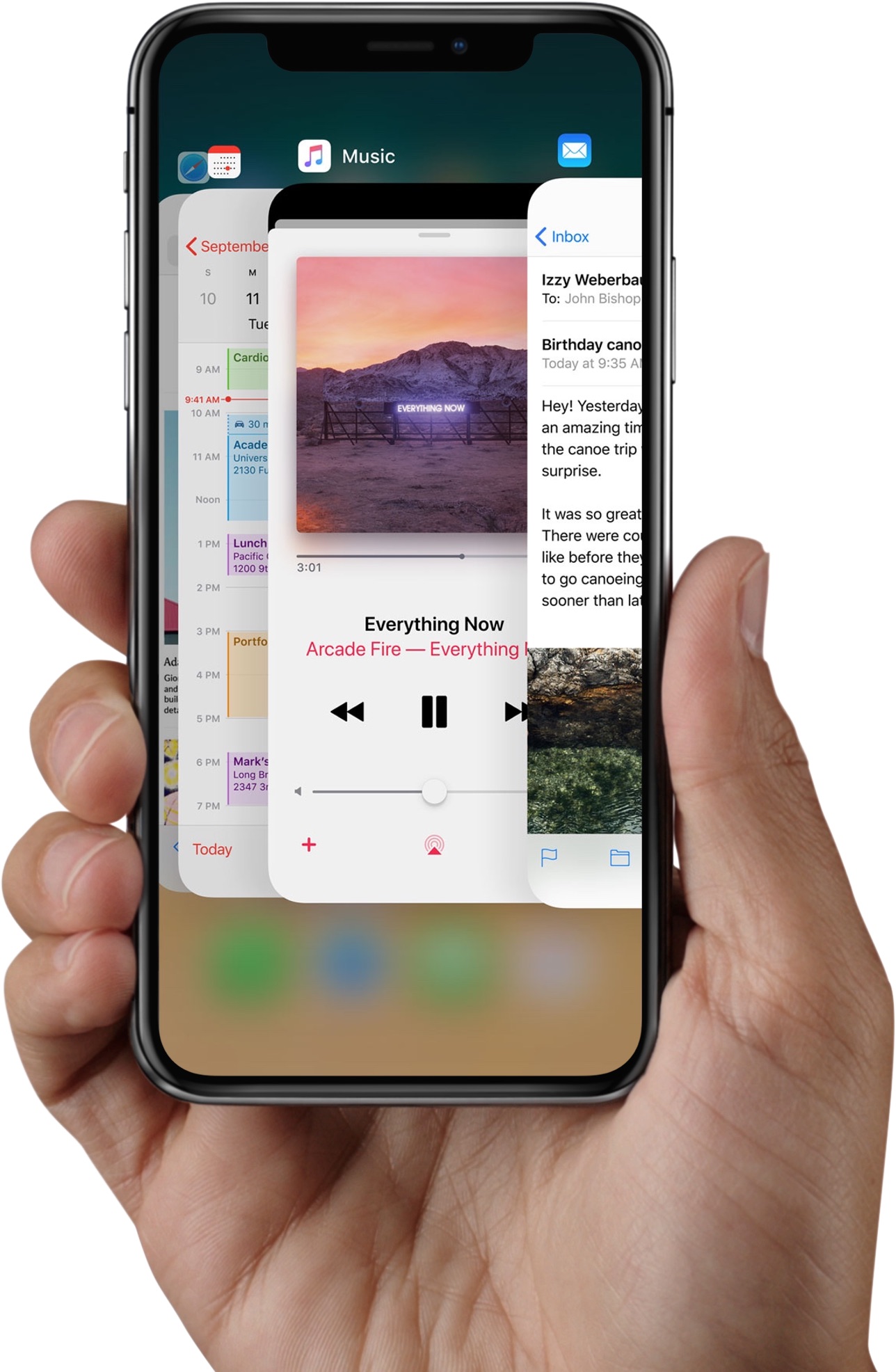
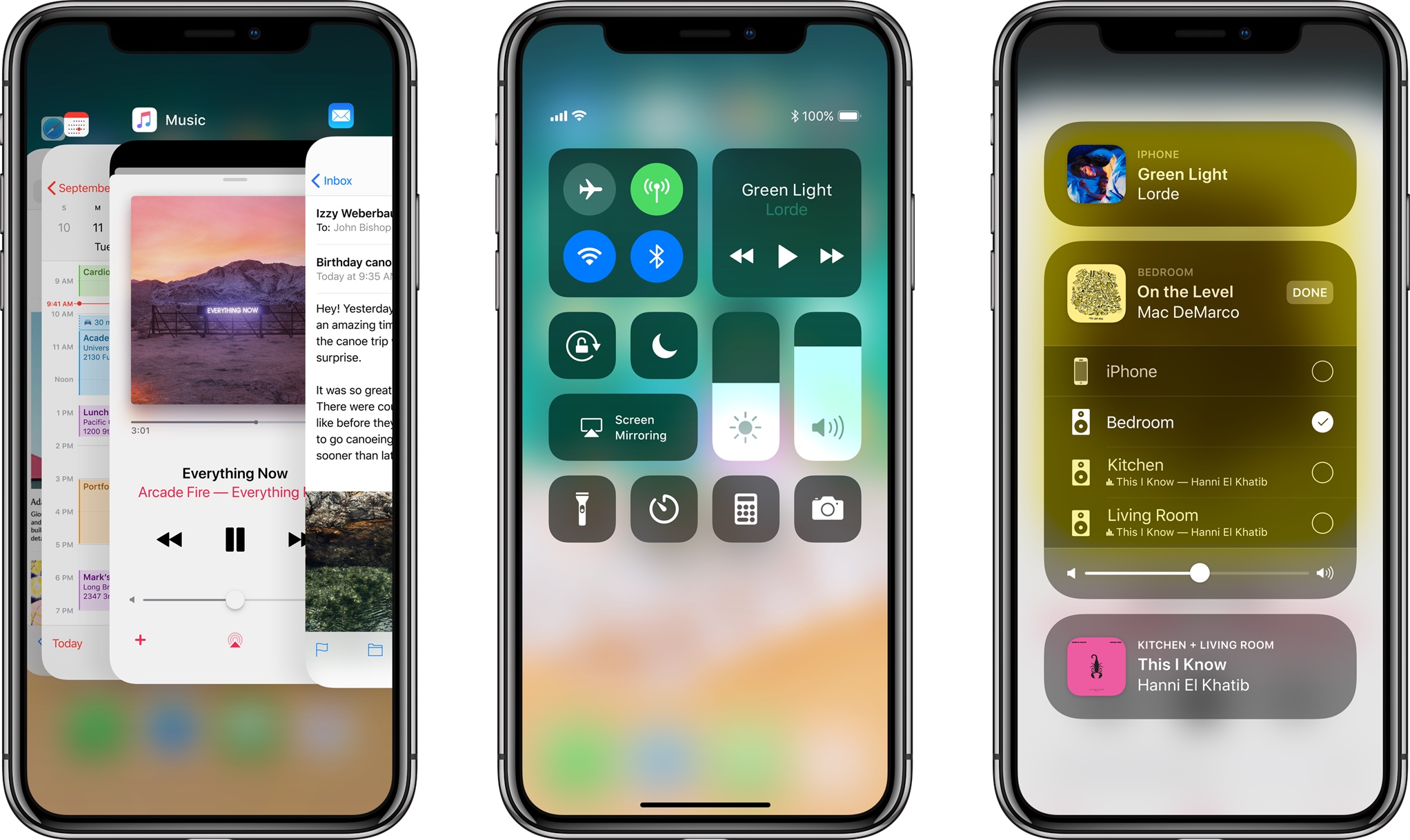
Apple instructs iPhone X owners to swipe up from the bottom edge of the display and pause in order to bring up the iOS app switcher. But there are faster, undocumented methods of opening the iPhone X app switcher which don't require performing this clunky gestural action.
Among other things, Face ID lets you authenticate any purchases made in iTunes Store, App Store or iBooks Store, which permits you to buy apps and media with a simple glance.
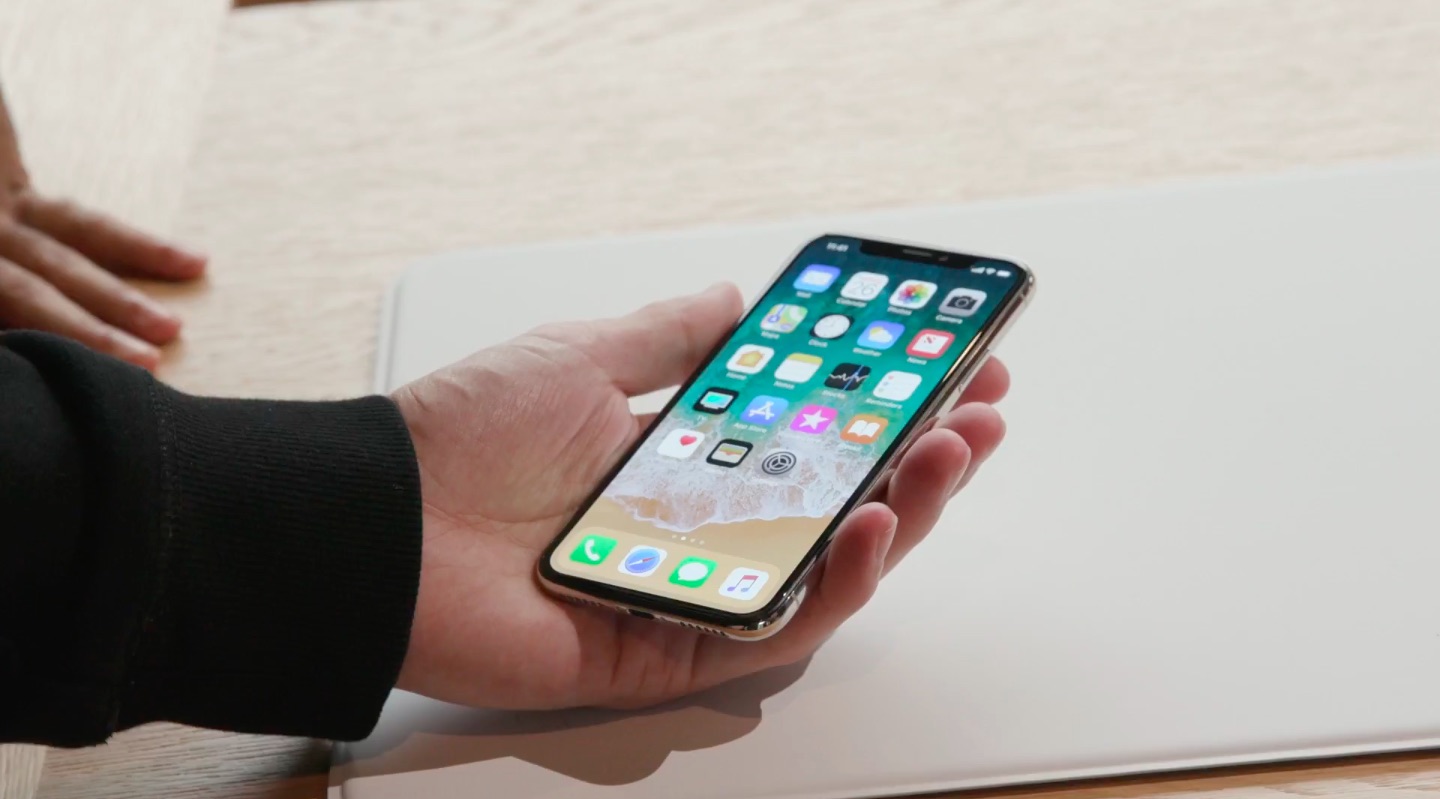
iPhone X offers a whole new way of interacting with your phone.
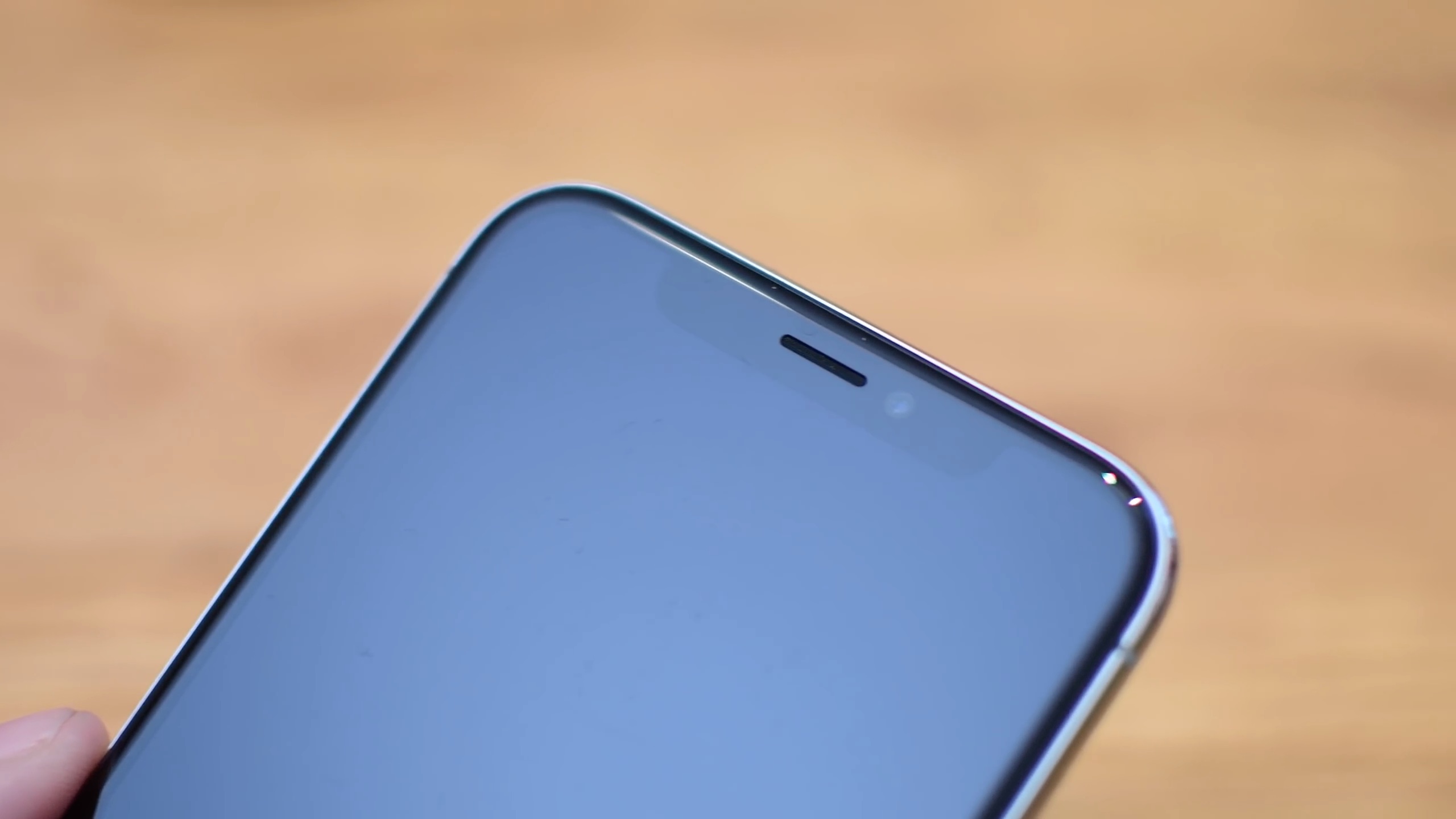
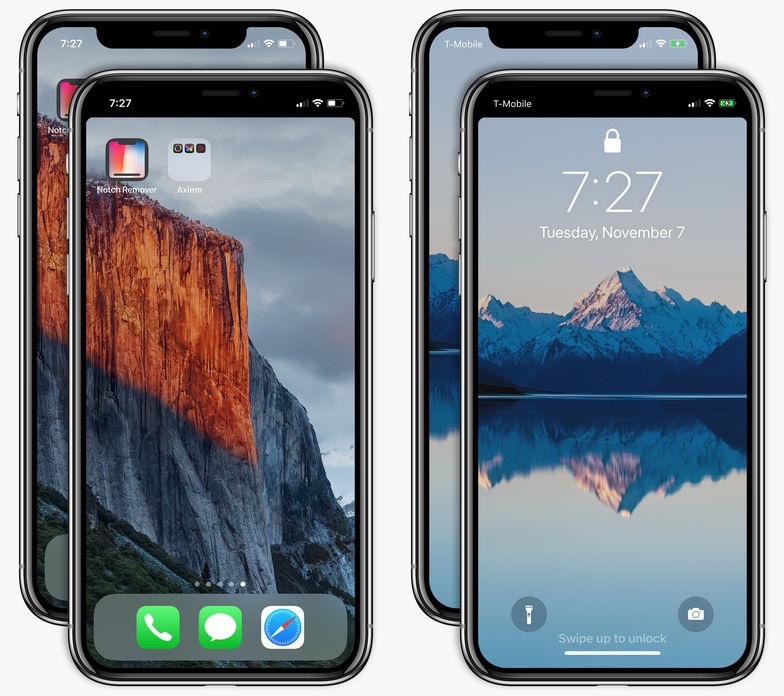
Can't stand that notch at the very top of the iPhone X display? I don't mind it at all. In fact, I find the notch to be a rather cute design element. Understandably, some folks may deem it visually distracting. If you'd like to conceal the notch, there's now an app for that, too!
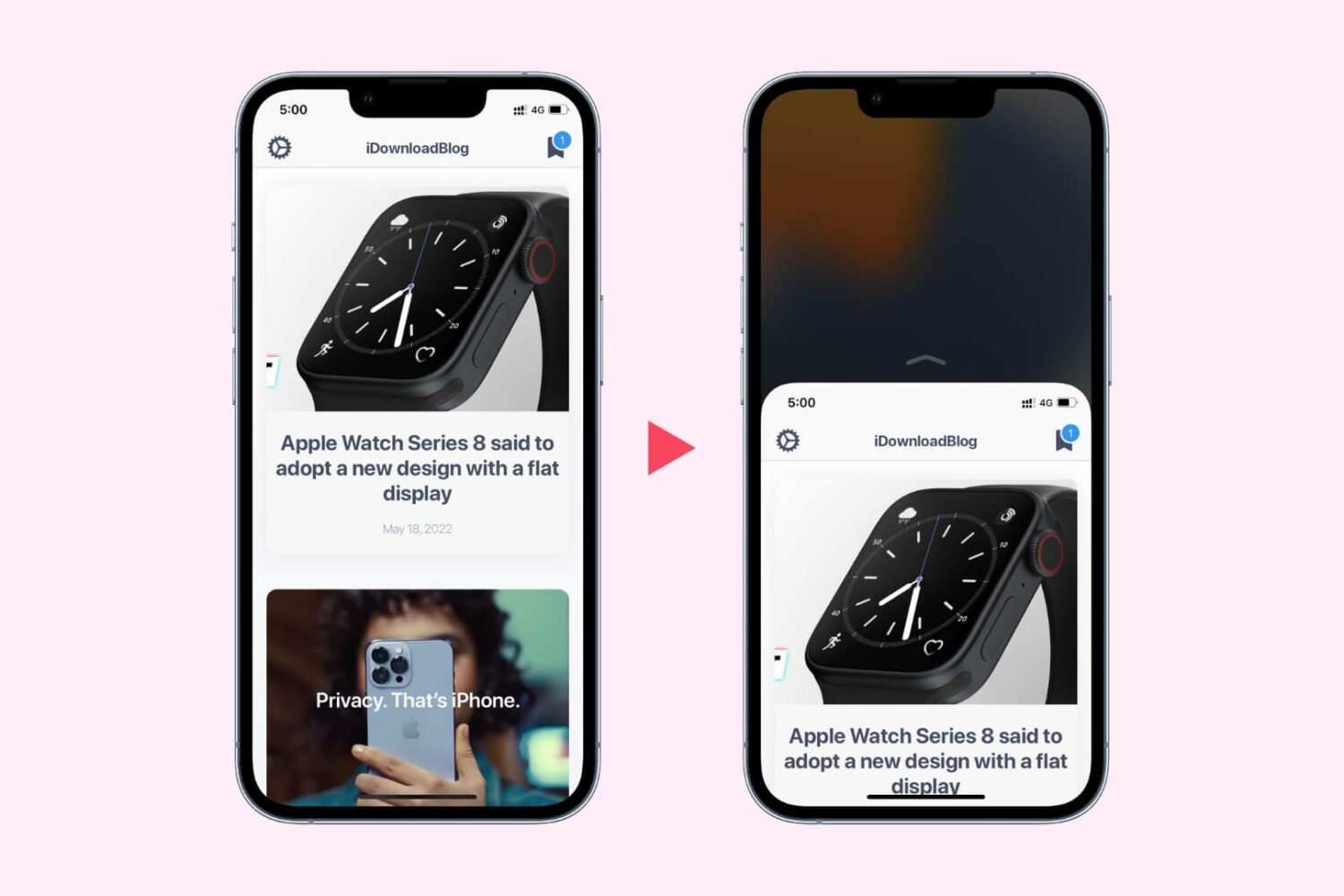
Learn how to use Reachability on your iPhone to easily reach the top of your screen when using your device with one hand.
You can enter the iOS app switcher at any time while using one app in order to easily switch to another one. Thankfully, iPhones with Face ID (without a front physical Home button) include a gesture allowing you to quickly switch between open apps without having to enter the app switcher at all.
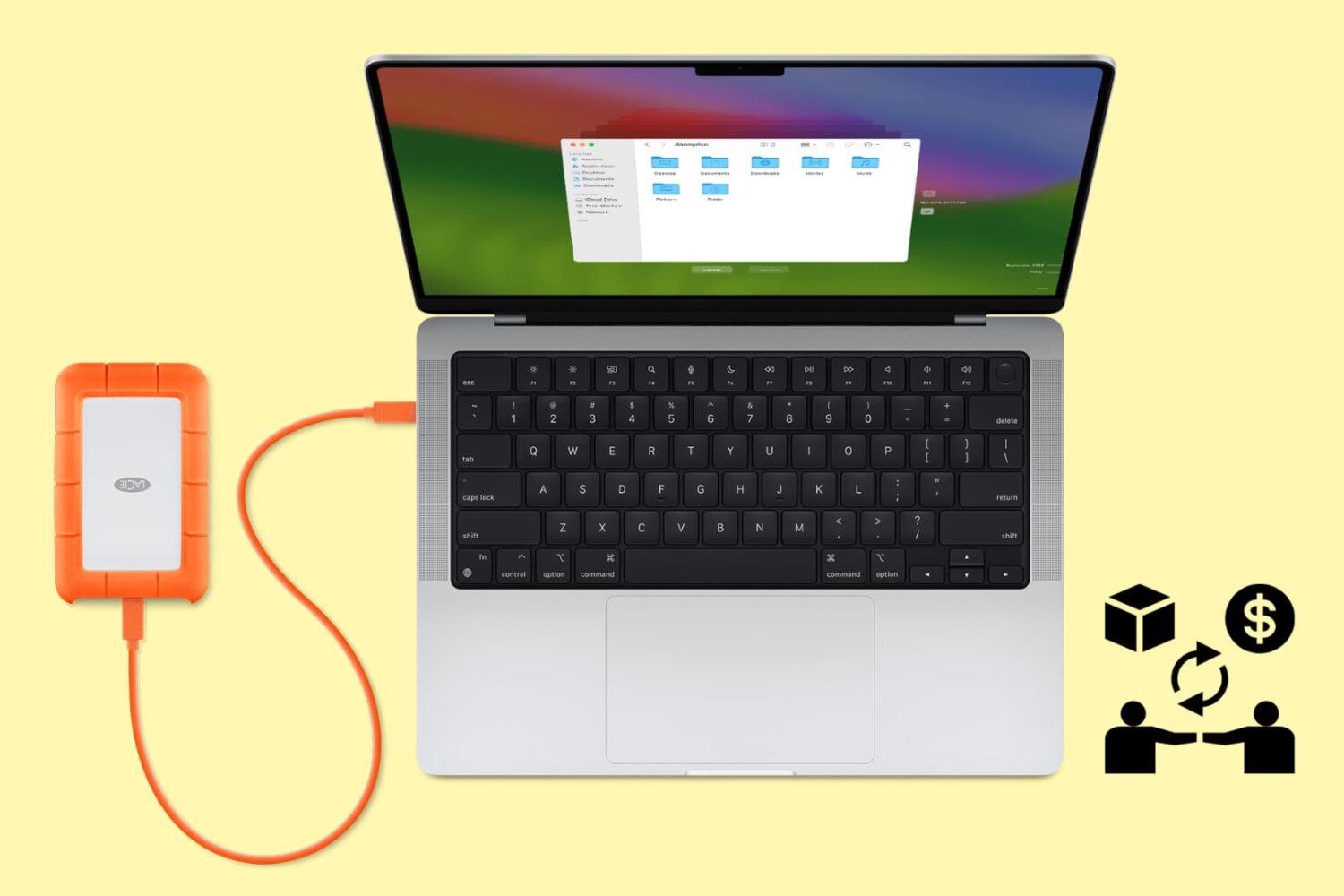
Follow these tips before handing over your Mac notebook or desktop to a new owner or sending it to Apple for trade-in to ensure your personal data is erased and Activation Lock is removed.
Because it lacks a Home button, Apple's iPhone X requires users to perform an upward swipe from the bottom edge of the display to get to their Home screen.
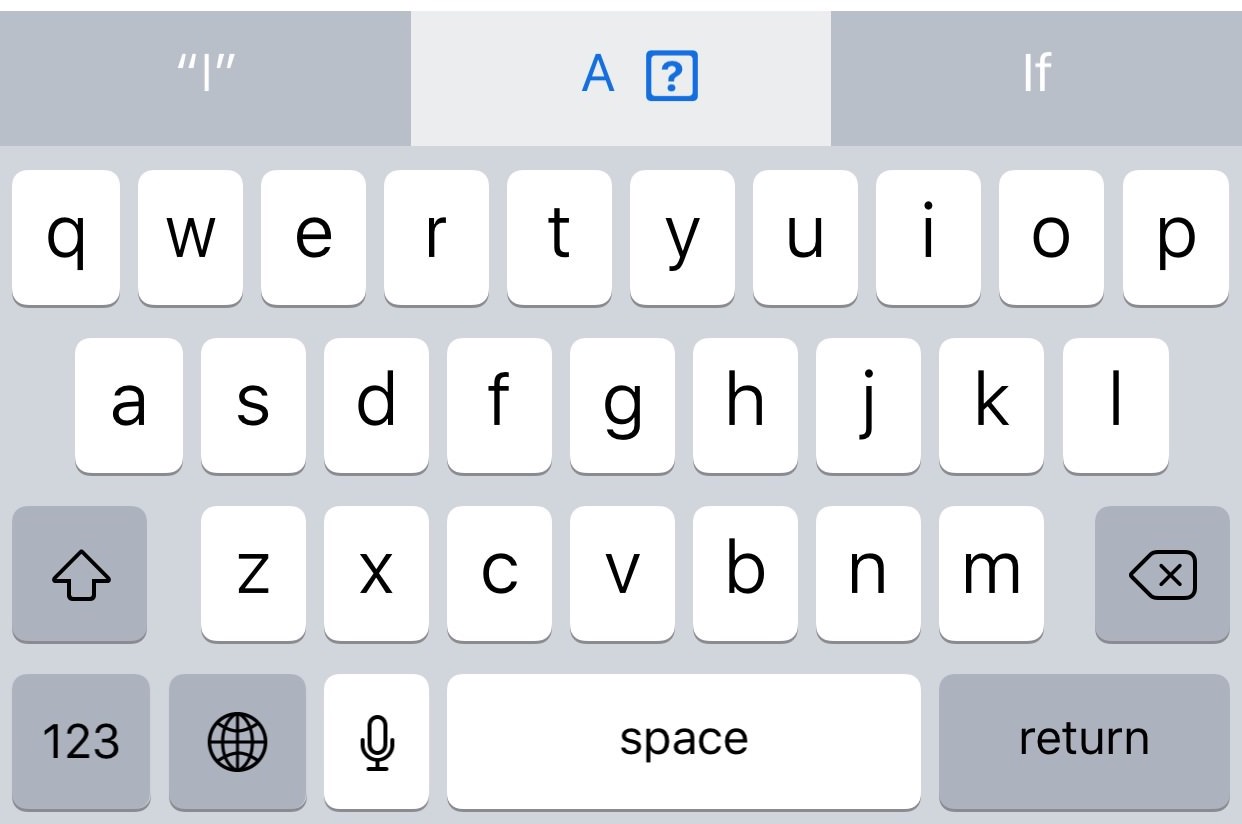
A new Apple support document published two days ago recommends a temporary workaround solution for a weird auto-correct bug in iOS 11.1 where typing the letter "i" can replace it with the uppercase letter “A” and a question mark symbol.
In addition to releasing a detailed Guided Tour video covering some of the iPhone X basics, including navigating without a Home button, using Apple Pay, Animoji and more, the company published a set of support documents and tips for using the device.
Apple on Friday published a Guided Tour video through its official YouTube channel, highlighting the biggest iPhone X changes in terms of navigation, Face ID, Apple Pay and more.