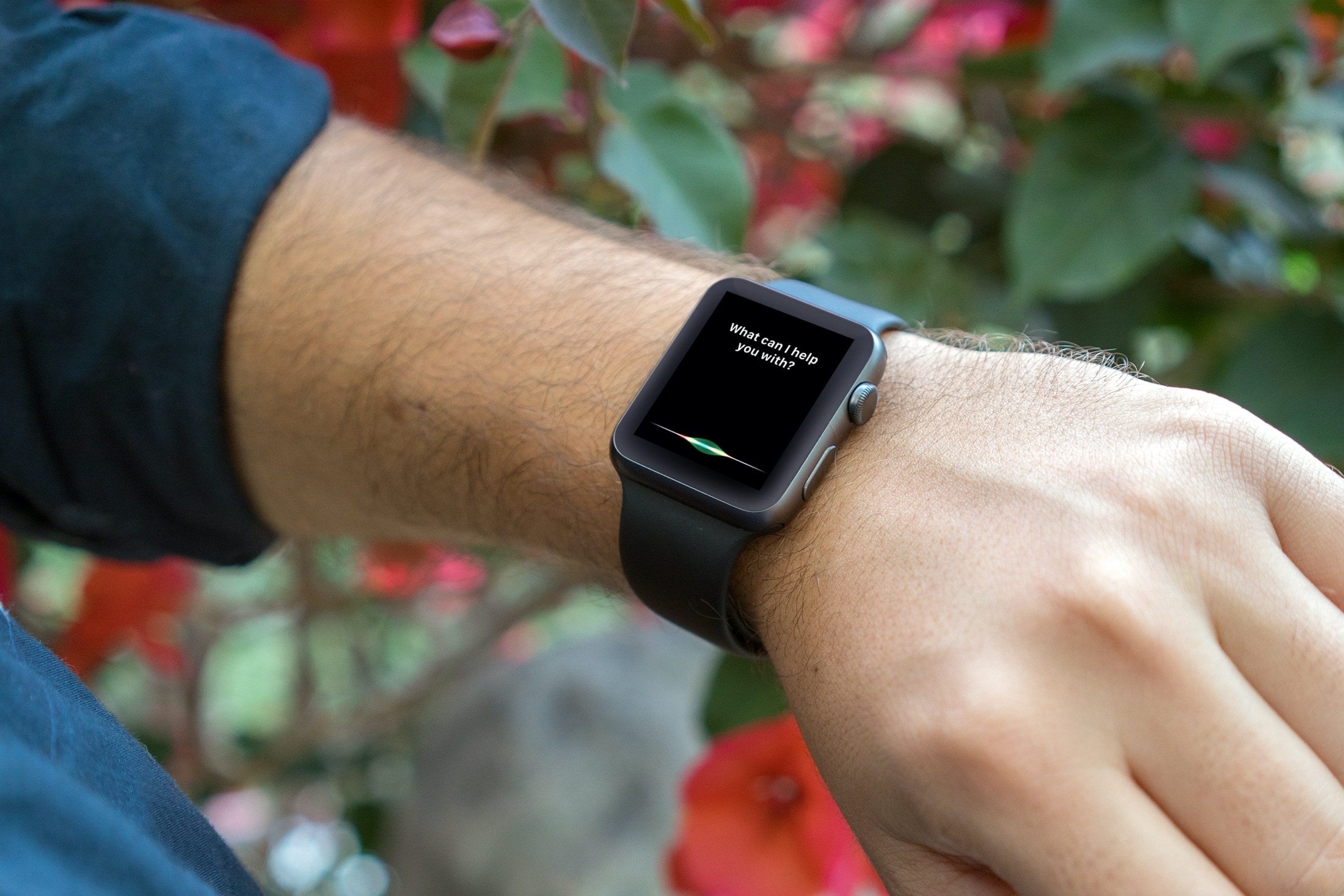
In this tutorial, we'll show you how to display anything Siri says to you on the screen of your iPhone, iPad, Apple Watch, and Mac.
How to display whatever Siri says as text on the screen of your iPhone, iPad, Apple Watch, or Mac
In this tutorial, we'll show you how to display anything Siri says to you on the screen of your iPhone, iPad, Apple Watch, and Mac.
Check out this pro tip to navigate Settings and System Settings on your iPhone, iPad, and Mac faster using the hidden navigation menu.
Learn how to view a transcription of the voice commands you give Siri on your iPhone, iPad, Mac, Apple Watch, and Vision Pro so you can verify that the device is interpreting spoken commands accurately.
Learn how to improve your online privacy by sharing only your approximate location with apps that request it.
With the App Library feature on iOS 14 and later, your most-used apps are always just one tap away in a central place at the end of your Home Screen pages. And thanks to Siri intelligence, you can quickly launch apps you’re likely to be looking for. Follow along with us as we show you how to get to your recently installed iPhone apps or Siri-suggested apps via the App Library.
Apple gives you the option to choose for yourself where new iPhone and iPad app downloads will appear. Follow along as we show you how to set whether newly downloaded apps are added to the Home Screen or appear only in the App Library.
The App Library displays badges on app icons to denote unread notifications, but you can disable them if seeing those red circles is ticking you off. Follow along with our tutorial as we show you how to hide notification badges in the App Library on iPhone and iPad.
The App Library on your iPhone and iPad automatically organizes your apps, including a handy list view that alphabetically displays all the installed apps.
Follow along with our step-by-step tutorial detailing how to browse iOS and iPadOS apps in alphabetical order.
Learn how to add the Smart Stack widget to your iPhone or iPad Home Screen so Siri intelligence surfaces the right widget at the right time, showing you relevant information throughout the day.
The Messenger app for iPhone and iPad includes a handy security feature that allows you to secure your chats from prying eyes. You can protect all your Facebook messages with Face ID, Touch ID, or your passcode.
Follow along as we show you how to lock Facebook Messenger on your iPhone or iPad and adjust how quickly Messenger locks after you close the app.