Tips

Is Apple Watch draining your iPhone’s battery too fast? This may help

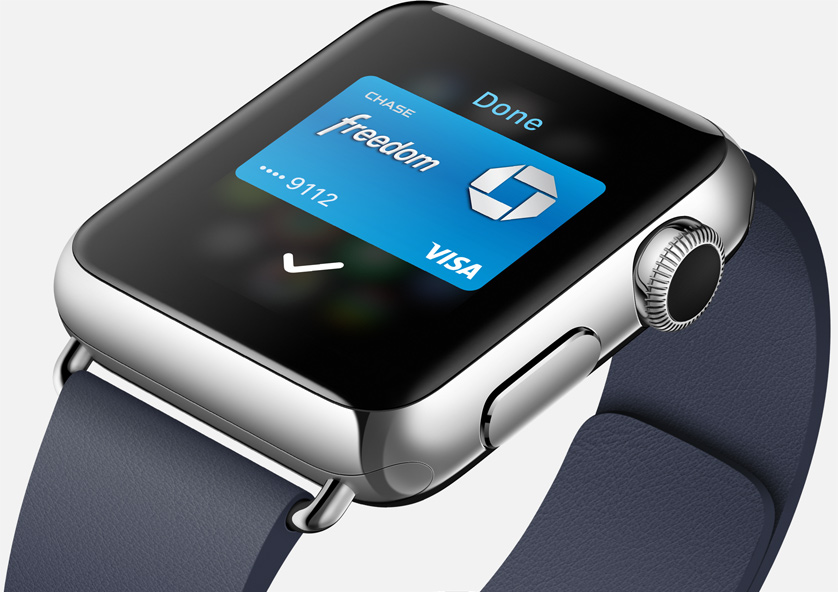
Contrary to popular belief, the Apple Watch has a pretty remarkable battery, a notion driven home by even the toughest of critics and reviewers.

Now that first shipments have arrived into the hands of consumers, and people have spent a day or two with their device, reports are coming in that the wearable device is in some cases dramatically draining the battery of an iPhone it's paired to.

Our own Oliver Haslam has underscored the phenomenon in his hands-on with the Watch based on his first 24 hours with the device, as did others including former Engadget editor Ryan Block. What gives?

Five Apple Watch tips for a more accurate heart rate reading

There's no two ways about it: even under the most ideal of conditions, the Apple Watch may not be able to get a reliable heart rate reading every time for everybody. Now, our recent overview of the Apple Watch's heart rate sensor provided a good starting point for enthusiasts wishing to learn more about the feature. It gives you a better idea of the intricacies and benefits of the custom-designed hardware feature marketed primarily to fitness aficionados.

But the truth is, it's been designed for everyone, really. It's something every Watch customer will be using without even being aware of it, simply by wearing the device (for those wondering, the average human heart rate is about seventy-two beats per minute).

On the back of the Watch is a specially designed sensor protected by a ceramic cover with sapphire lenses, with infrared and visible-light LEDs and photodiodes detecting the amount of blood flowing through your wrist at any given moment.

Knowing your heart rate helps the Watch determine your intensity level during workout while improving the accuracy of your active calorie burn measurements. Therefore, knowing the sensor's limitations and pitfalls is important.

Luckily, there are some things you can do to help the Watch get the most consistent and best heart rate readings possible. Here are five sound tips regarding using this feature optimally and with minimal disruption.

How to manage received AirDrop files with Hazel on Mac

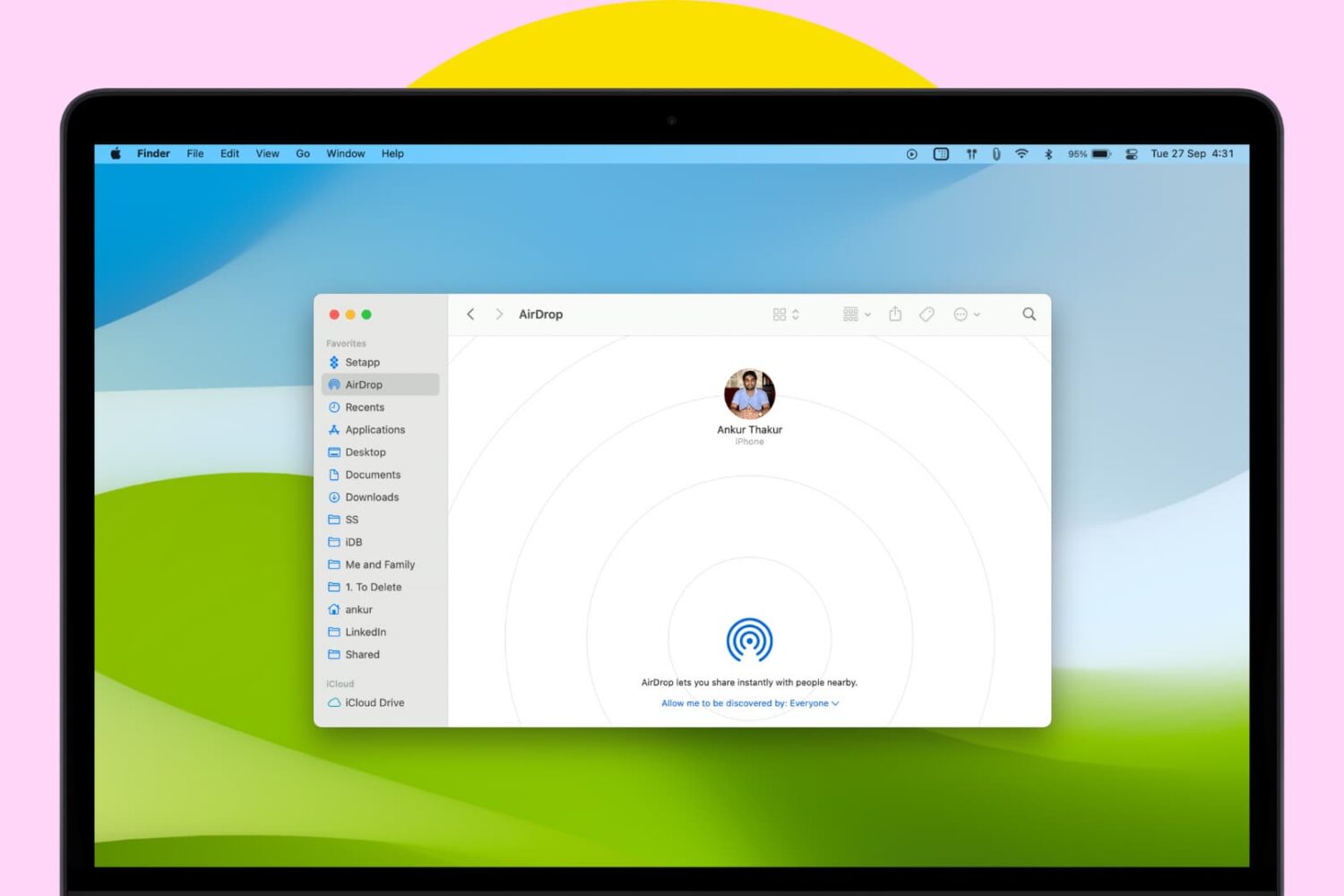
Every waking day I send tons of screenshots from my iPhone to my Mac via AirDrop. And every day I wish that Apple allowed users to customize the AirDrop save location. Not only is the ~/Downloads folder the default save location, but it can't be modified, not even via undocumented methods.

As a workaround, I use Hazel ($29 w/ free trial) to automate the process of moving images sent via AirDrop to my Desktop. It's a great workaround that does the job. While it would be nice if Apple allowed you to specify an exact save location, this is probably the next best thing.

How to use the Pixelmator Repair Tool extension on Mac

One of the most under-the-radar new features to hit OS X Yosemite was the addition of extensions. Action extensions are particularly nice, because they allow apps to interface with other apps directly.

Some app developers, such as Pixelmator ($29.99 on the Mac App Store), have brought third-party extensions to the Mac, which demonstrates how beneficial extensions can be. Watch our video that showcases Pixelmator's Repair Tool extension to see what I mean.

How to remove date and time from screenshot file names on Mac

By default, every time you take a screenshot on macOS, the file generated will be named "Screen Shot date time" where "date" and "time" are replaced with the actual date and time the screenshot was taken. For most people, this is a useful feature as it allows to quickly sort screenshots depending on when they were taken. But for other people, it might be an annoyance.

In this post, we will show you how to remove the date and time from screenshots that were taken on Mac.

How to create a new library in the Photos app

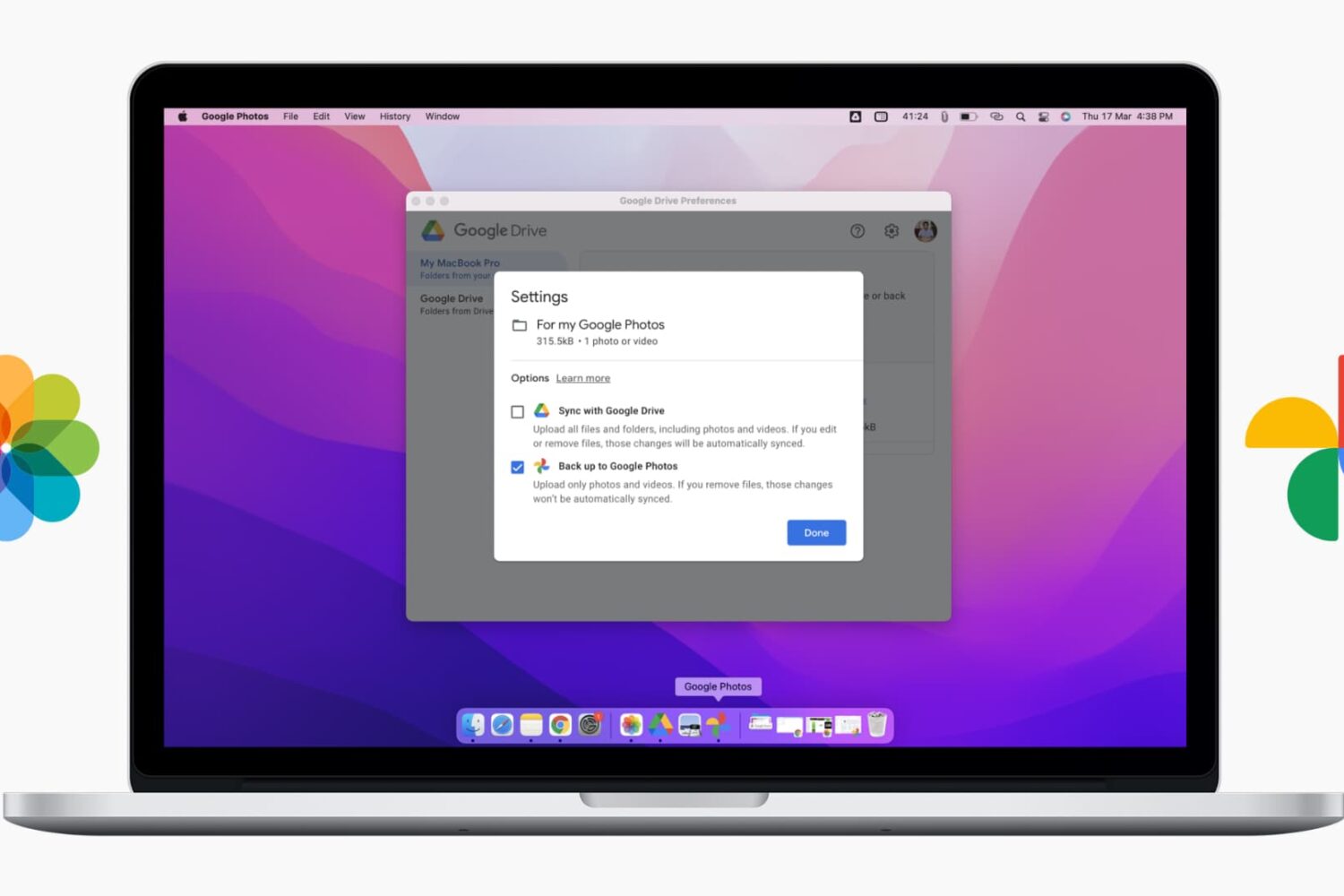
Creating separate libraries. It's one of the best ways to go about organizing photos with the new Photos app in macOS. I find that using multiple libraries to separate things like work and personal life is a good strategy. Fortunately, it's extremely simple to create new libraries and to switch between those libraries on the fly.

How to migrate your iPhoto Library to the new Photos app

Now that OS X Yosemite has been officially released, it's time to think about migrating your old iPhoto library to the new Photos app. Migrating over is extremely easy, as there are multiple ways to do so. In this post, we highlight one of the easiest and most straightforward ways to migrate an iPhoto Library over to a new Photos app install.

How to run Android apps like WhatsApp and Instagram on Mac

ARC, or App Runtime for Chrome, is a tool that allows you to run many Android apps right on a desktop machine. For the most part, the apps look and function like they do on an Android phone or tablet.

Why is this so cool? Well, it means that you can now have access to whole variety of new apps. Some apps, like WhatsApp, have no native desktop counterpart, so it's especially nice for apps like these.

While it isn't a perfect 1:1 solution, and some apps outright don't work, it's worth trying if there's an app that you want that isn't otherwise available on the desktop. In this post and video, we'll walk you through the steps of configuring Google's ARC Welder tool, and show you how to run multiple applications as well.

How to get a 3D dock on OS X Yosemite

Do you miss OS X's 3D dock? OS X Yosemite finally did away with the 3D dock that's been present since the release of OS X Leopard, but you can get it back by using a simple application called cDock.

cDock includes, among a host of other features, the ability to theme the dock with over a dozen built-in themes. There are night themes, fullscreen themes, pink themes, and, of course, 3D themes. If you've been reminiscing about the "good ol' days", then you can easily relive the past with this handy little application.