Finder in macOS won’t always remember window sizes and positions. Thankfully, it’s possible to override a window’s default opening behavior on macOS and set it to open to the same size as the last one you created. We’ll show you the right steps for that.
Tips
Using BetterTouchTool to cycle through Safari tabs
BetterTouchTool is a free Mac utility that allows you to supercharge your Mac's trackpad gestures. There are literally hundreds of uses for an app like this, but I'd like to share with you one particular use case scenario that I find extremely useful.
I've set up BetterTouchTool to allow my MacBook's trackpad to quickly cycle through all of my open tabs in Safari using a simple two-finger gesture. Have a look at our full demonstration video and tutorial for all of the details.
How to preview a link in Safari on Mac without opening a new tab
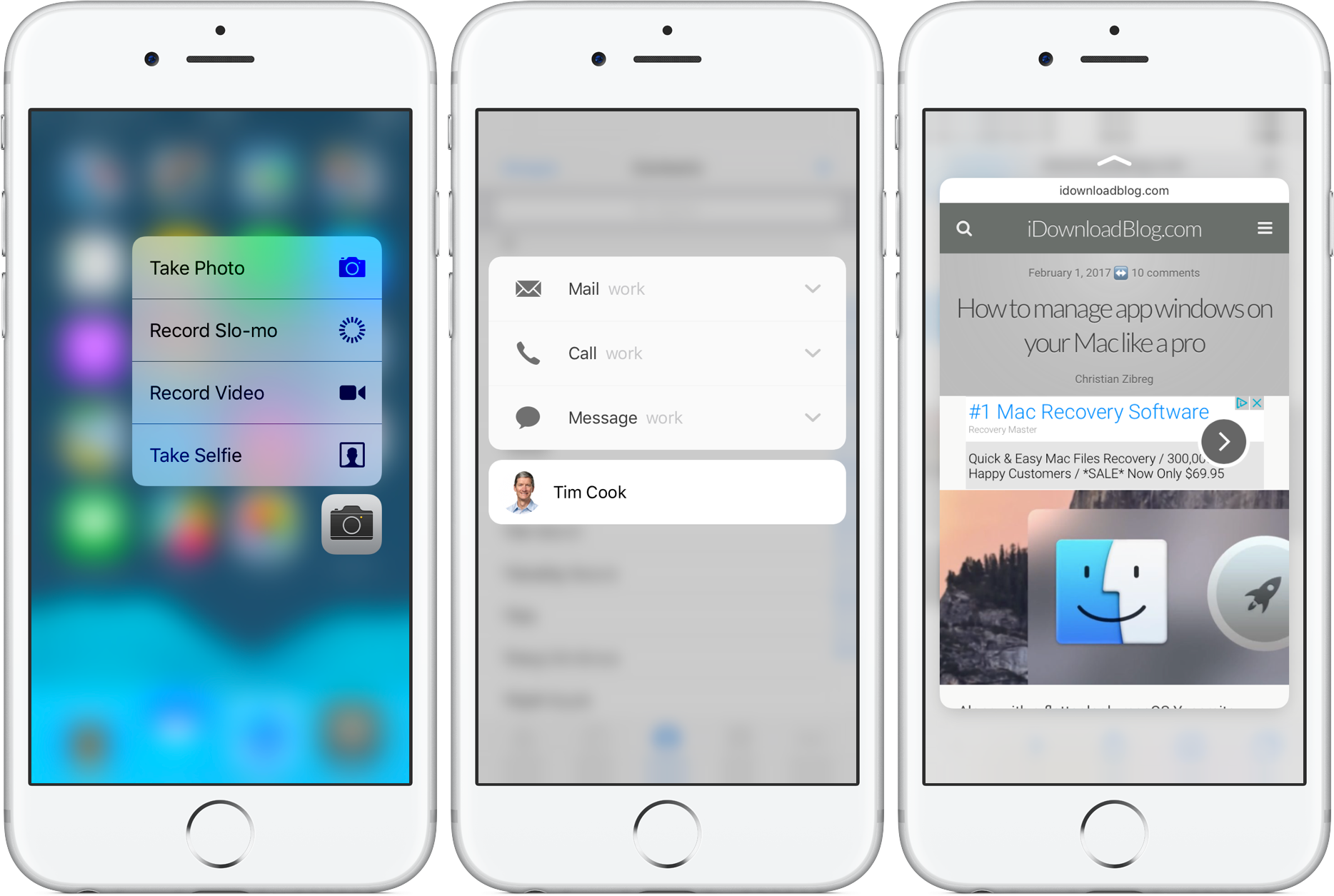
Find out how to use your Mac’s trackpad to quickly preview a website link in a small pop-up Safari window.
How to repair disk permissions on Mac
Some Mac hiccups and startup issues can be resolved by repairing disk permissions in macOS. Disk permissions allow your Mac to control what users have access to files and folders on your Mac.
Unfortunately, it's quite easy to unintentionally mess up disk permissions. In fact, the very act of installing and uninstalling apps on your Mac can over time result in broken permissions.
And when file permissions break, your apps might be allowed to alter each other's files or even modify read-only system files, which in turn can lead to various permission errors and erroneous behavior in macOS. It is therefore essential that disk permission in macOS are as they are supposed to be.
In this tutorial, I'm going to show you how to verify and fix disk permissions in macOS, which is typically a basic troubleshooting step to fix any software issues your Mac might be plagued with.
How to boot your Mac in Target Disk Mode
Our tutorial series dealing with the many ways you can start up your Mac continues with Target Disk Mode, a feature Apple conceived to allow your Mac to act as an external disk for another Mac.
It's not surprising that the vast majority of average Mac owners are totally oblivious to the existence of Target Disk Mode, and who could blame them? After all, Target Disk Mode isn't exactly front and center on macOS.
In this tutorial, you're going to be taught how to activate Target Disk Mode through the System Preferences application, or enter it directly at boot time with a simple keystroke. I'm also going to explain in layman's terms why, when and how Target Disk Mode should be used.
How to create animated GIFs on Mac
From time to time, I like to include GIF animations in my posts on iDB. I usually use GIFs when I want to demonstrate some functionality without making a full blown video to do so. GIFs are great for quick demonstrations where videos aren't necessarily needed.
Whenever I include a GIF animation on a post, there's usually at least one comment inquiring about how I went about making the GIF. Although there are many options out there for creating GIFs, including using Photoshop, I personally prefer GIFBrewery ($4.99 on the Mac App Store) from the folks over at Hello, Resolven Apps. GIFBrewery is solely focused on creating GIFs, and thus, it's fairly straightforward and easy to use.
In this post, I'll show you my GIFBrewery workflow, and how I use this awesome Mac app to quickly create great-looking GIF animations from videos.
How to use Time Machine on your Mac – the full roundup
Over the last several months, we've revisited Time Machine, the backup utility present in OS X. We've showed you everything from performing an initial Time Machine setup, to encrypting Time Machine backups, to restoring specific files from those backups.
Time Machine is a great tool that every OS X user should become intimately familiar with, and in this roundup, we'll revisit each of the topics covered over the last couple of months.
Top 12 Safari keyboard shortcuts for all Mac users
If you use Safari as your full-time browser on Mac, then you should learn some of the most important keyboard shortcuts to supercharge your workflow. In this post, we share a dozen must-have Safari shortcuts to power up your browsing experience.
How to pick a startup disk for your Mac at boot time
Learn how to change the startup disk on your Mac on the fly or permanently if you'd like to boot from other storage devices like an external drive.
How to boot your Mac in Verbose Mode
We previously discussed how booting your Mac into macOS' Safe Mode can help troubleshoot various issues with your computer. In more obscure situations and borderline cases, however, Safe Mode may not be enough to understand why your Mac freezes or crashes during the system boot process.
Enter macOS Verbose Mode.
Not only does Verbose Mode makes it easy to access detailed status messages as your Mac is starting up, but also lets you see what's really going on behind the scenes and watch as macOS loads kernel extensions and other startup items.
In this tutorial, we're going to cover booting your Mac in macOS' Verbose Mode, explain in which situations it might come in handy and give you some handy tips related to using Verbose Mode.
How to move Music or Photos to a new Mac using Time Machine
With Time Machine, it's easy to restore all of your data back to a new Mac or to a fresh install of macOS. As we outlined previously, users can choose to restore all data, or pick and choose the data that they wish to restore during the initial setup process of macOS, and that includes both music and photos.
Another option is to simply restore the entire Pictures or Music folder via the Time Machine interface. We show you how to do that via this post.
In the following tutorial, we'll show you another quick and easy way to recover photo or music data from a Time Machine backup—directly from the backup folder on your Time Machine external drive.
How to set up a new Mac from a Time Machine backup
One of the primary benefits of using Time Machine is that it allows you to restore your backup on a new Mac or a new macOS installation. This makes it so that you can essentially pick up where you left off from your old machine or old installation.
Fortunately, restoring Time Machine backups to a new Mac is extremely easy and straightforward. In this fifth tutorial in our Time Machine how-to series, we'll show you how easy it is.