Tips

Finding what version and build number of macOS you have on your Mac

There come times when you need to know not only what version of macOS that you're running, but also where you may want to know the actual build number.

This information usually comes mostly in handy when you're running betas, but sometimes when filing bug reports with Apple, they might ask you to provide them with what version of macOS you are running on your Mac and the build number it shows.

In this tutorial, we'll show you not only how to find out what version of macOS you're running, but also where to find the build number of the version of macOS you have installed.

Here’s how to add a WWDC 2016 countdown widget to your Mac

If you're waiting patiently for WWDC 2016 to see what Apple has in store for iOS and OS X this year, then you've probably marked your calendars, or you may even be attending the event in person.

Those of you looking forward to the event can now add a countdown widget to your Mac's Dashboard that counts down to the day of WWDC 2016.

In this tutorial, we'll show you how to get the widget and how to install it.

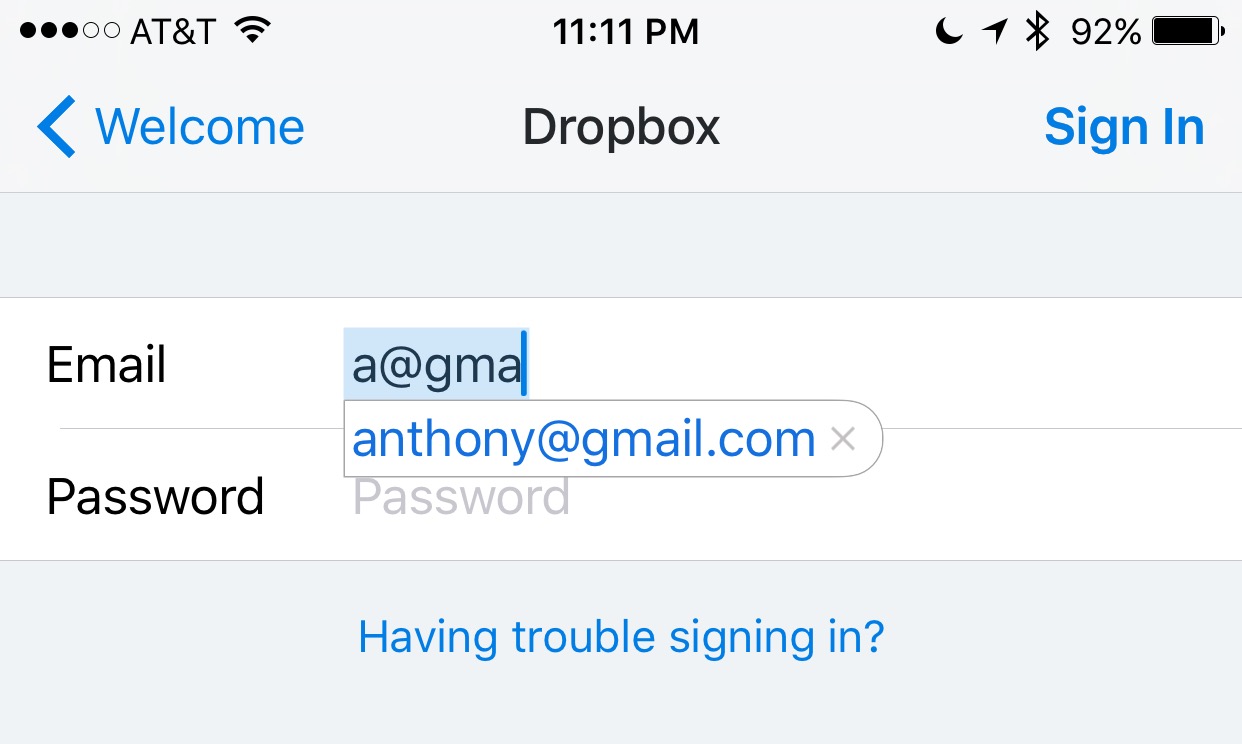
Use text replacement in iOS to input email addresses faster

Email addresses can be long and annoying to type, especially when you're one of those goofballs out there with the weird emails like iph0n3_fan_09325@emailaddress.com, or something else with a bunch of wonky characters you don't care to remember or spend the time typing.

This is why when I came across this tip on how to make email address entry simple and fast from a friendly iDB reader, I wanted to share it with the rest of you.

How to increase your privacy by removing location from Diagnostic & Usage Data logs

Apple collects anonymous information about how you use your iPhone, iPad, iPod touch and other devices so that it can improve its products in future releases. End users can easily opt in and out of diagnostic collection in the Settings → Privacy → Diagnostics & Usage section.

I have this enabled to help Apple improve their products, but privacy-minded people might opt out of diagnostic collection on the grounds that the logs include their approximate location.

In this tutorial, we'll explore increasing your privacy on iOS by having your location excluded from diagnostic data that iOS creates.

Quickly and easily record animated GIFs with Giphy Cam

Animated GIFs are fun, the only thing is, creating them generally requires a computer and either some fancy GIF-making software, or a website that can convert video files to animated GIFs.

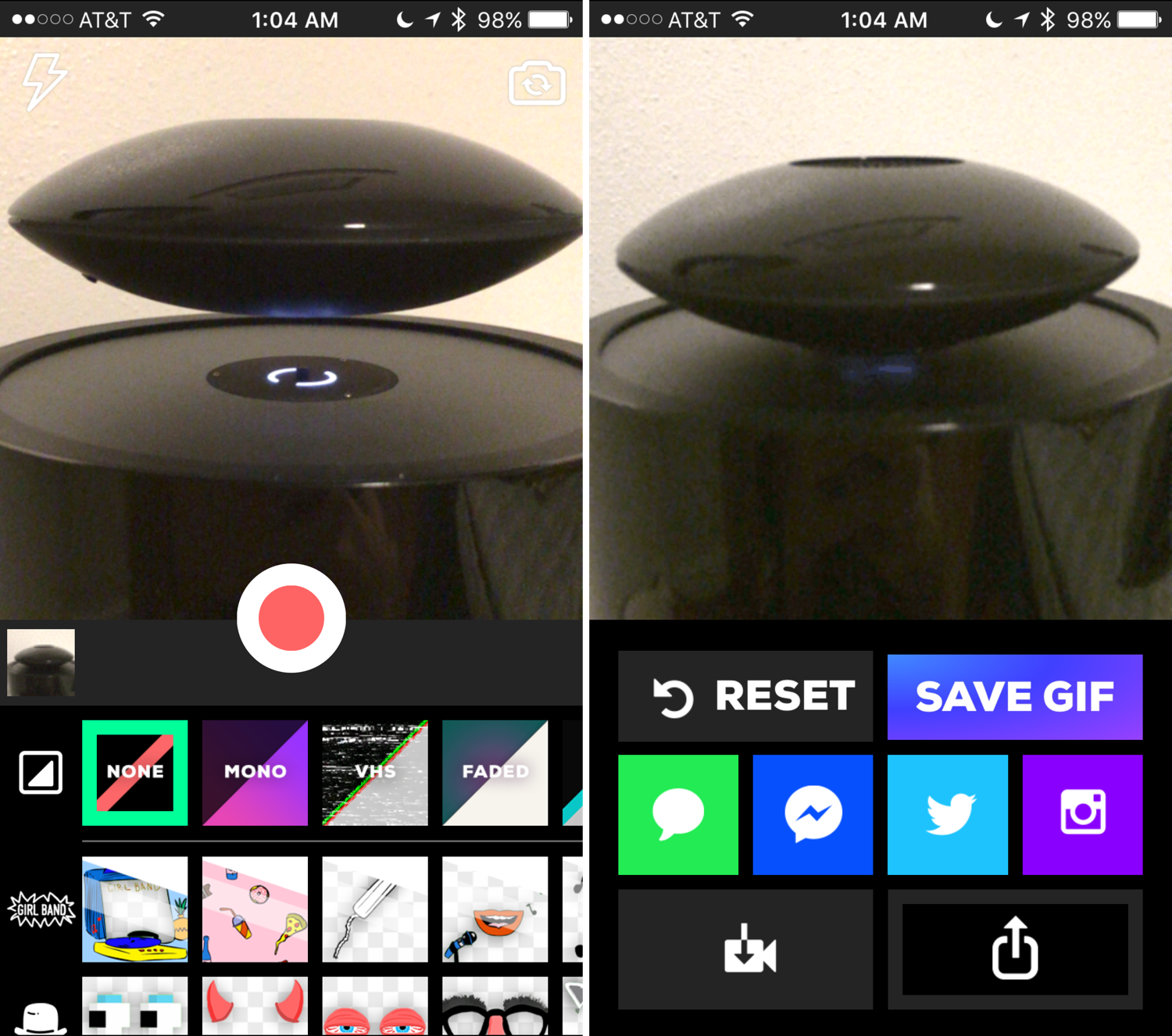
Fortunately, for those of you that spend most of your time mobile, rather than at a computer, the free GiphyCam app from the App Store provides an all-in-one experience for iPhone, iPod touch, and iPad users.

We'll talk about GiphyCam in this piece and show you how you can use it to record your own animated GIFs right from your mobile device.

How to submit feedback and bug reports to Apple

Send your feedback to Apple

If you're annoyed by buggy Apple software, why not take the time to submit a bug report to them so that they're aware of it?

You see, it's in Apple's interest to improve its products and give customers the best possible experiences.

Letting the company know about a software problem you've been plagued with is always helpful, and if enough people report the same bug, the issue will hopefully be escalated to someone who's in charge.

In this tutorial, we'll show you how to file a bug report or submit feedback using Apple's many bug-reporting tools and services.

How to fix IP address conflicts on your Wi-Fi network

Every so often, you might end up with two devices on your Wi-Fi network that have the same IP address. This conflict can cause a plethora of problems with trying to use the internet on any of the devices affected.

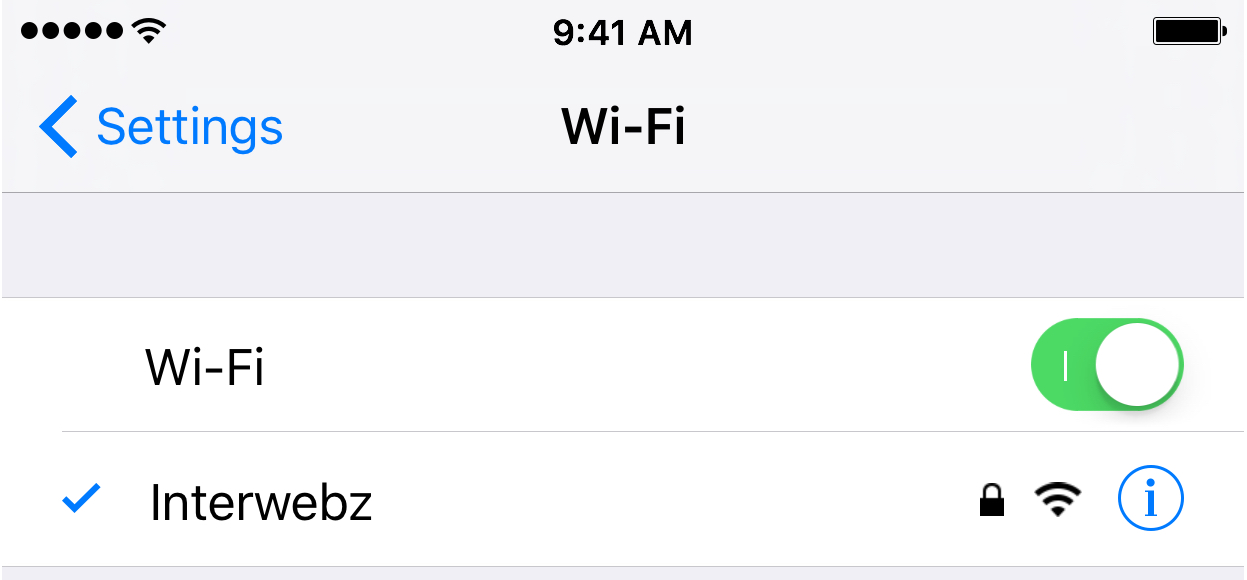
Fortunately, there's a really easy to way reset your IP addresses on your iOS devices or Macs, and in this tutorial, we're going to show you how!

How to show the fingers assigned to Touch ID on iPhone and iPad

Touch ID settings on iPhone

In my opinion, Touch ID is one of the finest iOS features ever! It's an excellent mix of hardware and software that solves a real problem.

As you may know, Touch ID allows users to store up to five fingerprints. In turn, any of the registered prints can be used to unlock your iPhone and authenticate purchases associated with your Apple ID, such as App Store purchases.

But how does one go about remembering which fingers were used to set up Touch ID? We show you how easy it is to find out.