
Safari

How to use bookmark folders in Safari

In Safari, you can save websites you visit frequently so you can quickly revisit them later without having to remember their URLs. Saved webpages are accessible in Safari's Bookmarks menu on the iPhone, iPod touch, iPad or Mac.

If you save a lot of bookmarks, they will clutter the Bookmarks menu over time so locating that favorite website of yours will begin to feel like finding a needle in the haystack. You can avoid this by creating themed folders for organizing your bookmarks.

This tutorial provides step by step instructions for creating new Safari bookmark folders for iOS and macOS. You will also learn how to rename, reposition and delete these folders and file websites into them, all of which will help you organize your favorite websites to your liking.
How to find a specific word inside webpages in Safari for iPhone and iPad

Since the release of iOS 7, Safari for the iPhone, iPod touch and iPad has ditched its dedicated search field in favor of a unified URL/search bar at the top, not unlike Google's Chrome. But did you know that this field also lets you easily find all occurrences of a specific word or a phrase within any webpage?

I use this feature on a daily basis to jump to specific pieces of information within long articles without having to read them in their entirety.

In this post, I'll show you how searching inside webpages works in Safari for iOS.

This prank webpage will crash your iPhone, iPad and Mac

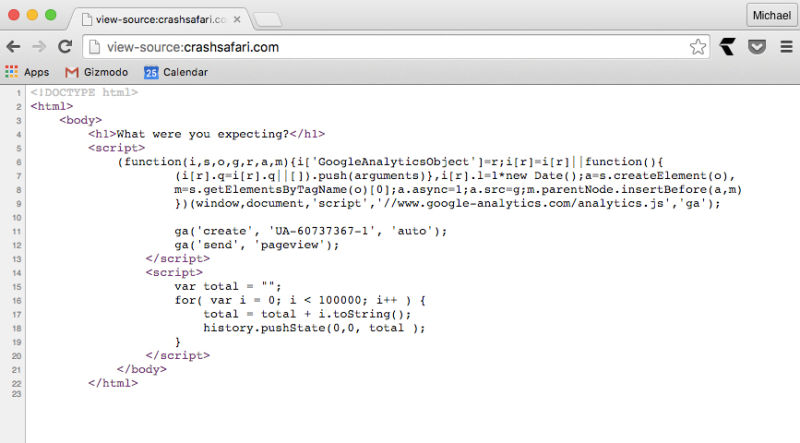
Jokers on Twitter are tweeting out links to a new prank webpage that, when clicked, will crash your iPhone, iPod touch, iPad or Mac, or cause the device to become unresponsive.

As Gizmodo explains, the aptly named website CrashSafari.com uses just four lines of code to crash Safari for iOS and OS X by running a script which adds thousands of characters per second into the address bar, causing Safari to overload its memory.

In the case of the Mac, you'll see the beach ball spinning and your computer will become unresponsive. On the iPhone, iPod touch or iPad, Safari will hang and start heating up your phone until it reboots itself.

Safari for Mac not resolving Twitter’s shortened “t.co” links? Apple’s identified a fix.

If you prefer to browse your Twitter timeline in Safari for Mac, you must have noticed the irritating issue where the browser won't resolve shortened “t.co” links, resulting in an error message informing you that “Safari can't open the page because the server where this page is located is not responding”.

What's really surprising is that this persistent Safari bug, which basically renders most Twitter links unreadable, has been around since last November, as evidenced by the Apple Support Communities.

According to an Apple engineer, a fix has been identified but it's unclear when an OS X software update, or a Safari patch, that would squash the bug might be issued.

How to open a new private window in Safari for Mac

One of the features of the Safari web browser built into your Mac that will come in handy time and time again are the private browsing windows that you can open to browse the web privately without having your browsing history stored in your computer for the next user to see.

In this tutorial, we'll show you how to open a private browsing window in Safari on your Mac so that you're ready the next time you need to perform a web search incognito.

How to show Safari toolbar on iOS without having to scroll back up

Since the iPhone's inception, Apple's mobile Safari browser has had this neat little feature for quickly jumping to the very top of any webpage simply by tapping the status bar.

Following a major redesign of Apple's mobile operating system with the 2013's release of iOS 7, Safari's top and bottom toolbars now shrink and disappear as you scroll down. As a result, you must scroll back up a bit to access the URL field, bookmarks and other features in the toolbars.

In this tutorial, you're going to learn about a cool new shortcut that you can use to quickly reveal Safari's toolbars without scrolling back up.

How to increase privacy in Safari for iPhone and iPad

Safari on iPhone and iPad

Most of you who use an iOS device probably use Safari as your main and default web browser despite the vast number of third-party alternatives like Chrome, Firefox, Brave, Opera, etc., available in the App Store. But how often do you think about the privacy of your information when you're using it?

Apple gives you several privacy options for using Safari on your iPhone or iPad to keep your information safe. In this tutorial, we aim to make you more familiar with them and talk about how to use them to make Safari secure and private.

How to subscribe to websites with Safari’s Shared Links

Apple's Safari browser has a little known yet very useful feature called Shared Links, which basically saves in one central place links to articles that your Twitter followers and LinkedIn contacts post, and those published as RSS feeds.

Most websites, iDownloadBlog included, offer a series of regularly published articles in the form of RSS feeds that can be subscribed to in Safari so that they appear within your Shared Links section.

In this tutorial, you will learn how to subscribe to articles from websites using the Shared Links feature in Safari for the iPhone, iPod touch, iPad and Mac.

How to quickly email the full text of an article in Safari

Safari on the iPhone, iPod touch and iPad allows you to post article links to social media and share them through third-party apps that have implemented support for iOS's multi-purpose Share sheet.

But sharing a link won't cut it were you to send the full text of the article in an email message. Selecting everything on a webpage and pasting into Mail isn't the best of solutions because all of the images and other non-related webpage elements get carried over, resulting in a messy email.

Thankfully, there's a better way to accomplish such a seemingly simple task. In this tutorial, we're going to discuss emailing the full, richly formatted text of an article in Safari, without all the clutter.