macOS

How to set up automatic account login on Mac

Login screen on MacBook Pro running macOS Sonoma

Wouldn’t it be nice if you could just turn on your Mac and start using it without having to log in to it all the time? If you’re someone who doesn’t need Fort Knox-like security to keep people from getting into your computer, then you can set up your Mac to log in to your account automatically when you turn it on, and we’ll show you how to do that.

Open source Darwin code for macOS 10.12 Sierra now available

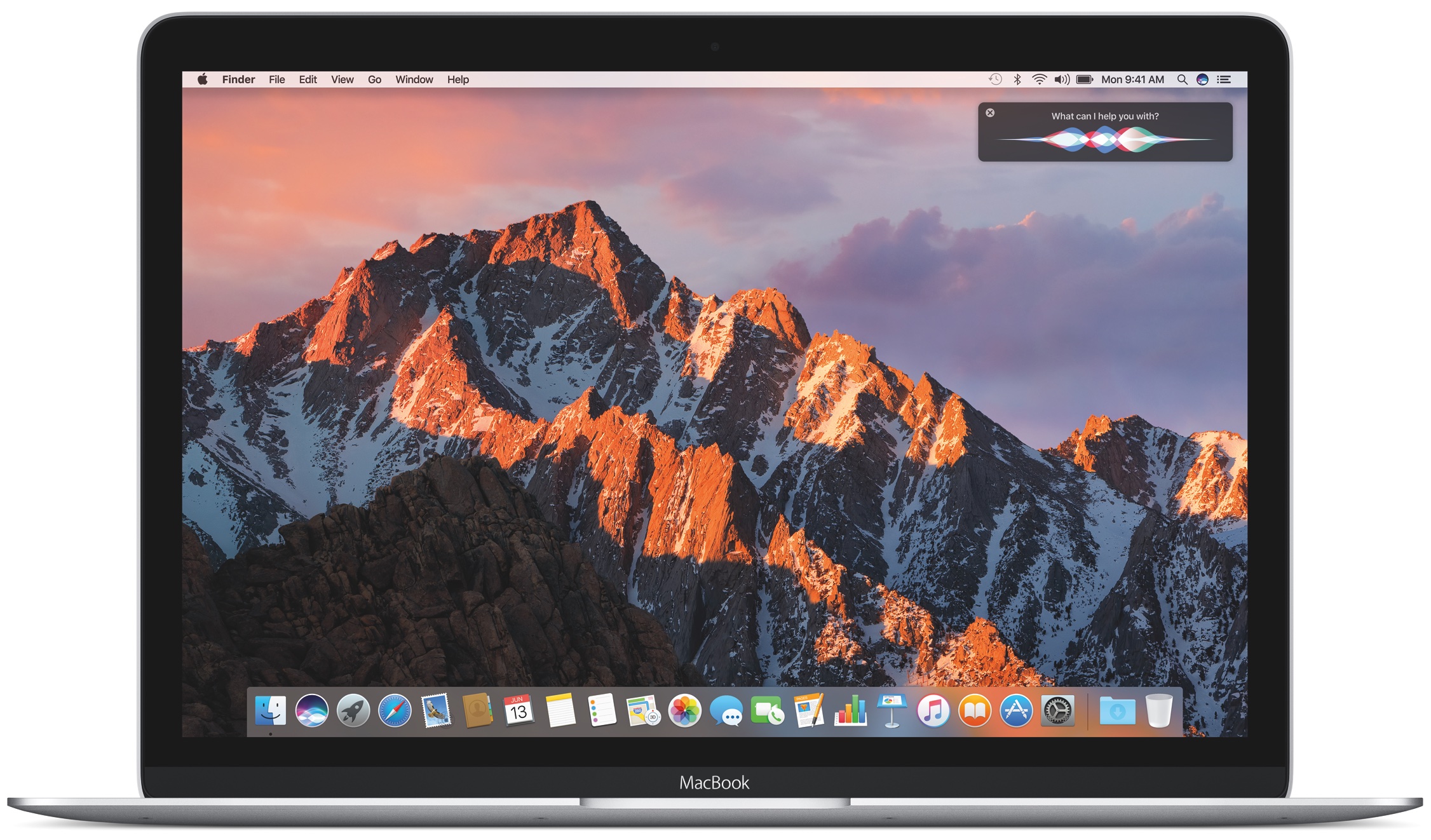
Apple today released open-source Darwin code for macOS 10.12 Sierra, 9to5Mac reports. Darwin, for those unfamiliar with it, forms the core set of Unix components upon which macOS, iOS, watchOS and tvOS are based, including drivers and the unencrypted kernel along with its BSD portions.

Apple typically releases Darwin code shortly after major macOS releases, and Sierra is no exception. Anyone interested in the intricacies of Sierra's inner workings can now grab a copy of Darwin via this direct download link.

How to prevent partitions from mounting when you boot up, log in, or connect drives to your Mac

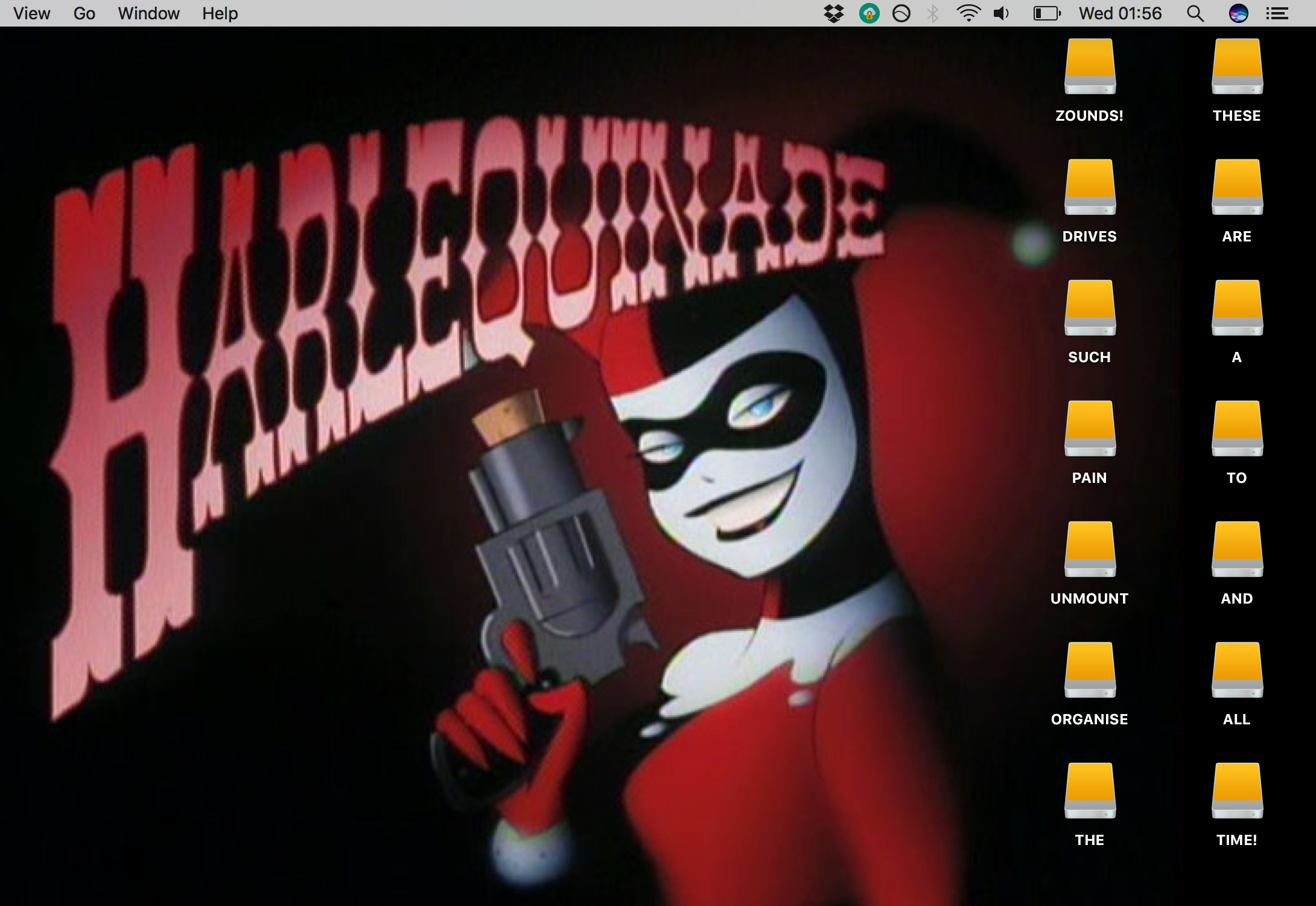
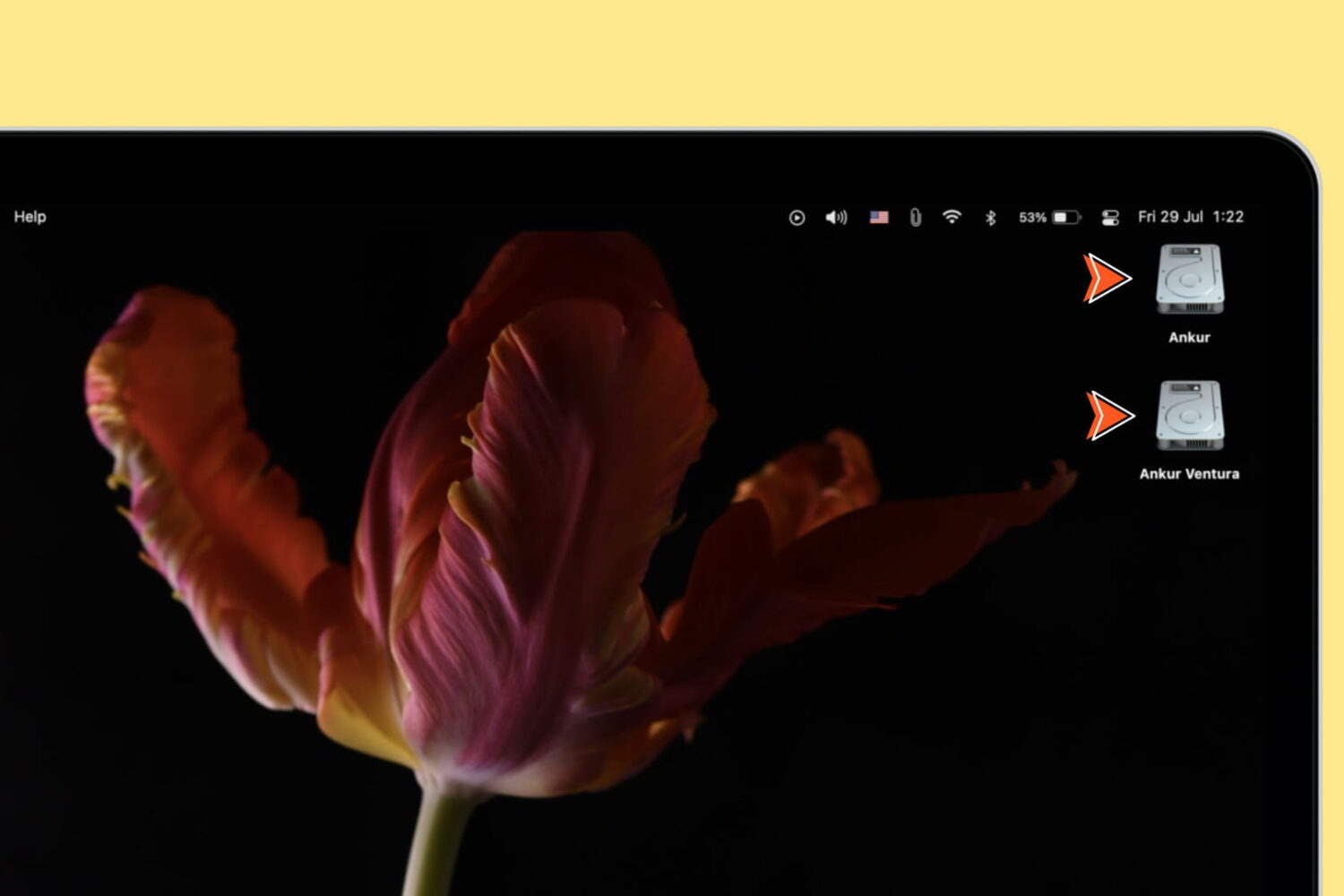
With the exception of partitions in unreadable formats and certain hidden partitions such as EFI and Recovery HD, the default behaviour of macOS is to mount all partitions of a drive on boot-up, login, or on connecting an external drive.

Whilst this behaviour is useful for the novice or for those connecting a single USB stick to copy some files, it can become unwieldy and even annoying if you have many multi-partitioned drives attached to your Mac.

For example, my desktop Hackintosh has three internal drives, each with at least two partitions, and one of these drives is not even needed when booted under macOS – it is for Windows 10 and Linux. Add to this a couple of external hard drives with partitions for storage, OS installers and Time Machine backups for other computers, and your desktop and Finder sidebar can begin to look a real mess. It also takes time for the drives to mount on every boot and unmount on sleep or shutdown.

This guide will detail how to ensure only the drives of your choosing mount automatically, leaving the rest unmounted within macOS.

Mac Automation Product Manager Sal Soghoian leaves Apple

Beloved engineer and evangelist Sal Soghoian has announced that he is no longer employed by Apple. He says the move is the result of the company eliminating his position as Product Manager of Automation Technologies for "business reasons."

Soghoian is a software developer that has been at Apple since 1997. During his tenure, he advanced a wide range of user automation technologies including UNIX CLI, JavaScript, AppleScript, Automator, and scripting support for several stock apps.

How to take screenshots of the MacBook Pro Touch Bar

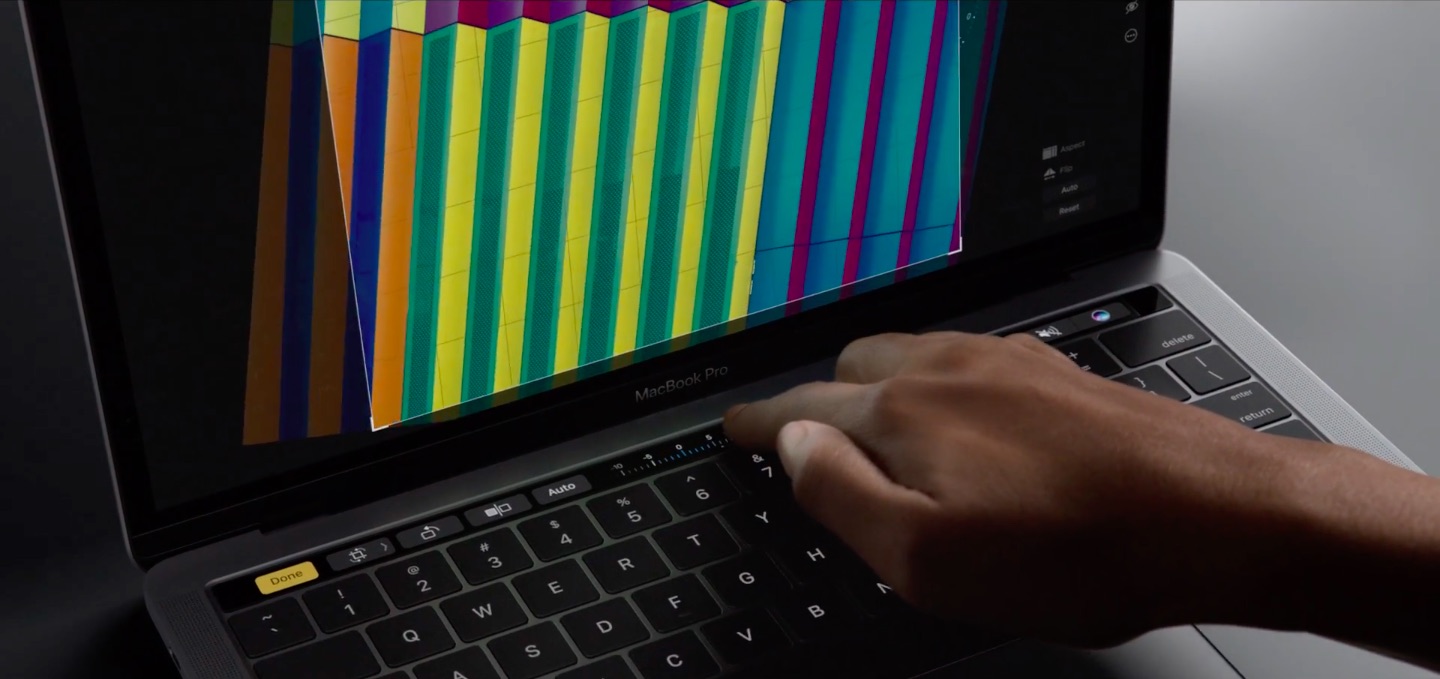
If you take screenshots on your Mac, you may wonder if macOS supports screenshotting the Touch Bar. The default Shift (⇧)-Command (⌘)-3 keyboard shortcut captures a screenshot of everything shown on the display, sans the Touch Bar.

With macOS 10.12.2, Apple has implemented a brand new shortcut specifically designed for taking screenshots of the Touch Bar.

Here's what you need to know about capturing everything that's shown on the Touch Bar as an image file on your computer. You'll also learn how to save Touch Bar screenshots to the clipboard for pasting in other apps and how to add screenshot-taking shortcuts as buttons to the Touch Bar itself.

Try out the new Touch Bar on any Mac with Touché

The Touch Bar is an exciting new feature that comes with the higher end MacBook Pro Apple unveiled last month, but you don't have to buy a new MacBook Pro to experiment with the Touch Bar resources that come baked into macOS on every Mac.

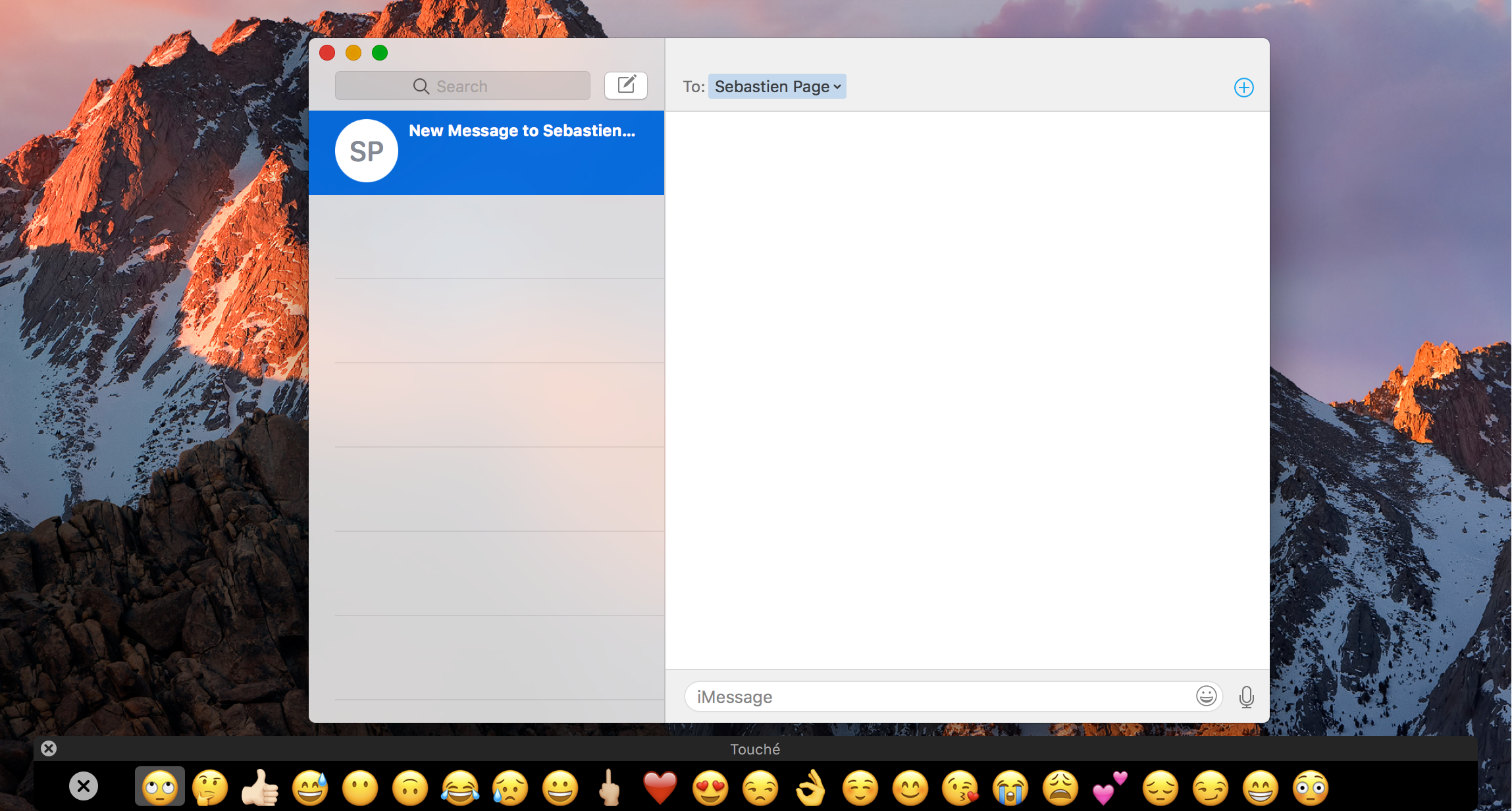
Last week we showed you a way to simulate the Touch Bar experience with a third-party app that utilizes the resources already in macOS, and now, another app called Touché is bringing a cleaner implementation of the Touch Bar simulator to all Macs.

How to convert CAF files to MP3 or AAC

From time to time, you might come across an audio file format known as .caf (Core Audio Format), which was originally created by Apple to put an end to file size barriers set by other audio file types.

Unfortunately, not every audio player or device works with .caf files, so it might do you good to know how to convert them to another audio file type using the software that comes with your Mac. In this tutorial, we'll show you how to convert .caf files to more commonly-used audio files such as AAC or MP3 with Garageband.