Learn how to automatically open images in the app of your choice instead of using Preview as the default photo viewer on Mac.
macOS
How to quickly dismiss an autocorrect suggestion on Mac
There are two ways to dismiss an autocorrect suggestion. There is the obvious one, which lets you use your mouse pointer to reject the autocorrection, and there is a keyboard shortcut that's actually much quicker to use, especially when you're currently typing.
In this brief post, we will show you how to swiftly ignore the autocorrect suggestion on your Mac using an easily accessible keyboard action.
How to view HTML source code of a webpage on iOS and Mac
Do you want to see what’s under the hood of the webpages you visit? Check out how to view a page’s source code on iPhone, iPad, and Mac.
How to change the default name of screenshots on Mac
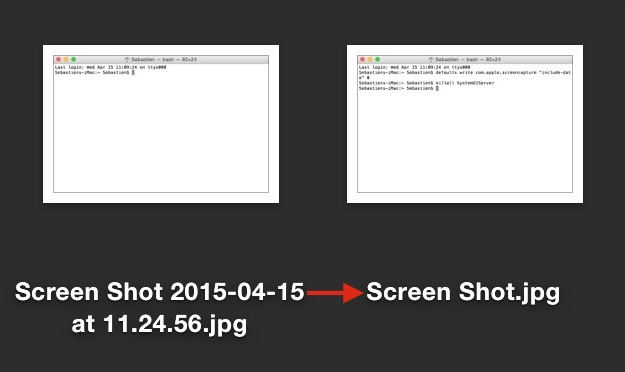
Learn how to change the default naming scheme for screenshots you take on your Mac, so that macOS saves all future screen grabs using custom file names.
How to remove date and time from screenshot file names on Mac
By default, every time you take a screenshot on macOS, the file generated will be named "Screen Shot date time" where "date" and "time" are replaced with the actual date and time the screenshot was taken. For most people, this is a useful feature as it allows to quickly sort screenshots depending on when they were taken. But for other people, it might be an annoyance.
In this post, we will show you how to remove the date and time from screenshots that were taken on Mac.
How to create a new library in the Photos app
Creating separate libraries. It's one of the best ways to go about organizing photos with the new Photos app in macOS. I find that using multiple libraries to separate things like work and personal life is a good strategy. Fortunately, it's extremely simple to create new libraries and to switch between those libraries on the fly.
How to set Mac apps to launch automatically at startup
Save time and boost productivity by configuring your favorite apps to launch automatically when you start your Mac.
How to create folder shortcuts on Mac
On Windows, you create shortcuts. On Mac? There's this little thing called aliases. Aliases are shortcuts that make it easier to find a file, folder, disk, or application. You can place aliases on your desktop, in the Dock, or anywhere else that's easy to find. In this tutorial, I'll show you two easy ways to create aliases on your Mac.
How to extract images from apps with the Preview app on Mac
Applications on the Mac are really just directory structures containing files, images, assets, executables, and the like. If you've ever right-clicked on an application and selected Show Package Contents, then you know exactly what I mean.
While right-clicking is a reasonable solution for extracting image, font, and other visible assets from an application, the Preview app makes doing so even easier. By simply dragging and dropping an app on the Preview app icon in the dock, you're presented with a easy navigable thumbnail view of all of the app's various assets.
How to tab between dialogue box buttons on Mac
The tabbing experience on Mac might feel a little gimped if you're coming from a Windows machine. That's because, by default, macOS makes it so that the option to move keyboard focus between all controls with the Tab key is disabled. Instead, tabbing is only possible between text boxes and lists using the default setting. In this tutorial, I'll show you two quick and easy ways to change this setting and enable a much-improved tabbing experience on your Mac.
How to take screenshots that include the mouse cursor on Mac
By default, the cursor on your Mac is omitted when you take a screenshot, but there is an easy way to include it when needed.
How to access the hidden ~/Library folder on your Mac
Learn how to temporarily reveal the hidden Library folder on your Mac or make it visible permanently if you want to access it regularly.