Check out ten simple commands you can perform with Terminal that could be of use to you now or in the future.
10 short and useful Terminal commands for Mac

Check out ten simple commands you can perform with Terminal that could be of use to you now or in the future.
In this simple tutorial, we’ll show you how to view and clear the history of commands typed into the Terminal app of your Mac.

Do you love your current screen saver on Mac and want to use it as the desktop wallpaper? This tutorial shows you how to do that using System Settings and Terminal.
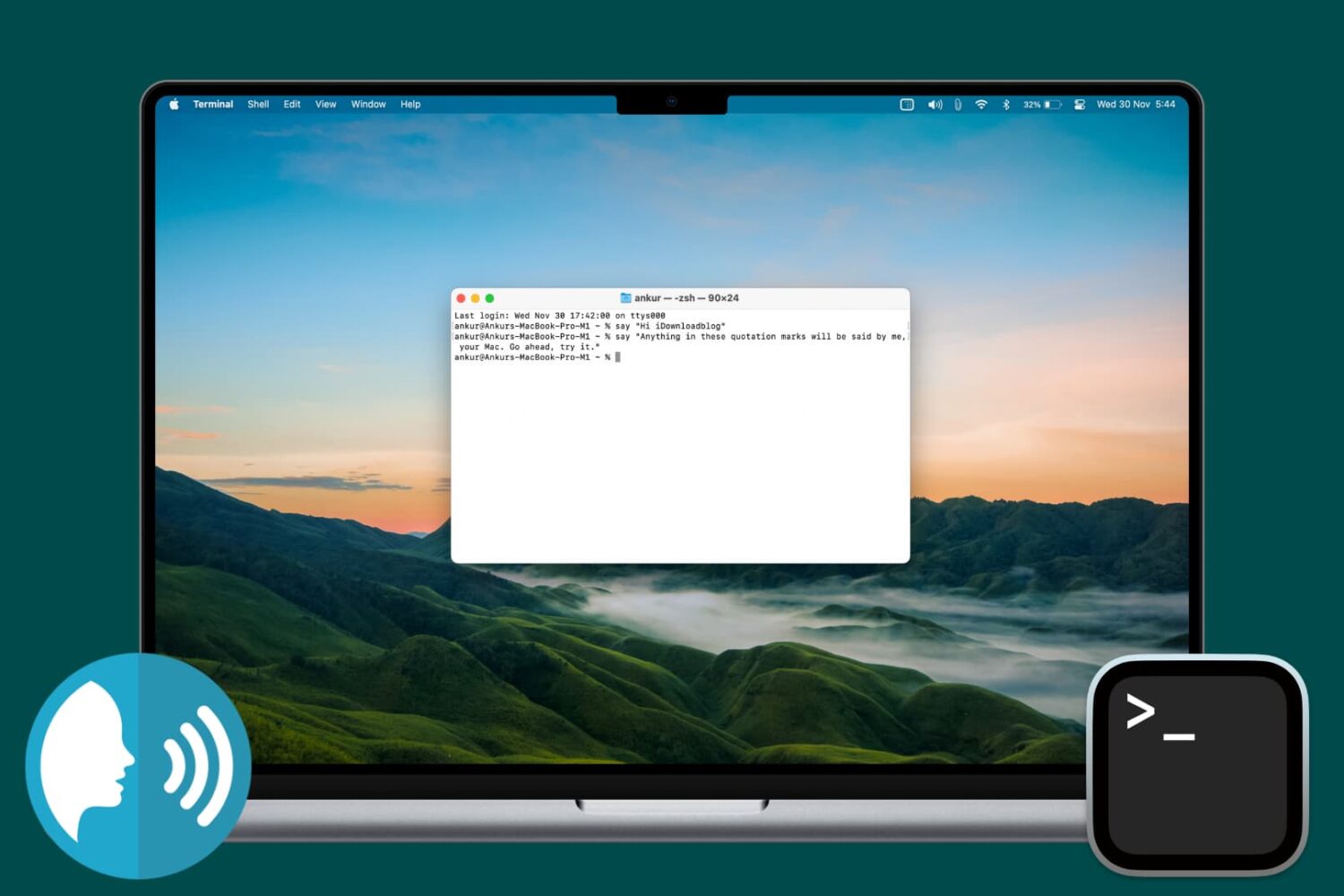
Find out how to make your Mac speak anything you want using the Terminal app that comes preinstalled on every macOS computer.

In this tutorial, you will learn about the most important System Settings (previously called System Preferences) shortcuts and see how to leverage them to make the most of this essential app on your Mac.

As rare as it may be, your processor or CPU cooling fans can fail, and there is a really easy way to test your Mac's hardware with the Terminal app that comes with macOS to ensure everything is working right.
In this tutorial, we'll show you how to stress test your Mac using Terminal so you can ensure all your processor's cores are working up to snuff and your cooling fans aren't grinding or failing to cool your Mac as they should.

In this tutorial, we show you two easy ways to temporarily keep your Mac from falling asleep, dimming the display, or showing a screensaver for as long as you need to.

Learn about a few quick ways to find duplicate images in your Mac’s Photos app and permanently delete them to free up space.

Safari Smart Search Field lets you type in either an URL to visit or a search query to send to the default search engine. It's also a place where search suggestions automatically pop up as you type. With this cool feature, you can type just the first few letters of a query and rely on the search engine (Google, Bing, Yahoo, etc.) to help you complete the search term without needing to type out the rest of your query. But, certain users may not be fond of this feature for privacy reasons.
If you're among them, use the step-by-step instructions provided in this tutorial to turn off suggested search terms in Safari for iPhone, iPad, and Mac.
In addition to moving your multi-gigabyte iTunes library to an external drive, a significant amount of Mac storage space can be freed up by moving your photo libraries onto a separate drive.
If you take a lot of pictures with a DSLR camera or your iOS devices and import them in Photos, you'll fairly quickly run out of free space on most Macs.
This tutorial will guide you through the process of moving an entire library of photos to an external drive, preferably to a much larger external hard drive, in a way that won't disrupt your photography workflow.

Heavy Mac App Store users will download, install, and delete apps from their Mac all the time. It may be because you're interested in experimenting with new utility releases, downloading games to get a thrill, or checking out the productivity apps that developers claim to be the "best" out there.
Through all this downloading, installing, and deleting, you may want to check out one of the apps you remember using from a long time ago to see if it got any cool new updates, and sometimes you don't particularly remember what the name of said app might be.
Fortunately, the Mac App Store comes with a way to see your purchase history, allowing you to see all of the apps you've ever downloaded from the Mac App Store whether they were free or paid ones. In this tutorial, we'll show you how to see your Mac App Store's download history.

Learn how to reset the SMC on Intel-based and Apple silicon Macs to troubleshoot and fix various hardware issues with the power, display, webcam, etc.