Learn how to check timestamps in Apple's Messages app on the iPhone, iPad, Mac, and Apple Watch to see exactly when chats were sent or received.
How to check the timestamp of messages on iPhone, iPad, and Mac
Learn how to check timestamps in Apple's Messages app on the iPhone, iPad, Mac, and Apple Watch to see exactly when chats were sent or received.
If you're a minimalist type of person, then you might prefer to keep your Mac's desktop free of any icons.
Yes, you can easily drag documents and other files that have been cluttering your desktop and put them in a folder on your Mac. However, that doesn't change the fact that icons for external hard drives, USB thumb drives and other hardware devices will still pop up on the desktop as soon as they're connected to your Mac.
Wouldn't it be nice if you could do something about that? Thankfully, Apple's engineers though of that, too, because macOS makes it easy to optionally remove desktop icons for different types of devices with just a few clicks.

Try these tips if you’re having Bluetooth problems on your Mac and can’t connect accessories, AirPods, or other wireless devices, or send files to an Android phone or Windows PC.
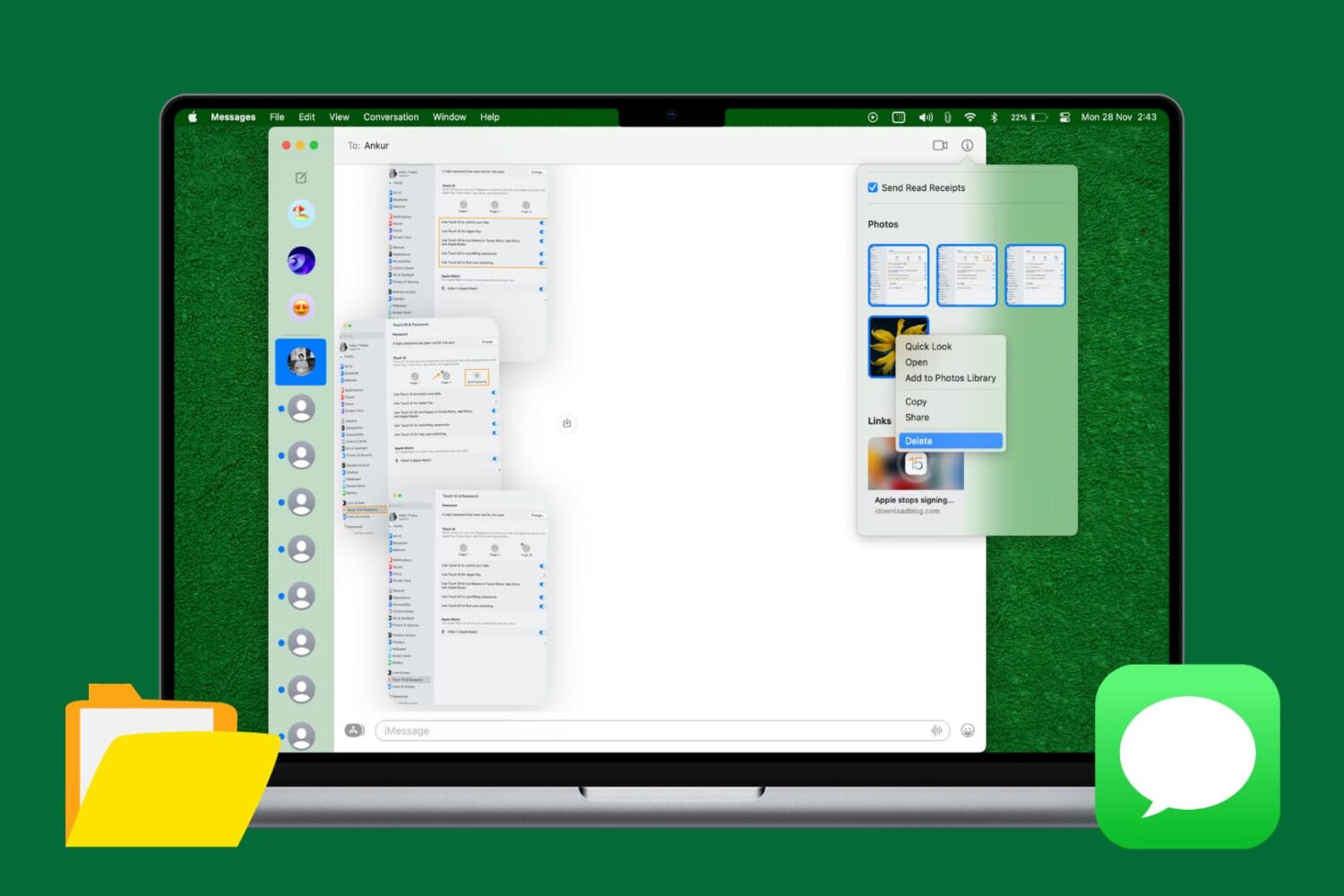
Learn how to quickly delete multiple attachments like photos and videos in Apple's built-in Messages app on the Mac to free up storage space and keep things organized.

Learn how to export images and videos from the Apple Photos app to a folder on your Mac in their original file format and resolution.

When you've pressed your display brightness down key on your Mac's keyboard as many times as you can without the screen going completely black, and it's still too bright for you, then you're probably like me and need a way to further dim the display's dimness level beyond the OEM minimum.
In this tutorial, we'll show you how to further decrease your display's brightness than what's allowed by the standard brightness settings of macOS.
One of the features of the Safari web browser built into your Mac that will come in handy time and time again are the private browsing windows that you can open to browse the web privately without having your browsing history stored in your computer for the next user to see.
In this tutorial, we'll show you how to open a private browsing window in Safari on your Mac so that you're ready the next time you need to perform a web search incognito.

Learn how to erase Safari browsing history and accumulated data for a particular profile or the entire browser on your iPhone, iPad, and Mac.

Learn how to set any bookmarks folder as the location where Safari saves webpages you have marked as favorites on your iPhone, iPad, or Mac.
Learn how to stop Photos, Image Capture, or other Mac apps from launching automatically when you connect your iPhone, iPad, or camera to your computer.

Learn how to reveal the hidden path bar on your Mac to see the location of a selected file or folder near the bottom of the Finder window.

Learn how to show the full file path in the title bar of the Finder windows on your Mac so you can always see your current location within the folder you’re navigating.