Apple has updated its Maps backend with nearly two-dozen new cities now supporting the Flyover feature. In addition, the company has activated live Traffic data for Taiwan and added Finland to the list of countries that support iOS 9's Nearby feature. Three-dimensional Flyover data has been added to five new cities in the United States, with additional Flyover views now available in various cities across Europe, Africa and Japan.
Mac
Stay up-to-date on the latest Mac news, and tutorials. Get expert tips and tricks to optimize your Mac’s performance and learn about the latest Apple products and software updates. Discover the best Mac apps and accessories to enhance your user experience.
How to reset NVRAM on your Mac
Macs are nice computers, but they're not without their issues that can spur up at random times. Fortunately, troubleshooting problems on a Mac isn't incredibly difficult and there are tons of simple steps you can take as a Mac user before calling AppleCare for support.
One of the easiest troubleshooting steps is resetting your Mac's NVRAM, a step which can solve an array of problems. In this tutorial, we'll explain what the NVRAM is responsible for and how to reset it to fix common problems.
How to measure Mac frame rates and enable HiDPI display modes on older models with Quartz Debug
Have you ever wanted to benchmark the graphics performance of your favorite Mac apps and games, or measure the refresh rates of macOS's user interface?
If so, you'll be delighted to learn that Apple provides a free application, called Quartz Debug, which has a built-in live frame rate monitoring tool that can measure the refresh rate of the graphics subsystem in frames per second (FPS).
Here's how you can download Quartz Debug to your Mac and use it to display the number of screen updates per second, see the FPS and CPU gauges changing as you perform different actions on your Mac, enable HiDPI display modes on non-Retina Macs and adjust other settings related to the computer's GPU.
How to watch Super Bowl 50 on iPhone, iPad, Apple TV, and other devices
On Sunday evening, millions of people will gather around their TV sets to watch Super Bowl 50. The game features the Denver Broncos taking on the Carolina Panthers, and kickoff is scheduled for 6:30 (ET).
For those of you who aren't going to be around a television Sunday night, but still want to follow along with the action, we've put together a list of ways you'll be able to do so using an iPhone, iPad, Mac and other devices.
How to disable transparency effects on your Mac
The release of OS X Yosemite in 2014 gave the Mac's user interface a fresh coat of paint in part through adopting much of the transparency effects that Apple added to iOS 7 in prior year.
Transparency is used throughout macOS and can be observed on the desktop and seen in drop-down menus, title bars, sidebars and toolbars.
This post will teach you how to disable transparency for all user interface elements that have a translucent appearance on your Mac.
Back to School promo goes live in New Zealand and Australia with free Beats Solo2 headphones
Apple’s annual Back to School promotion is back with a new deal launching today in Australia and New Zealand. University students, students accepted to a university and parents buying for a university student are being tempted with a free Beats Solo2 on-ear headphones, a $199.95 value, with an eligible Mac purchase.
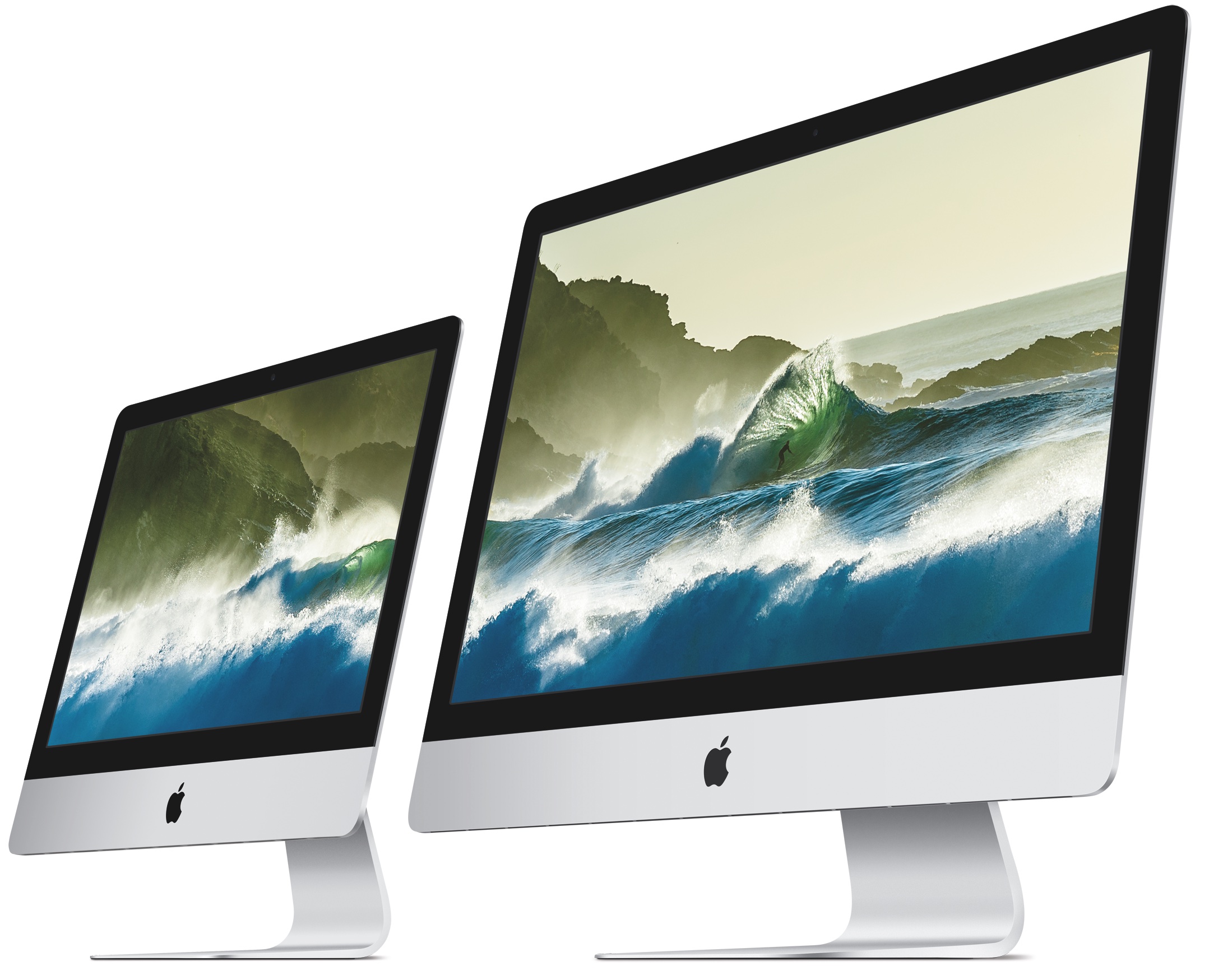
When purchasing a new MacBook, MacBook Air, MacBook Pro, iMac or iMac with Retina 5K display, customers shall receive an instant credit for the purchase of a pair of Beats Solo2 wired headphones in Gloss Black, Gloss White, Gloss Red or Gloss Blue or wired Beats Solo2 headphones in Space Gray, Silver, Gold or Rose Gold.
Why and how to reset SMC on your Mac
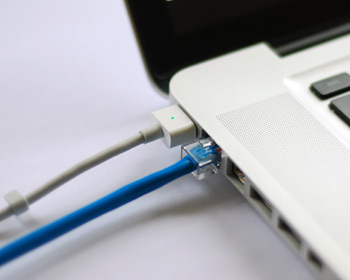
Learn how to reset the SMC on Intel-based and Apple silicon Macs to troubleshoot and fix various hardware issues with the power, display, webcam, etc.
How to hide device icons on your Mac desktop
If you're a minimalist type of person, then you might prefer to keep your Mac's desktop free of any icons.
Yes, you can easily drag documents and other files that have been cluttering your desktop and put them in a folder on your Mac. However, that doesn't change the fact that icons for external hard drives, USB thumb drives and other hardware devices will still pop up on the desktop as soon as they're connected to your Mac.
Wouldn't it be nice if you could do something about that? Thankfully, Apple's engineers though of that, too, because macOS makes it easy to optionally remove desktop icons for different types of devices with just a few clicks.
About OS X System Integrity Protection aka ‘Rootless’ and how to disable it
All Macs with OS X El Capitan installed on them have a new layer of security known as System Integrity Protection, which has been given the nickname 'Rootless' because it closes off a lot of system files to user access to prevent malicious programs and code from causing harmful changes to the core of OS X.
For some, the added security feels like a must for protection of your personal information, but for more advanced users who poke their noses into system files quite often, the feature can get in the way and prevent user modifications to the operating system. In this tutorial, we'll give you an overview of System Integrity Protection and show you a way to disable it.
Experiencing Bluetooth problems on your Mac? Try this
Try these tips if you're having Bluetooth problems on your Mac and can't connect accessories, AirPods, or other wireless devices, or send files to an Android phone or Windows PC.