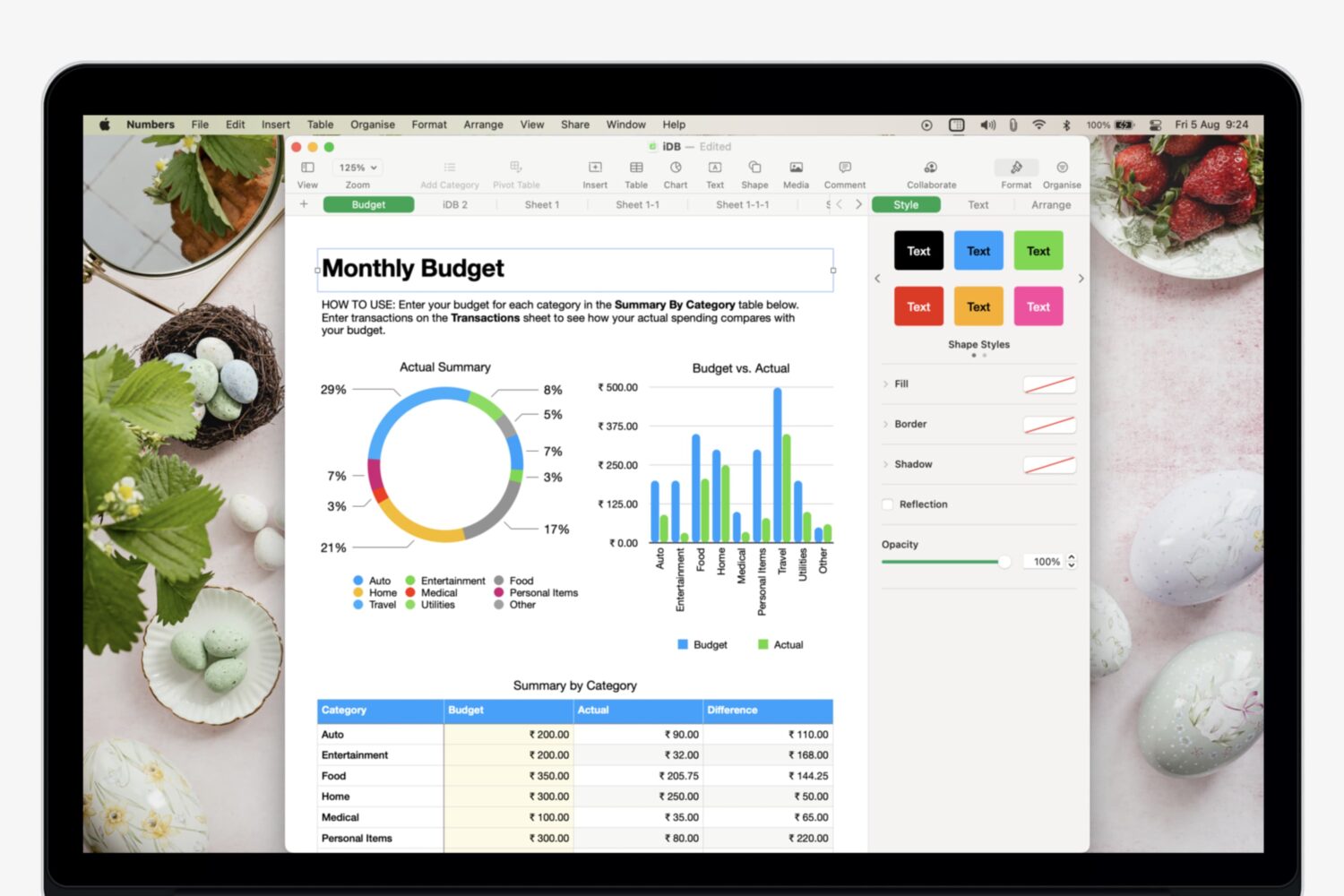
Want to view your spreadsheet data in different ways? In this tutorial, we will show you how to use basic categories in the Numbers app on your Mac.
How to work with basic Categories in Numbers on Mac

Want to view your spreadsheet data in different ways? In this tutorial, we will show you how to use basic categories in the Numbers app on your Mac.
Learn how to use the hidden Secure Notes feature of the Keychain Access app on your Mac running an older version of macOS to store confidential notes, private text, PINs, credit card numbers, 2FA backup codes, cryptographic keys, etc.
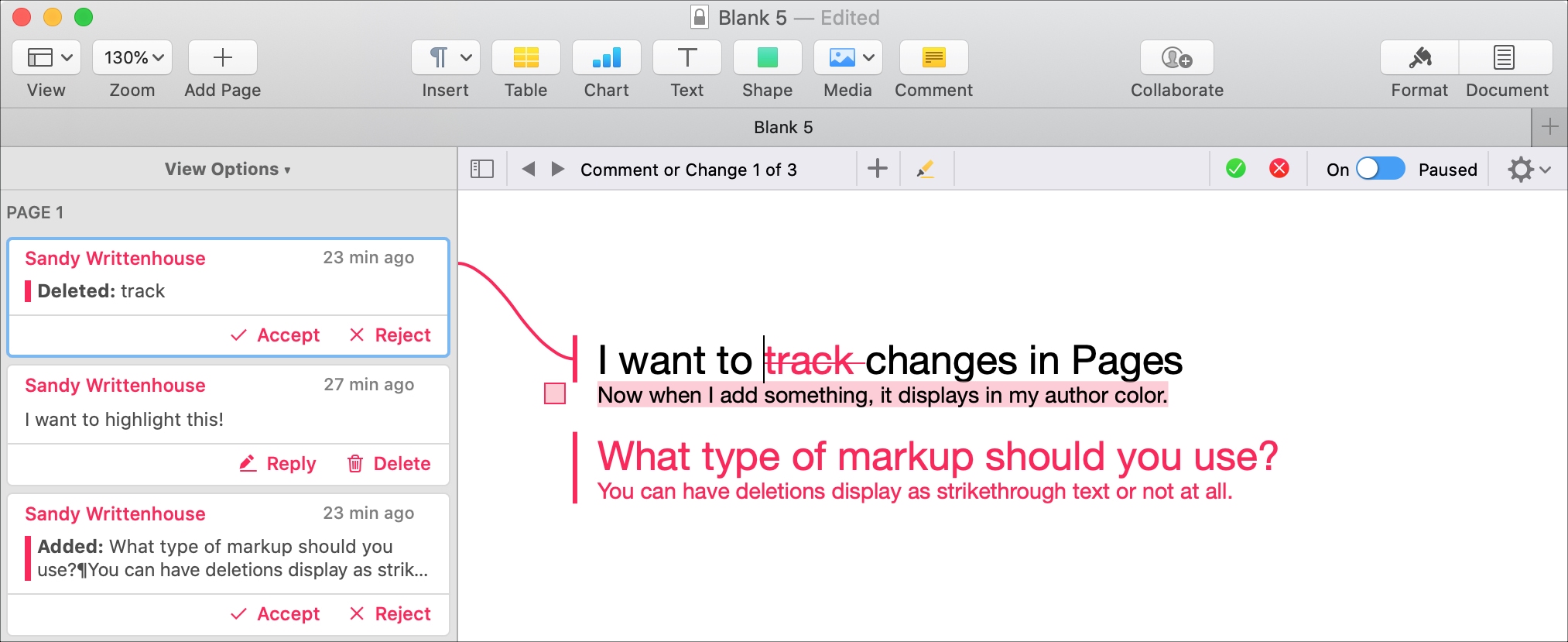
If you and your coworker are collaborating on a document in Pages, using the feature to track changes can be helpful. This will display the text from each person adding or changing the document in a different color. So, you can easily see who does what.
In addition, you can see comments, replies, and changes in a handy sidebar and accept or reject individual or all changes to the document. If you’re using this feature for the first time, we want to help. Here’s how to track changes in Pages on your Mac.
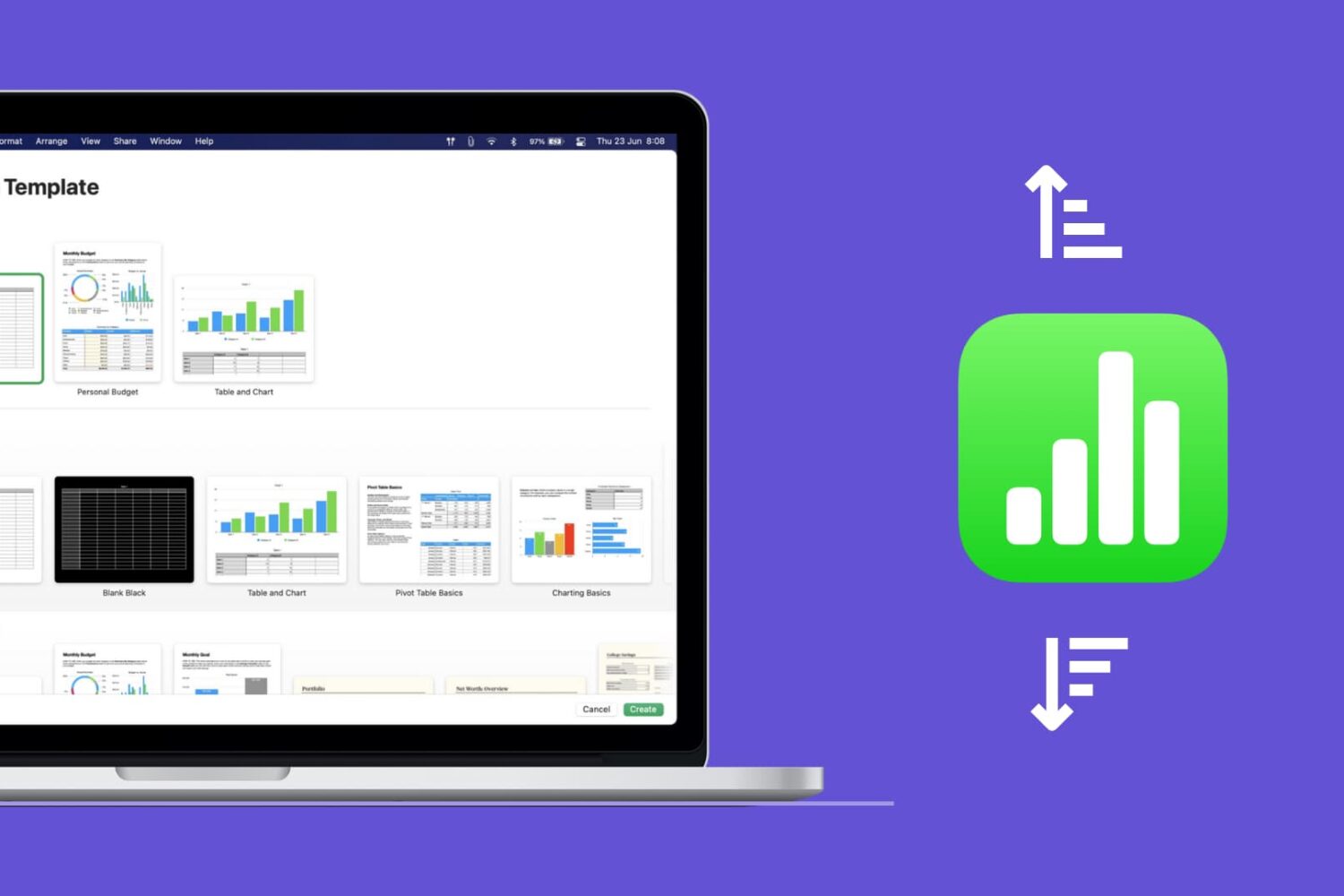
Learn how to quickly sort your data in the Apple Numbers app on Mac, whether by column, value, or custom order.
Learn how to add, manage, and use multiple sheets in Numbers to organize your data and make it easily accessible.
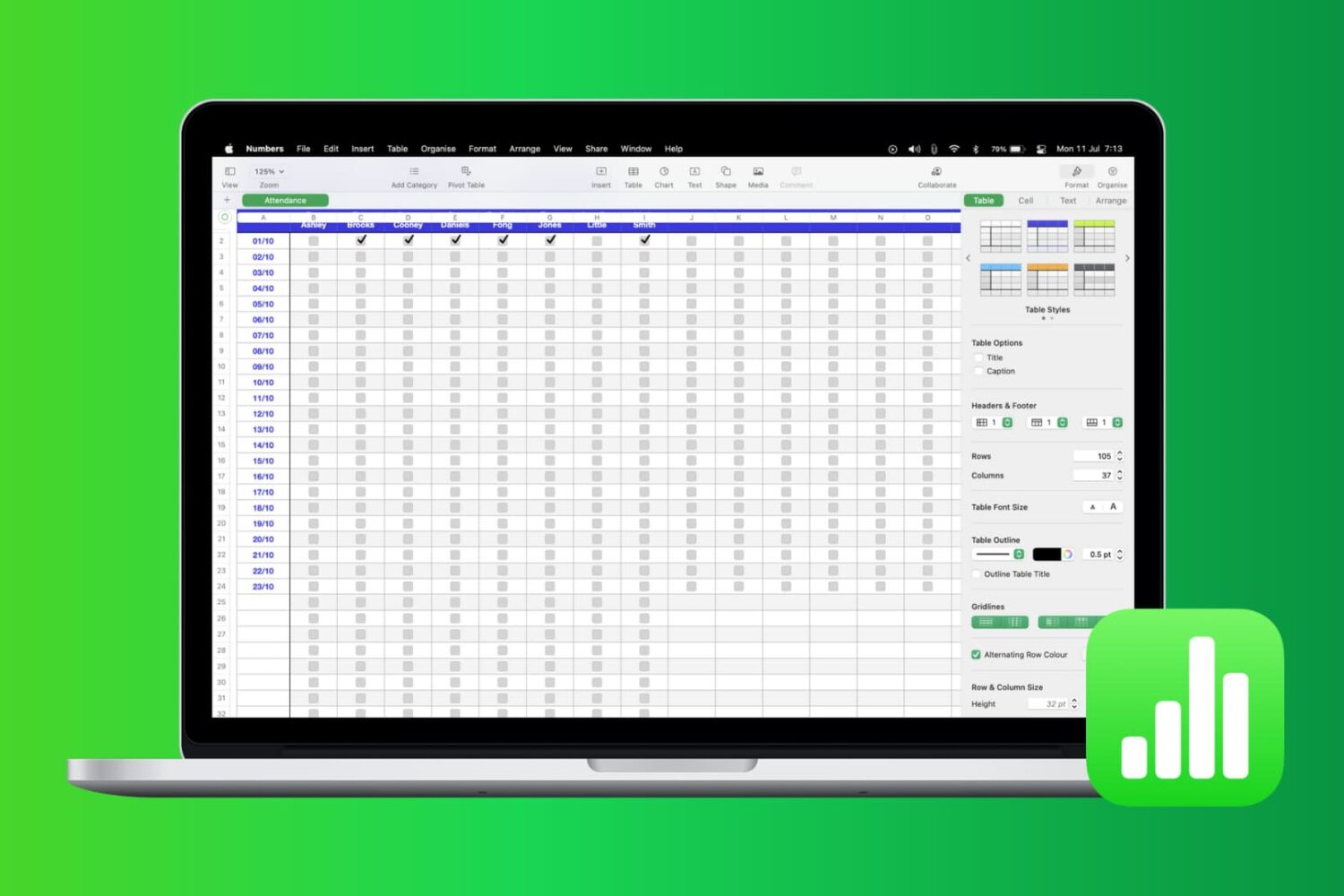
Most times, there’s more to the data you add in Numbers than just entering it. You may also want to analyze it. Whether it’s company sales, personal financials, or customer records, you can use filters to display only the data you want to see.
Numbers has features that let you apply a quick filter or set up filtering rules. Both of which are handy depending on the amount of data you have and the data you need. This tutorial shows you how to filter your data in Apple Numbers.

If you and your team use Slack for team communication, these keyboard shortcuts for Slack on Mac can help you perform actions faster.
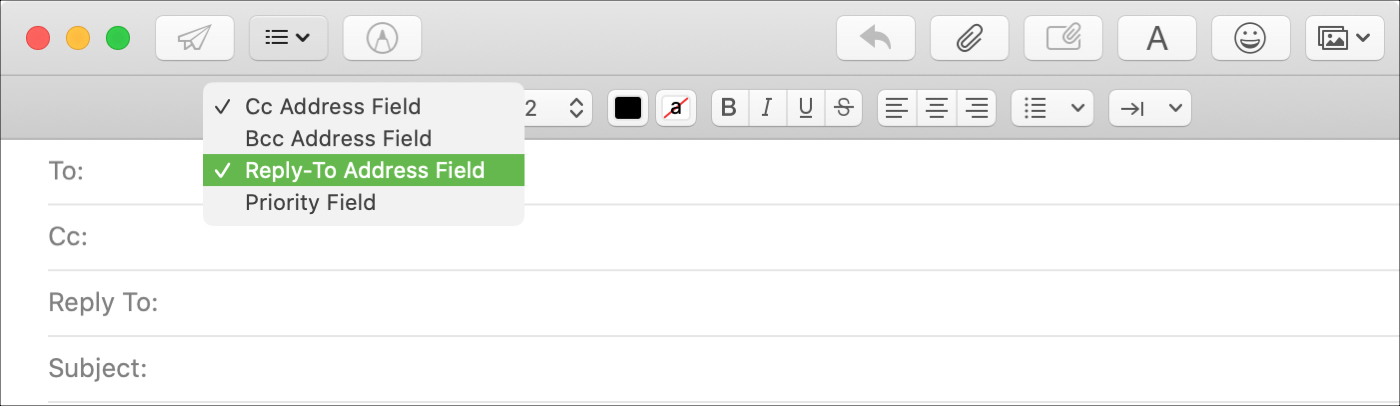
You may have seen this when emailing a business; a different Reply To address than the one you received the email from. Companies and organizations can use this when they want replies to go to a specific mailbox. And if your business uses the Mail app on Mac, you can do the same.
Although it doesn’t currently appear to be a feature in Mail on iOS, it is on macOS. So here’s how to use that Reply To field in Mail.

Learn how to use the Smart Address feature in the Mac Mail app to display only the recipient’s name instead of their full name and email address.

Automator on Mac is a terrific tool for creating workflows, applications, and other automations that can speed up tasks and make life easier. In order for you to focus on the workflows you’re creating, take a look at this list of keyboard shortcuts for Automator on Mac.
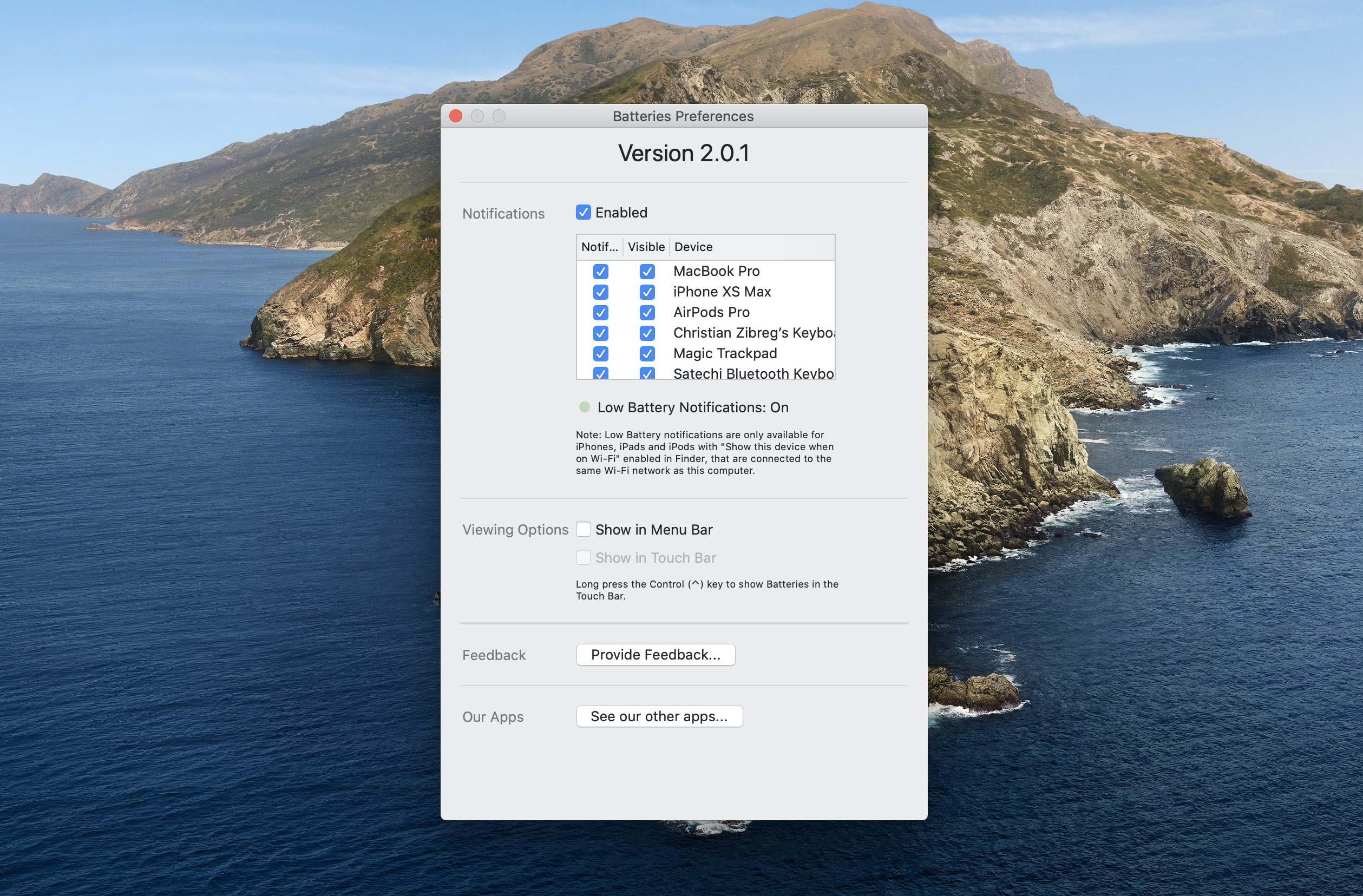
The handy Batteries widget for Mac by former Apple engineer Rony Fadel is a simple yet tremendously useful macOS utility with which you can easily track connected devices' battery levels from your Mac, get notified when they need recharging and more.