Learn how to export images and videos from the Apple Photos app to a folder on your Mac in their original file format and resolution.
How to export images from Mac Photos app in original format

Stay up-to-date on the latest Mac news, and tutorials. Get expert tips and tricks to optimize your Mac’s performance and learn about the latest Apple products and software updates. Discover the best Mac apps and accessories to enhance your user experience.
Learn how to export images and videos from the Apple Photos app to a folder on your Mac in their original file format and resolution.

The watch faces on the Apple Watch are somewhat of an art form in themselves, created in collaboration with some of the world’s best timekeeping experts. But with our quick guide, you can also have those wonderful faces as a functional screen saver on your Mac!

I don't know about you, but I'm annoyed every time an app crashes on my Mac and the macOS Crash Reporter interrupts my work with a pop up warning in the middle of the screen. Wouldn't it be great if those crash reports were displayed as banner notifications?
As explained by LifeHacker, a simple Terminal command will override the default system behavior and send those app crash reports straight to the macOS Notification Center, so they don't interrupt your workflow.
In this tutorial you will learn about a Terminal command which will route crash reports through your Mac's Notification Center rather than display them windowed in the middle of your screen.

If you like to rate songs on Apple Music, including those you have purchased on the iTunes Store, chances are you will at some point want to submit your star-based ratings. Now, iTunes for Mac and Windows PCs used to support half-star ratings out of the box, but recent updates have changed this behavior to using full stars only.
Fortunately, as noted by The Loop's Dave Mark, this can be quite easily reverted back to half-star ratings with a quick Terminal command.
In this post, you will learn how to enable half-star ratings in desktop iTunes and rate music more accurately than before.

Not so long ago, we told you all about an app for iOS that allowed you to convert PDF files to Microsoft Word files, but did you know you can accomplish the same process on your Mac too?
In this tutorial, we'll be showing you how to convert PDF files to Microsoft Word files using an app from the Mac App Store called PDF to Word.
One of the features of the Safari web browser built into your Mac that will come in handy time and time again are the private browsing windows that you can open to browse the web privately without having your browsing history stored in your computer for the next user to see.
In this tutorial, we'll show you how to open a private browsing window in Safari on your Mac so that you're ready the next time you need to perform a web search incognito.

Learn how to erase Safari browsing history and accumulated data for a particular profile or the entire browser on your iPhone, iPad, and Mac.
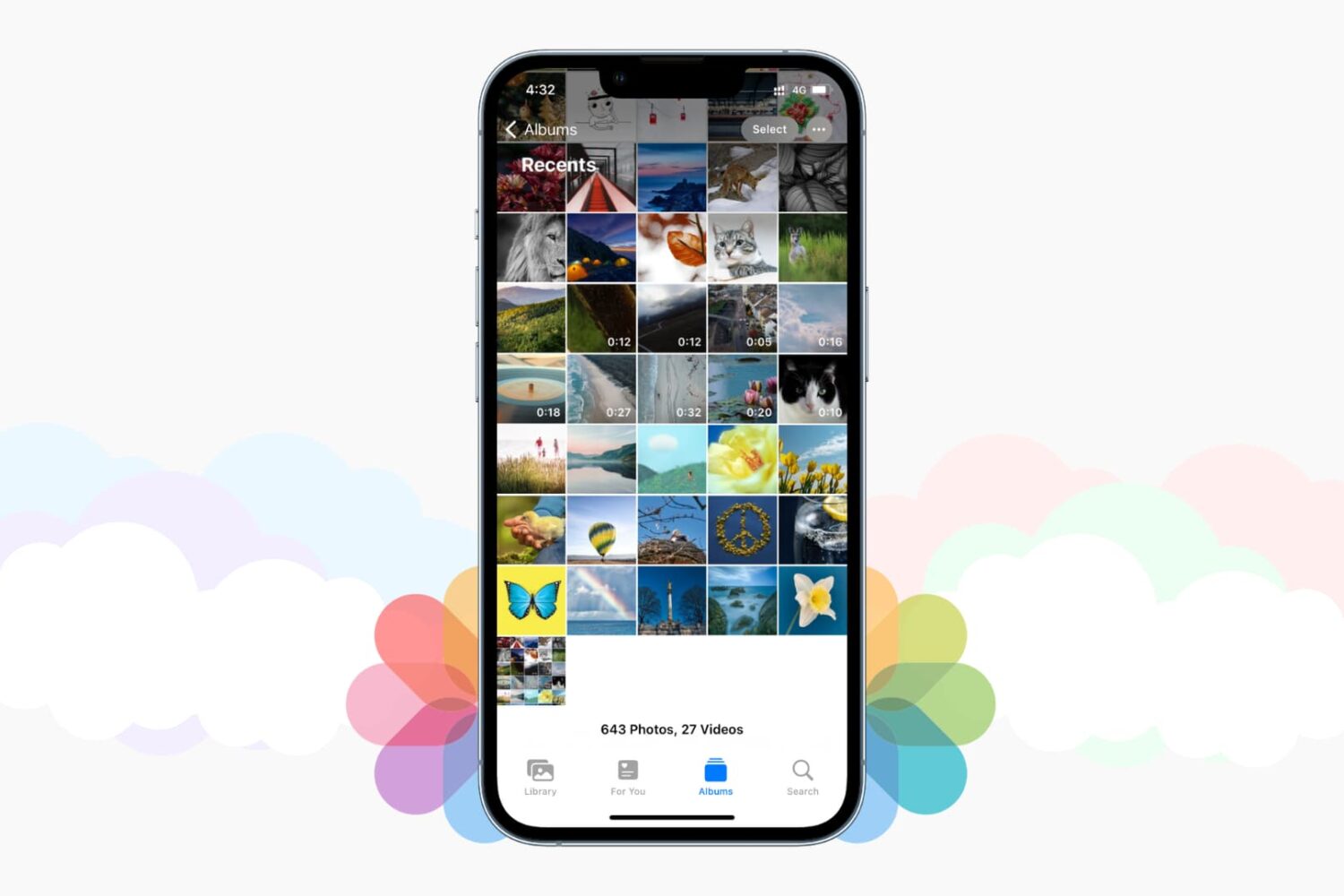
Those high-quality snaps and videos you take on your iPhone, iPod touch or iPad can pretty quickly eat up all of the available storage space on your device.
There are a number of techniques to increase your free storage, like deleting apps you no longer use, emptying system caches and so forth, but they all pale in comparison to the simplest of solutions—actually moving storage-hungry photos and videos off your device to safely store them in the cloud.
In this post, we'll tell you all you need to know about the most popular cloud storage solutions. We're going to detail backing up your media to each of them and discuss recommended strategies for freeing up as much storage space as possible without destroying your personal memories or changing your workflow much.

In this troubleshooting guide, we walk you through all the potential solutions to fix Touch ID problems on your Mac, iPad, or iPhone and make the fingerprint scanner work again to unlock the device, autofill passwords, authenticate purchases, and more.

Learn how to preview links in Safari when you hover over them to find out where the link is taking you before you click it on Mac and iOS.
Learn how to stop Photos, Image Capture, or other Mac apps from launching automatically when you connect your iPhone, iPad, or camera to your computer.