iPadOS

The Shy dims iPhone Home Screen icons after moments of inactivity

As a jailbreak hobbyist, I’m always in the market for quirky jailbreak tweaks that make my iPhone do interesting things. I not only enjoy being taking advantage of these small hacks and add-ons for myself, but I also enjoy showing others what they do and watching the expression of surprise that comes across their face before they eventually ask, “how’d you do that?”

One of such tweaks is a new and free release called The Shy by iOS developer haoict, which simply dims your Home Screen’s app icons after a user-determined amount of inactivity. In other words, when you go idle for a few seconds, you get a cool Home Screen effect to complement your inattentiveness.

Set any image as your Dock’s background with PhotoDock

If after jailbreaking your iPhone, you’ve started looking for a fun and quirky way to customize the Home Screen’s aesthetics, then we’ve got a treat for you.

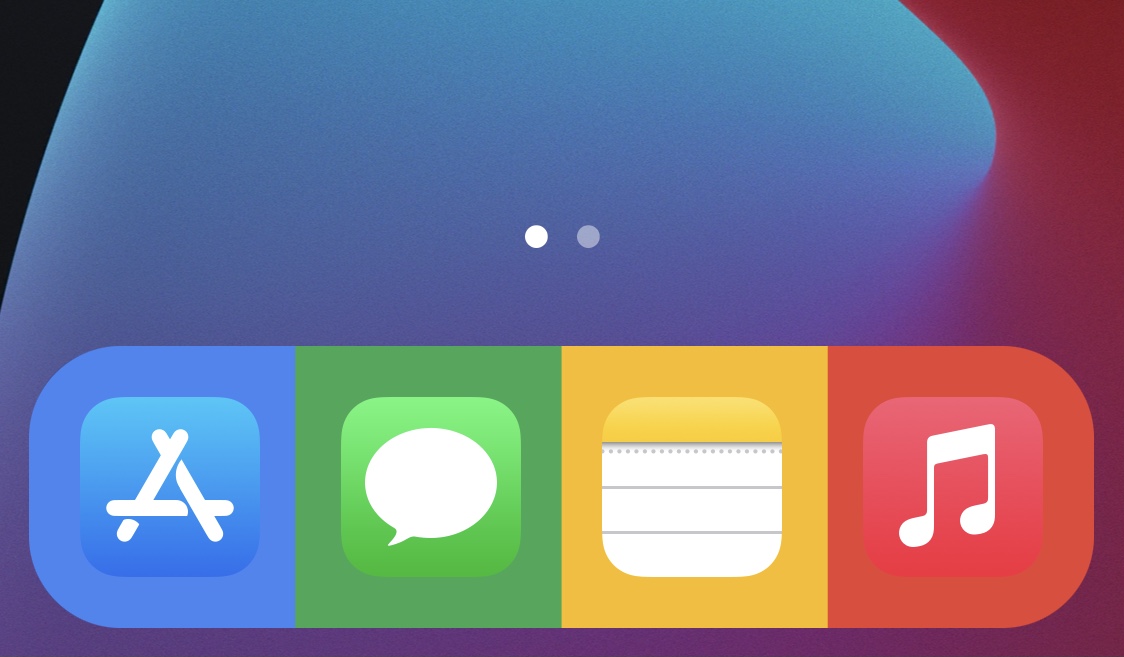
PhotoDock is a newly released and free jailbreak tweak developed by PopsicleTreehouse that lets users set a custom background image for the Home Screen’s Dock.

Miss iOS 13’s wheel-based date picker? This jailbreak tweak ports it to iOS 14

If you ever set up alarms in your iPhone’s native Clock app or upcoming events in the Calendar app, then you’re probably used to having to enter a specific time and date for those types of configurations.

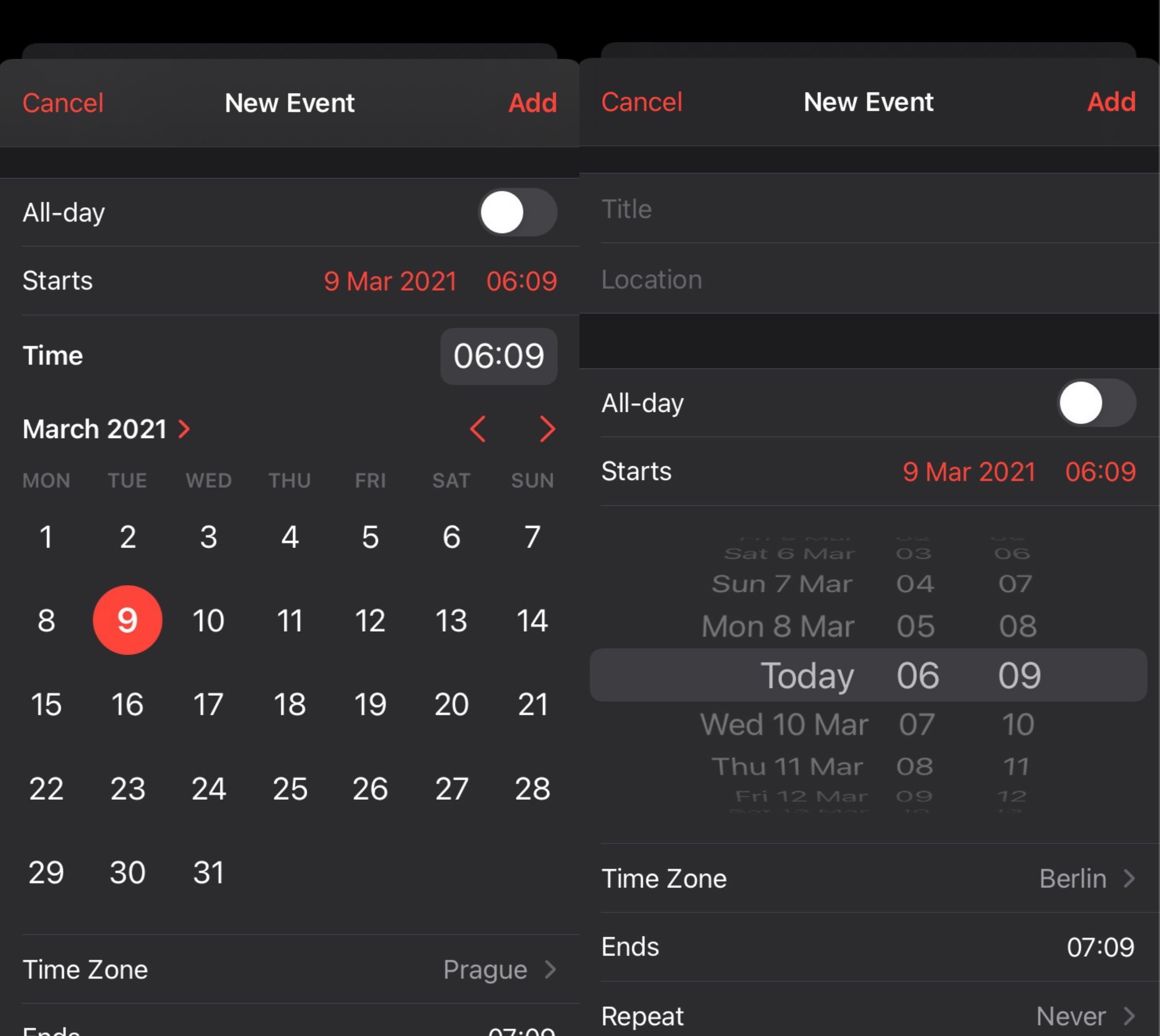
As many noticed, iOS & iPadOS 14 have replaced the traditional wheel-style date selector with an inline version that displays a combo box for the time and a full-blown calendar picker for the date. While some really like this new inline selector, others aren’t used to it and have found it to be more cumbersome.

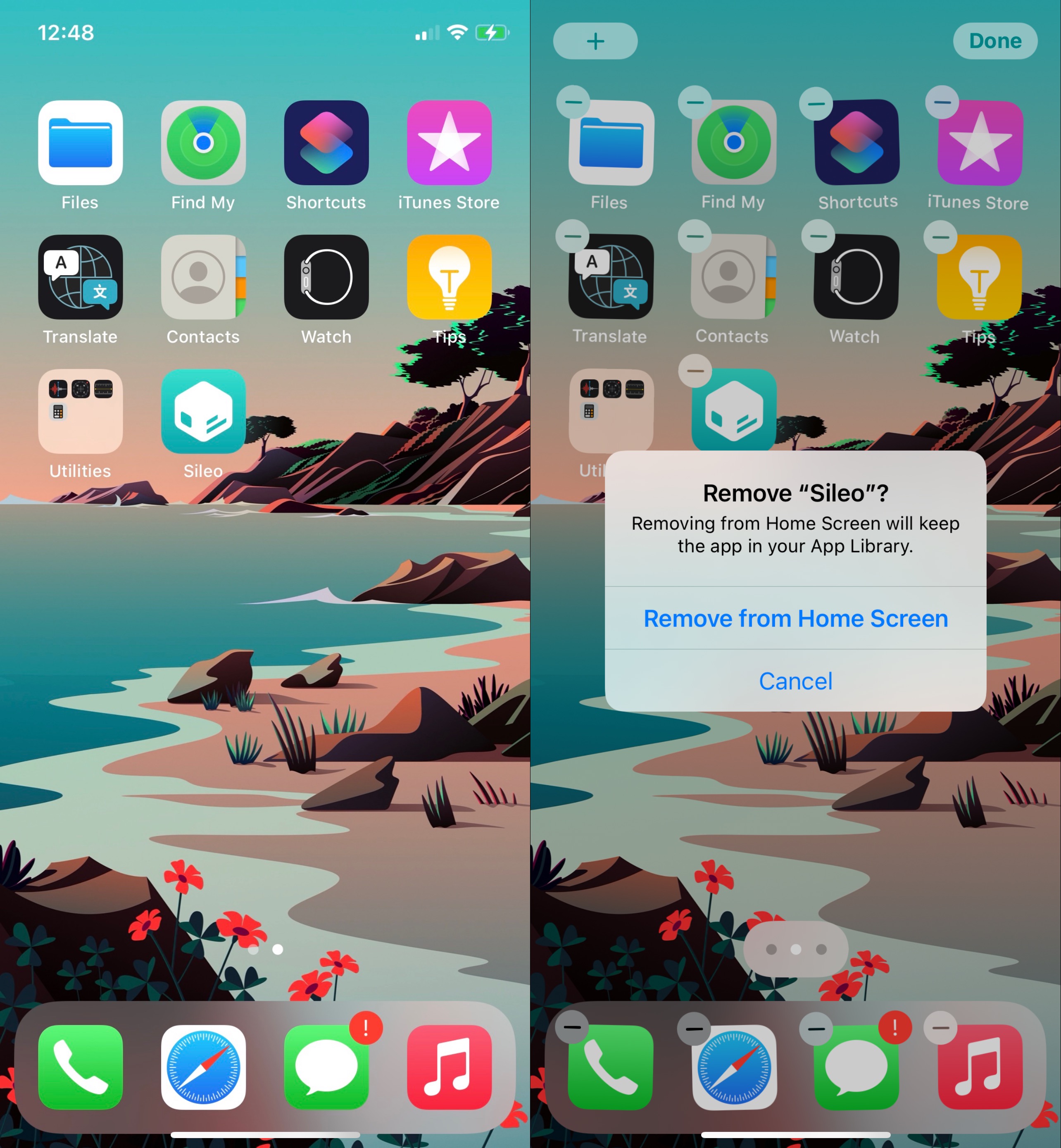
CoolStar teases Sileo on iOS 14.3, progress on Odyssey14

Ever since Pwn20wnd updated the unc0ver jailbreak tool to support iOS & iPadOS 14.0-14.3, we’ve received countless questions about when CoolStar’s iOS & iPadOS 14.0-14.3 jailbreak would launch.

While CoolStar has been particularly tight-lipped about progress on such a jailbreak, even going as far as to suggest that there was no urgency to rush a release merely because unc0ver launched first, the good news for those who’ve been asking is that the jailbreak community got its first tangible teaser late last night.

Libellum lets jailbreakers jot notes down directly on the Lock Screen

Note-taking is an incredibly useful way to ensure you don’t forget something later on, and while Apple’s Notes app is a great tool for jotting down a note here and there, it can be a nuisance trying to get to the app in a pinch when I need it.

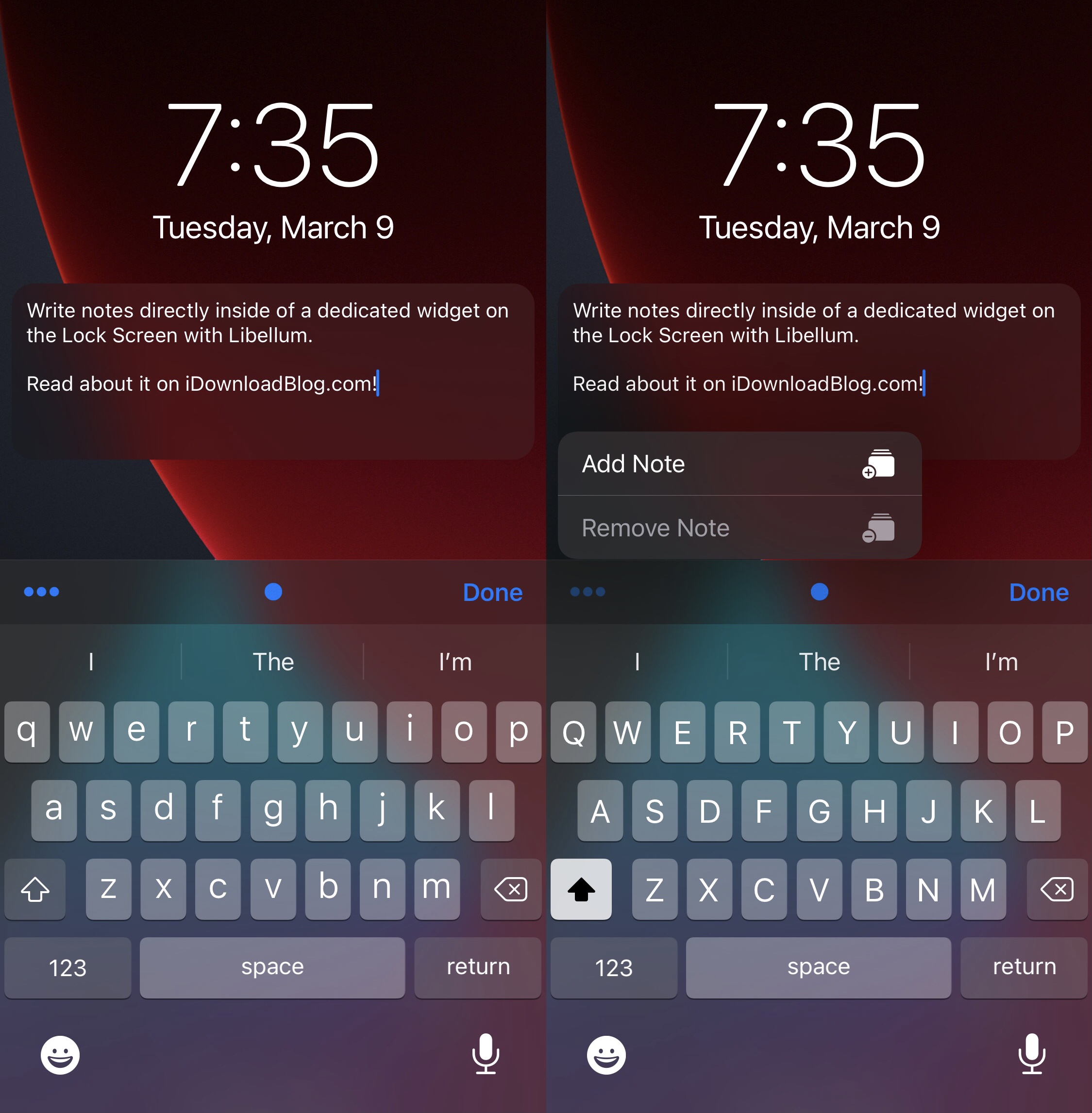
Libellum is a newly released and free jailbreak tweak by iOS developer LacertosusDeus that offers refuge from the aforementioned qualm, and it does so by putting a convenient note-taking widget directly on your Lock Screen that you can interact with without any delay of any kind.

Customize your jailbroken iPhone’s Lock Screen with LockNice

If you’re in the market for an easy-to-use jailbreak tweak that lets you customize aesthetics on the Lock Screen and some other parts of iOS, then you may want to turn your attention to the likes of a newly released and free jailbreak tweak called LockNice by iOS developer ahmedmakls.

At face value, LockNice appears to be made for tweaking the look of your Lock Screen in subtle, yet personal ways. But when we tested the tweak, we were pleasantly surprised to find that some of the colorization features extended to the Home Screen.

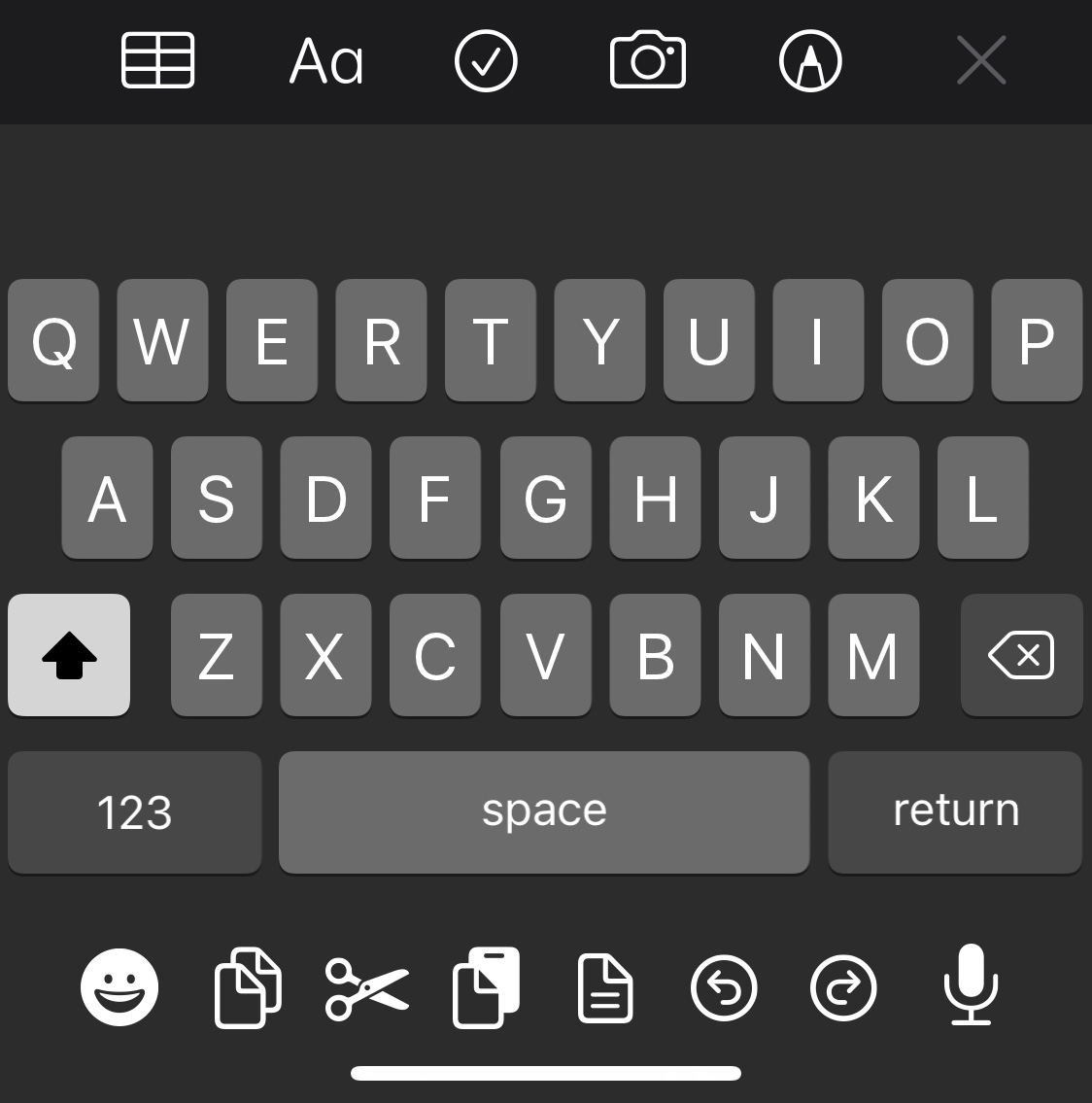
iPhone newly jailbroken? This tweak upgrades the native keyboard in more than one way

Whether you send a ton of text messages, spend a lot of time browsing the Web, or like to jot down notes from time to time, the keyboard is something most iPhone owners interact with on a daily basis.

While Apple’s keyboard offers perhaps one of the most refined keyboard user experiences on the market today, it’s not uncommon for the jailbreak community to develop ways of making it better. The latest of such attempts comes by way of a new and free jailbreak tweak dubbed Shortmoji 2 by iOS developer MiRO.

New FutureRestore GUI makes unsigned iOS downgrades and upgrades more approachable

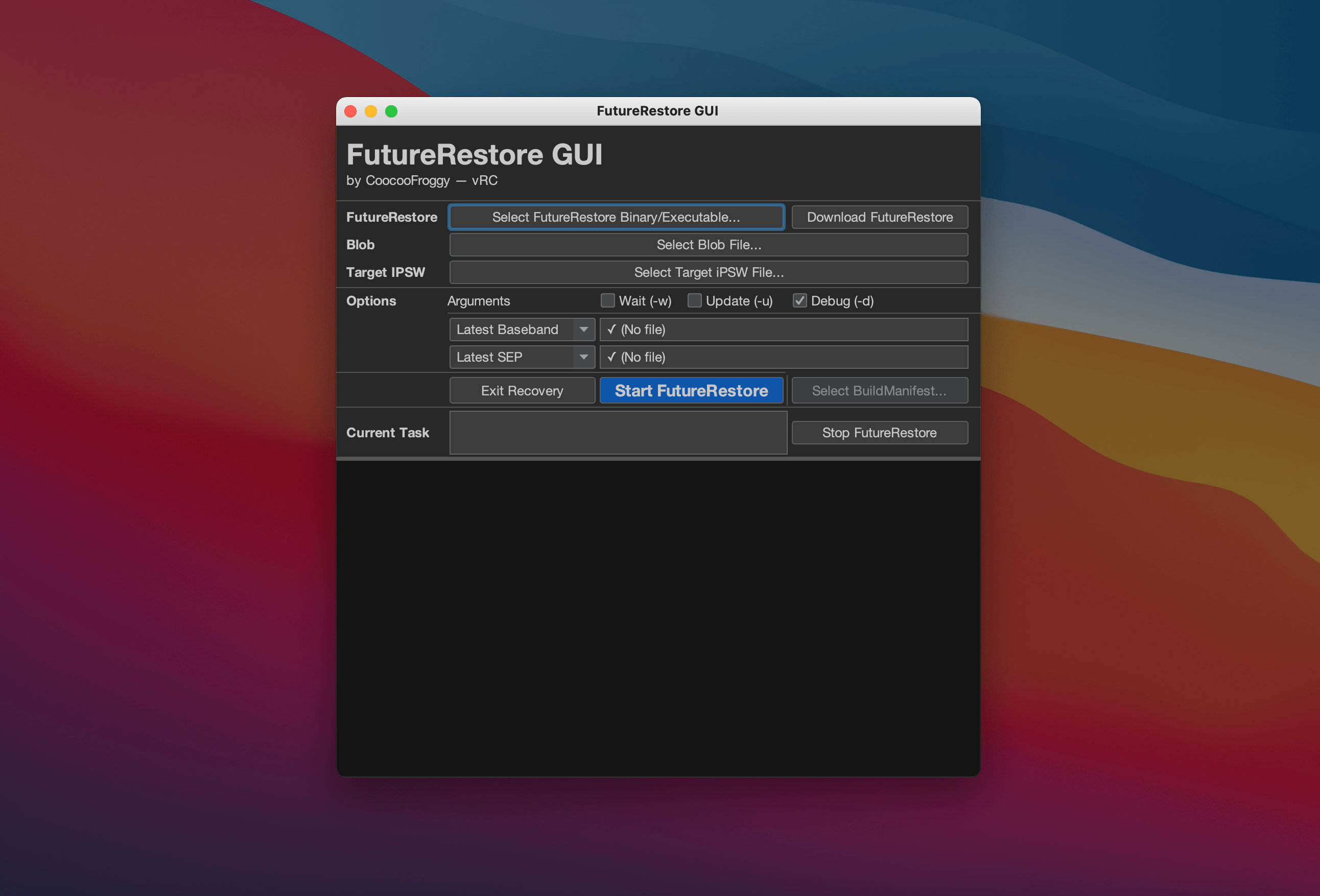
The FutureRestore GUI.

Excellent news for those who’ve been wanting to take advantage of futurerestore to downgrade or upgrade to an unsigned version of iOS or iPadOS – you’re no longer limited to using command line interfaces (CLI) to do so.

On Monday, the community was pleasantly surprised by the release of a new user-friendly and Java-based futurerestore application for macOS dubbed FutureRestore GUI (GUI of course stands for graphical user interface).

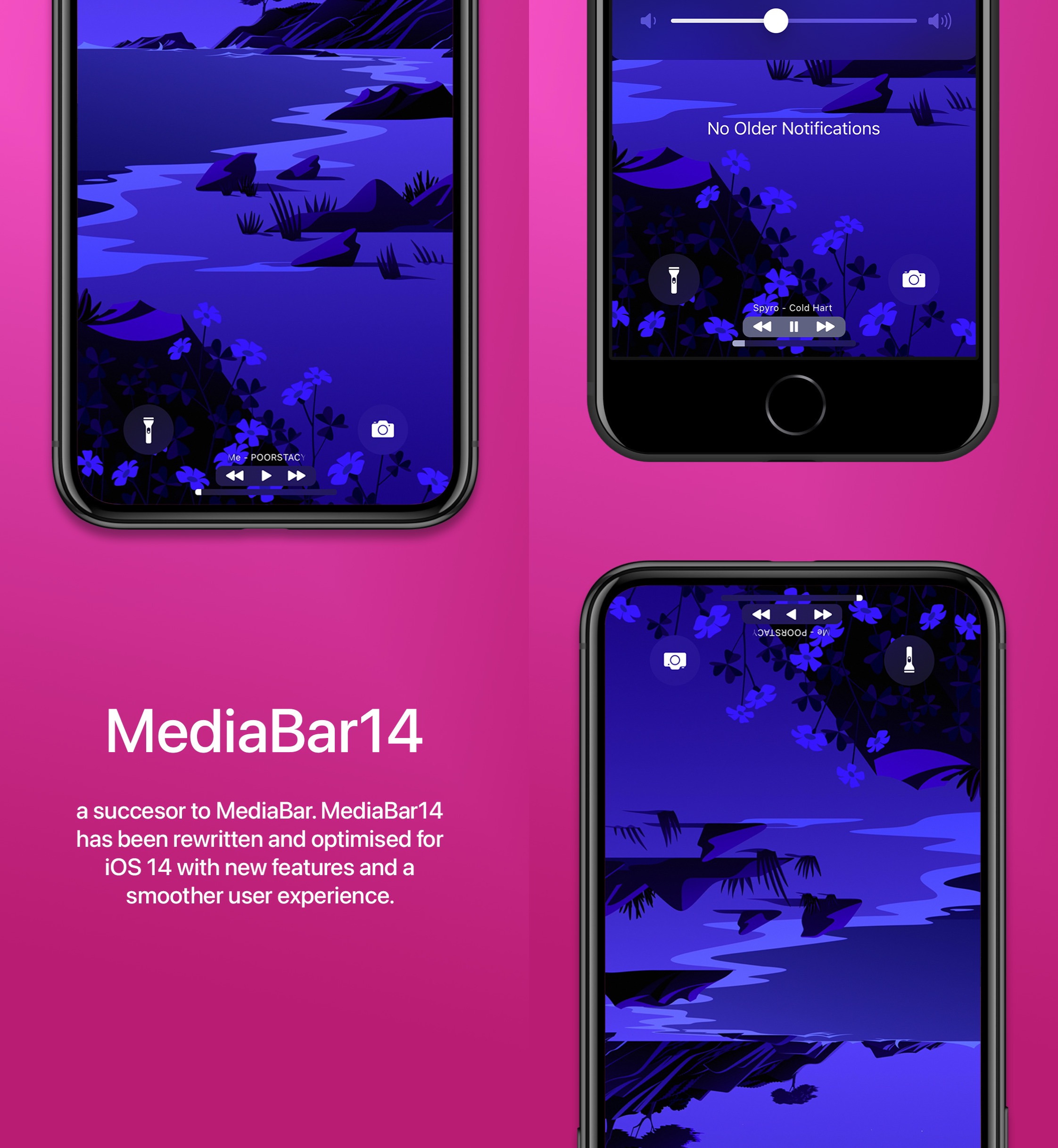
MediaBar14 augments the Home Bar with powerful media controls

All of Apple’s notched devices, iPhones and iPads alike, come equipped with a software alternative to the Home Button known as the Home Bar — the thin line that manifests itself at the bottom-center of the display.

I love the Home Bar as an alternative to the antiquated Home Button, especially when paired with the bigger edge-to-edge displays that modern iPhones and iPads now possess. But with a jailbreak, it’s possible to make the Home Bar even better than it already is.

Customize the toggling sound of your pwned iPhone’s flashlight with FlashSound

If you use your iPhone’s rear-facing LED flash as a flashlight to help you navigate dark environments from time to time, then you’re far from alone.

Right out of the box, Apple provides a shortcut on the Lock Screen for the aforementioned purpose, and it even offers a satisfying amount of haptic feedback when toggled. As for a cool sound effect, however, users are left underwhelmed.

Guide to futurerestore: Introduction

This is an introductory article which explains what futurerestore is and how it works, as well as how to follow our futurerestore guides to upgrade/downgrade your device.

Before attempting any of the guides, everyone should read this article. It explains whether the guides apply to you, and if they do, which ones you should follow, as well as making sure that you fulfil the requirements for it to work. Not everyone can use futurerestore.

Guide to futurerestore Part 1: How to set a generator

This is Part 1 of a two-part guide on how to use futurerestore.

Before attempting this guide, everyone should read the introductory article, Guide to futurerestore: Introduction. It will explain whether this guide applies to you, as well as making sure that you fulfil the requirements for it to work.

If you currently have a jailbreak and you want to move to a different firmware with futurerestore’s generator mode, you must follow this guide first before following Part 2.

If you currently have no jailbreak, and you want to move to a different firmware with futurerestore’s Apnonce collision mode, you can skip this guide and head straight to Part 2. This method does not apply to most users.