iPad

From the latest news to the most comprehensive tutorials, learn how to get the most out of your iPad with our step-by-step guides and expert tips.

Manually designate your favorite Emojis with Selectmoji

Emojis are one of the joys of texting and instant messaging, and iOS integrates them right into the keyboard for your convenience. A feature embedded within the Emoji selector keeps track of the Emojis you use the most often and puts them in a category called “Frequently Used.”

Since you might prefer to manually designate your favorite Emojis for this section, a jailbreak tweak called FavoriteEmojis was recently released for this purpose, but a new competing tweak called Selectmoji by iOS developer Cole Cabral is now available that is said to address some of the shortcomings of the former tweak.

You can now reply to Instagram Stories with photos and videos

Instagram today announced that users of its popular photo-sharing service can now reply to Stories from people they follow with photos and videos. “From selfies to Boomerangs, now you can be even more fun and playful when you respond to friends,” said the company.

The new feature requires Instagram version 10.28 for iOS.

To reply to a Story with a photo or a video, hit the new camera button that appears while you're watching a Story. If you don't see the icon, the feature has not launched yet in your country.

Like with regular posts, you can pretty up your reply using Instagram's creative tools, allowing you to use face filters, stickers and the Rewind feature. “Replies also include a sticker of the Story that you can move around and resize,” said Instagram.

You'll get a message via Direct when someone replies to your Story with a photo or a video.

You can tap the message to view the reply and also see a sticker of the original story that’s only visible to you. As with disappearing media in Direct, your friends will know when you’ve taken a screenshot (Android only) or replayed a reply.

To learn more about these new features, be sure to check out Instagram's Help Center.

Instagram for iPhone and iPad is available free from App Store.

Ventana gives your iPhone a Windows 10-inspired Lock screen

We’ve seen tons of Lock screen replacements for jailbroken devices over the years, but for the first time, a new jailbreak tweak dubbed Ventana by iOS developers CoolStar and Jeremy Goulet brings a highly-polished Windows 10-like Lock screen to iOS 10 devices.

As shown above, this tweak is nothing short of a full redesign for the Lock screen, and includes a refreshed look and feel for the date and time indicator, incoming notifications, and Now Playing music interface.

How to adjust the intensity of bright colors on iPhone and iPad

Since iOS 7.1, Apple's mobile operating system has included a feature that allows you to manually adjust the display's white point to your liking. A white point, also known as reference white or target white, defines the color white in reproduction.

Lowering the white point makes bright colors on your iPhone, iPad or iPod touch's screen more intense. Conversely, increasing the white point reduces the intensity of bright colors, thereby helping extend the run time of your iPhone or iPad.

The ability to manually adjust the white point so that it matches a white surface in your room is particularly handy for owners of devices that lack Apple's True Tone display technology.

How to adjust the intensity of bright colors on iPhone and iPad

1) Launch the Settings app on your device.

2) Tap Accessibility.

3) Tap Display & Text Size underneath the Vision heading.

4) Slide the button labeled Reduce White Point to the ON position.

5) Now drag the slider underneath the button to the right to make bright colors less intense or move it to the left to lower the white point, which will make bright colors more intense.

Reducing the intensity of the screen's battery-hogging backlight by increasing the white point is one of the nearly dozen proven ways to save battery life on iPhone and iPad.

TIP: To get to this feature faster, set it as a triple-click Home button action in Settings → General → Accessibility → Accessibility Shortcut.

Again, don't confuse Reduce White Point with the True Tone feature.

True Tone ≠ Reduce White Point

What exactly is the difference between True Tone and Reduce White Point?

True Tone is Apple's display technology currently found on iPad Pro models which changes the white point of the display on the fly while simultaneously adjusting brightness in order to compensate for the lighting in the environment

The Reduce White Point option does not take advantage of the ambient light sensors in your device like True Tone does. As a result, you cannot tell your device to adjust the white point of its display dynamically to match the current lighting conditions in a room.

Put simply, should lighting conditions change you'll need to repeat these steps to manually recalibrate the intensity of bright colors for the current ambient lighting.

Have you ever wanted to set the screen brightness on your iOS device below the normal threshold? If so, the Low Light filter in your Zoom accessibility settings is your friend.

Need help? Ask iDB!

If you like this how-to, pass it along to your support folks and leave a comment below.

Got stuck? Not sure how to do certain things on your Apple device? Let us know via help@iDownloadBlog.com and a future tutorial might provide a solution.

Submit your how-to suggestions via tips@iDownloadBlog.com.

Apple issues sixth beta of iOS 10.3.3 to developers

Apple on Wednesday seeded iOS 10.3.3 beta 6 to its registered developers and members of the paid Apple Developer Program. The new update has a build number of 14G57 or 14G58, depending on the device. It can be deployed to any compatible iPhone, iPad or iPod touch via the Software Update mechanism in the Settings app.

Your device must have an appropriate configuration profile installed, which can be downloaded from Dev Center. The latest beta arrives following iOS 10.3.3 beta 5, which was seeded to developers on June 28 (the first beta dropped on May 16).

Some of the fixes in iOS 10.3.3 are mentioned in Andrew’s walkthrough video of the first beta.

https://www.youtube.com/watch?v=Xvh5kOofWW0

Subscribe to iDownloadBlog on YouTube.

As mentioned, iOS 10.3.3 is a bug-fix release which enhances the security and performance of your iPhone, iPad and iPod touch. This is most likely that last point update to iOS 10 as Apple continues to beta-test the major iOS 11 software update ahead of its public release in the fall.

Apple also released macOS Sierra 10.12.6 beta 6 for developer testing today.

How to use Control Center without 3D Touch

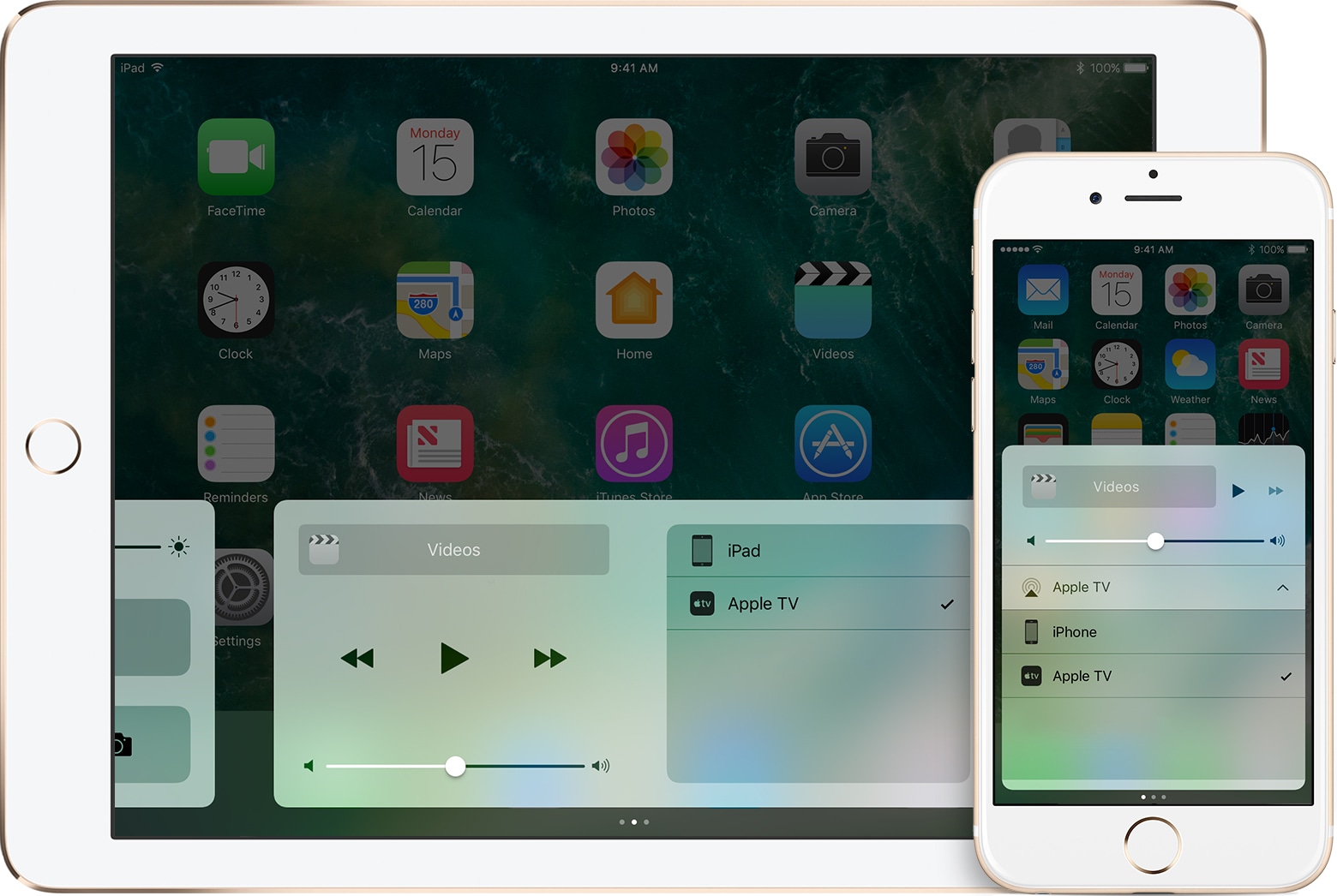
iOS 11 offers more customization for Control Center than ever, allowing you to make it your own by disabling toggles you rarely use. If puts frequently used controls all on one page, many of which can be expanded to reveal additional options when pressed with 3D Touch.

For instance, you can press the Home toggle lightly to bring up your HomeKit scenes, press the Now Playing toggle with 3D Touch to expand media controls, press the Apple TV Remote toggle to navigate your Apple TV or type some text into it, and much, much more.

So far, so great. But what if your device lacks 3D Touch?

Unlike prior iOS editions that didn't provide a fallback mechanism for 3D Touch interactions on non-3D Touch devices, iOS 11 allows you to use all of the features the redesigned Control Center has to offer without having to own a 3D Touch device.

Our resident video editor Andrew O'Hara details how iOS 11's Control Center works on devices that don't include 3D Touch features, like iPads and iPhone 6 and older models.

https://www.youtube.com/watch?v=cpSoo5_TqIQ

Subscribe to iDownloadBlog on YouTube.

Continue reading for step-by-step instructions on using Control Center without 3D Touch

How to use Control Center without 3D Touch

1) Access Control Center by swiping up from the bottom of the screen

TIP: Enable Access Within Apps in Settings → Control Center to have your device respond to that gesture when you're using an app.

2) Tap and hold on the control to expand it.

In Andrew's example, he long-taps the Brightness toggle to access controls for turning Night Shift on or off. You can long-tap other Control Center items that are expandable. For example, long-tapping the Volume control enlarges the slider as if you pressed it with 3D Touch.

iPad lacks Taptic Engine so you won't feel haptic feedback when long-tapping.

That's it, boys and girls, now you know how to interact with Control Center on iOS 11 without actuating having to have a 3D Touch device. This tip should be especially useful for iPad owners as Apple's tablets lacks 3D Touch features.

TUTORIAL: How to force-quite iPad apps on iOS 11

Don't forget you can selectively enable or disable nearly two-dozen different toggles and change the order in which they appear in Control Center under Settings → Control Center → Customize Controls, including new system toggles and features like Screen Recording, Voice Memos, Low Power Mode, Apple TV Remote, Accessibility Shortcuts and more.

To lear more about iOS 11's Control Center, watch another walkthrough video below.

https://www.youtube.com/watch?v=UGWjmt6UXJI

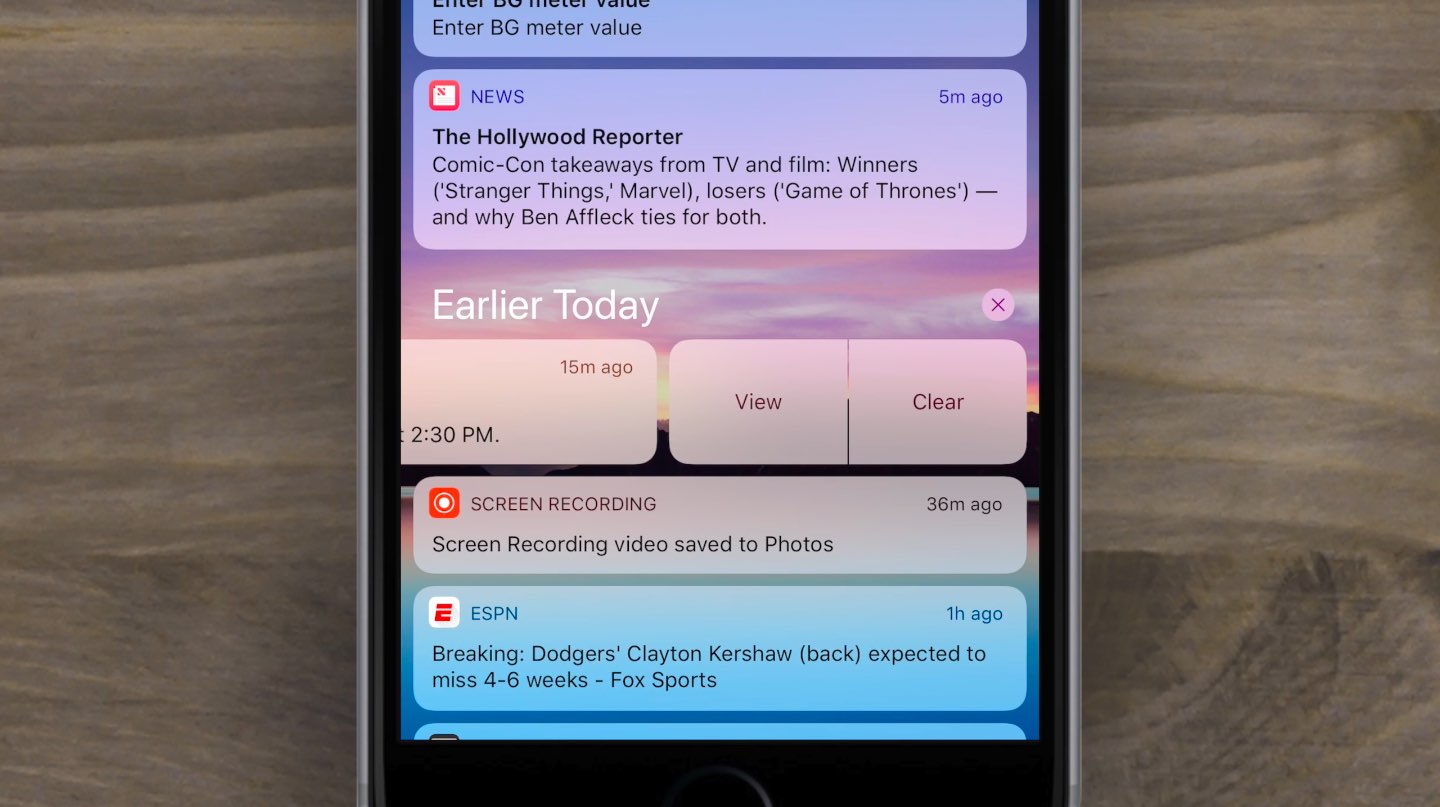
Aside from drag and drop, iOS 11 brings five different types of tap gestures, including a longer tap to move multiple apps on the Home screen, a special half-long tap to pull up an extra Dock menu and a long-tap in the notifications overlay to access additional options.

Need help? Ask iDB!

If you like this how-to, pass it along to your support folks and leave a comment below.

Got stuck? Not sure how to do certain things on your Apple device? Let us know via help@iDownloadBlog.com and a future tutorial might provide a solution.

Submit your how-to suggestions via tips@iDownloadBlog.com.

ARKit demos: jumping between planes, people tracking, alien invasion, Tic-Tac-Toe & more

Apple's ARKit framework is slowly but surely emerging as one of the best new features in iOS 11. Many developers have built everything from virtual tape measures and Minecraft to ballerinas made out of wood dancing on floors. It's remarkable that most of the ARKit demos we've seen so far were built in a matter of hours or days, not weeks or months.

Today, we want to highlight a few additional ARKit demos that we've curated. These videos highlight ARKit's incredibly reliable and accurate tracking features that don't require any special hardware beyond the sensors and the camera already present in your iPhone or iPad.

First up, we have this demo showing jumping between different planes.

https://www.youtube.com/watch?v=pj3PbRTgpQk

ARKit automatically detects horizontal surfaces, called planes, such as tables and floors, and can track and place objects on smaller feature points as well. This is all handled automatically, with uncanny precision, using only data from your iOS device's camera and sensors.

The following pair of videos demonstrate a virtual character interacting with the environment by autonomously jumping a flight of stairs and between different surfaces of the real world.

https://www.youtube.com/watch?v=vozrtqe7MZY

https://www.youtube.com/watch?v=o7REJj_bN-c

Interactions between virtual objects and real people are easy as a pie with ARKit.

https://www.youtube.com/watch?v=RdAqD4uIbX0

The Tracking Monster demo, seen below, uses ARKit and the Unity engine to track a monster with the dynamically updated shadows based on changing lighting conditions in the real world.

https://www.youtube.com/watch?v=_IYT-OCWqDg

Maze games will never be the same!

Speaking of games, here's Tic-Tac-Tio in augmented reality, developed By Bjarne Lundgren.

https://www.youtube.com/watch?v=IBBq473vuMo

And last but not least, Mixed Reality Design posted the following example of an augmented reality app depicting an alien vessel hovering ominously above a construction site.

Hollywood will soon invade your smartglasses airspace → fact https://t.co/jLYm1YcBW2 pic.twitter.com/to2qqfFIVr

— Mixed Reality Design (@MixedrealityD) July 4, 2017

Head over to the Mixed Reality Design's Twitter account for more AR examples like this.

While it's not entirely clear that this particular demo uses ARKit, it does highlight the possibilities for AR movie trailers that could be coming soon to your phone.

Be sure to check out other interesting ARKit apps and demos, including an upcoming furniture-ordering app from Ikea, a measuring tape that blew up on the web, an ARKit-powered VR mode in Maps, an inter-dimensional portal and much more.

“I think there is a gigantic runway that we have here with the iPhone and the iPad,” Apple executive Greg Joswiak said of ARKit in a recent interview with The Australian. “The fact we have a billion of these devices out there is quite an opportunity for developers.”

How do you like these ARKit demos? Which one is your favorite, and why? Chime in with your thoughts and observations in the comments section below.

The best jailbreak tweaks for the Volume HUD

Perhaps one of the worst experiences in iOS out of the box is the volume HUD; it's clunky and appears right in the middle of the screen as you try to get things done.

Since it gets in the way so much, jailbreak developers have been creating alternative solutions for years, and in this roundup, we'll be talking about the best volume HUD-based jailbreak tweaks that work great with the Yalu jailbreak for iOS 10.

New ARKit demos: Tesla Model 3, food ordering & inter-dimensional portal

With the new ARKit framework for building augmented reality (AR) apps, Apple is turning existing iOS devices into the largest AR platform in the world.

We previously shared a bunch of interesting ARKit demos showcasing the possibilities of the framework, including an upcoming furniture-ordering app from Ikea, a measuring tape, an ARKit-powered VR mode in Maps and more.

Today, we're highlight three more examples of ARKit-driven apps: a Tesla Model 3 app by an impatient fan, an example of an inter-dimensional portal in the middle of the street and an app that promises to change how we order food.

First up, a demo app by an impatient Tesla fan who couldn't wait for his ordered Model 3 so he made this ARKit-powered app that lets him drive around a virtual Model 3 in his real world, activate the headlights and so forth.

@elonmusk Couldn't wait 4 my #Model3, so made this AR app, what do you think? #ARkit pic.twitter.com/lIRLTZox7N

— Jelmer Verhoog (@JelmerVerhoog) July 1, 2017

Food ordering will never be the same, says developer Alper Guler who created an ARKit-driven app which renders various foods on your table that you can pan around, zoom in and out, rotate and more.

https://www.youtube.com/watch?v=oFdgVNg4ryM

And last but not least, we have French consulting agency Nedd which came up with a great example of AR+VR, via iPhoneAddict.fr.

https://www.youtube.com/watch?v=rIPfpGCxONQ

Before signing off, here's a quick volumetric capture example with ARKit.

hint pic.twitter.com/WOuqVer1Ph

— Made With ARKit (@madewithARKit) June 27, 2017

Very impressive so far, don't you think?

Apply new cosmetics to Control Center with CCSmooth10

One of the benefits of having a jailbreak is being able to give your iPhone a new look and feel that's different from every other average Joe on the block. A new free jailbreak tweak dubbed CCSmooth10 by CydiaGeek takes aim at the Control Center interface with this concept in mind.

This tweak comes with a host of options that can make Control Center look totally different than it does out of the box. Its effects are purely cosmetic rather than functional, but to say you can get some awesome effects out of the tweak is an understatement.