iPad

From the latest news to the most comprehensive tutorials, learn how to get the most out of your iPad with our step-by-step guides and expert tips.

BetterPhotoCrop keeps the Notification Center grabber from appearing as you crop images

I use the image-cropping tools from my iPhone's Photos app on a daily basis, and I've noticed that I accidentally invoke the Notification Center grabber quite a lot while cropping when I attempt to drag down from the top of the image.

BetterPhotoCrop by iOS developer Andreas Henriksson is a new free jailbreak tweak that moves the cropping interface down enough to prevent the Notification Center grabber from being invoked when you drag down from the top of an image to crop it.

AlternateControls 2 brings an Android-style bottom navigation bar to iOS

Available on a wide variety of Android handsets is the bottom navigation bar, and with a jailbreak tweak called AlternateControls 2 by iOS developer Ian Burns, you can bring this functionality to your iPhone as well.

Once installed, the button to the far left will act as a back button, letting you move backwards between interfaces you’ve visited previously, while the center button acts as a virtual Home button and the button to the far right acts as an App Switcher shortcut.

QuietWhilePlaying prevents notifications from interrupting your music playback

If you have a pet peeve for incoming notifications interrupting your music when you’re trying to sit back and enjoy a song, then installing a new free jailbreak tweak called QuietWhilePlaying (iOS 10) by iOS developer ijapija00 should be next on your to-do list.

This tweak silences the alert sounds and vibrations associated with incoming notifications, no matter which app they're coming from, whenever you’re actively listening to media.

Ambiance lets your Phillips HUE bulbs take full advantage of your jailbroken iPhone

Every so often, a jailbreak tweak emerges that lets you do something out of the ordinary with your iPhone, and a new release called Ambiance by iOS developer Ziph0n is a testament to such tweaks.

Ambience links your jailbroken iPhone and Phillips HUE smart light bulbs together in new and exciting ways, immersing your entire room with color effects based on what you’re doing on your device at a given time.

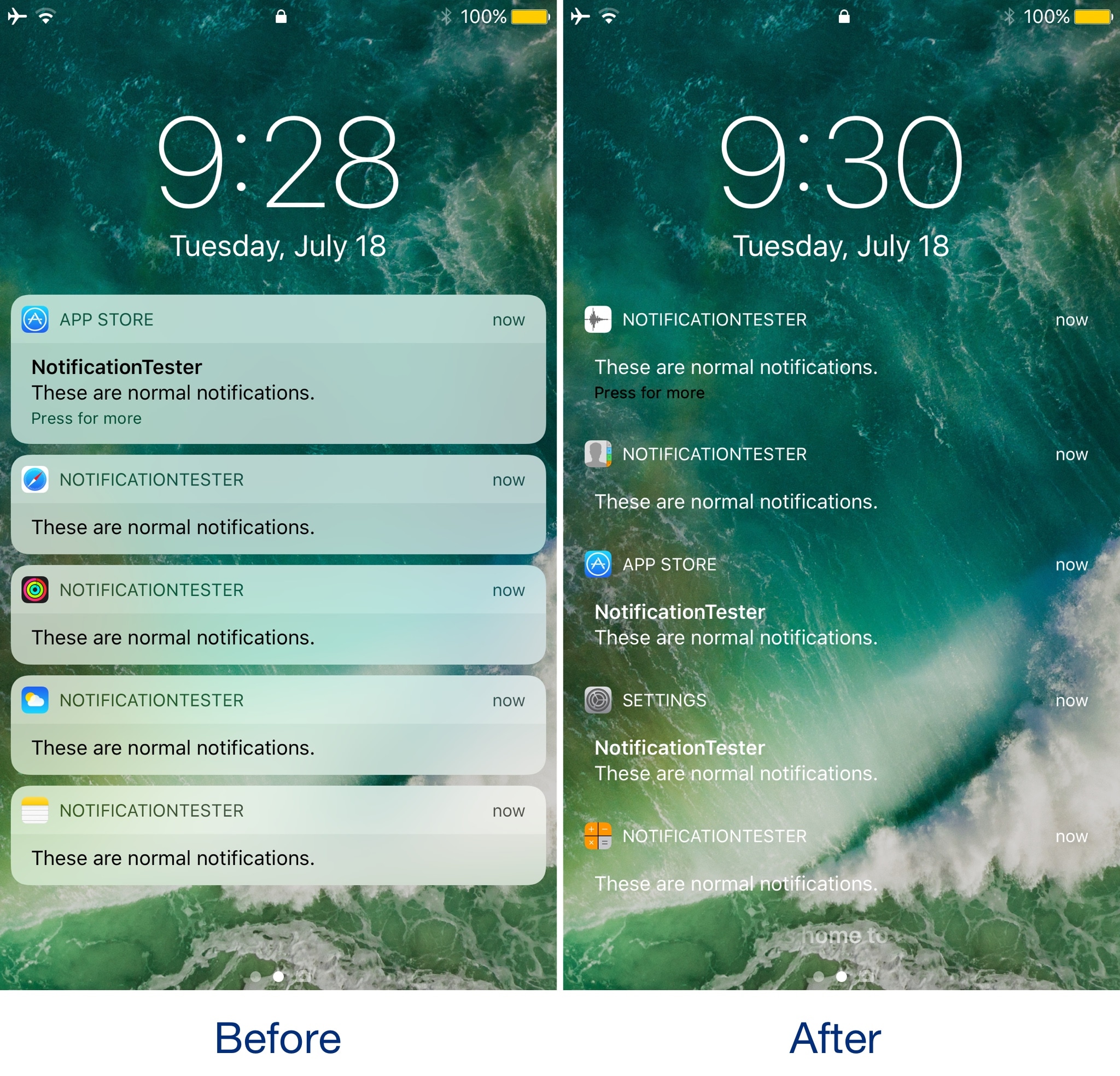
Lysithea X brings iOS 11-esque Lock screen music controls to iOS 10

In case you haven’t seen it yet, iOS 11 comes with a redesigned Now Playing Lock screen interface. It’s sleeker and takes up less space so you can manage your music playback and see missed notifications in the same place more easily.

Now, a new jailbreak tweak called Lysithea X by iOS developer ijapija00 brings this iOS 11 Now Playing Lock screen interface to jailbroken iOS 10 devices.

SwitcherControls merges the App Switcher and Control Center interfaces into one

If you want a more powerful App Switcher, then perhaps a good place to start is with a new jailbreak tweak called SwitcherControls by iOS developer DGh0st.

Immediately reminiscent of the multi-center feature from a prior jailbreak tweak release known as Auxo 3, SwitcherControls combines both the App Switcher and Control Center interfaces into one, yielding what you see above.

How to stop iCloud Photo Library from eating into your iPhone’s cellular data plan

iCloud Photo Library is an optional feature on iPhone, iPad, iPod touch and Mac that uploads every photo and video you take or import to iCloud and keeps everything synchronized across all your Apple gear. I've been using it for years and it really “just works”.

On iOS 10 and earlier, Photos syncs with iCloud each time your device connects to Wi-Fi and the battery is charged. On iOS 11 and later, Photos can also use your iPhone's cellular data connection to sync and update the image library.

Do you take many photos on the go? Are you on a metered rather than an unlimited plan? Then you don't need me to tell you that you must ensure you're not wasting huge amounts of cellular data to this feature.

Here's how to stop the Photos app from eating into your iPhone's cellular data plan.

Before we get to it, keep in mind the following:

iOS 10 and earlier—Your Photos library syncs with iCloud each time your device connects to Wi-Fi and the battery is charged. iOS 11 or later—You decide if Photos syncs with iCloud via cellular or Wi-Fi only.

In other words, you should double-check that cellular updates for iCloud Photo Library are turned off only if you're on iOS 11 or later. Folks on older iOS editions needn't do that because Photos syncs with iCloud only when their iPhone is connected to power and Wi-Fi.

How to stop iCloud Photo Library on iPhone from using cellular data

12-megapixel images and 4K videos captured on your iPhone take up quite a bit of storage space. For most people, there's no point allowing iOS to gobble up cellular data just to keep the image library synchronized with iCloud at all times.

Thankfully, you can prevent this from happening, and here's how:

1) Launch the Settings app on your iPhone or cellular iPad.

2) Tap Photos in the list.

3) Tap Cellular Data.

4) Slide the button labeled Cellular Data to the OFF position.

This device will no longer use your carrier's cellular data for updating the Photos library. Any changes to your image library will automatically upload to iCloud as soon as the device connects to power and Wi-Fi.

TIP: If you really need Photos to be in perfect sync with iCloud at all times, even on the go, via cellular and Wi-Fi, be sure to slide the toggle labeled Unlimited Updates to the ON position.

The feature's description says “unlimited updates may cause you to excess your quota“.

Need help? Ask iDB!

If you like this how-to, pass it along to your support folks and leave a comment below.

Got stuck? Not sure how to do certain things on your Apple device? Let us know via help@iDownloadBlog.com and a future tutorial might provide a solution.

Submit your how-to suggestions via tips@iDownloadBlog.com.

Instagram launches stickers for Independence Day and Canada Day

Instagram during the weekend launched stickers in its mobile app for iPhone and iPad which are dedicated to the 4th of July holiday and Canada Day celebrations across North America.

Instagram users in the United States can celebrate Independence Day by posting a Story adorned with one of the stickers in the app's new star-spangled sticker pack, ranging from backyard BBQs to fireworks at night.

Canadians get a sticker to celebrate Canada Day, available in both English and French.

The sticker was designed by Jenn Kitagawa, a multidisciplinary artist and illustrator who grew up in the prairies of Alberta and currently lives in Toronto.

Instagram is available at no charge on App Store.

Apple (again) reminds developers that iOS 11 won’t run 32-bit apps

Following the iOS 11 public beta release, Apple has reminded developers that iOS 11 will be 64-bit only. The notice posted yesterday on Apple's Dev Center cautions that all 32-bit apps previously installed on users’ devices will not launch after they upgrade to iOS 11.

“As a reminder, new iOS apps and updates submitted to the App Store must support 64-bit,” reads the notice. Apple recommends that developers who haven’t updated their apps to support 64-bit submit an update “so your users can continue to run your apps on iOS 11”.

TUTORIAL: How to identify 32-bit apps installed on your iPhone and iPad

Because iOS 11 is 64-bit only and doesn't support legacy 32-bit apps, users should experience a bit faster performance and fewer crashes. That's because iOS 11 will never need to load 32-bit frameworks, libraries and the kernel alongside their 64-bit counterparts needed to support legacy apps, which effectively strains the RAM and other resources.

https://www.youtube.com/watch?v=-hoPcMPvL88

Subscribe to iDownloadBlog on YouTube.

Apple’s Clips app already requires a 64-bit iOS device and iOS 11's new Files app is optimized for 64-bit computing, too. Starting with iOS 10.3, Apple began naming and shaming legacy apps via a new App Compatibility section in Settings → General → About → Applications.

The new advisory regarding 32-bit apps was posted just a day after the company invited developers to update their product pages on App Store for iOS 11's much-improved, thoroughly redesigned App Store.

iOS 11 will be in the hands of “hundreds of millions of customers” this fall.

Instagram unveils offensive comment filter, anti-spam tool in 9 languages

Instagram today announced some much-needed new tools to help users of its mobile app enjoy the service without toxic comments and spam. One is a new filter designed to block certain offensive comments and the other is basically a spam filter supporting nine languages.

Instagram claims that the pair of newly announced tools at their users' disposal will help keep the service a safe place for self-expression and inclusive communities.

Clamping down on toxic comments is now easier with the comment filter that automatically blocks certain offensive comments on your published posts, as well as in live video.

The new offensive comment filter is in addition to Instagram's existing arsenal of tools, like comment reporting, account blocking and so forth. To access this automatic filter, tap Instagram's “...” menu from your profile, then tap the new Comments option.

“We’ll launch this comment filter in English first, but will offer it in more languages over time,” notes the Facebook-owned company. The filter is optional and can be turned off at any time.

To help fight spam, Instagram is rolling out another new filter. Powered by machine learning, it looks for any obvious spam in comments and blocks it from your posts and live videos.

According to Instagram:

Our team has been training our systems for some time to recognize certain types of offensive and spammy comments so you never have to see them. The tools will improve over time, enabling the community’s experience of sharing to improve as well. We hope to make these filters available in more languages as our algorithms improve.

At launch, this dedicated filter will remove spam written in a total of nine languages—English, Spanish, Portuguese, Arabic, French, German, Russian, Japanese and Chinese—with additional language support to be implemented in the future.

Instagram is available free of charge via App Store.

TimeMover Lite lets you customize the position of your Lock screen clock for free

The Lock screen clock appears at the top center of the Lock screen on any stock device out of the box, but with a new free jailbreak tweak called TimeMover Lite by iOS developer NeinZedd9, you can re-position it anywhere you'd like.

If the concept sounds familiar, that’s because this is a free version of the TimeMover tweak that we showed you a couple of weeks ago, but it’s still plenty powerful.