iPadOS

Apple pulls plug on iOS 13.5.5 beta 1 following release of unc0ver v5.2.0

Apple unsigned iOS & iPadOS 13.5 on Monday in a move intended to prevent downgrades to a publicly available jailbreakable firmware version. Hacker and unc0ver lead developer Pwn20wnd quickly responded to the act this week by releasing unc0ver v5.2.0 with support for iOS & iPadOS 13.5.5 beta 1, providing jailbreak hopefuls with a second chance to upgrade to jailbreakable firmware.

But as it would seem, this was a short-lived hoorah. Apple appears to have stopped signing iOS & iPadOS 13.5.5 beta 1 as of last night, effectively and once again preventing iPhone and iPad users from installing a jailbreakable firmware for the second time in the same week.

Apple blocks downgrades to jailbreakable firmware by unsigning iOS & iPadOS 13.5

Apple this evening stopped signing iOS & iPadOS 13.5, a move on the Cupertino-based company’s behalf that essentially prevents iPhone and iPad users from installing this particular version of its firmware whether downgrading from a newer version of the mobile operating system or upgrading from an earlier version.

The move comes approximately one week after Apple released iOS & iPadOS 13.5.1 to the general public specifically with the intention of patching the 0-day kernel vulnerability that Pwn20wnd implemented into the unc0ver jailbreak to add support for iOS & iPadOS 13.5, the latest version of Apple’s mobile operating system at the time.

EmojiPicker brings a macOS-inspired Emoji interface to the iPad

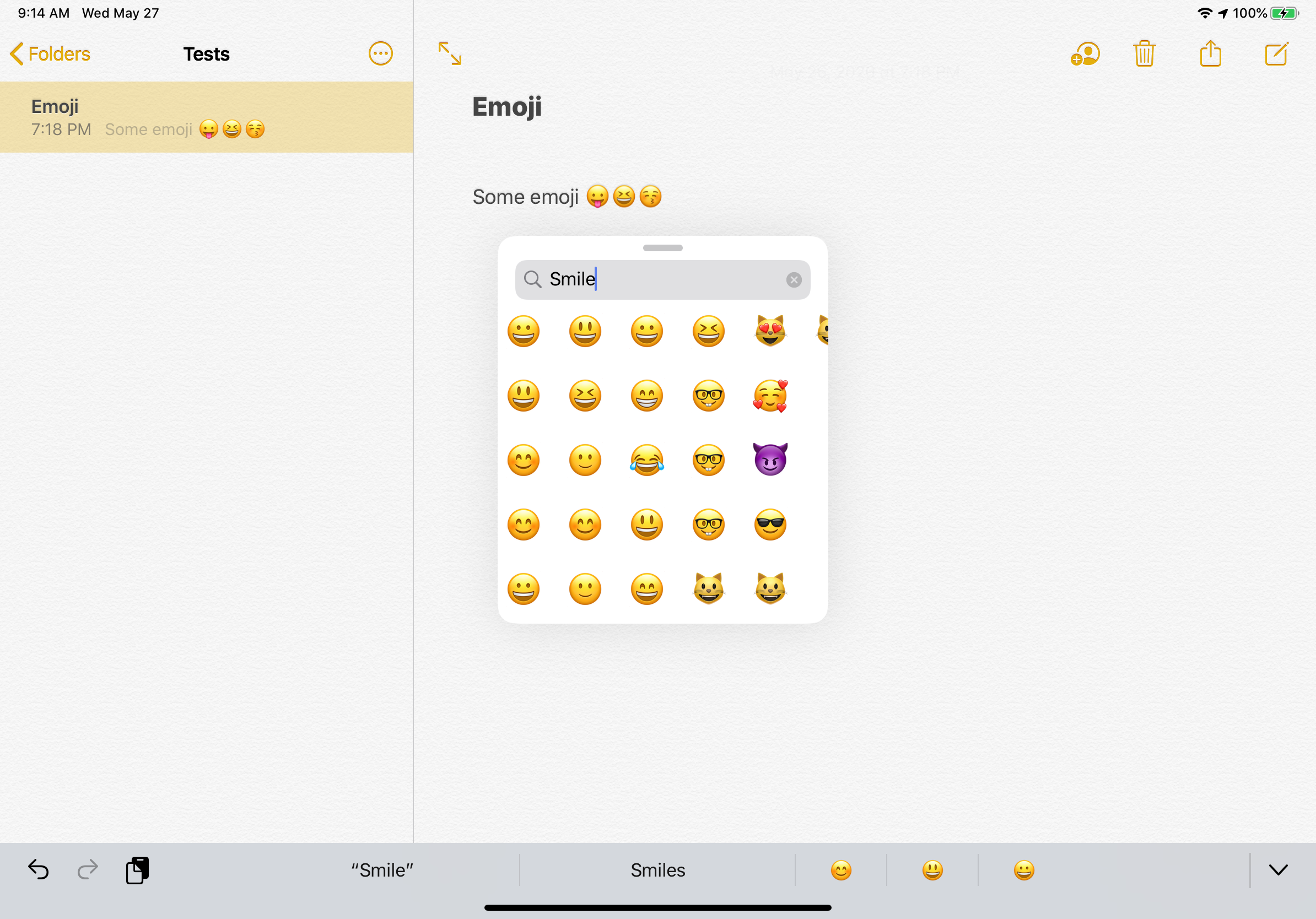
It’s not very often that we see dedicated jailbreak tweaks for the iPad platform, and that’s one of the reasons why we’re particularly excited to show you a new and free release called EmojiPicker by iOS developer Gui Rambo.

As you might’ve ascertained already from the tweak’s rather telling name, EmojiPicker is intended to augment the Emoji-picking interface in iPadOS for whenever you need access to Emojis while typing in various apps.

Downgrades from iOS 13.5 halted as Apple stops signing iOS 13.4.1

Apple is no longer signing iOS or iPadOS 13.4.1 as of this evening, a move that prevents iPhone and iPad users from downgrading from the iOS and iPadOS 13.5 software updates that the Cupertino-based tech giant released to the general public just last week.

Downgrading iOS device firmware isn’t a common necessity, but it can be necessary if or when Apple releases a software update that introduces bugs or instability to its devices. This isn’t a particularly common thing to happen, but it did transpire last October when iOS 13.2 was found to be ‘too aggressive’ with backgrounding restrictions, compelling many users to downgrade until a software update could be released to fix the issue.

How to disable iPad pointer animations

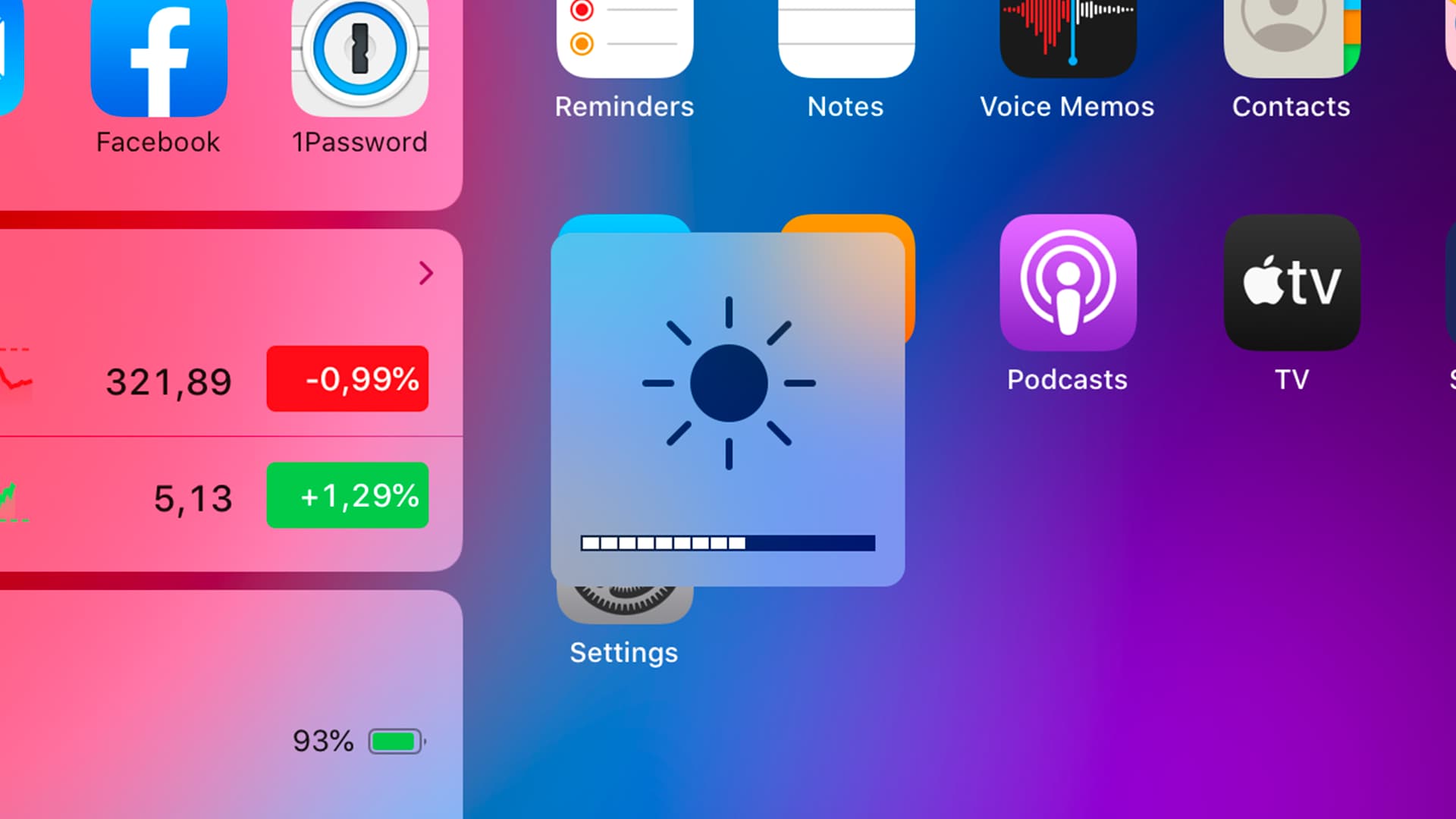
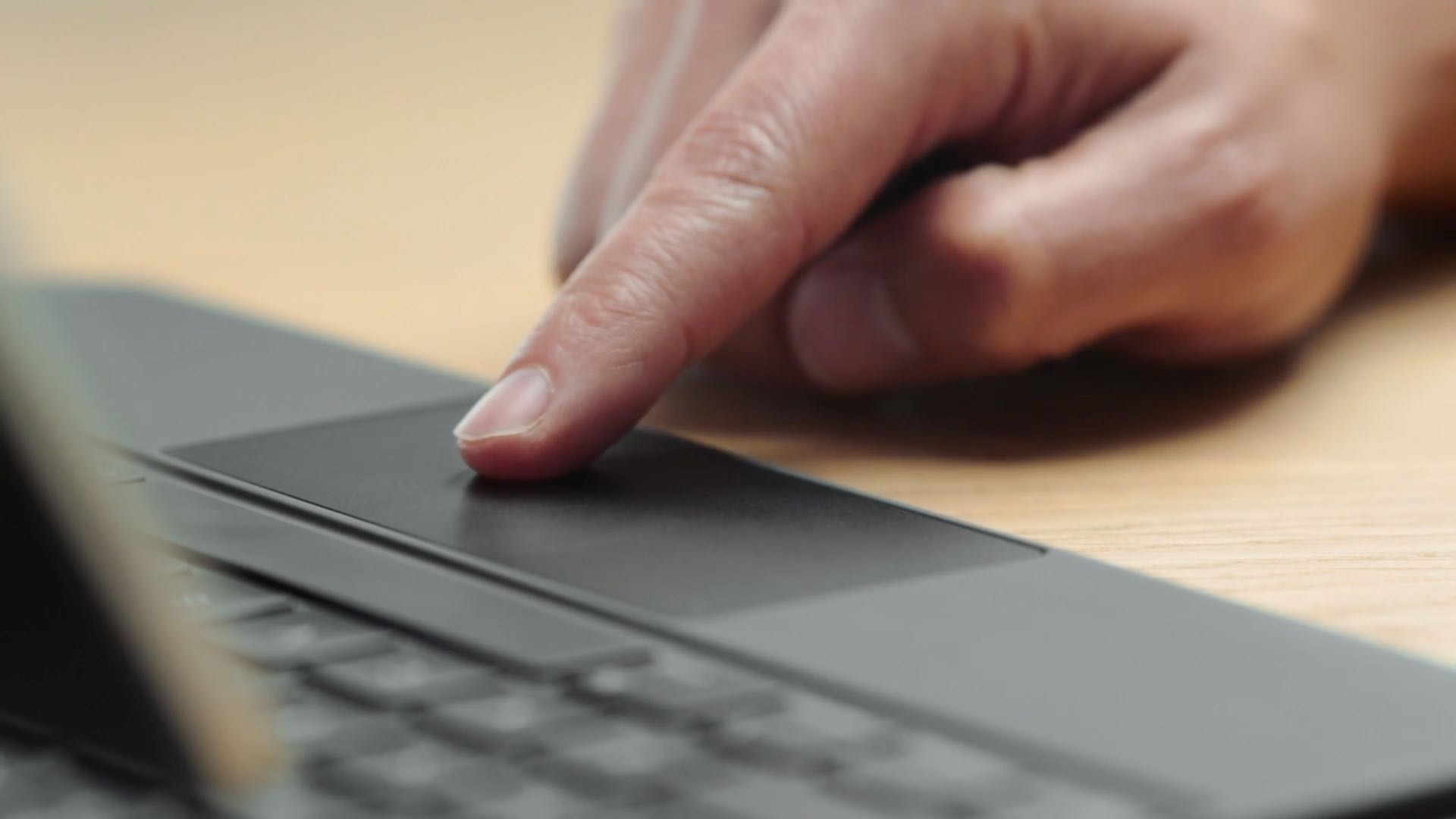
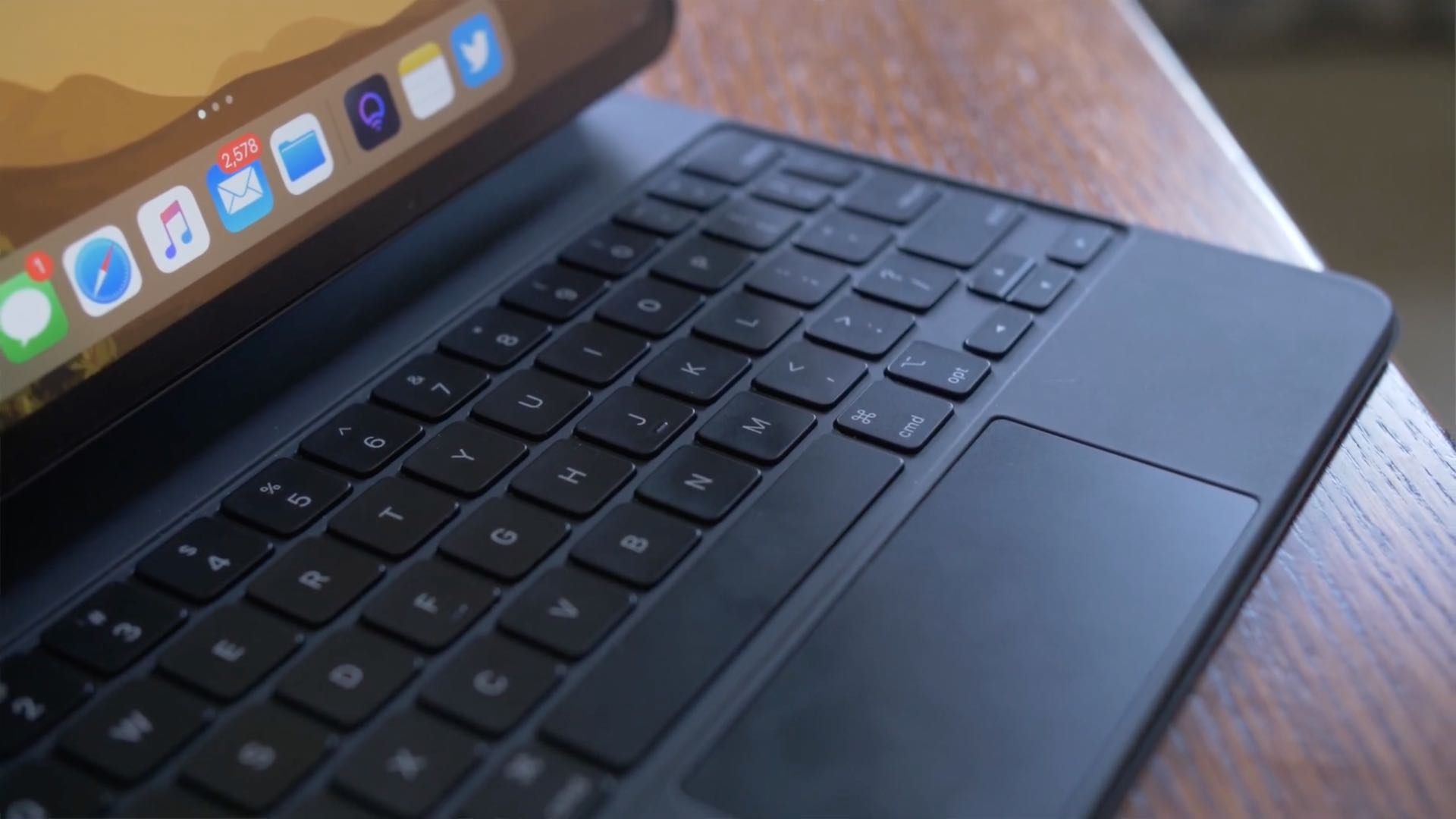
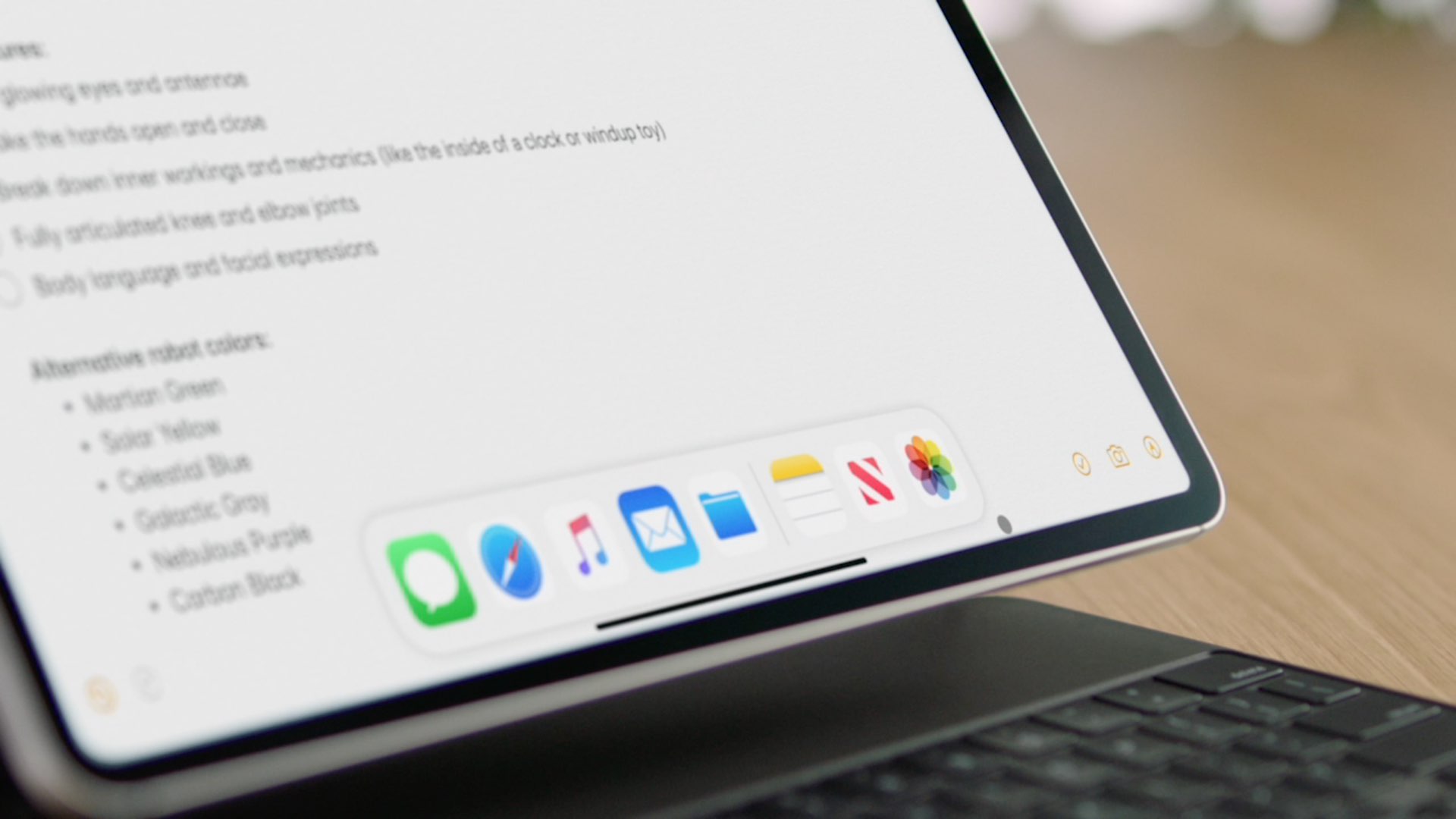
iPadOS brings an adaptive iPad cursor that uses subtle animations when hovering over various parts of the system to help you navigate. As an example, toolbar buttons in apps change color, and app icons on the Home Screen grow bigger. The animated cursor gives you a sense of context, but power users may want to disable these iPad pointer animations in order to enjoy a smoother tracking experience that resembles their computer.

Follow this step-by-step tutorial to learn how you can disable iPad pointer animations with just a few taps.

Hands-on video walkthrough: Everything new in iOS and iPadOS 13.5

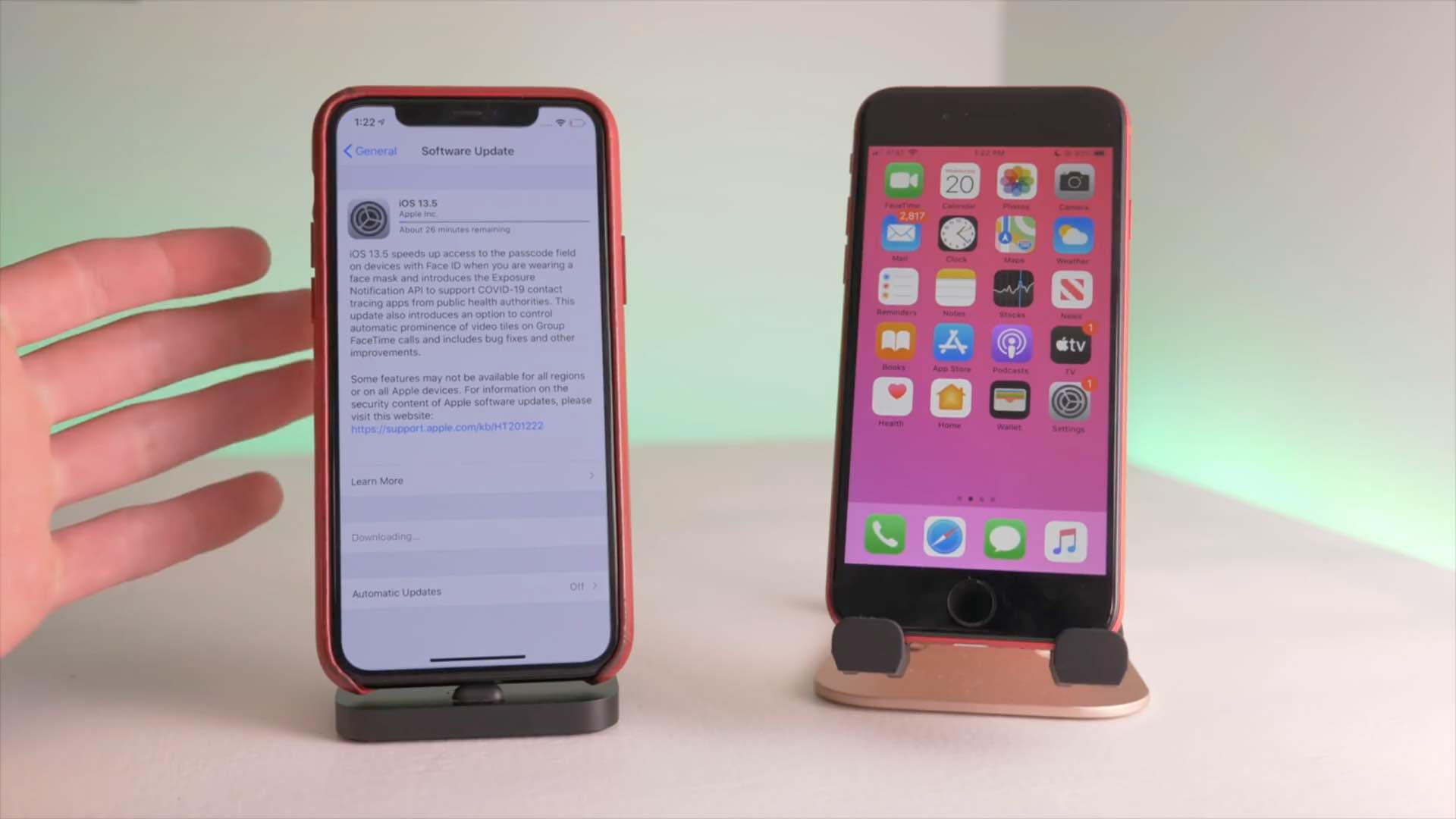
Apple yesterday released the iOS 13.5 software for the iPhone and iPod touch alongside iPadOS 13.5 for the iPad. The updates bring out several new features including coronavirus exposure logging, Apple Music sharing and APIs for developers to create privacy-first COVID-19 apps, as well as Face ID and group FaceTime improvements. To help you make the most out of these new software updates, we've tasked our videographer Harris Craycraft with putting together a little hands-on video walkthrough detailing all the changes in iOS and iPadOS 13.5.

How to change iPad trackpad or mouse scrolling speed so pages move slower or faster

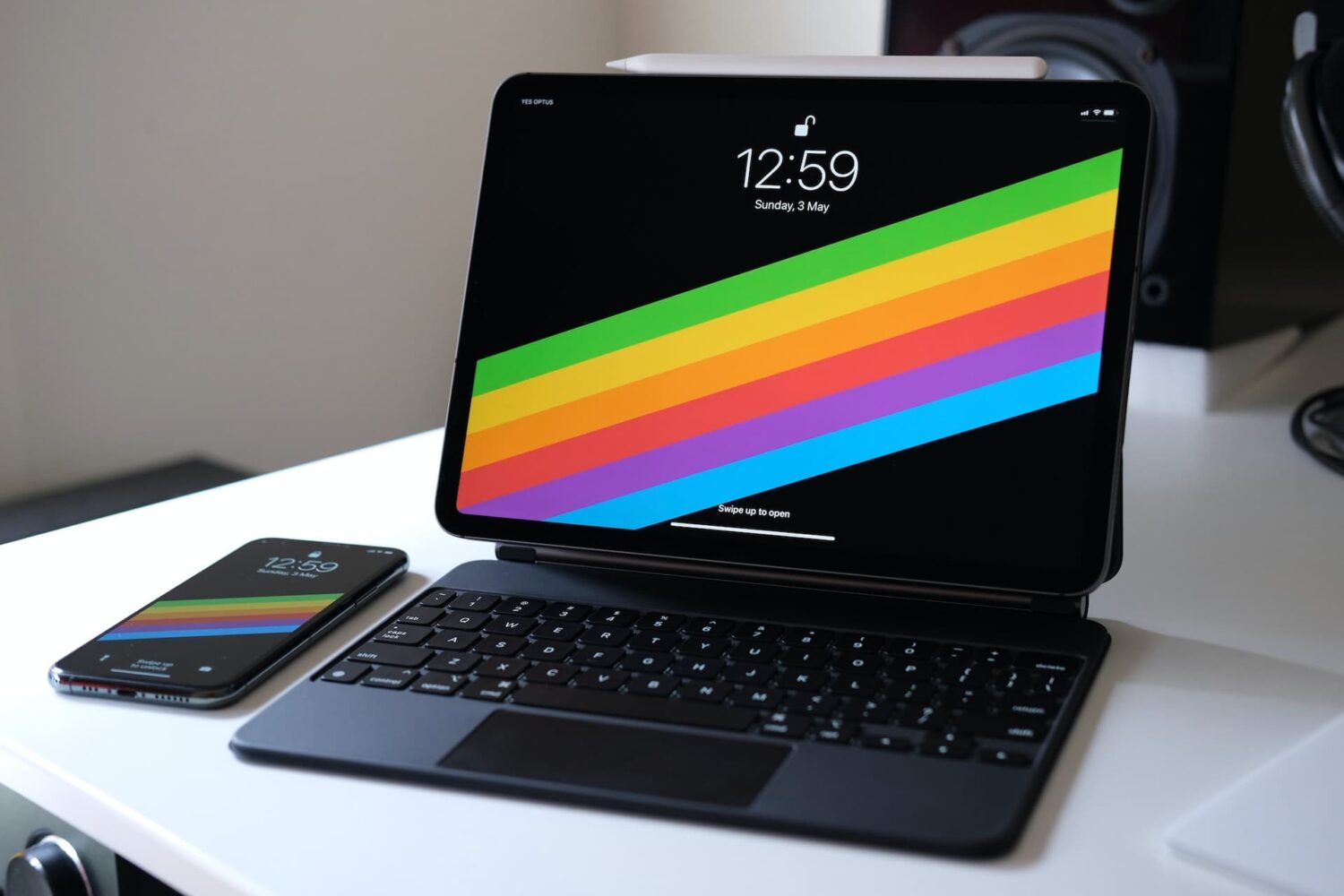
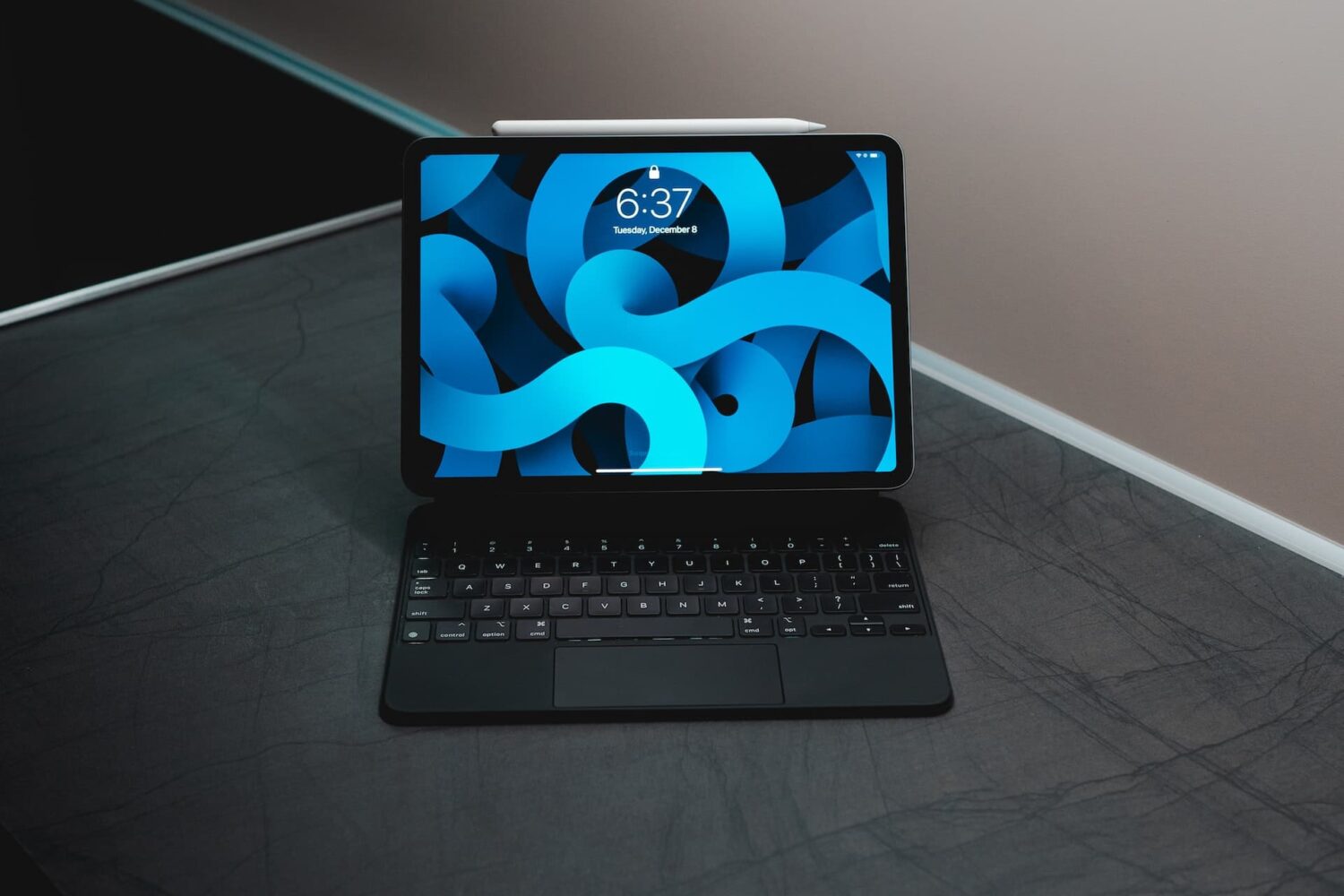
iPad with keyboard, trackpad, and Apple Pencil

iPad scrolling speed can be adjusted to your liking when using a trackpad or mouse with your tablet. By adjusting the iPad trackpad scroll speed value to your liking, you can make Safari webpages, Office documents, your Photos library, and other scrollable content move faster or slower than the default value. Follow along with us to learn how to adjust the iPad scrolling speed for the connected trackpad and/or mouse to your liking with just a few taps.