How to

Tutorial: How to jailbreak your iPhone Using GreenPois0n

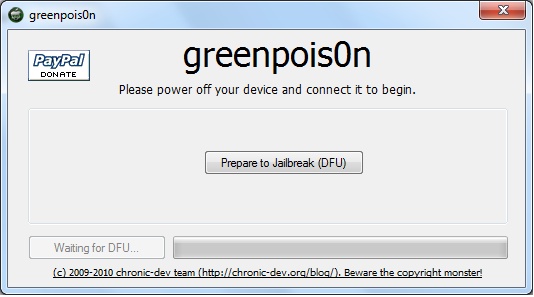
This step by step GreenPois0n guide and tutorial will show you how to jailbreak your iPhone 4.1 using GreenPois0n, the new jailbreak by Chronic Dev Team. This GreenPois0n guide will work for the iPhone 3GS, iPhone 4, iPad, iPod Touch 3G, and iPod Touch 4G.

GreenPois0n is is available for Windows, Mac, and Linux.

Although we encountered a few issues here and there, we were able to jailbreak our iPhone 4 successfully using greenpois0n. Once you get around a few hiccups, the process really isn't all that difficult.

Check inside as we step through the jailbreak process with greenpois0n using a Windows machine. The steps are exactly the same no matter what platform you use.


Don’t Forget to Save Your iPhone iOS 4.1 SHSH Blobs

With the release of iOS 4.1.1 or even 4.2 right around the corner, it would be a wise thing to do to save your iPhone iOS 4.1 SHSH blobs either on Cydia, or locally with TinyUmbrella. Saving your SHSH blobs will be helpful if you ever want to downgrade your iPhone to previous firmware version.

Usually, Cydia does this automatically for you, but to be on the safe side, you can always run TinyUmbrella, which is what I just did. Here is how to use TinyUmbrella to save your SHSH blobs...

How to Jailbreak your iPad with LimeRa1n

Geohot just released LimeRa1n, a jailbreak for all iDevices including the iPad. This step by step guide and tutorial will show you how to use LimeRa1n to jailbreak your iPad iOS 3.2.2.

LimeRa1n is still very buggy and I don't actually recommend using it, so proceed at your own risks...

Step 1: Download LimeRa1n from our here.

Step 2: Plug your iPad in and launch LimeRa1n then click “Make it Ra1n”.

Step 3: Follow the onscreen instructions: hold the Home and Power button together.

Step 4: Release the Power button.

Step 6: LimeRa1n will have your iPad enter DFU mode and will then work its jailbreak magic.

Step 7: Your iPad is almost jailbroken and you should see the following messages.

Step 8: If you don’t see the LimeRa1n icon on your iPad , simply reboot it, then launch LimeRa1n on your iPad and select Cydia to install.

Step 9: Once Cydia is installed, you can uninstall LimeRa1n from the LimeRa1n app on your iPad.

Let us know how it goes for you.

How to Jailbreak iPhone 3G iOS 4.1 with RedSn0w

Up until now, RedSn0w 0.9.6 beta 1 only worked on Mac, but the Dev Team just updated the infamous RedSn0w jailbreak which is now compatible with Windows. This step by step guide and tutorial will show you how to jailbreak your iPhone 3G 4.1 using RedSn0w for Windows.

It's important to note that if you've already updated to iOS 4.1 you will not be able to unlock your iPhone. If you do need to unlock and if you're not on iOS 4.1 yet, I suggest you wait for the release of PwnageTool, which will allow you to update to 4.1 while preserving the baseband, thus enabling you to use UltraSn0w to unlock.

This tutorial is for the iPhone 3G only. If you have an iPhone 3GS 4.1 that you want to jailbreak, you're going to have to wait from Comex's next jailbreak. If you have an iPhone 4 on 4.1, you will have to wait until Sunday for the release of GreenPois0n.

The Mac version of this tutorial can be found here. This being said, here is how to jailbreak your iPhone 3G 4.1 with RedSn0w...

How to Put Your Apple TV in DFU Mode

Since we now know that it is possible to jailbreak the Apple TV (and install apps on it), one thing we need to learn sooner rather than later is to put the Apple TV in DFU mode. Putting the Apple TV in DFU mode is not complicated, assuming you know how to press a couple buttons together...

Step 1: Make sure your Apple TV is connected to your computer via a mini USB cable.

Step 2: On the remote, press and hold the Down and Menu button together for a few seconds. Your Apple TV will start blinking. You can now release.

Step 3: Now press and hold the Menu and Play button together for another few seconds.

Step 4: Done! Your Apple TV should now show up in iTunes, from where you'll be able to restore it.

Next step is getting a jailbreak for this Apple TV. I can't wait for that.

[FSM]

How to Get Your iPhone Back on AT&T’s Unlimited Data Plan

When AT&T changed its data plans a few months ago, it put an end the unlimited data plans for new iPhone customers. Existing customers were however offered the possibility to stay on those unlimited plan. Others decided to go to a cheaper capped data plan. The trick is once you give up your unlimited plan, you cannot go back to it.

That's exactly what my friend Mathew did. He wanted to save a few bucks and downgraded to the $25 2GB plan but he quickly regretted his move. I was talking with Mathew the other day while preparing the TwiiPhone podcast when he told me he had found a way to get his iPhone back to the unlimited data plan.

I was very interested in hearing his story and how he managed to go back to the grandfathered unlimited data plan so he offered to email me all the details of the story. Here it is for you...

How to Get Game Center on an iPhone 3G

With the release of iOS 4.1 came Game Center, Apple's mobile and social gaming platform. Unfortunately for iPhone 3G owners, Apple decided not to include Game Center on the iPhone 3G. Why did they do that? Probably to prepare iPhone 3G users to the fact that they won't get support from Apple anymore when the next iPhone comes out in 2011.

This being said, I was tipped about Game Center running on an iPhone 3G, and while the results are kinda mixed, it works for sure. Proof is a YouTube video made by Taimur showing Game Center running (a little slow) on a 3G. So how do you get Game Center on an iPhone 3G?

How to Jailbreak Your iPhone 3G iOS 4.1 with RedSn0w

This step by step guide and tutorial will show you how to use RedSn0w 0.9.6 Beta 1 to jailbreak your iPhone 3G iOS 4.1. So far, this only works for the iPhone 3G and the iPod Touch 2G, and is a Mac only tool (although a Windows version is coming).

Before we start the tutorial, make sure you read and understand this. Once you have read this article through, come back here and let's work on jailbreaking your iPhone 3G iOS 4.1 with RedSn0w...

How to Downgrade iPad 3.2.2

This step by step guide and tutorial will show you how to downgrade your iPad iOS 3.2.2 to a previous iOS version. In order to downgrade your iPad from 3.2.2 to 3.2.1, you will have to have your SHSH blobs on file on Saurik's servers. If you do not have these SHSH blobs on file, you will not be able to downgrade.

Downgrading iPad iOS 3.2.2 

How to Update Your iPhone to iOS 4.1 Without Updating the Baseband

iOS 4.1 came out a couple days ago, and with it came a new baseband update, going from version 01.59.00 to 02.10.04. The baseband is a critical part of the iPhone unlock and UltraSn0w isn't currently compatible with baseband 02.10.04.

Many people are eager to update to iOS 4.1 and try the new features that come with it. Obviously if you rely on a jailbreak/unlock, you should hold on to it. If you don't care about unlocking options at the time but you think you might in the near future, then updating to iOS 4.1 while preserving your baseband is your best bet...

How to Downgrade iPhone iOS 4.1

iOS 4.1 is now available for download, and I'm pretty sure some of you will "accidentally" update to 4.1 and will want to downgrade back to iOS 4.0.1, which is the latest jailbreakable and unlockable iOS (at least at the time I'm writing this).

This simple guide and tutorial will show you how to downgrade your iPhone iOS 4.1 to iOS 4.0.2, or 4.0.1, or iOS 4, or any earlier version. The steps are the same no matter what iOS you want to downgrade to.