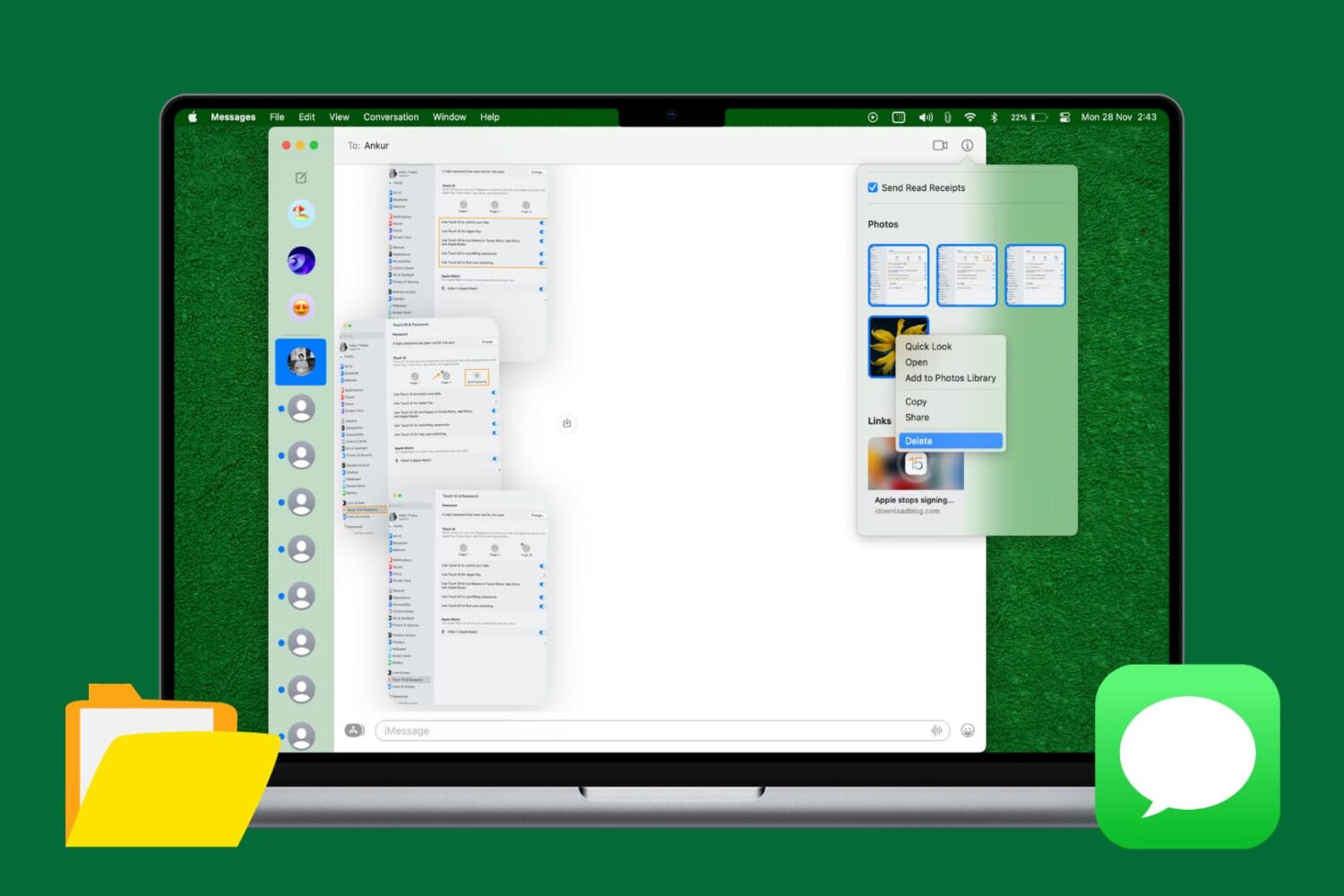
Try these tips if you're having Bluetooth problems on your Mac and can't connect accessories, AirPods, or other wireless devices, or send files to an Android phone or Windows PC.
Experiencing Bluetooth problems on your Mac? Try this

Try these tips if you're having Bluetooth problems on your Mac and can't connect accessories, AirPods, or other wireless devices, or send files to an Android phone or Windows PC.

Not long ago, we took you through an overview of the location services settings that come with your iOS device and told you all about how you can increase your privacy by configuring your location services wisely.
It's worth noting, however, that even your Mac uses your location for certain things; and with that in mind, you may want to look at your location services settings on your Mac to make sure you're limiting what you need to limit and are only allowing location services for the things you actually use.
In this walk-through, we'll explain the location services settings that come with macOS and tell you all about what might be using your location in the background.
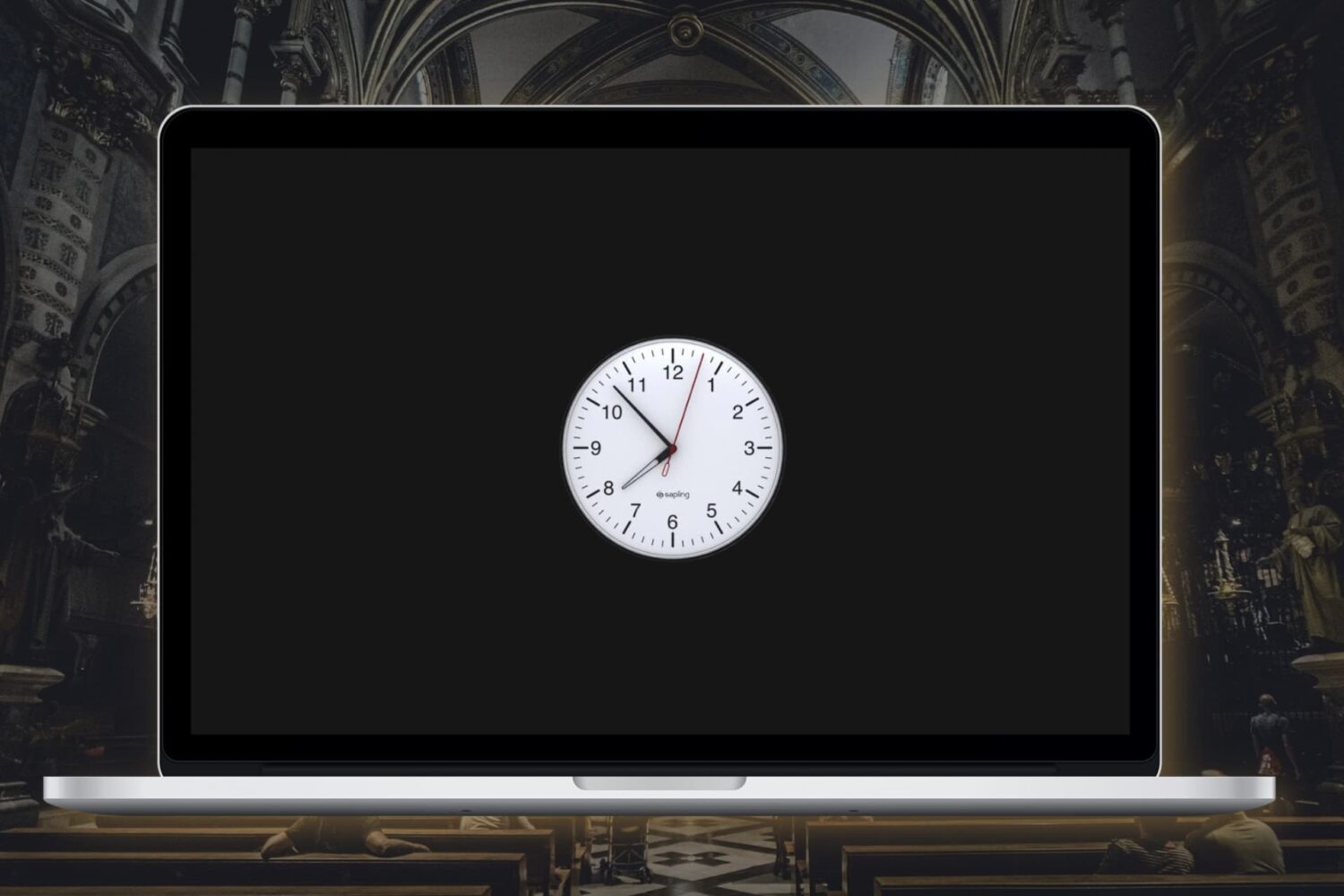
In this tutorial, we'll show you how to enable the analog clock in the menu bar on your Mac, replacing the digital clock.
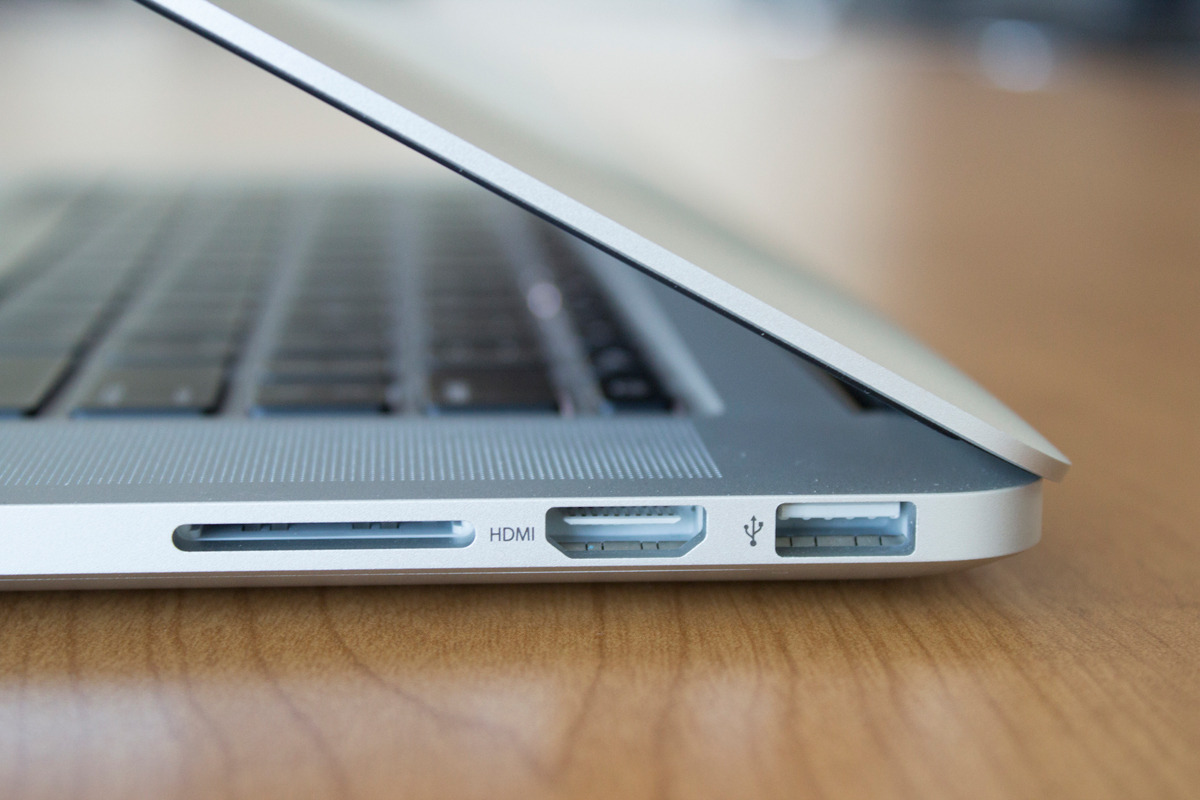
On the right side of all modern MacBook Pro models is an HDMI port used for digital video and sound. It's a great way to take in all of your favorite movies on the big screen.
On the other hand, if you wanted to use external speakers or headphones, it can cause issues if your sound settings aren't configured just right because HDMI itself is also an audio out port in addition to video out.
In this piece, we'll walk you through how to make sure your audio out is going to the right place.
Learn how to export images and videos from the built-in Apple Photos app to a folder on your Mac in their original file format and resolution.

The watch faces on the Apple Watch are somewhat of an art form in themselves, created in collaboration with some of the world’s best timekeeping experts. But with our quick guide, you can also have those wonderful faces as a functional screen saver on your Mac!

I don't know about you, but I'm annoyed every time an app crashes on my Mac and the macOS Crash Reporter interrupts my work with a pop up warning in the middle of the screen. Wouldn't it be great if those crash reports were displayed as banner notifications?
As explained by LifeHacker, a simple Terminal command will override the default system behavior and send those app crash reports straight to the macOS Notification Center, so they don't interrupt your workflow.
In this tutorial you will learn about a Terminal command which will route crash reports through your Mac's Notification Center rather than display them windowed in the middle of your screen.

If you like to rate songs on Apple Music, including those you have purchased on the iTunes Store, chances are you will at some point want to submit your star-based ratings. Now, iTunes for Mac and Windows PCs used to support half-star ratings out of the box, but recent updates have changed this behavior to using full stars only.
Fortunately, as noted by The Loop's Dave Mark, this can be quite easily reverted back to half-star ratings with a quick Terminal command.
In this post, you will learn how to enable half-star ratings in desktop iTunes and rate music more accurately than before.

Not so long ago, we told you all about an app for iOS that allowed you to convert PDF files to Microsoft Word files, but did you know you can accomplish the same process on your Mac too?
In this tutorial, we'll be showing you how to convert PDF files to Microsoft Word files using an app from the Mac App Store called PDF to Word.

One of the features of the Safari web browser built into your Mac that will come in handy time and time again are the private browsing windows that you can open to browse the web privately without having your browsing history stored in your computer for the next user to see.
In this tutorial, we'll show you how to open a private browsing window in Safari on your Mac so that you're ready the next time you need to perform a web search incognito.

Learn how to erase Safari browsing history and accumulated data for a particular profile or the entire browser on your iPhone, iPad, and Mac.