Last Monday, Apple distributed a fifth beta of watchOS 4 for Apple Watch to its registered developers and members of the paid Apple Developer Program.
Hands on with new features & changes in watchOS 4 beta 5
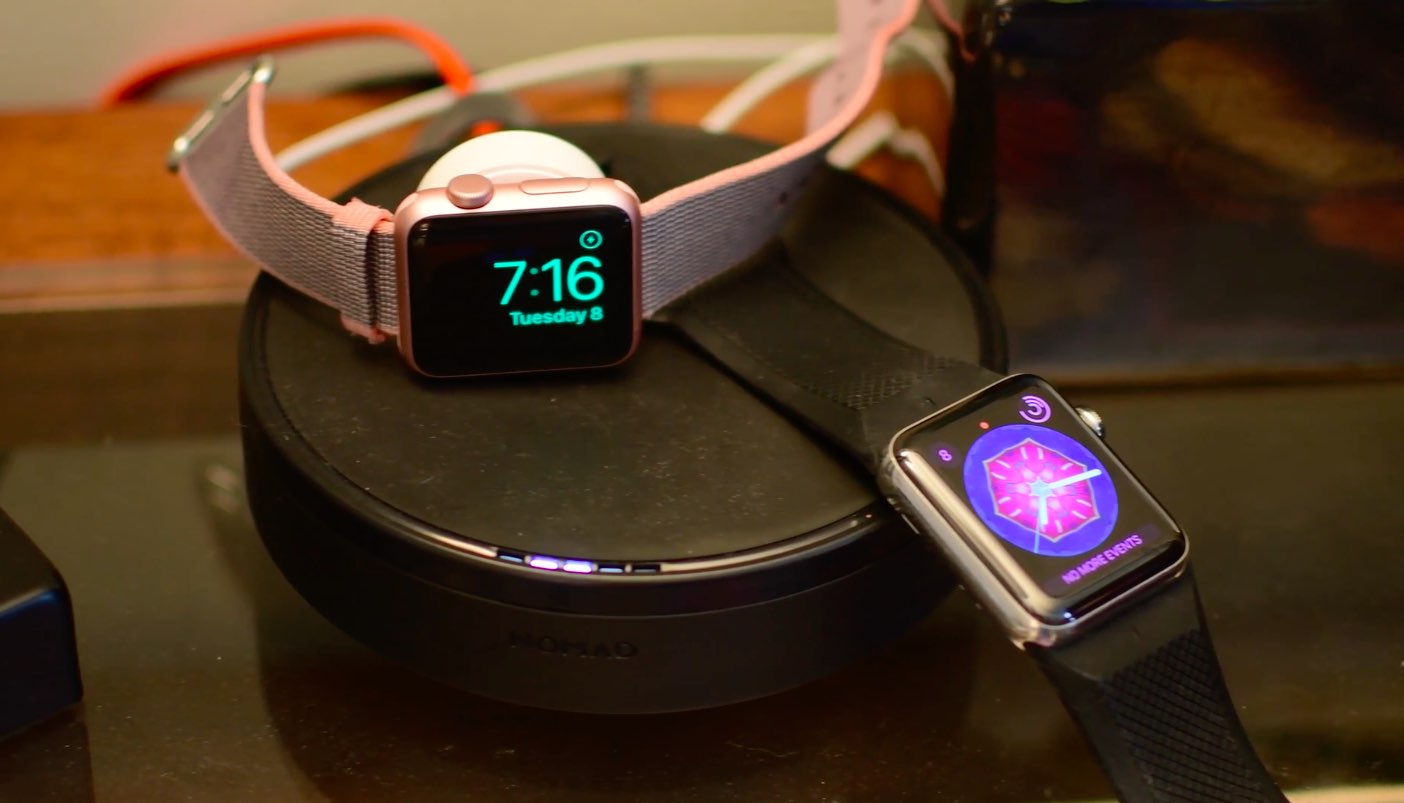
Last Monday, Apple distributed a fifth beta of watchOS 4 for Apple Watch to its registered developers and members of the paid Apple Developer Program.
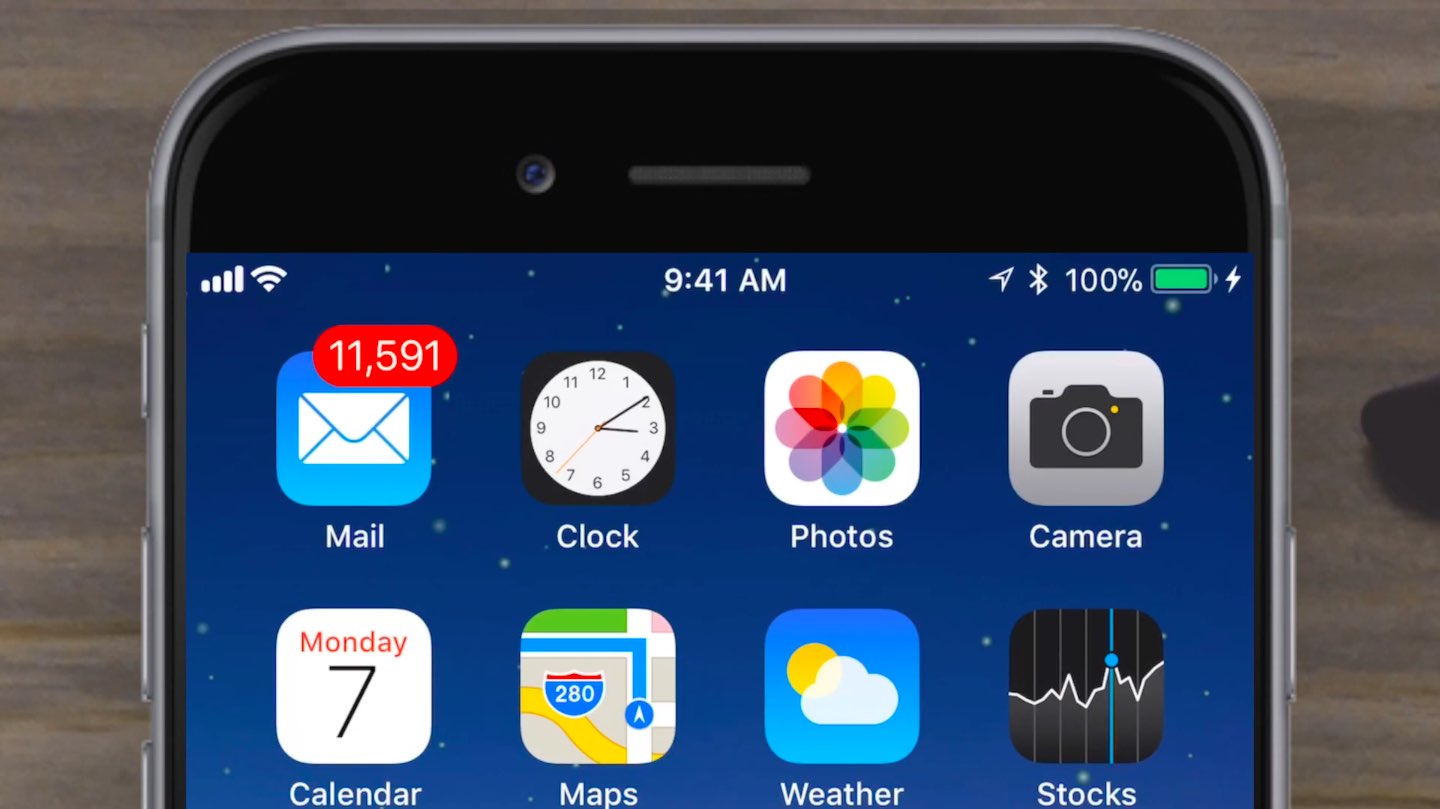
Apple yesterday released a fifth beta of iOS 11 for developer testing, and we're expecting its matching public beta to drop later today.
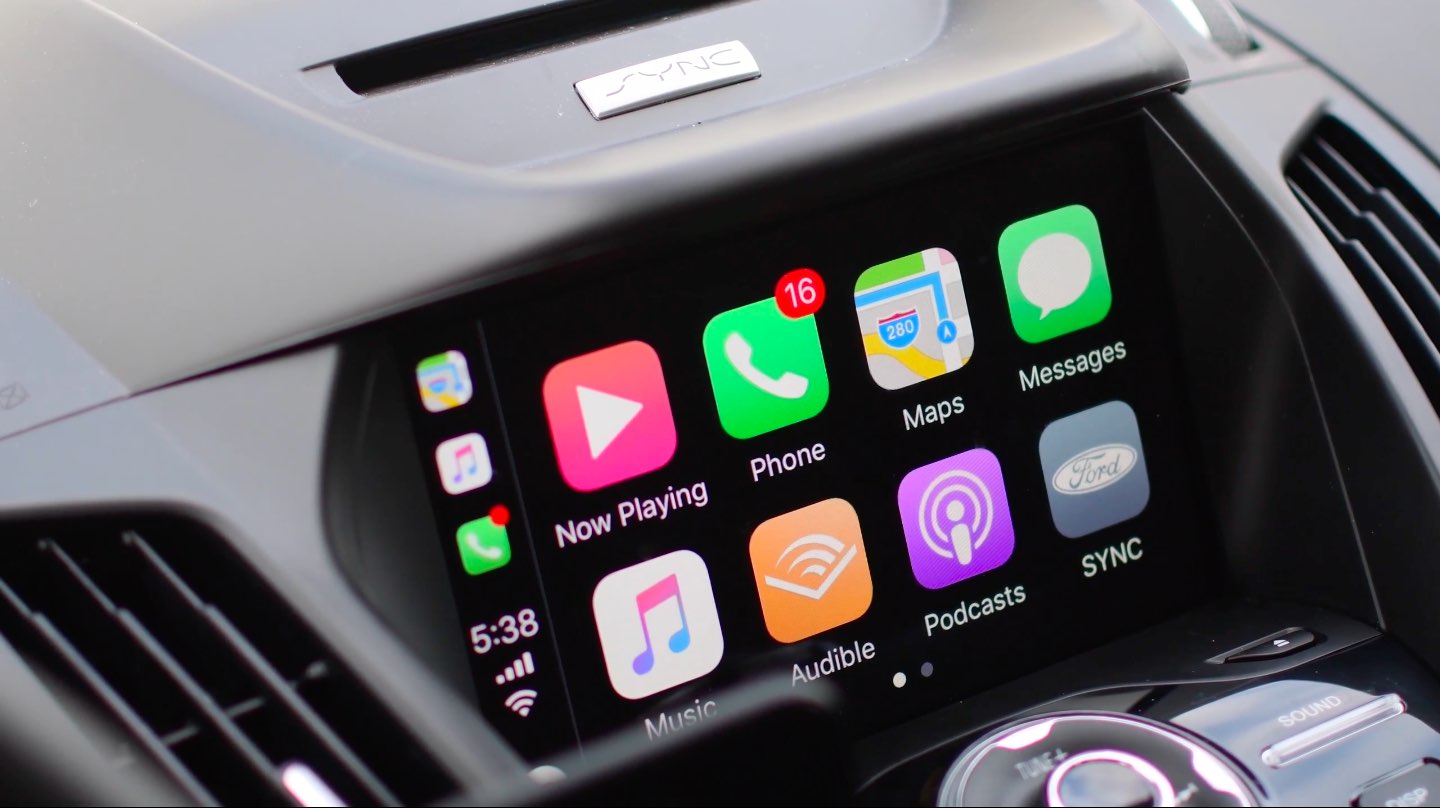
iOS 11's CarPlay has gained a multitude of new Maps capabilities for safer driving while bringing slight design changes to some of the stock apps and subtle interface refinements such as notification badges, cellular signal bars replacing the dots, larger app icons and more.
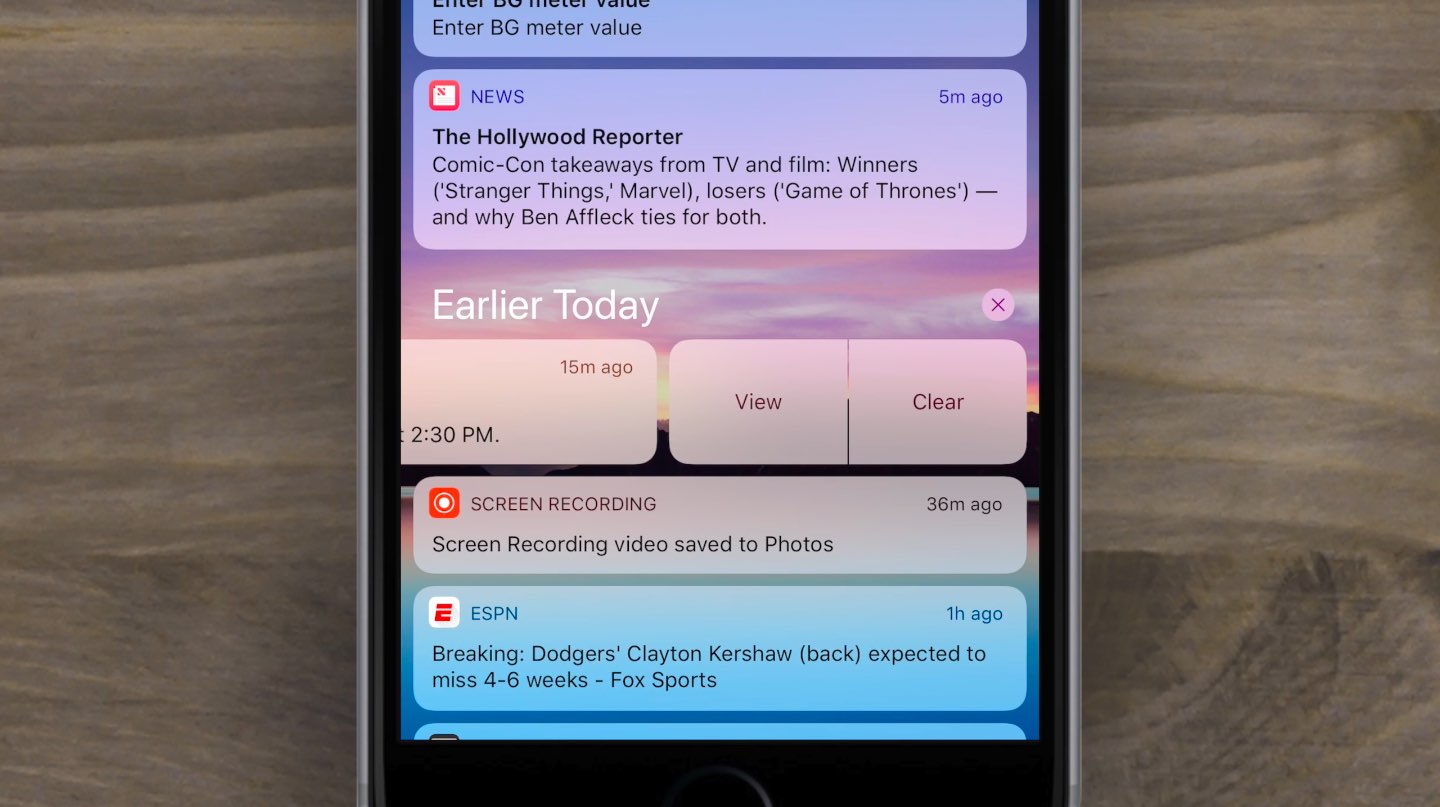
A fourth beta of iOS 11 was issued yesterday to Apple's registered developers, bringing a ton of bug fixes along with several feature changes and subtle visual refinements.
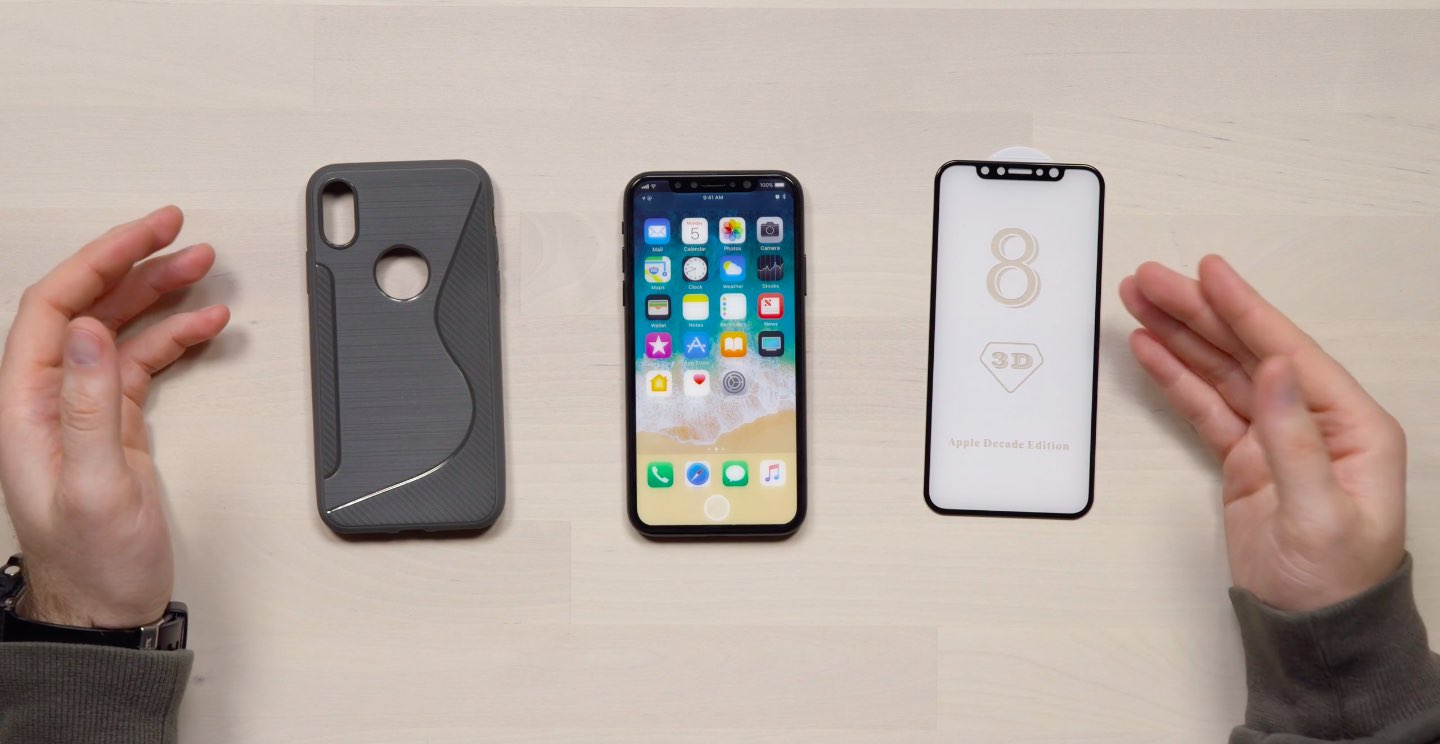
YouTuber Unbox Therapy got his hands on the most comprehensive CNC-machined iPhone casing “I've ever seen”, offering a look at the handset's screen to body ratio and other features.
According to trusted Apple analyst Ming-Chi Kuo of KGI Securities, Apple's flagship 5.8-inch OLED iPhone will have the highest screen-to-body ratio of any smartphone currently available.
According to the YouTuber:
iPhone 8 represents a very important device for Apple. In a market where smartphone prices are dropping rapidly companies like Apple and Samsung have to work much harder to convince customers that their products are worth the cost premium.
Some will say that Apple has copied Samsung in the design of the iPhone but I think the race for maximum screen to body ratio was inevitable for smartphone vendors. Current speculation puts this iPhone 8 design at the top in those terms.
There's no other phone currently available that has this much screen in a body this size.
Prior rumors alleged that iPhone 8 would switch from a 16:9 to an 18:9 display, resulting in a 2:1 aspect ratio that would make the screen appear taller and perhaps slightly narrower than the screens on existing iPhone models.
The 18:9 aspect ratio has been popularized by the latest phones from Samsung and LG with displays that are taller than the 16:9 ratio used by the majority of smartphones.
And here's his hands-on video, posted last week.
https://www.youtube.com/watch?v=4WHMgBs_C3s&t
Current speculation—supported by the CNC-machined iPhone 8 model in the video and analysts—appears to indicate the lack of a Touch ID fingerprint scanner.
It' remains unclear, however, if Apple might decide to opt for an advanced facial recognition unlock system similar to Samsung’s Galaxy S8 as a Touch ID replacement.
According to KeyBanc Capital Markets analyst Andy Hargreaves, iPhone 8 could launch without Apple Pay support unless the Touch ID situation is resolved in a timely manner.
“We do not believe facial recognition would be initially qualified as an acceptable verification method for Apple Pay,” said Hargreaves.
He explained that the solution wouldn’t work without clear line of sight to your face and, which could pose problems for customers using their iPhone 8 to pay with Apple Pay at stores.
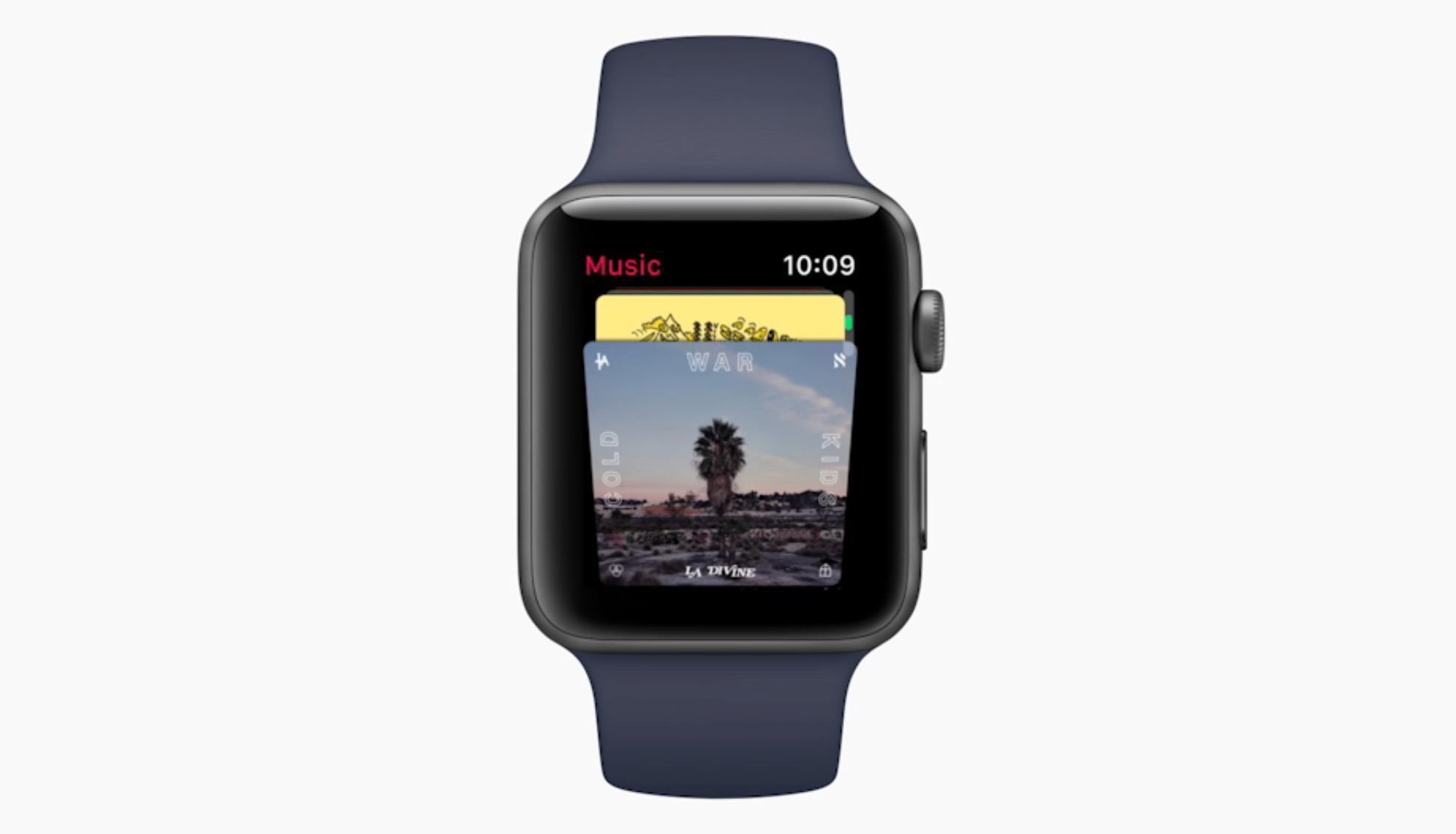
Yesterday was a big day as Apple seeded a bunch of new betas to its developers. Earlier this morning, we posted a nicely done hands-on video walkthrough of the new features and changes in iOS 11 beta 2, but what about the latest watchOS 4 beta?
Your wish is our contributor Andrew O'Hara's command!
Andrew put together a quick video demonstration of everything new in the latest beta of watchOS 4. Keep in mind that watchOS 4 beta 2 is not as feature-packed as a second beta of iOS 11, but there's still plenty to get excited about.
Watch Andrew's video highlighting all the new stuff and important changes in beta 2.
https://www.youtube.com/watch?v=jD7D-F0mXXU
Subscribe to iDownloadBlog on YouTube
Aside from the gorgeously animated characters on the new Toy Story watch face, this beta lets you press the Side button and the Digital Crown simultaneously in order to quickly pause an active workout session, even if the Workout app is running in the background.
This is a very compelling feature for those who use their watch for swimming. Prior to watchOS 4, pausing a workout while swimming first required you to turn the Digital Crown to expel the water from the speaker. Then you had to swipe on the Workout app's screen to reveal the session controls, among them the Pause button.
The problem is, a wet Apple Watch display tends to behave erratically so getting to that screen while in water was difficult. With the new shortcut, this particular pain point goes away.
Haptics now play for frontmost apps in watchOS 4 beta 2, but some languages are unavailable for Dictation, including the newly released Shanghainese dictation.
New features and changesHere are the new features and important changes in watchOS 4 beta 2.
Nicely animated Toy Story watch face Breathe notifications now respect your custom settings Location-based automation triggers now work if triggered from the alert on Apple Watch Pressing the Side Button and Digital Crown pauses an active workout session even if the Workout app is not in the foreground SiriKit requests no longer fail with a “Sorry I can’t do that” error. watchOS apps from TestFlight or the App Store now work with SiriKit Siri may not play music that has been synced to Apple Watch Music tracks now play from and sync to Apple Watch (Apple Watch must be on its charger for Music tracks to sync and Love/Dislike options are currently missing for locally synced music on your watch)Aside from Woody, Jessie and Buzz Lightyear, the new Toy Story watch face in the second beta provides other animated characters, like Ham, Rex and Bullseye.
A separate video from Andrew shows off almost all the character animations available in the new Toy Story watch face, including additional customizations.
https://www.youtube.com/watch?v=NuEuxD9AJ7I
That's all, folks!As we conclude our tour of watchOS 4 beta 2, we'd like to ask you to share any new feature discoveries of your own with fellow readers by posting them in the comment section.
You can also shoot us your findings via tips@iDownloadBlog.com.
What’s your favorite new feature in watchOS 4 beta 2, and why?
Apple (somewhat surprisingly) dropped the second beta of iOS 11 to developers on Wednesday with a myriad of changes and bug fixes. While there doesn't seem to be a huge number of user-facing enhancements, there are still quite a few notable changes and new features in this beta.
A large number of prominent bugs have been fixed that have been plaguing users, like crashing when deleting a voicemail, manual screen brightness not staying set, 3D Touch on phone numbers and addresses not working.
Unfortunately, with all of those bug fixes are several new bugs and known issues.
For instance, an SOS alert may still be sent even though the user cancelled it. This is a good reminder this is an early developer beta that should only be run on secondary devices.
As for the new features, we have the initial implementation of the much touted Do Not Disturb While Driving mode that will lock your phone as well as send a custom auto-reply (customizable in Settings → Do Not Disturb) should someone text you.
Control Center can now be disabled inside of applications, like on prior iOS editions. And far from last, the Files app now has started to show external locations like Google Drive and Box.
New features and changesThis is what you probably wanted to know about iOS 11 beta 2.
CarPlay now has lane guidance in Maps Smaller speed in Maps To edit/add filters in Photos you now tap the edit button in the top right corner instead of the sliders icon Now Playing widget has been tweaked New phone placeholder icon when no album artwork present in Now Playing widget Audio source switcher is now available on Lock screen New orange color for the new Echo effect in Messages Do Not Disturb While Driving is enabled with extra options in Settings Control Center can be turned on or off while in apps New search options within Apple Music You can now select multiple items in Photos Bluetooth widget now works the same as Wi-Fi: instead of turning off, it will just disconnect from whatever is connected to it Notification Center pull down has a gradual blur New Share sheet extension: Save to Files app Safari has new experimental features in Settings Dictation is now available in Hindi New options in Settings to make notification banners permanent or permanent Built-in screen recorder boosts video capture resolution to 1080pTake a look at our hands-on video to see all of these new features and more in action.
https://www.youtube.com/watch?v=TZ5pwZMPRxI
Subscribe to iDownloadBlog on YouTube
And here's a quick overview of the most important fixes.
Bug fixes 3D Touch data detectors are now working for phone numbers, addresses, etc. Screen brightness stays at set level YouTube search bar has returned More stable Bluetooth connections (Dexcom) Android Migration now works as intended Crashing when deleting voicemails is fixed Lock screen no longer rotates Long exposure photos are now higher quality than in first beta Wrapping it all upAs we conclude our tour of all the changes, fixes, improvements and new features in iOS 11 beta 2, feel free to tell us about your own discoveries and observations in comments or via tips@iDownloadBlog.com.
What's your favorite change in iOS 11 beta 2 thus far, and why?
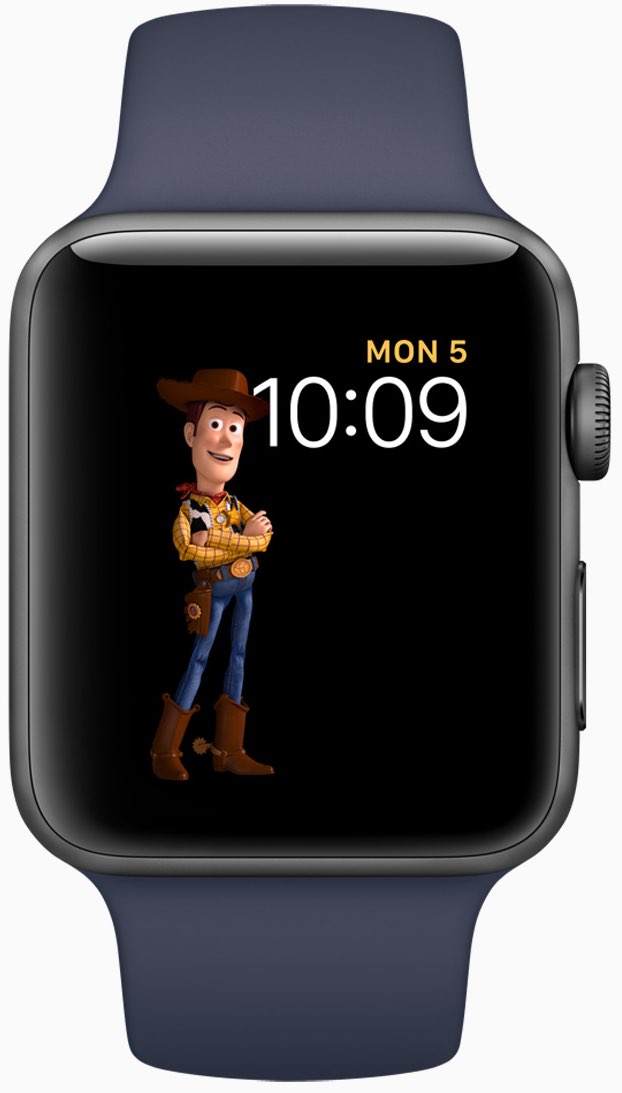
Aside from bringing more intelligence and fitness features to Apple Watch, the new watchOS 4 software includes a bunch of beautifully animated Toy Story faces. Not unlike the existing Mickey and Minnie Mouse watch faces, the Toy Story ones bring to life popular Pixar characters including Woody, Jessie, Buzz Lightyear, Ham, Rex and Bullseye.
Our own Andrew O'Hara did a quick video showing off almost all the character animations available in the new Toy Story watch faces in watchOS 4, including additional customizations.
Give the video a quick watch, then meet us in comments.
https://www.youtube.com/watch?v=NuEuxD9AJ7I
watchOS 4 packs in other new watch faces.
Kaleidoscope, for instance, turns static images into mesmerizing patterns and the new Siri watch face uses artificial intelligence and machine learning to display the information users need most throughout the day.
ROUNDUP: 60+ new features in watchOS 4
Plus, you have new complications for your watch faces, including Now Playing and Apple News.
These new watch faces, complications and other features all require watchOS 4, a free upgrade for all Apple Watch users later this year.
Are you excited for the new Toy Story-themdd faces for your Apple Watch? Share in the comments section below!

Introduced at Apple's Worldwide Developers Conference last week, Apple's new 10.5-inch iPad Pro model and a second-generation 12.9-inch iPad Pro are now both available for purchase via company-owned retail stores around the world.
Our video reviewer Andrew O'Hara has managed to get his hands on these pro tablets. His hands-on video takes you through some of the headlining new features like the super bright, less reflective display with ProMotion technology at an insane 120Hz refresh rate and more.
Watch Andrew's video embedded below.
https://www.youtube.com/watch?v=5mj2Oy-seGI
Subscribe to iDownloadBlog on YouTube
If you're wondering about the brand of knife Andrew is using to cut through the cellophane, it's the Kershaw Reverb lightweight pocket knife (it's pretty cheap on Amazon).
According to iFixit's teardown analysis, the new 10.5-inch iPad Pro model has four gigabytes of RAM, just like the original 12.9-inch iPad Pro model, which enables smoother multitasking.
The cameras on both new iPads are the same as those found on the iPhone 7 series (sans dual lenses and Portrait depth-of-field mode), meaning you're getting photography features like 12 megapixel photos, 4K video capture and more.
Other capabilities of these new tablets that are worth mentioning include a faster Touch ID authentication, Apple's A10X Fusion chip with 30 percent faster CPU and 40 percent faster GPU performance than the previous generation, plus much more.
The real story, of course, is iOS 11 which turns these new iPads into productivity powerhouses with such features as a dynamic Dock, a new app switcher, drag and drop, improved multitasking and more. Unfortunately, iOS 11 is currently being beta-tested and it won't release for public consumption before the fall.
Are you liking these new iPads?
Let us know in the comment section below.
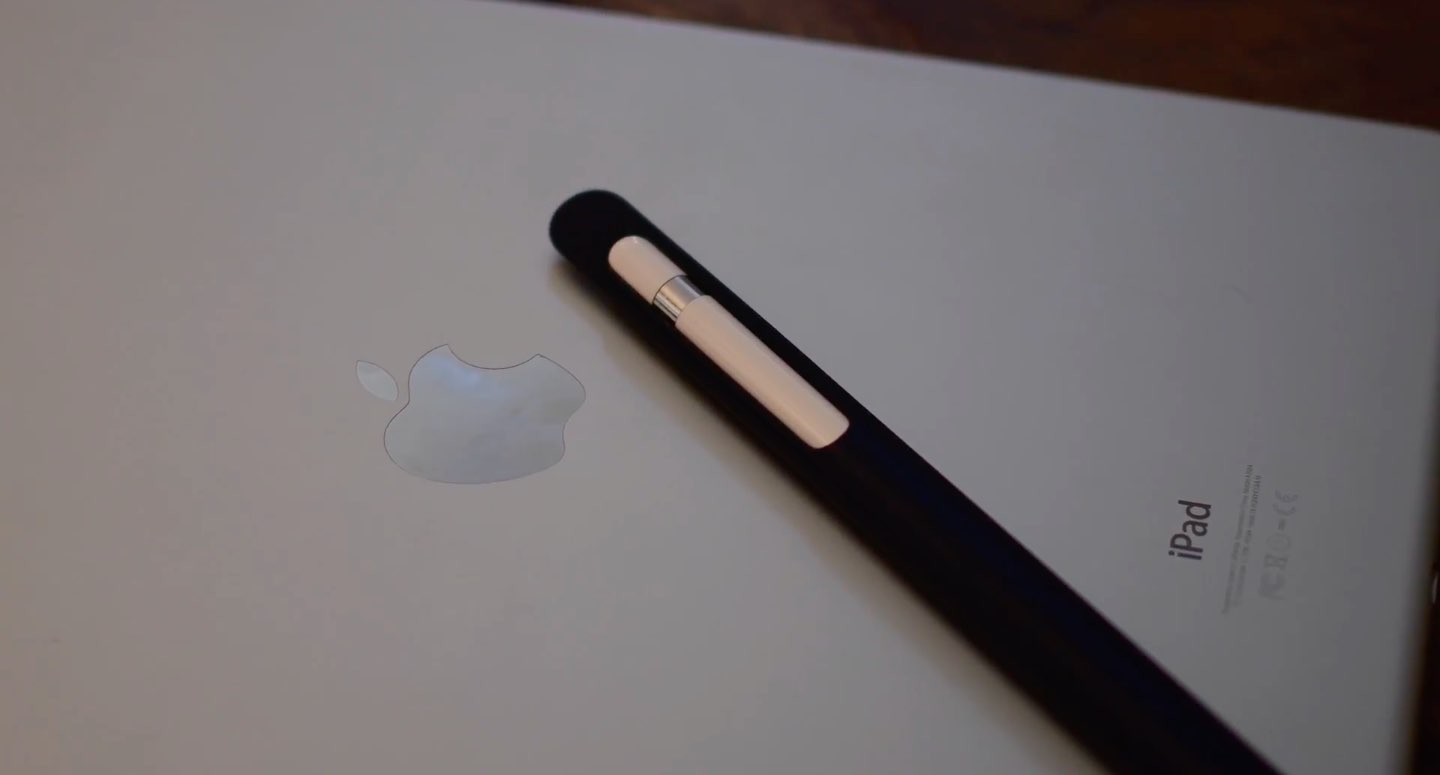
You know how Apple Pencil is weighted to prevent rolling and how it always stops rolling with the word “Pencil” facing upward on its metal band? Well, Apple's attention attention to detail doesn't stop at the stylus.
Today, we have Apple's brand new leather case for Apple Pencil put through its paces by our resident video editor Andrew O'Hara. In his hands-on video, Andrew finds that the case has been designed to prevent rolling and broken tips.
And while you can put your stylus with the bottom part in first, it won't be stuck inside the case because the body is soft: you just squeeze it down the tube until it comes out.
And here it is.
https://www.youtube.com/watch?v=HlaVSLN4bgc
Subscribe to iDownloadBlog on YouTube.
“This simple leather secures the cap, prevents it from rolling off your desk, and keeps the tip from being damaged,” says Andrew in the video.
Apple's case for Apple Pencil is available in Saddle Brown, Taupe, Midnight Blue and Black finishes. Priced at $29 a pop and currently shipping in 1-2 weeks, it can be grabbed from Apple's web store. The price is a bit on the high-side, but then again—this isn't an ordinary, sloppily designed stylus case.
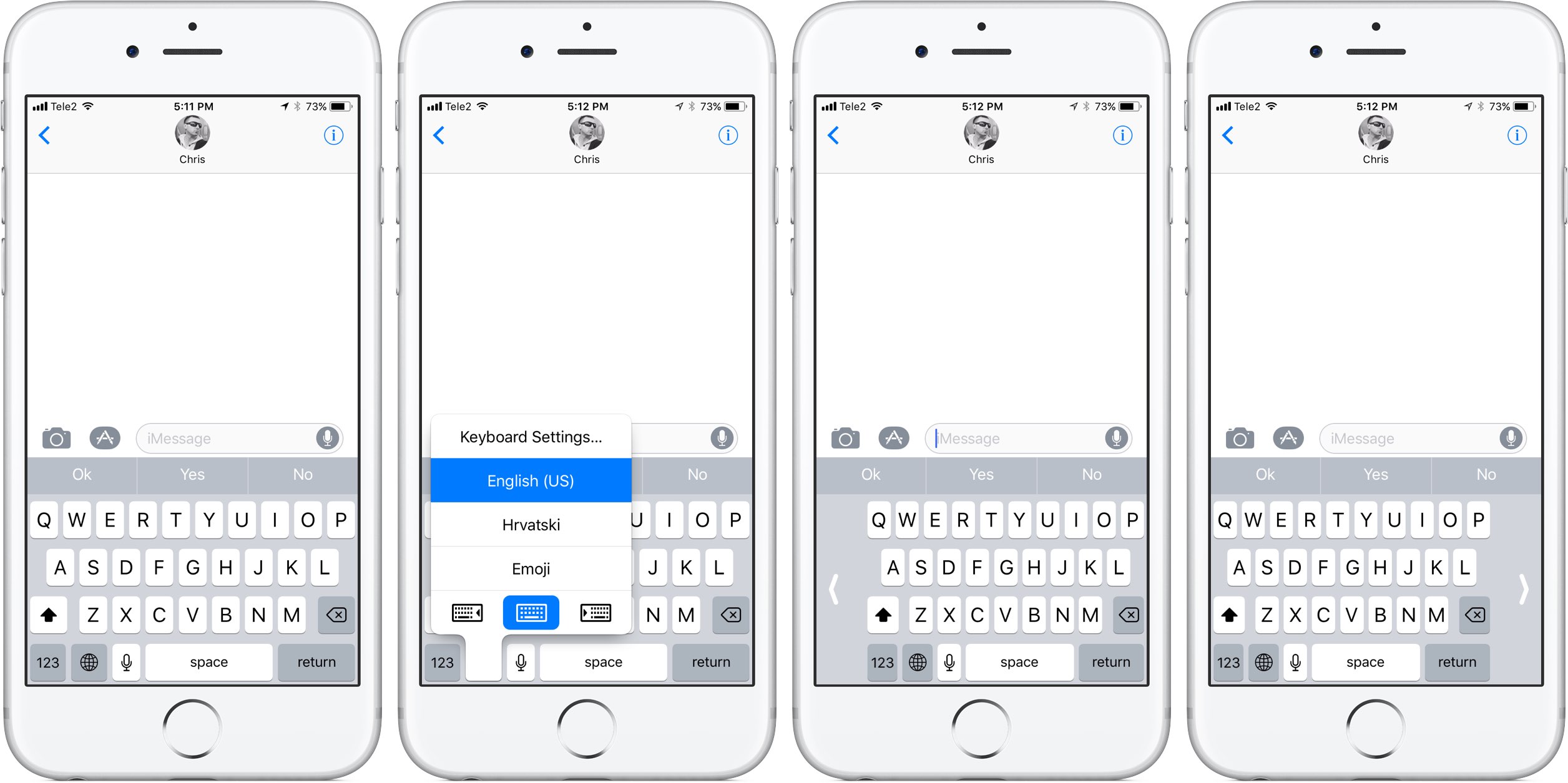
As previously suspected, and officially announced at the Worldwide Developers Conference, iOS 11 provides a new keyboard feature making it easier to type in one-handed mode, whether you're a right or left-handed user. It works on both 4.7 and 5.5-inch iPhones and is easily invoked at any time via the keyboard's Emoji key.
Andrew O'Hara put together a short video demonstration of this feature in action. Watch it embedded below, then read the rest of the article before meeting us in comments.
https://www.youtube.com/watch?v=nq0xDpcCGKA
Subscribe to iDownloadBlog on YouTube
To activate this keyboard mode, tap and hold the Emoji key on the keyboard.
You'll notice a trio of new icons lined up alongside the bottom of the menu. These icons let you move the entire keyboard either fully to the left or to the right of the screen so that typing with a single thumb is easier.
The keyboard shrinks exactly to the width of the keyboard on a four-inch iPhone.
To return to the normal-size keyboard, tap the Emoji key again, then hit the middle icon at the bottom of the menu. Alternatively, tap the arrow on either side of the keyboard to quickly get back to the normal layout.
What are your thoughts on iOS 11's new one-handed keyboard? Do you think you'll be using it on your iPhone when iOS 11 drops? Share in the comments section below!
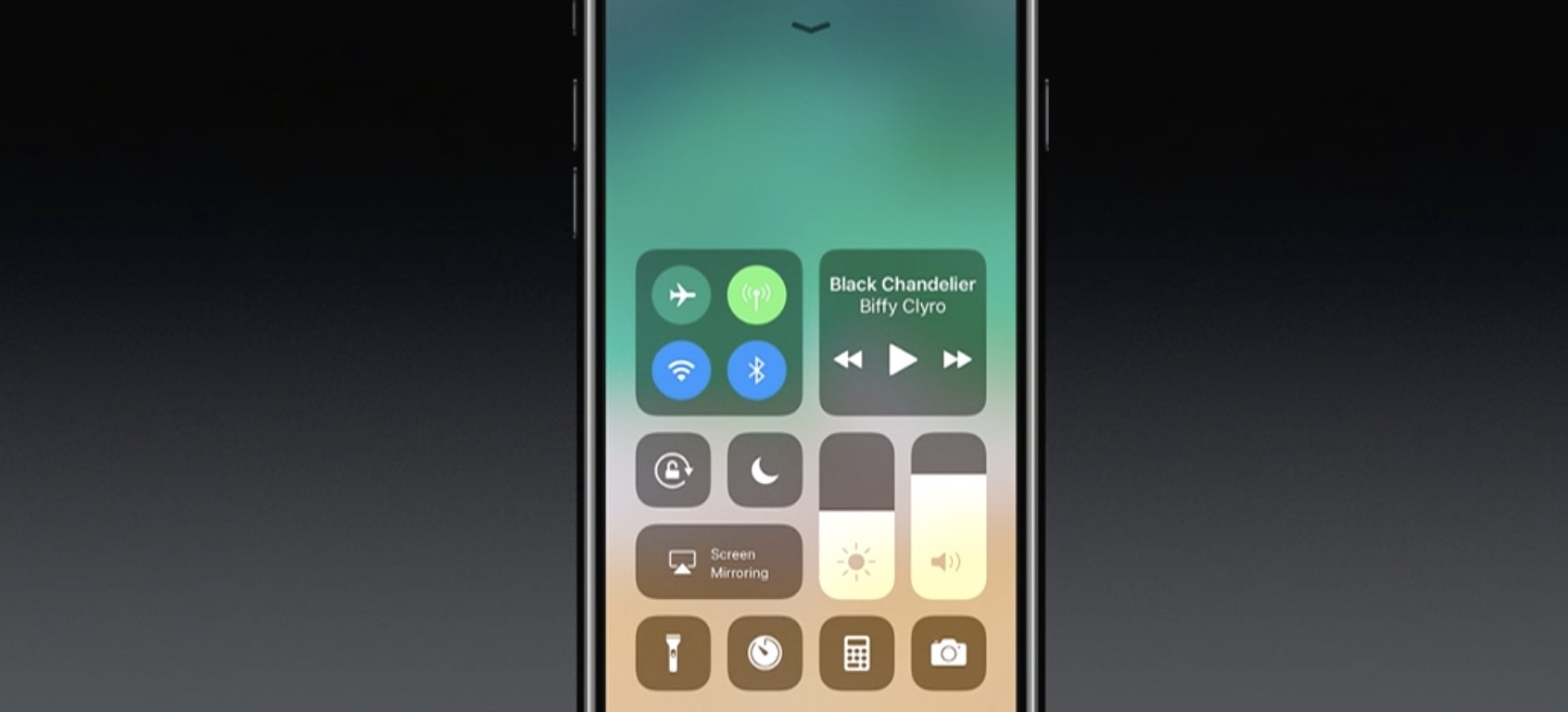
A completely redesigned Control Center is one of the hallmarks of iOS 11. Having ditched card-based layout spanning multiple pages, Control Center has adopted a single-page design. Control Center on iOS 11 is realized as a full-screen scrollable overlay, a design that has allowed Apple to put many more useful controls at your fingertips than ever before.
It is highly customizable, too: you get to choose what appears in your Control Center!
For instance, you could opt for a pedestrian Control Center with a handful of the most commonly used shortcuts, like on iOS 10, or create a fully loaded Control Center that may contain as many as 18 additional toggles. Apple currently does not provide Control Center APIs, meaning third-party apps cannot ship their own Control Center toggles, for now.
iOS 11 Control Center highlights:
Control Center is more condensed You no longer have to swipe your way through multiple cards Everything is on a single, vertically scrollable page iOS 11 has eighteen additional toggles for Control Center You decide which toggles appear in your Control CenterLike before, Control Center is invoked by swiping up from the bottom of the screen.
A fully loaded Control Center on iOS 11.
As you can see for yourself, Control Center on iOS 11 is more condensed than before.
The refreshed design allows you to quickly toggle various settings on a single screen, no swiping between pages required whatsoever.
Additional toggles for Control Center can be added and re-ordered in Settings.
The entire Control Center can be scrolled vertically to reveal any controls that may not fit on a single page. To dismiss Control Center, swipe down or press the Home button.
To stop Control Center from appearing on your Lock screen for security reasons, slide the Control Center switch in Settings → Touch ID & Passcode to the OFF position. All in all, iOS 11's Control Center is completely different than it was before—and it's a change for the better.
To help you get quickly up to speed with everything Control Center on iOS 11 has to offer, we asked our prolific video editor Andrew O'Hara to put together a quick video walkthrough.
Watch his clip below, then read the rest of the article for additional information on other new features for Control Center on iOS 11.
https://www.youtube.com/watch?v=UGWjmt6UXJI
Subscribe to iDownloadBlog on YouTube
Many of Apple's own apps on iOS 11 include their own controls for Control Center.
Notes, for example, provides Control Center shortcuts for creating a new note, checklist, photo or sketch. Clock includes Control Center options for creating alarms and timers, and so forth.
Some of the most useful Control Center shortcuts let you quickly access iOS 11's new screen recording feature, set the Dynamic Text size, control your Apple TV without needing to launch Apple's Remote app and much, much more.
The following set of controls can be added to Control Center at any time:
Accessibility Shortcuts Alarm Apple TV Remote Calculator Camera Do Not Disturb While Driving Flashlight Guided Access Home Low Power Mode Magnifier Notes Screen Recording Stopwatch Text Size Timer Voice Memos WalletYou can add these toggles to, or remove them from Control Center at any time, in Settings. To rearrange the order in which they appear, drag their handles around.
Keep in mind that these expanded Control Center controls are in addition to the standard toggles, some of which now come with additional switches and options.
The non-removable Control Center items include:
Network—Airplane Mode, Cellular Data, Wi-Fi, Bluetooth, AirDrop and Personal Hotspot. Now Playing—See what's playing, adjust playback volume, control speakers with multi-room support via AirPlay 2, scrub through your media, play or pause a song or go to the previous/next song. Brightness—Adjust the screen brightness, turn Night Shift on or off. Volume—Control your audio volume. Orientation Lock—Toggle Orientation Lock on or off. Night Shift—Toggle Night Shift on or off. AirPlay—Mirror the device's screen on your TV, select an AirPlay device.As mentioned, these controls are persistent and cannot be removed from Control Center.
Some of the built-in controls will be familiar to you, but many will not.
That said, you're wholeheartedly encouraged to try pressing each toggle with 3D Touch to reveal additional options. For instance, pressing the Network control with 3D Touch expands it so you can choose additional controls, like Personal Hotspot and AirDrop switches.
Similarly, pressing the Now Playing reveals the scrubber and the volume slider. Unfortunately, if your device lacks 3D Touch you won't be able to access any of the additional options for Control Center toggles that provide them.
Apple could tweak Control Center's design as we get closer to iOS 11's release this fall.
While we're not expecting drastic changes in subsequent iOS 11 betas, Apple would be wise to add the ability to drag the toggles inside Control Center to rearrange them.
Bottom line: even in its current form, Control Center is now way more useful than it's ever been.
Everyone will have a chance to appreciate iOS 11's condensed, highly customizable Control Center as soon as iOS 11 releases for public consumption this fall.
iOS 11 is compatible with all 64-bit iPhone, iPad and iPod touch devices.
Share your thoughts on iOS 11's redesigned Control Center by posting a comment below.