Email

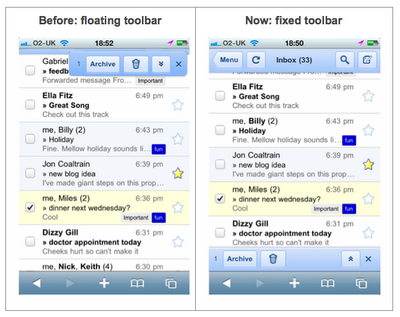
Google Adds Improvements to Gmail in Mobile Safari

I can't say that I use Gmail in mobile Safari too often, considering that the native Mail App has great support for Gmail, but there must be some of you crazy folks out there that still do.

Fret not, Google has heard your cries for an improved mobile Safari experience, they've seen your tears, and they've felt your pain. As a result, an updated version of Gmail for mobile Safari is now live at last.

What new features can you expect to see? Well, too be honest, they're more on the aesthetics side of the house, meaning they don't add much in the way new functionality. Check inside for the details on not one, but two new improvements for Gmail on mobile Safari... 

Elert – iPhone Email Notification

We all know one of the biggest gripes about the iPhone is the inefficient notification system, and this frustration is doubled in regards to email because you don't even get a pop-up message for incoming emails. You hear a ding, the badge number increases and that's it. Opening the mail app is the only way to see whether you just received another spam message, an email from mom, or an important business email.

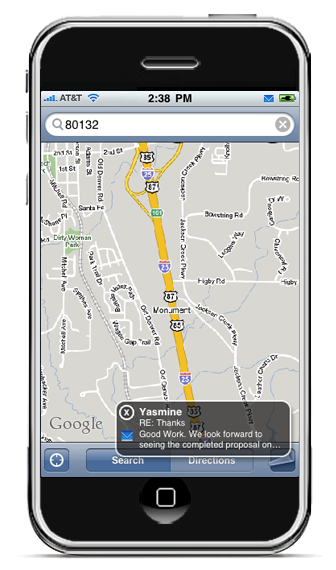
What a waste of time, right? Thankfully there's Elert, a jailbreak app available in the Cydia store for $1.99 plus a short trial period. Elert pops up a small notification window in the lower right hand corner detailing the email's sender, subject, and a snippet of the first line. It also allows you to expand the window to view the entire email and reply, all without leaving the app you're in.

Mark Read Helps Keep Your iPhone’s Inbox Looking Good

Answer me this, how many times have you risen from a night’s slumber, only to find your email inbox littered with stuff that you don’t want to deal with at the moment? Or, what about mail that you just don’t need to read at all?

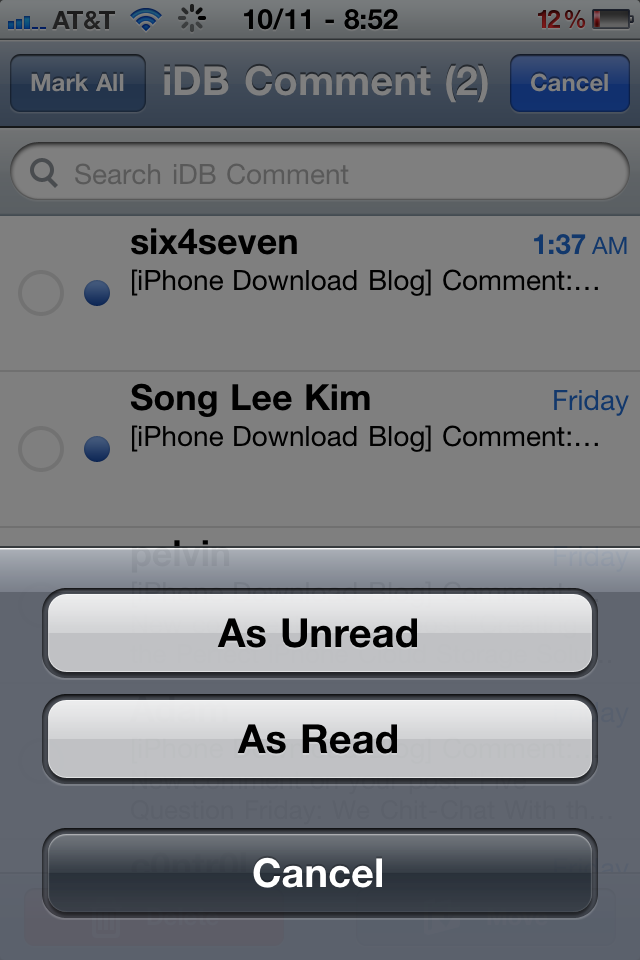
In times like these, it would be nice if the iPhone featured a “Mark As” feature to quickly mark email as being read or unread. I’m sure Apple will eventually get on the ball and add this strangely absent feature, but for those who are jailbroken, the future is now...

MarkdownMail – Composing HTML Emails on the iPhone

MarkdownMail is an iPhone app from Second Gear Software for creating HTML emails. The app is based on John Gruber's Markdown markup syntax. MarkdownMail converts your Markdown formatted message into a HTML message for emailing. If you're not familiar with how HTML works, don't worry. After five minutes of learning the Markdown syntax, you're ready to start writing yourself.

It's dead simple...

Steve Jobs Email About the White iPhone 4 Coming for Christmas Was a Fake

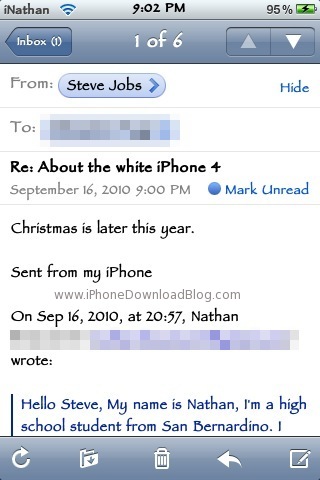
Last week we broke the news about an email that Steve Jobs had sent as a reply to one of our readers. The email was about the white iPhone 4 and implied it would be available by Christmas.

I had been "tipped" several times with emails from Steve Jobs but I never published them because they looked really fake. This one however seemed completely legit and I trusted our reader Nathan about the whole thing. I was wrong. Let me explain...

Steve Jobs Email About the White iPhone 4

The white iPhone 4 has been way overdue. First supposed to be available at the same time as the black model, it's launch was postponed several times. Last time we heard from Apple about the matter, they said the iPhone wouldn't be available until "later this year". So much for a clear timetable.

iDB reader Nathan emailed Steve Jobs and asked him more details about the white iPhone 4 release date. Nathan was lucky enough to get an answer from Steve apparently within minutes. As usual, the reply is more mystical than clear...

Will Steve Jobs’ FaceTime Promise Hold True?

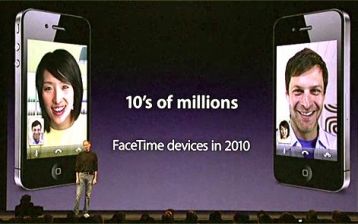
Remember back in June when Steve Jobs introduced the iPhone 4 and the revolutionary FaceTime ability? Perhaps if you're detail oriented you'll remember that Jobs also stated that Apple would be shipping 10's of millions of FaceTime ready devices. How will he make this happen?

Fortune has a broke down report on how Jobs might make his promise a reality in spite of critics who scoffed at the number proposed. I'll give you a hint, it isn't exclusive to Apple handhelds...

How to Fix iOS 4 Exchange Sync Problems

After updating to iOS 4, you might have encountered issues when syncing your Microsoft Exchange account. I know I did. Immediately after setting up Google Sync on my iPhone iOS 4, the sync took forever to complete. I ended up deleting and adding the account several times but it didn't really fix the issue as it would still take forever to sync new contacts or new events in the calendar.

According to this Apple Support ticket, I am not the only one. Here are the symptoms: immediately after updating to iOS 4, some users may notice that Exchange ActiveSync Mail, Contacts, or Calendars do not sync, or sync very slowly. In addition, some Exchange Server administrators may notice their servers running slowly.

Here is the fix offered by Apple:

To work around this issue, users should install a configuration profile from Apple that increases the amount of time the iOS 4 device will wait for the Exchange Server to respond to its sync requests. For best results, the profile should be installed on as many iOS 4 devices at your company as possible.

To install the profile:

Use Safari on your iOS 4 device to download the configuration profile. It may be easiest to read this article with your iPhone or iPod touch and tap the download link there, but you may also email the attachment to another email account on your iOS 4 device, and tap the attachment to open it. Tap Install to install the profile, and enter your passcode if prompted. A warning message will appear because the profile is not signed. Tap Install Now. Tap Done to complete the installation, then power off your device and power it back on. Wait for your Exchange data to finish syncing.

After installation, the profile will be listed under Settings > General > Profile.

Have you had this issue? If so, did this fix work for you?

How to Share Your iPhone Pictures in Full Resolution

There are 2 ways to share your iPhone pictures via email or MMS but one is better than the other because it does not compress the images and keep them in their original size and resolution.

Method 1: The first way is to simply go to the photo application and type "share". This will ask you if you want to share via email or MMS. Whatever you decide, it will compress the picture to 800x600, reducing the quality of the image.

Method 2: The better way to do it if you want to preserve the quality of your images is to "copy" (not "share") the image, then manually launch the mail or MMS app, and paste the image into it. This way, your images will not be automatically resized and should be 1600x1200.

By using the second method, your MMS or email will take longer to be sent out, but at least it will be a full quality image.

If you have other simple tips like this, feel free to let me know.

Gpush Brings Gmail Push Notification to the iPhone

Gpush is a new application available in the App Store that brings Gmail push notification to your iPhone. I have been using Gpush for a few days now and it works as advertised.

I initially installed this app because I was waiting for an important email and I didn't want to refresh my inbox every 5 minutes. So I paid the $0.99 and downloaded Gpush.

The set up is very easy and straightforward. You just have to enter your Gmail username and password and click "save". Then you can go to the settings and choose how you want to be notified. You can be notified with a sound (same as the new voicemail sound), an alert (the pop up showed in the image above), and a badge.

Right after installing Gpush, I tried it out by sending an email to myself from my Hotmail account. The push notification came almost instantly, both on my iPhone and my PC. I was really impressed! But notifications don't always come that quickly. I sometimes receive notifications a couple minutes after receiving the email on my PC.

One downside to this app is that you only get notifications of new emails. You don't actually get the email in your inbox. So after receiving a notification, you still have to launch the mail.app and retrieve the email.

Another downside, somewhat bigger, is that these push notifications seem to drain my battery very quickly. I'm not sure about that because I've been way deep in Michigan for a few days with no wifi, only running on Edge, which is notoriously bad for battery. I don't know if it's my constant twittering or my girlfriend playing too much Bejeweled, but it does seem my battery life hasn't been really good since I installed Gpush.

All in all, Gpush is a good and cheap application that does exactly what it's supposed to. However, it can become very annoying if like me, you receive a couple hundred emails a day.

You can download Gpush [iTunes Link] from the App Store for $0.99. I look forward to reading your thoughts about this application.