Calendar

How to customize Fantastical 2 for iPhone to suit your needs

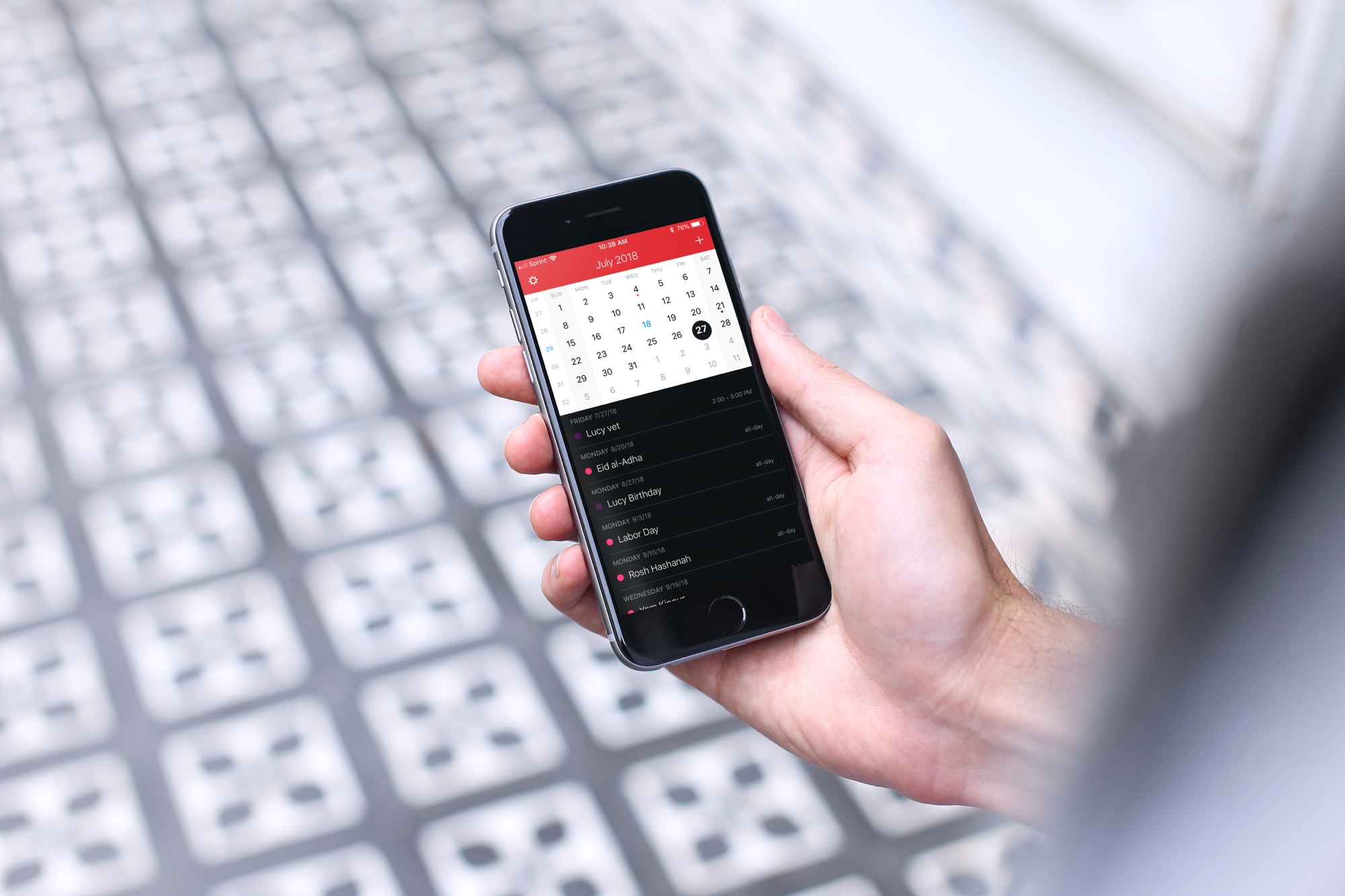
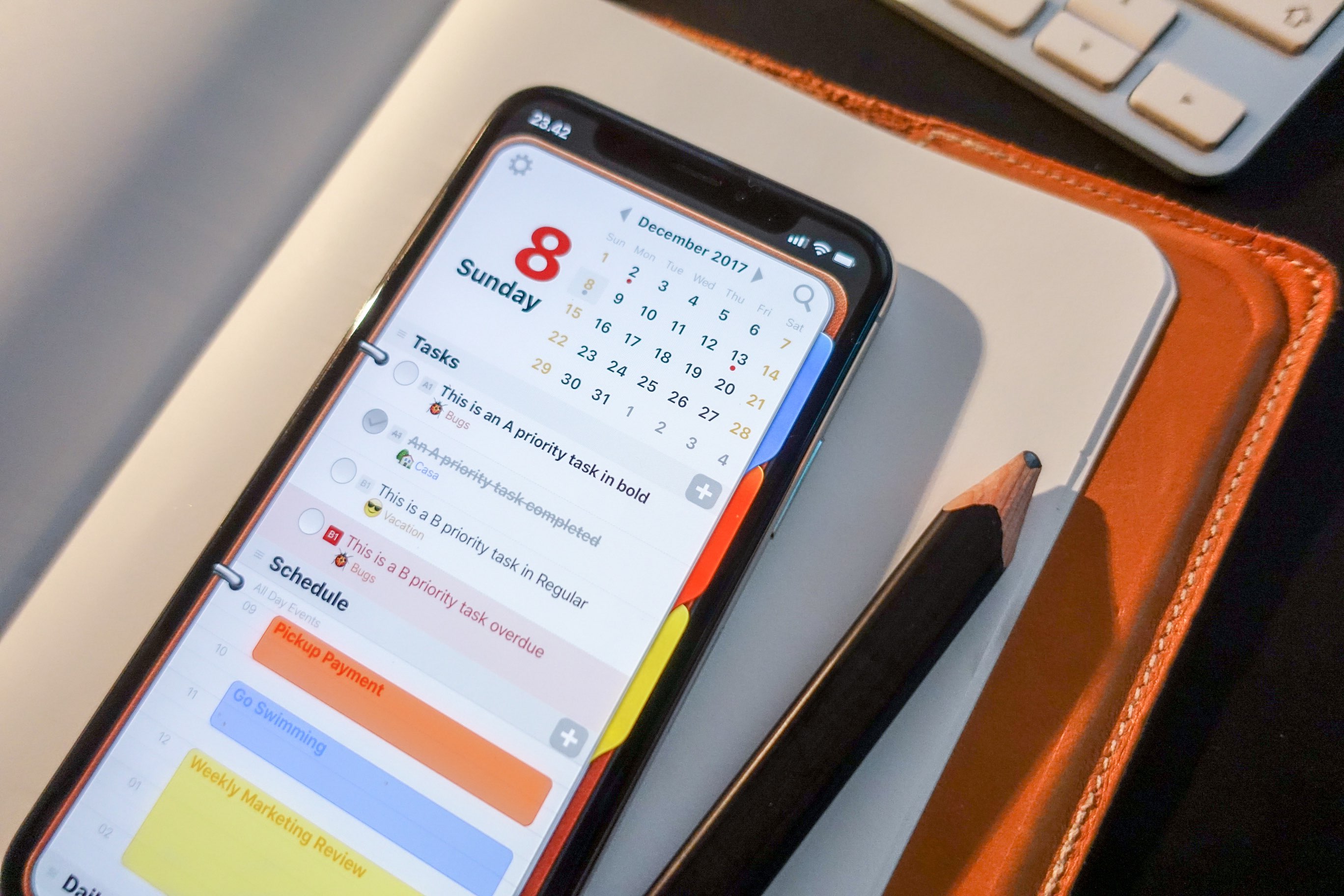
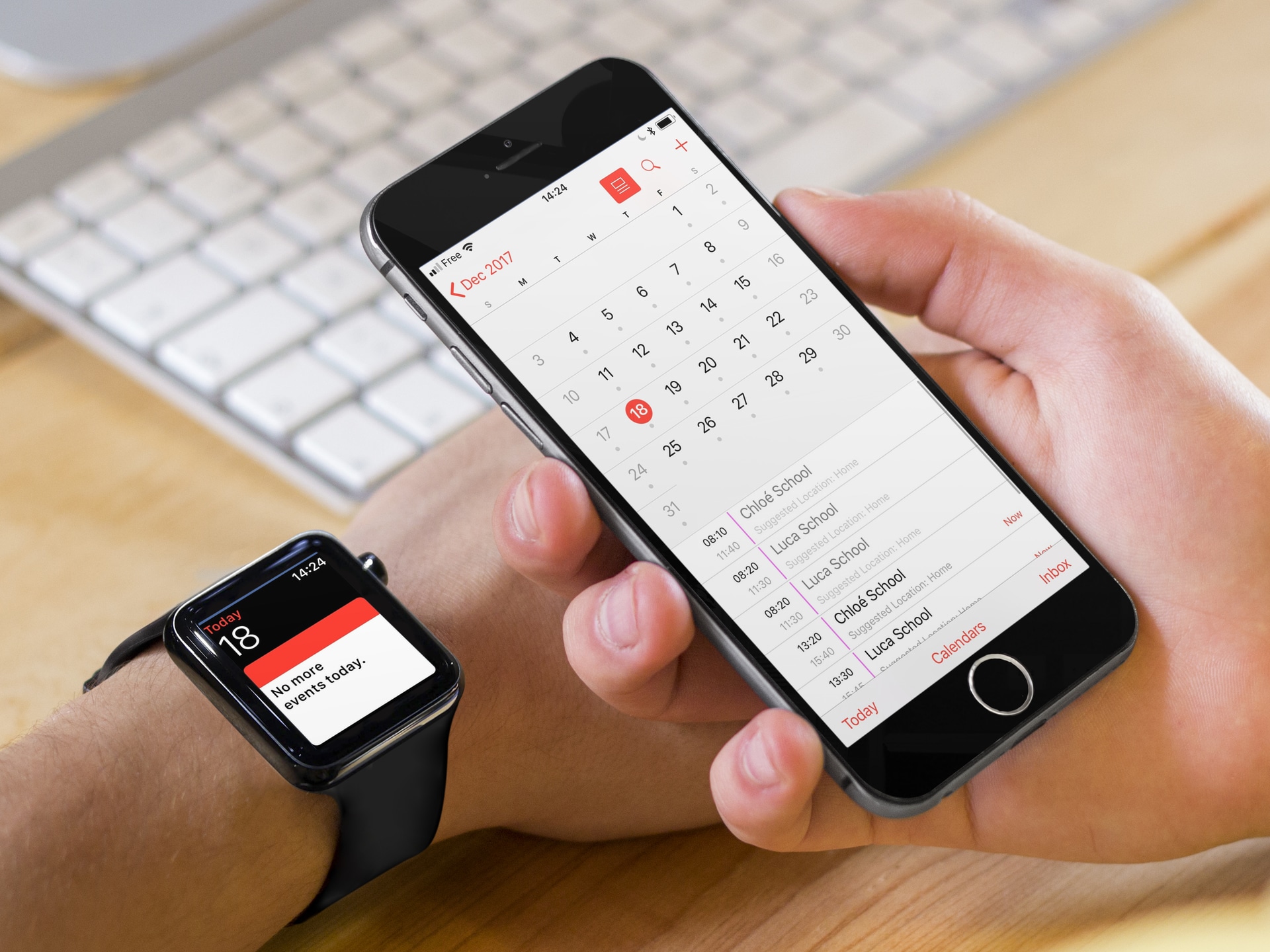
Fantastical 2 on iPhone

If you’ve gone beyond your iPhone’s default Calendar app and purchased Fantastical 2, then you already know the host of features that this app provides. But, have you taken the time to sit down and really customize it?

Getting your calendar exactly as you want it is worth the time. So, here’s your Fantastical 2 tutorial for customizing the app on your iPhone.

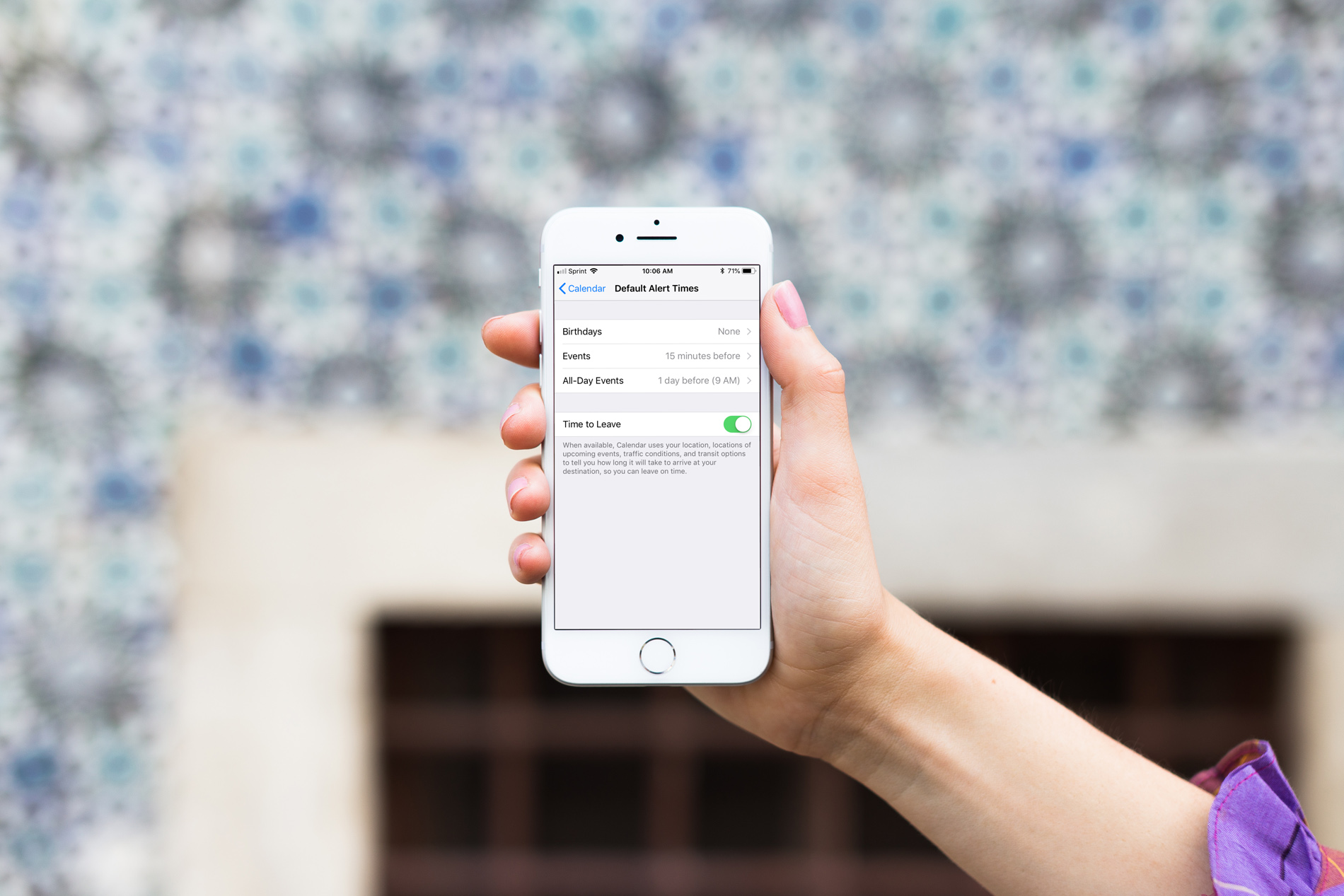
How to customize default alert times for Calendar events on iPhone and iPad

Calendar Event Types

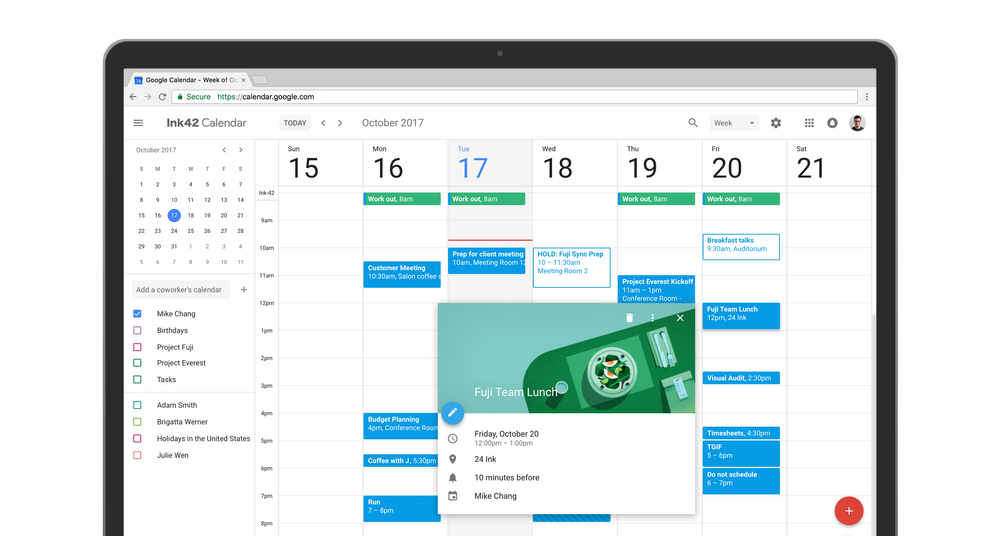
When you create events in the iOS Calendar app, you can easily set an alert to remind you of that event. But you’ll also notice that a time for the alert pops into your event alert automatically. This is the default time in your Calendar app, and you can change it to suit your preference.

Once you set the default alert time you want, you won’t have to change it when creating the event unless you really need to, and here’s how.

Monthlicon displays the current month under the Calendar app icon

Quickly glancing at the Calendar app icon on your Home screen can be a fast and effective way to discern the date/day in a pinch, but iOS developer Maxwell Lang wanted to expand upon that idea with the release of a new free jailbreak tweak called Monthlicon.

As the name of the tweak implies, Monthlicon keeps you informed of the current month in addition to the date and day. It does so by replacing the Calendar app’s Home screen label with the name of the month.

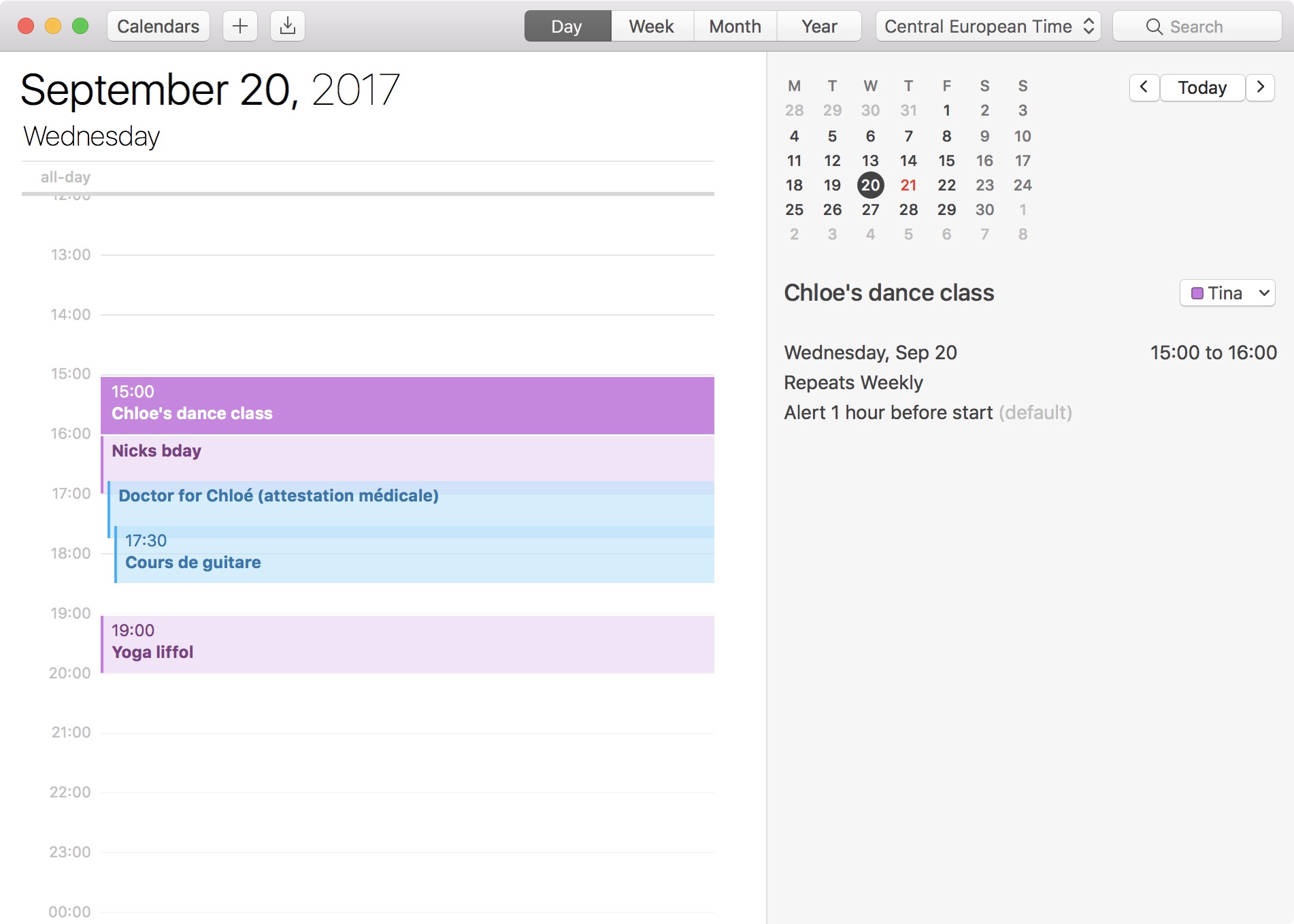
How to change the Calendar app to 24-hour clock time format on Mac

The 24-hour clock is the most commonly used time notation in the world. That is if you're not living in the US or any of the few countries that sill operate on a 12-hour clock system. Also called military time in the US, 24-hour time format arguably makes more sense than anything else as it divides the day into -- you guessed it -- 24 hours.