Amazon has added a “Get Book” button to Kindle for iPhone and iPad, which links directly to e-books on its store, simplifying e-book purchases..
Kindle for iPhone gains a “Get Book” button linking directly to Amazon listings

Amazon has added a “Get Book” button to Kindle for iPhone and iPad, which links directly to e-books on its store, simplifying e-book purchases..
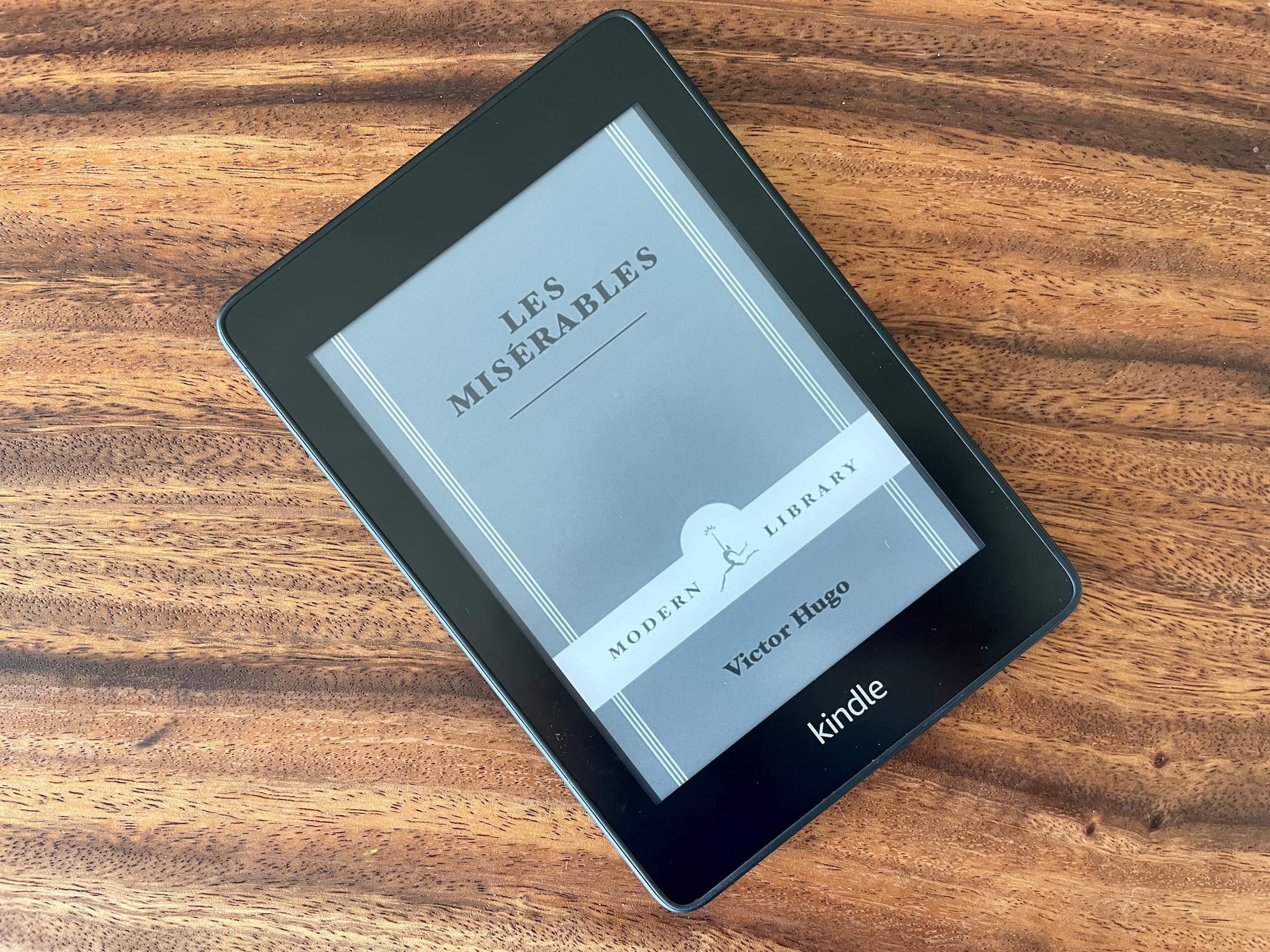
For the longest time, Amazon wouldn't let Kindle users set the cover of the book they are currently reading as their Lock Screen wallpaper, which in hindsight seemed like a very odd decision considering how popular of a feature request it was. But things change, and Amazon is now allowing users to do just that. In this post, we'll talk about what devices support this new feature, who can enable it, and how to enable it.
If you purchase a Kindle Paperwhite for your child to enjoy reading books, you may want to make a few adjustments. Depending on your child’s age, you can enable parental controls with a password. Then, allow or disallow specific settings, create Kindle FreeTime, choose books for them to read, and more.
Here’s how to set up the parental controls on your Kindle Paperwhite.
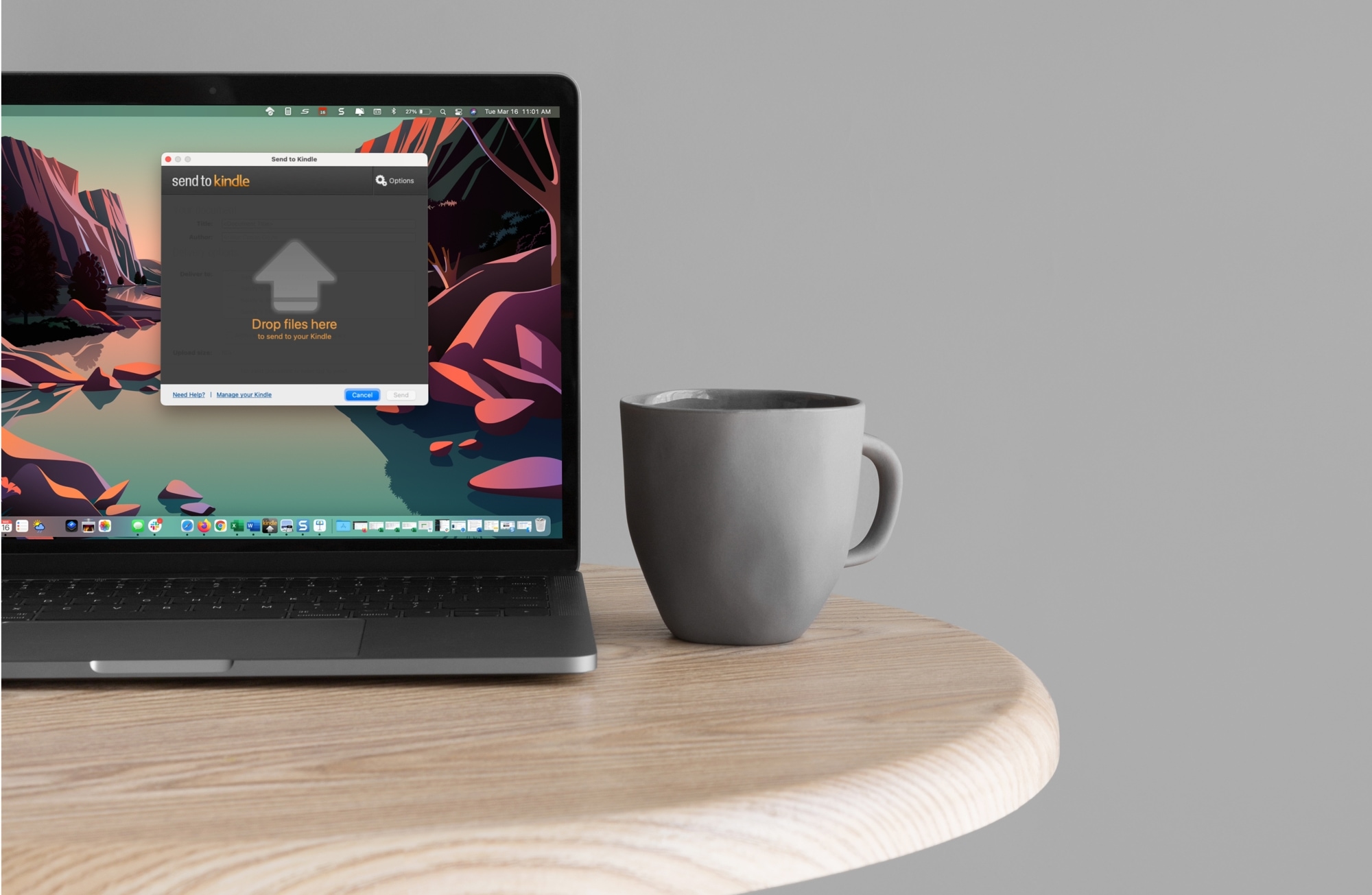
Learn how to use the Send to Kindle app on Mac to get documents, PDFs, and books easily to your Kindle or the Kindle app.
If you just picked up your first Kindle and have been reading terrific books, we have several ways for you to get even more, for free.
You may not realize it, but there are plenty of free books out there if you know where to look. From perks you get with Amazon Prime to checking your local library online, you don’t have to spend a dime to enjoy reading on your Kindle.
Learn how to convert a PDF file into a Kindle book format and then send the book to your Kindle Paperwhite so you can read it comfortably whenever you want.

Learn how to quickly and easily send any document (PDF, DOC, HTML, etc.) to your Kindle or Kindle app just by sending an email.
Your Kindle Paperwhite is equipped to handle multiple languages and keyboards. So if you’re bilingual or interested in testing your skills in another language, Kindle is a great way to do it.
Here, we’ll show you how to set the language you want, add and use keyboards in other languages, and even set a default dictionary for each language.
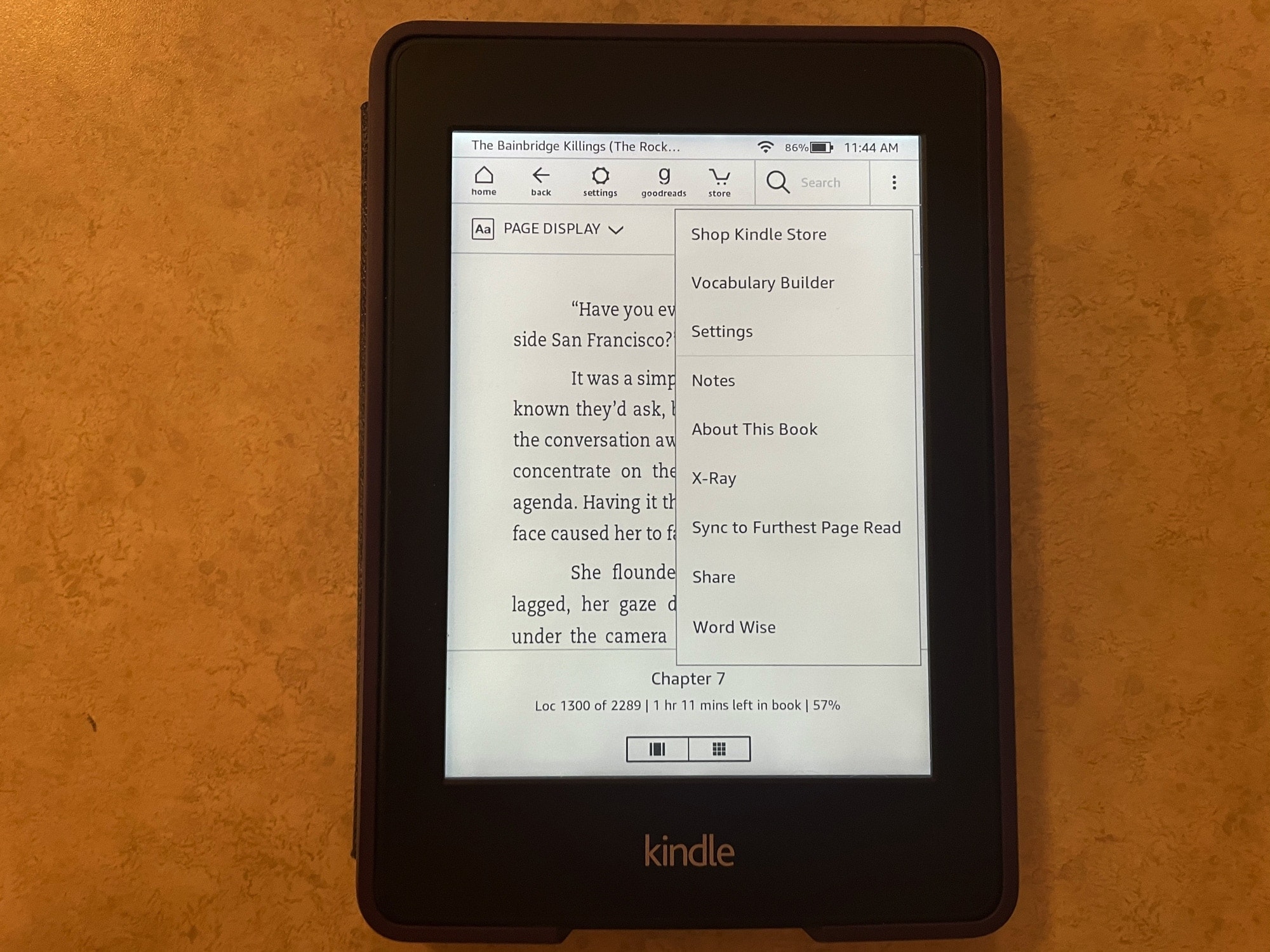
If you’re brand new to the world of Kindle, then you might be wondering what this X-Ray feature you see is and how to use it.
With X-Ray enabled books, you can get more information on what you’re reading. It’s an overall reference that you can use to keep up with characters, terms, and even images. Here, we’ll show you how to use X-Ray for books on your Kindle Paperwhite.
Similar to handing a physical book to a friend as a loan, you can share a book you own on your Kindle Paperwhite. This is a great way to share a good book you just finished with a pal you know would enjoy it. The best part is that the person you’re loaning the book to doesn’t have to own a Kindle Paperwhite. They can use their supported eReader or the free Kindle app.
If you have a book on your Kindle that you want to loan, here’s how.
As you build your Kindle Paperwhite library, it can quickly become unmanageable. The more books you get, the more screens you have to flip through to find the book you want when you’re in the mood to read it. We’ve shown you how to create Collections on your Kindle Paperwhite. This is a terrific way to keep similar books together, making them easier to find.
But, you have additional ways to manage your library. You can sort your books, filter to find specific ones, and search by keyword. And you can do all of this right on your device or on the Amazon website. Here, we’ll show you how to manage, filter, and sort your Kindle Paperwhite library.
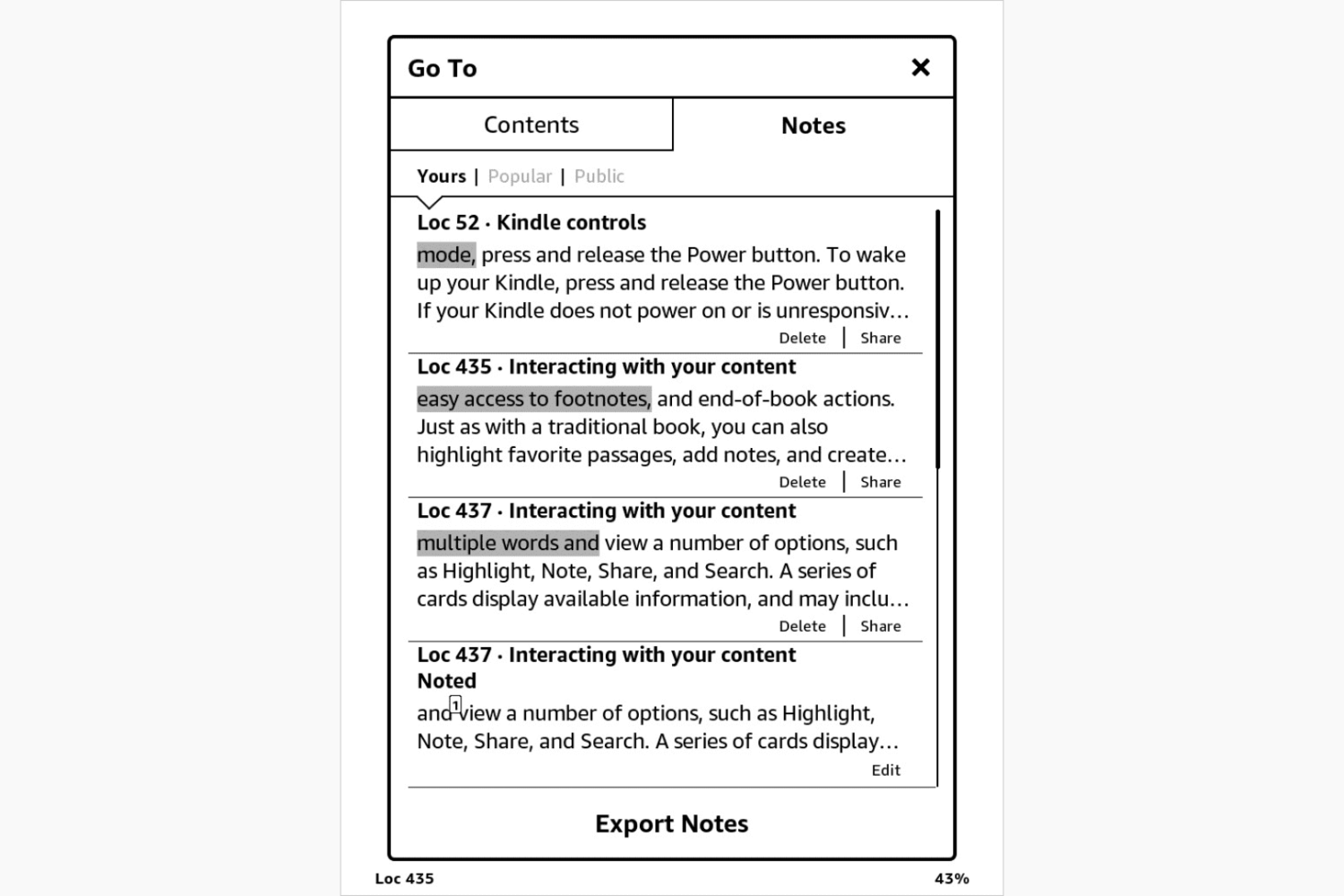
One of the great things about an eReader like Kindle Paperwhite is that you can highlight parts of a book and make notes. This is wonderful for textbooks, user manuals, cookbooks, and similar reads.
On Kindle Paperwhite, highlighting text and adding notes to passages is easy. Plus, you can export these items to the email address for your Kindle and access them online.
Here, we’ll show you how to add and work with highlights and notes on your Kindle Paperwhite.