Tutorial

Learn how to master your Apple devices with our comprehensive tutorials. From iPhone and iPad to Mac, Apple Watch, AirPods, and more, our expert guides will help you unlock the full potential of your Apple products. Discover new features, tips, and tricks each day to enhance your user experience.

How to fix a “referencing media on the camera” error in Final Cut Pro X

Every now and then, you may run into an issue with Final Cut Pro X where a file doesn't successfully import. Due to this, the media that you're working with in your project is still referencing the location where the file originally was (i.e. SD Card, Camera HDD, etc.).

When this happens, and you try to share/export a project, you'll receive an error message that says "This item cannot be shared while it is still referencing media on the camera."

To fix this problem, you'll need to reimport your footage from the original source using the File menu. It's fairly straightforward, but it's not exactly obvious as to what you should do when you first encounter this issue. Inside, we'll show you the error message and the quick fix in our brief video tutorial.
How to access Apple Watch diagnostic port

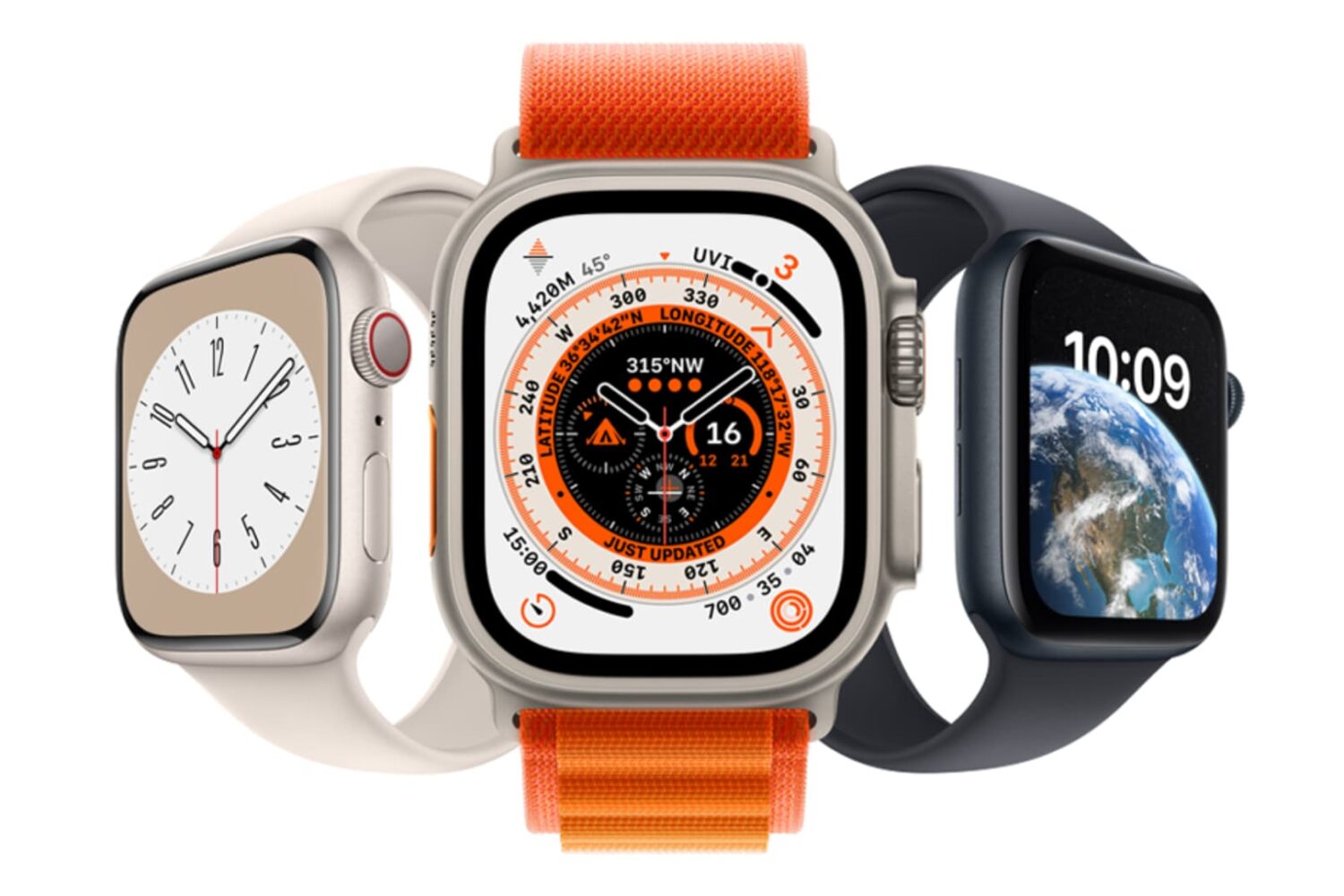
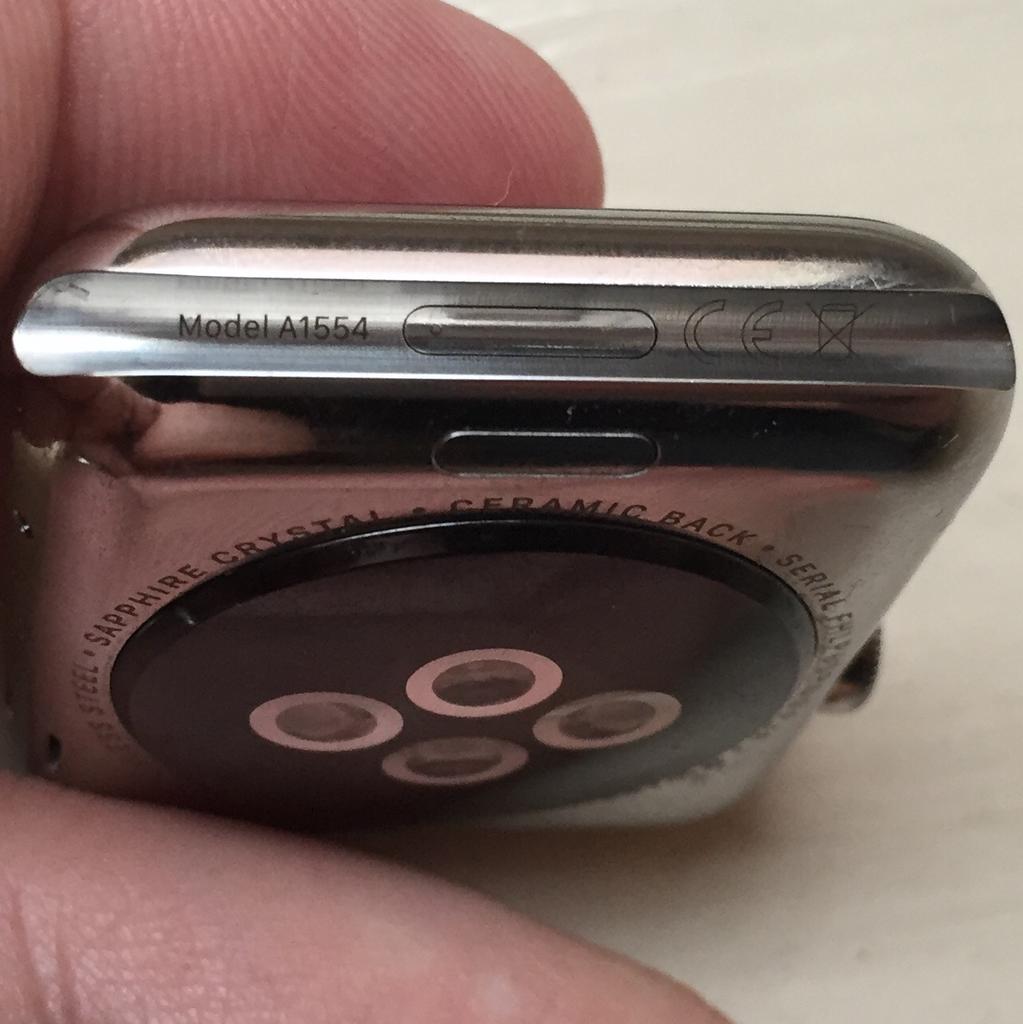
Contrary to some reports, shipping Apple Watch units do feature a hidden diagnostic port inside the groove of the bottom strap connector slot. It looks a lot like Lightning I/O, bit it's not Lightning.

Featuring a six-dot brass contact, it's believed to be aimed at service technicians for diagnostics purposes, while potentially providing direct access to the Watch OS and demo software installation on demo units in Apple Stores.

This tutorial explains how you can access the 6-pin port using just a sewing needle. Before we get to it, keep in mind that doing so could impact the water resistance of your Apple Watch and might void your warranty.

How to quickly dismiss an autocorrect suggestion on Mac

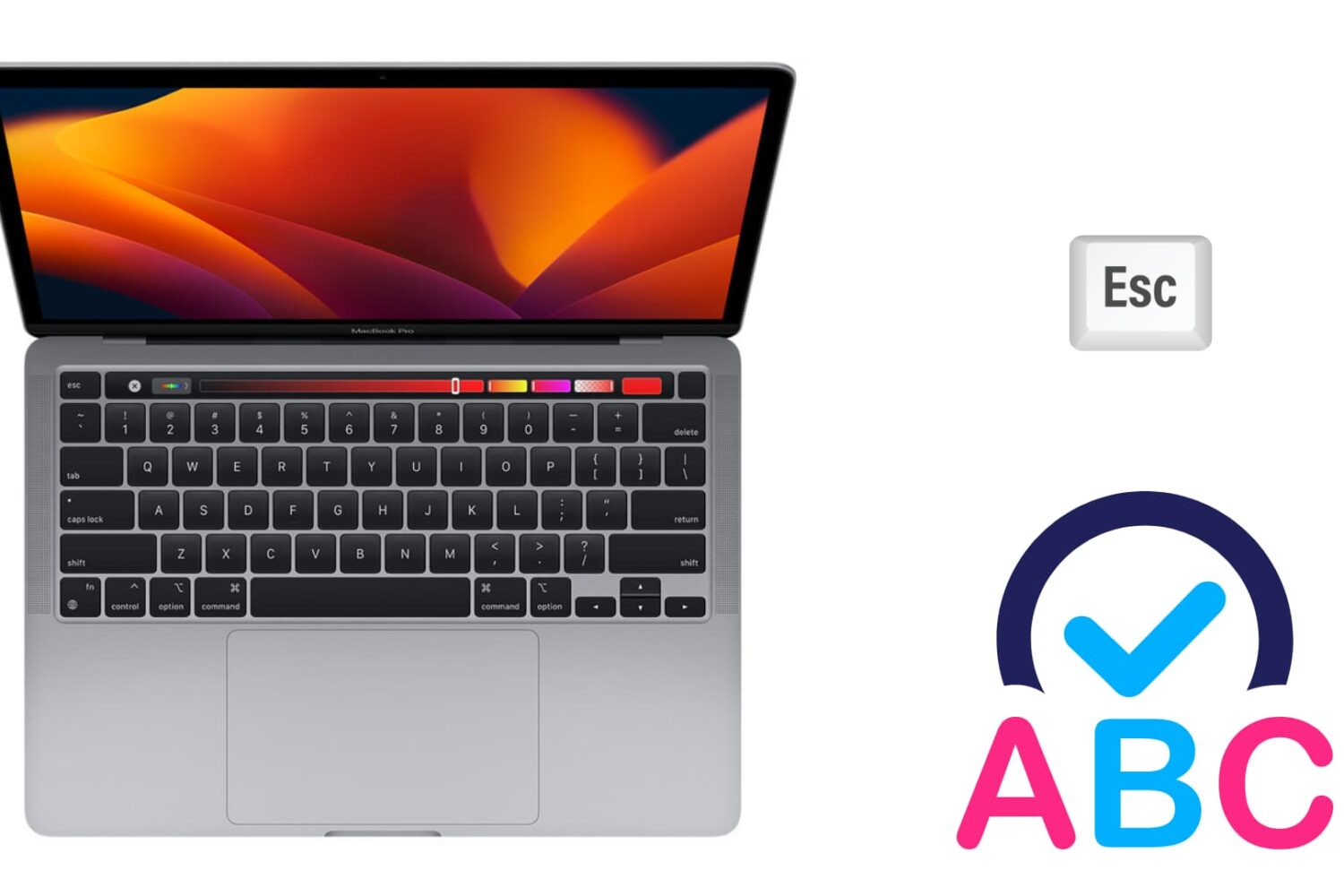
Image to illustrate autocorrect on Mac

There are two ways to dismiss an autocorrect suggestion. There is the obvious one, which lets you use your mouse pointer to reject the autocorrection, and there is a keyboard shortcut that's actually much quicker to use, especially when you're currently typing.

In this brief post, we will show you how to swiftly ignore the autocorrect suggestion on your Mac using an easily accessible keyboard action.

How to transfer your music to a new computer using iTunes Match

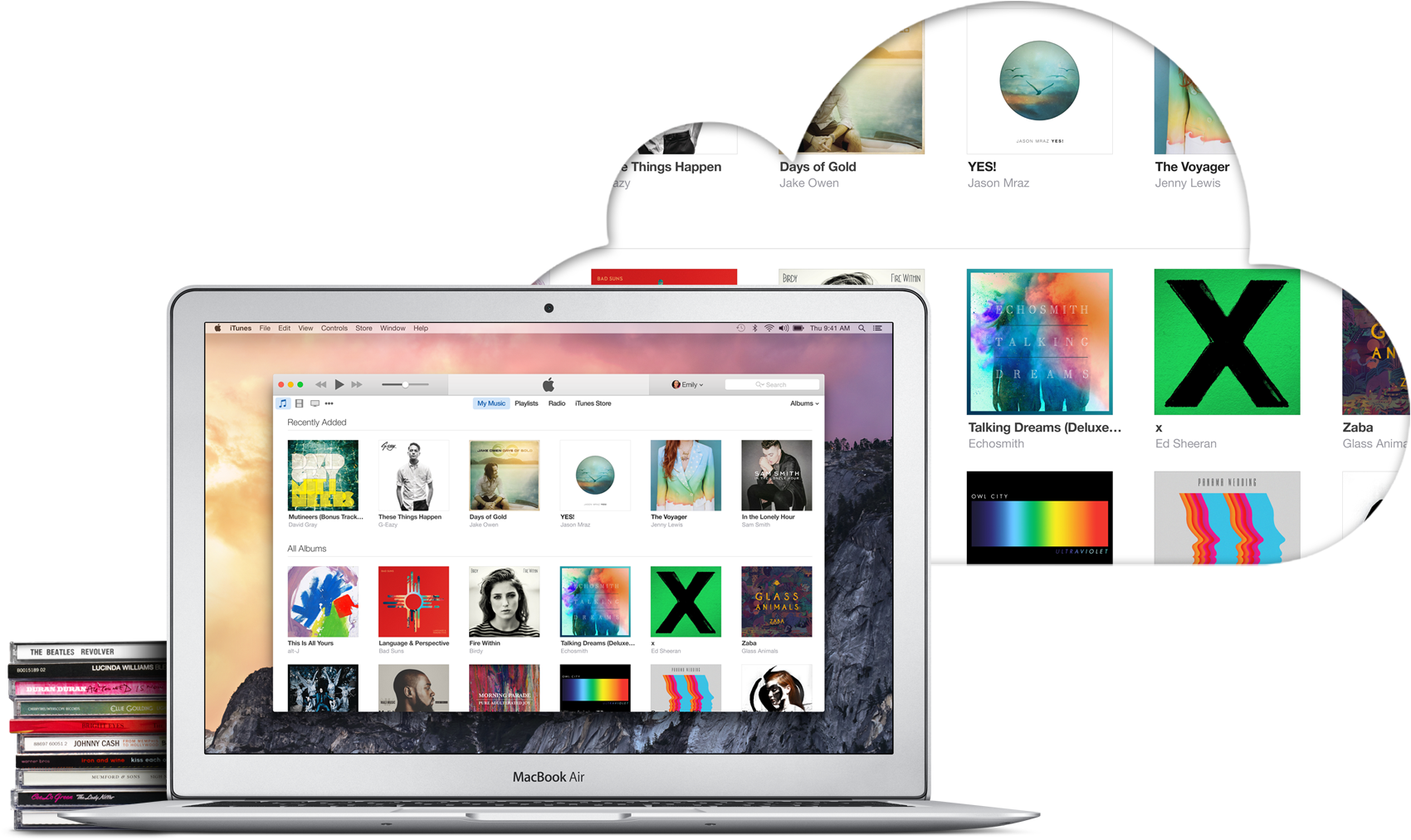
iTunes Match is a paid service from Apple that allows you to store all your music in iCloud, regardless of where it originated from. For example, it could be music imported from CDs, downloaded from online music stores, or even music that was downloaded in ways that go against copyright laws. In short, iTunes Match matches or uploads all your music to iCloud so you can stream or download it from any of your Apple devices, including Mac, iPhone, and Apple TV.

With that said, iTunes Match offers an easy way to move your iTunes library to a new computer without having to deal with transferring files from one hard drive to the other. In this post, I will show you how to transfer your iTunes library to a new computer using iTunes Match.

How to transfer your iTunes library to a new computer

The best thing about getting a new computer is that, well, you're getting a brand new computer. It's exciting to have a shiny new toy to play with, making you wonder how you could have been using that old machine for so long.

To me though, the major downside of getting a new computer is that you have to set it all up from scratch. I'm not going to lie; some of that is part of the fun, but it can also be stressful and time consuming. Take migrating your iTunes library to your new computer for example. There is nothing really fun in that, and if you have a large library, it could take hours.

In this post, I will show you how to move your iTunes library to a new computer. Unfortunately I won't be able to save you time or stress, but at least, you'll have simple instructions on how to do transfer all your iTunes songs, albums, album covers, and playlists to a brand new computer.