In this tutorial, we’ll show you how to zoom your Mac screen, regardless of the app you are in, so you can see the content more easily.
How to enable and use screen zoom on your Mac

Learn how to master your Apple devices with our comprehensive tutorials. From iPhone and iPad to Mac, Apple Watch, AirPods, and more, our expert guides will help you unlock the full potential of your Apple products. Discover new features, tips, and tricks each day to enhance your user experience.
In this tutorial, we’ll show you how to zoom your Mac screen, regardless of the app you are in, so you can see the content more easily.
In this tutorial, we'll walk you through exporting calendar events from your Apple Calendar app to Google Calendar on Mac, iPad, and iPhone.
In this tutorial, we will share how to set up and configure parental controls on your child's Mac so you can keep them protected from inappropriate content and fine-tune what your kid is allowed to access.
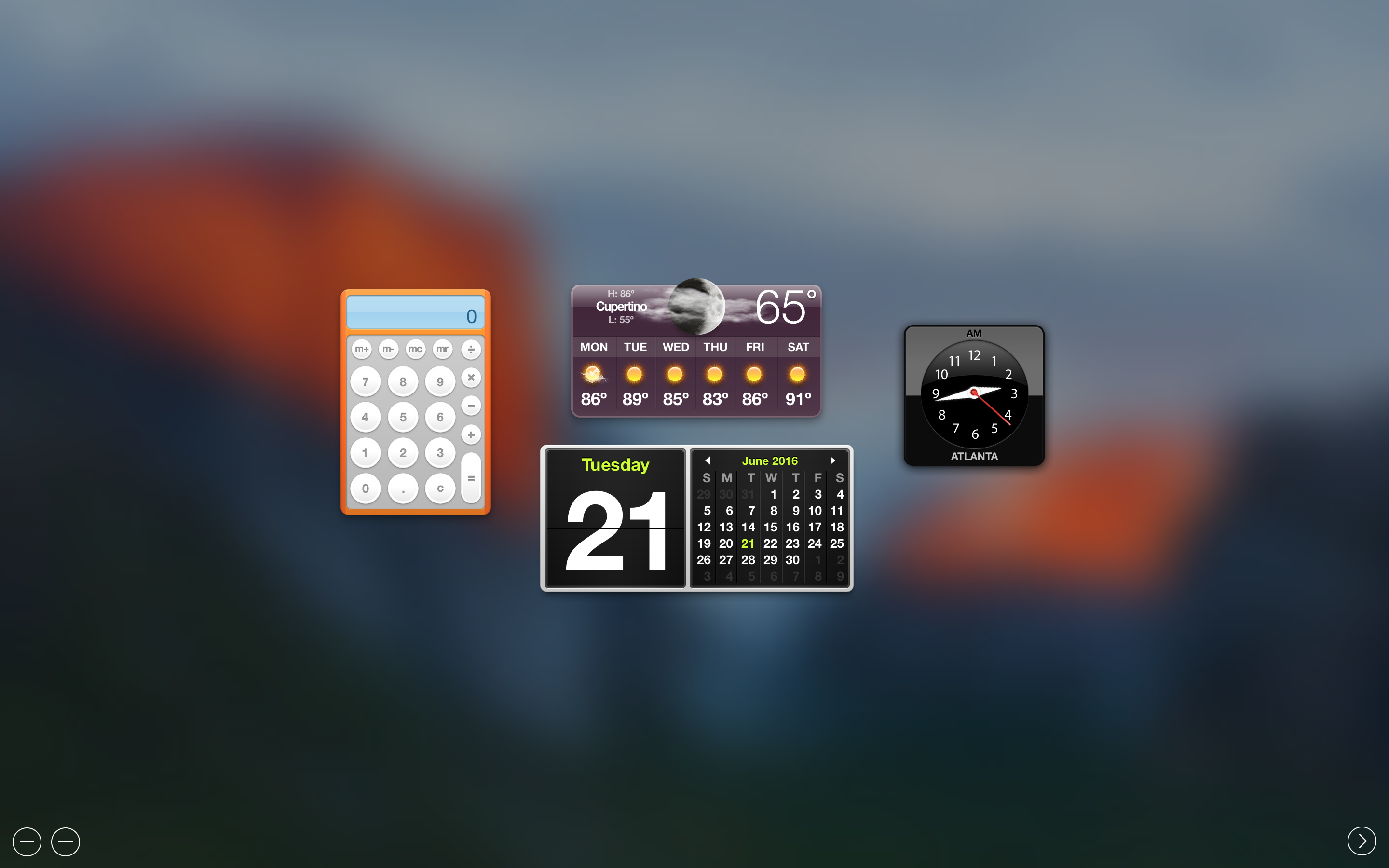
In this tutorial, we'll walk you through the process of disabling Dashboard on Mac using Mission Control and applying it system-wide.

Those of you with Macs know that you can't just click on the Close button to exit out of most apps. Instead, you have to physically quit those apps after you're done using them.
On the other hand, if you just can't be asked to take the time to do that, we're going to show you a really easy way to make an applet that can be used to quit all of your Mac's running apps at once.
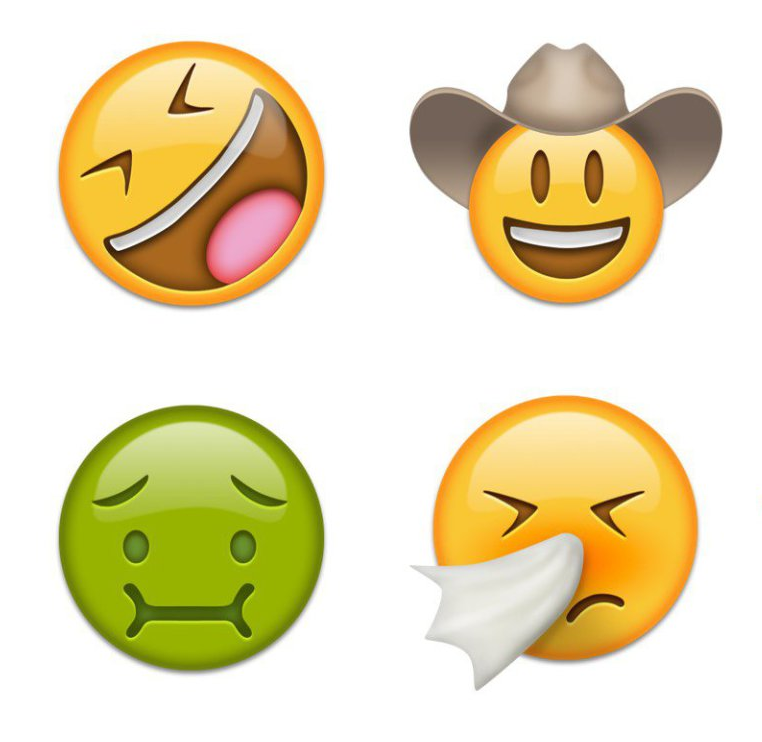
Many of you probably already heard the news that Unicode 9.0 became official this week and that there were going to be 72 new emojis coming soon.
Although Apple is likely to add support for these new emojis in iOS 10 in a future beta or release update, they're not yet available in iOS whatsoever, but in this tutorial, we'll show you how you can still use them without a jailbreak on a completely stock device.
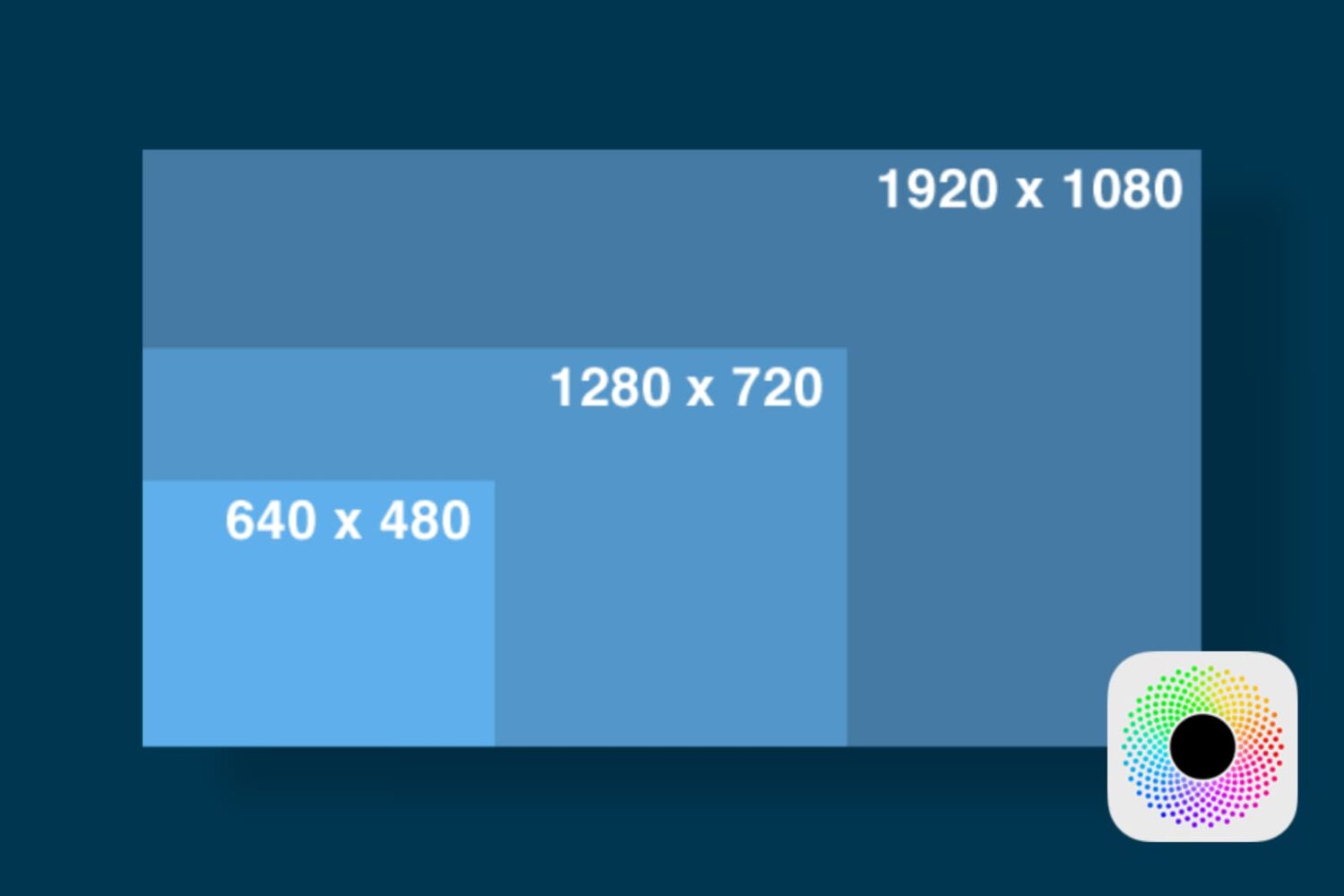
In this tutorial, we'll show you how you can launch apps on your Retina display Mac in normal resolution rather than in its higher Retina display resolution form.

Your Mac's Mail app is a powerful email client, and for many, the default app configuration in plenty for getting day-to-day email tasks done.
But for those who demand more power and functionality, it's a great idea to customize the toolbar at the top of the Mail app so you have quick and easy access to the functions you use the most.
In this tutorial, we'll show you how to customize the toolbar at the top of your Mac's Mail app so you can get more out of it.
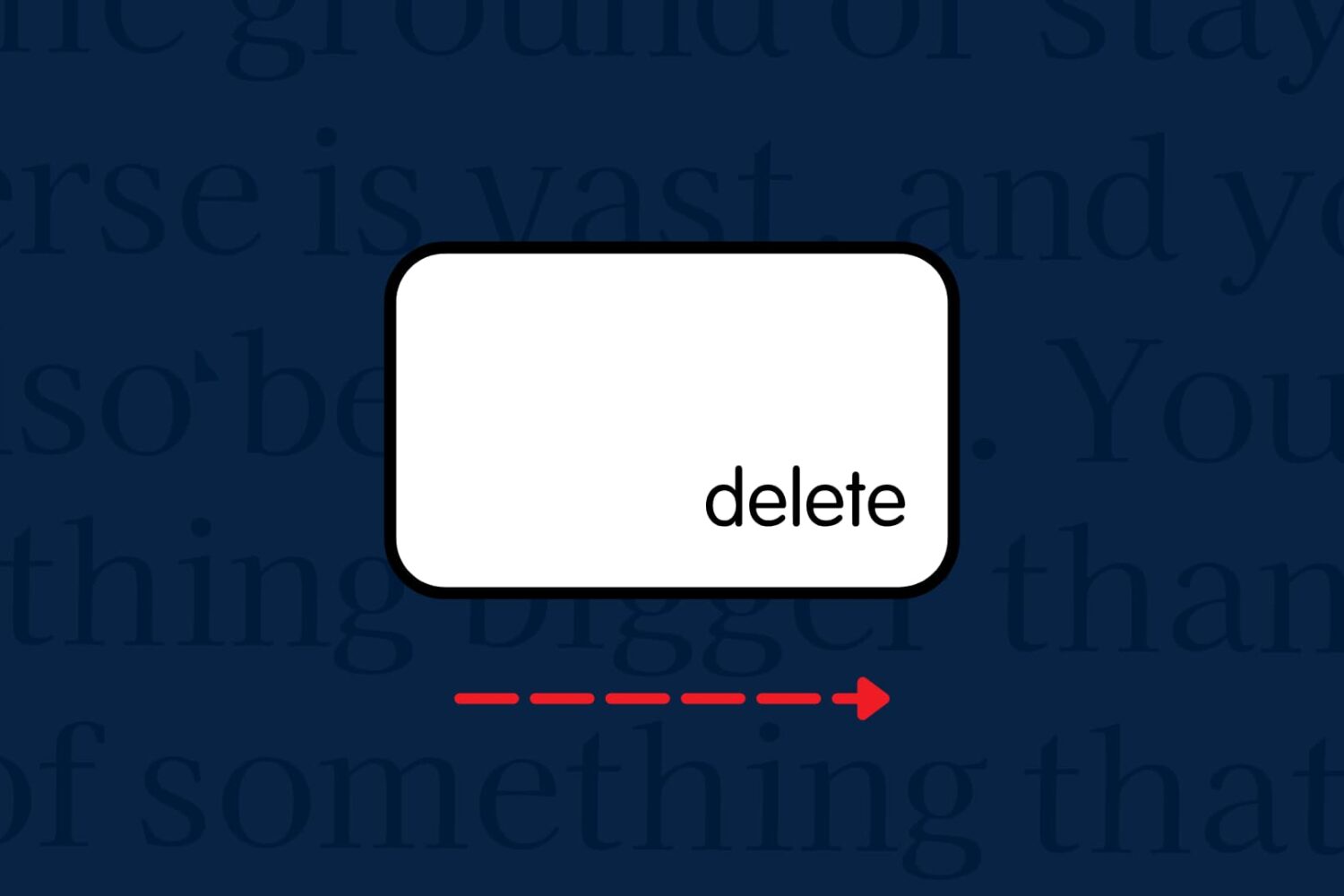
Want to forward delete on Mac rather than delete the text backward? In this tutorial, we’ll show you how to delete text from left to right (instead of the usual right to left) with a couple of simple keyboard shortcuts.
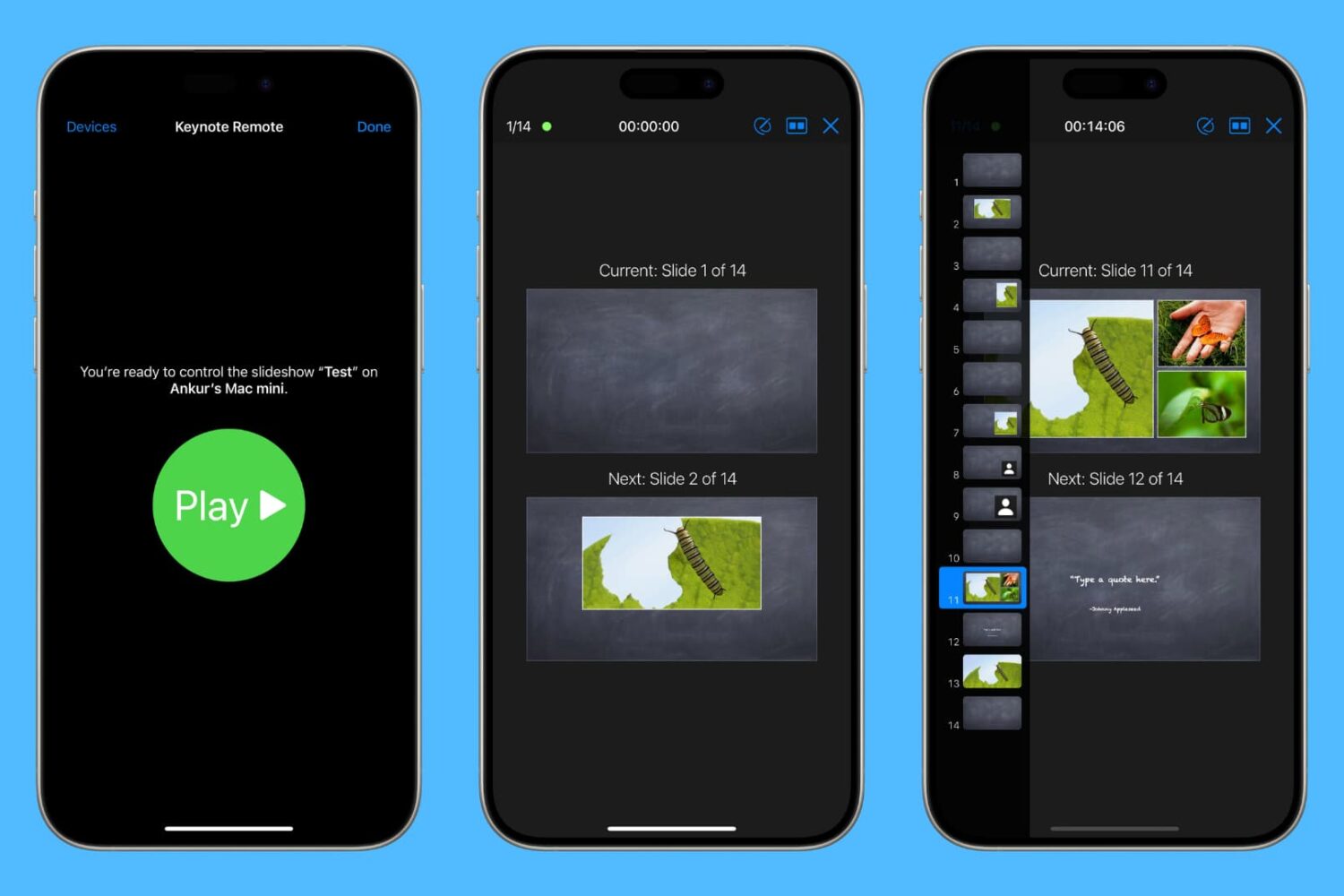
Learn how to use your iPhone or iPad as a wireless remote for controlling a Keynote presentation on your Mac.

Apple's newly-announced macOS Sierra is set to release to the public this Fall as the company revealed at WWDC 2016 this week, and it includes a variety of improvements that will make using your Mac even better than ever.
One of those improvements is Universal Clipboard, which is a Continuity feature that lets you share your clipboard between your iOS device(s) and your Mac.
But what if we told you that you didn't have to wait until the public release of macOS Sierra to enjoy a similar feature on your Mac?