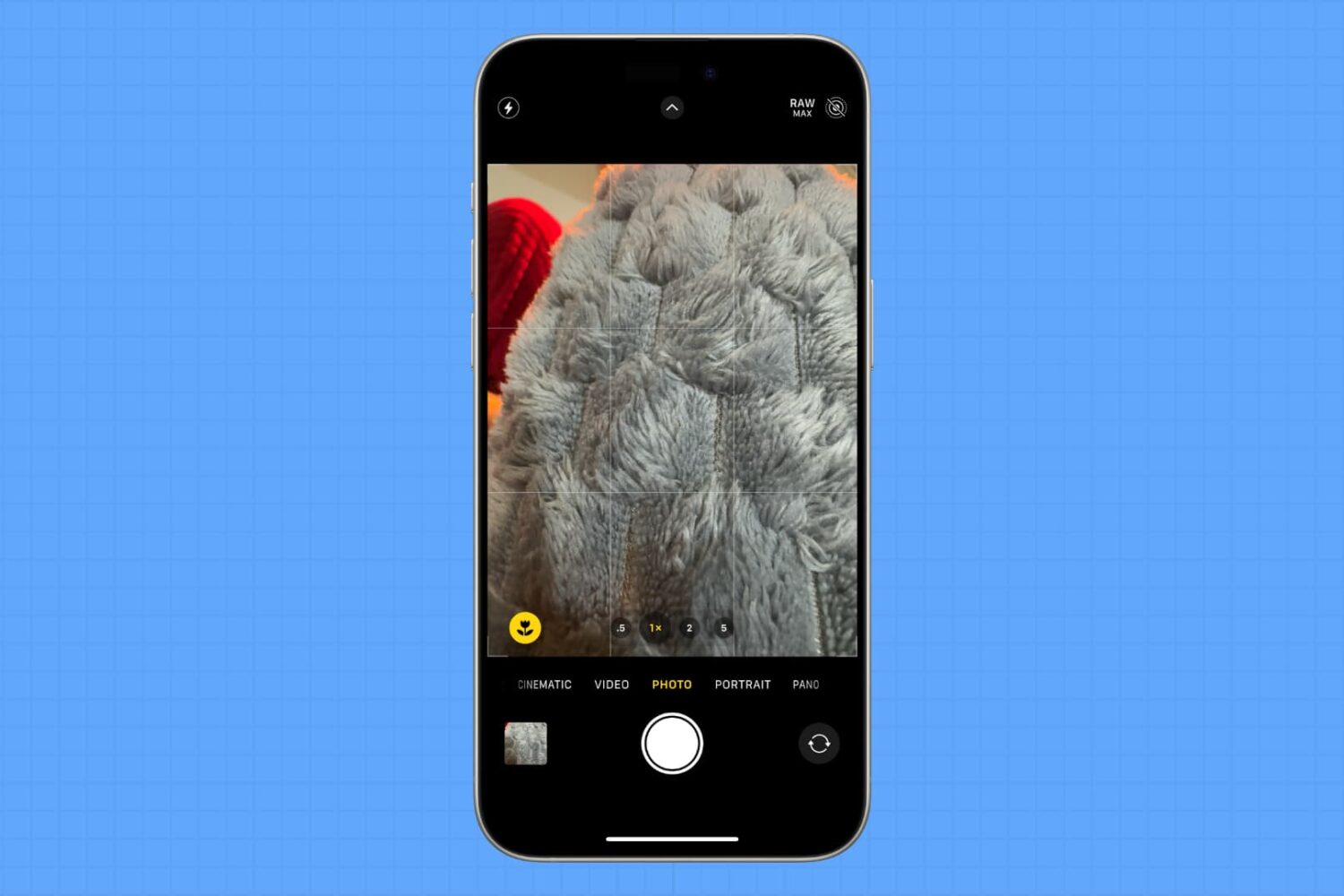
Learn how to have the Camera app on your iPhone or iPad remember your last set of preferences and not reset the options to the default when you exit and reopen it later.
How to preserve your desired iPhone camera settings
Learn how to master your Apple devices with our comprehensive tutorials. From iPhone and iPad to Mac, Apple Watch, AirPods, and more, our expert guides will help you unlock the full potential of your Apple products. Discover new features, tips, and tricks each day to enhance your user experience.
Learn how to have the Camera app on your iPhone or iPad remember your last set of preferences and not reset the options to the default when you exit and reopen it later.
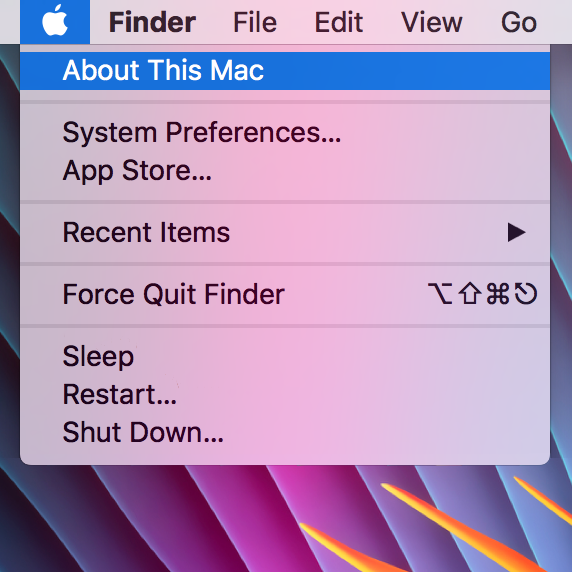
The "About This Mac" window contains information relating to your computer specifications and OS version, and is useful for quickly checking any of those details. However, it's a little impersonal, and often (on a Hackintosh), incorrect. If, like me, you enjoy customising your machine to your own personal taste then this guide should help somewhat, by jazzing up the "About This Mac" section.
Venturing into the depths of iTunes is no longer an activity for the faint-hearted, as Apple’s gold mine is famously becoming more convoluted with every update. It is by no means impossible to keep up with the changes, but staying on top of every small cosmetic shift does pose a decent challenge today.
As somebody very fond of the spoken word on iTunes, I can attest that this general rule holds true for audiobooks as well. So as I was fiddling around with some old school CDs the other day and trying to move audio files within my iTunes library to the Audiobooks tab, I noticed my old methods were already outdated again. If you’re not up to speed on iTunes, here’s a refresher on how to get your talking book to properly identify as Audiobooks inside the application, followed by an encore for CD enthusiasts with regard to joining tracks during import.

The Mail app in macOS is a multi-email handler and supports a wide variety of email platforms. That said, it you wanted to move some of your emails from one of your email account inboxes to another, you could.
This is a handy feature to know if you sent or received an email via the wrong account and wanted to keep your emails organized under the correct email inbox, so we’ll show you how it can be done in this tutorial.
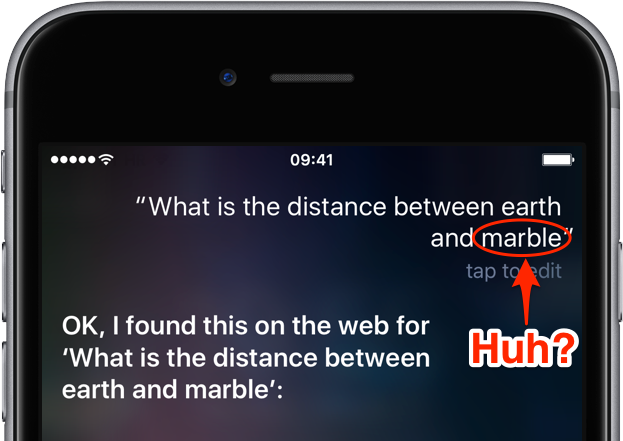
You may be aware that there is already a feature in iOS that sort of lets you type in your questions to Siri instead of using voice commands. It's quite handy for those situations when talking aloud isn't an option or Siri fails to recognize repeatedly what you said. Starting with iOS 10, Siri includes a “Maybe You Said” feature.
Taking advantage of machine learning and artificial intelligence, it suggests corrections for mispronunciations or incorrectly recognized queries. In this post, you'll learn how to leverage this feature to avoid having to manually correct any mispronounced words.
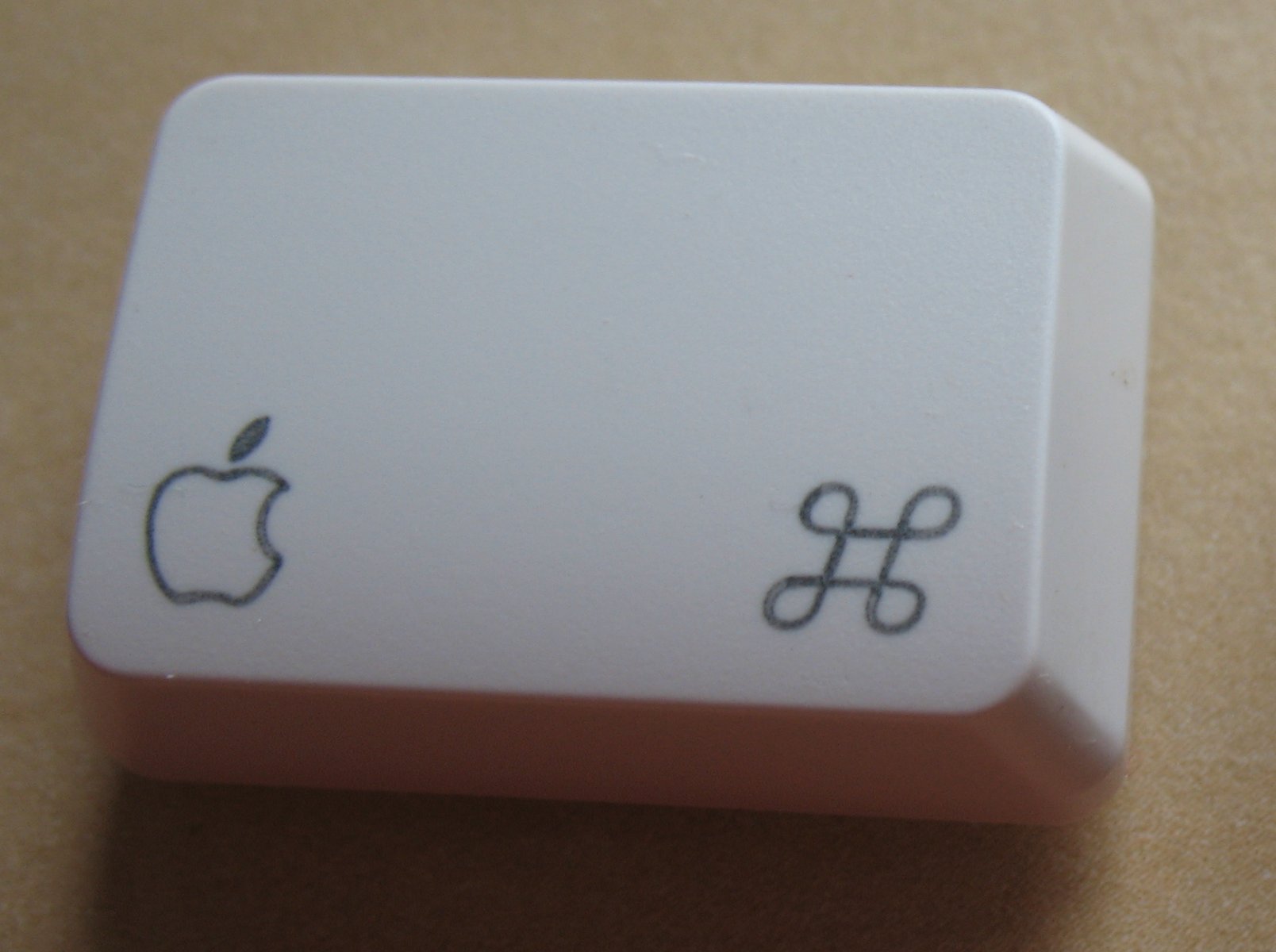
macOS provides an enhanced keyboard remapping feature that allows you to change the behavior of the special modifier keys on your Mac's keyboard, such as Caps Lock (⇪), Control (⌃), Option (⌥) and Command (⌘).
For example, you could remap the Caps Lock key to trigger the Escape command.
This feature is especially useful if you’re familiar with a keyboard layout different from your current keyboard or are an experienced touch typist who finds some of the default modifier key actions a bit awkward to use. In this tutorial, you'll learn about remapping the Mac's modifier keys to non-default actions.
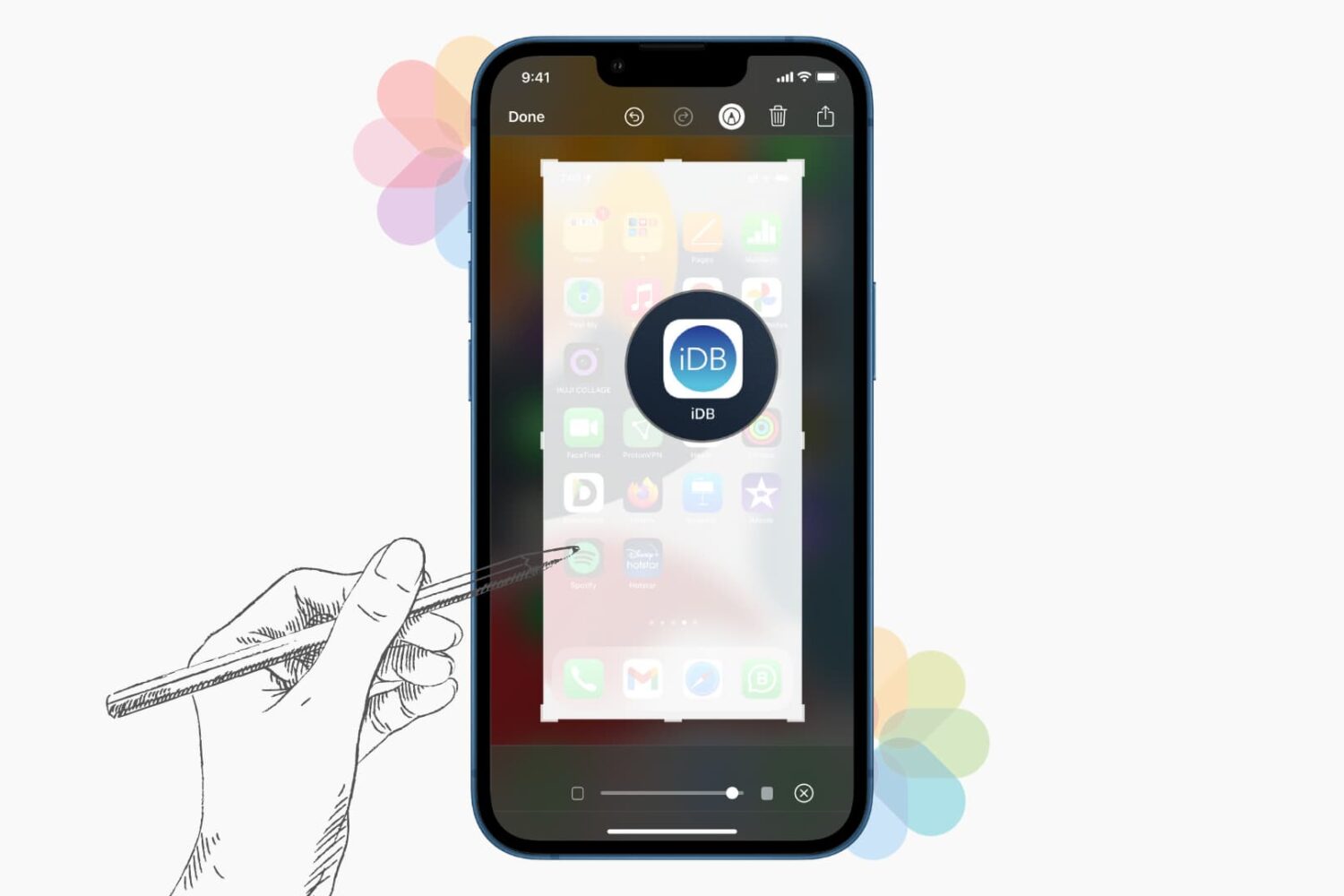
The built-in Photos, Mail, Notes, Messages, Books, and Files app let you annotate and doodle on pictures using Markup tools.
You can use a pen, highlighter, and pencil tools to draw or write on them. You can also add shapes, arrows, text, lines, signature, speech bubbles, magnify a part, and more.
This comprehensive tutorial shows you how to use the built-in drawing tools to Markup photos on your iPhone and iPad.
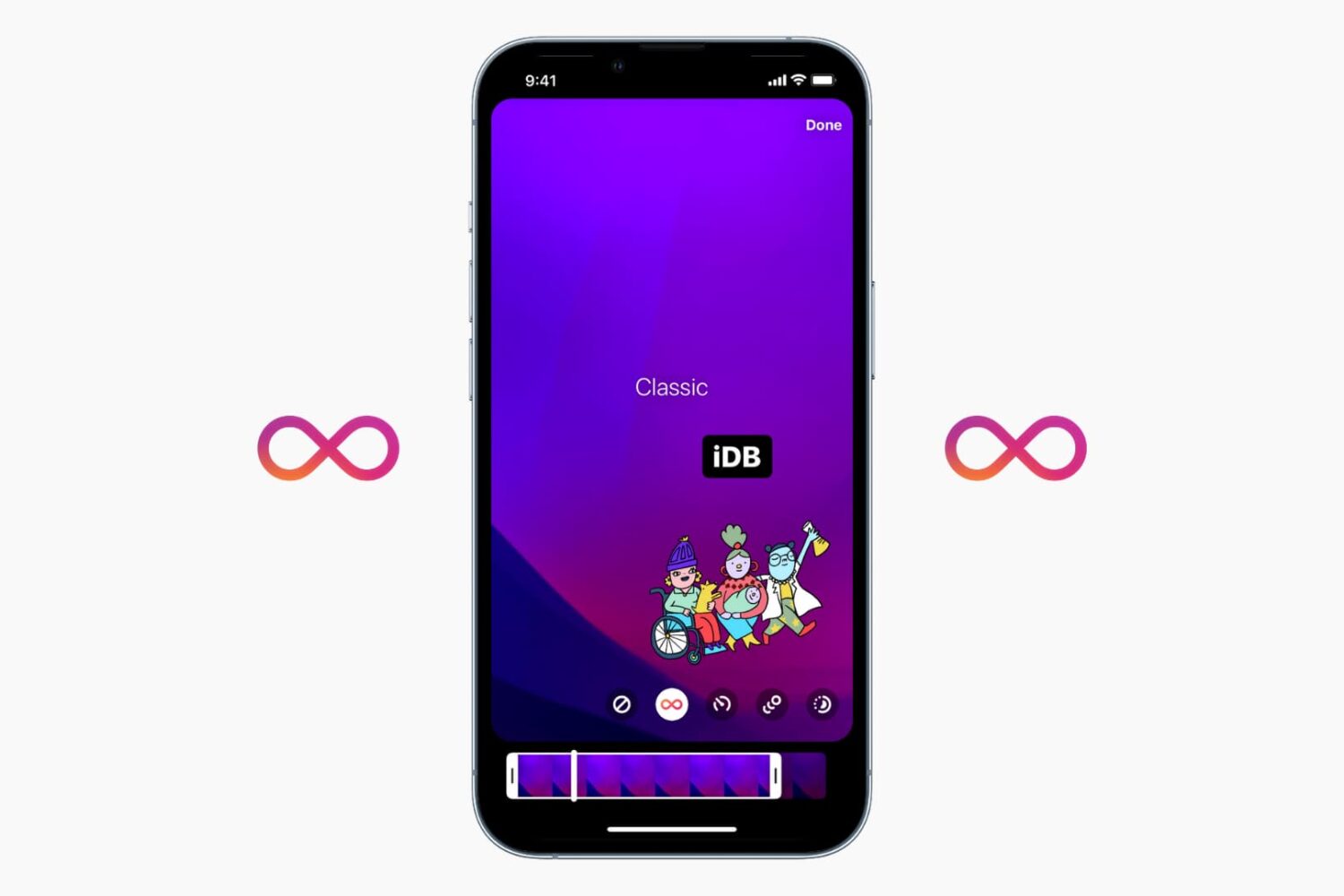
Learn how to post a Live Photo captured with your iPhone as a boomerang video in an Instagram story without using additional apps.

Activity sharing is a tried and tested way to boost your app engagement by pitting your own fitness data against others that are willing to share theirs. Fitbit and Nike knew for a while of the extra motivation released when someone else monitors your activity, Apple knows full well since iOS 10 and watchOS 3. Agreeing to share and relay your activity on Apple Watch can hence be an inspirational thing, but it also results in a considerable increase of wrist-buzzing every day.
If you have committed to sharing your activity and your patience with the daily activity updates from your friend is starting to wear thin, remember that there is an option to mute those notifications. The tutorial also demonstrates how to hide your own activity from that friend, in case you don’t want them to know about your newest calories crushing workout just yet.

Learn what to do if your AirPods charging case isn’t charging, which in turn prevents you from charging both your AirPods.
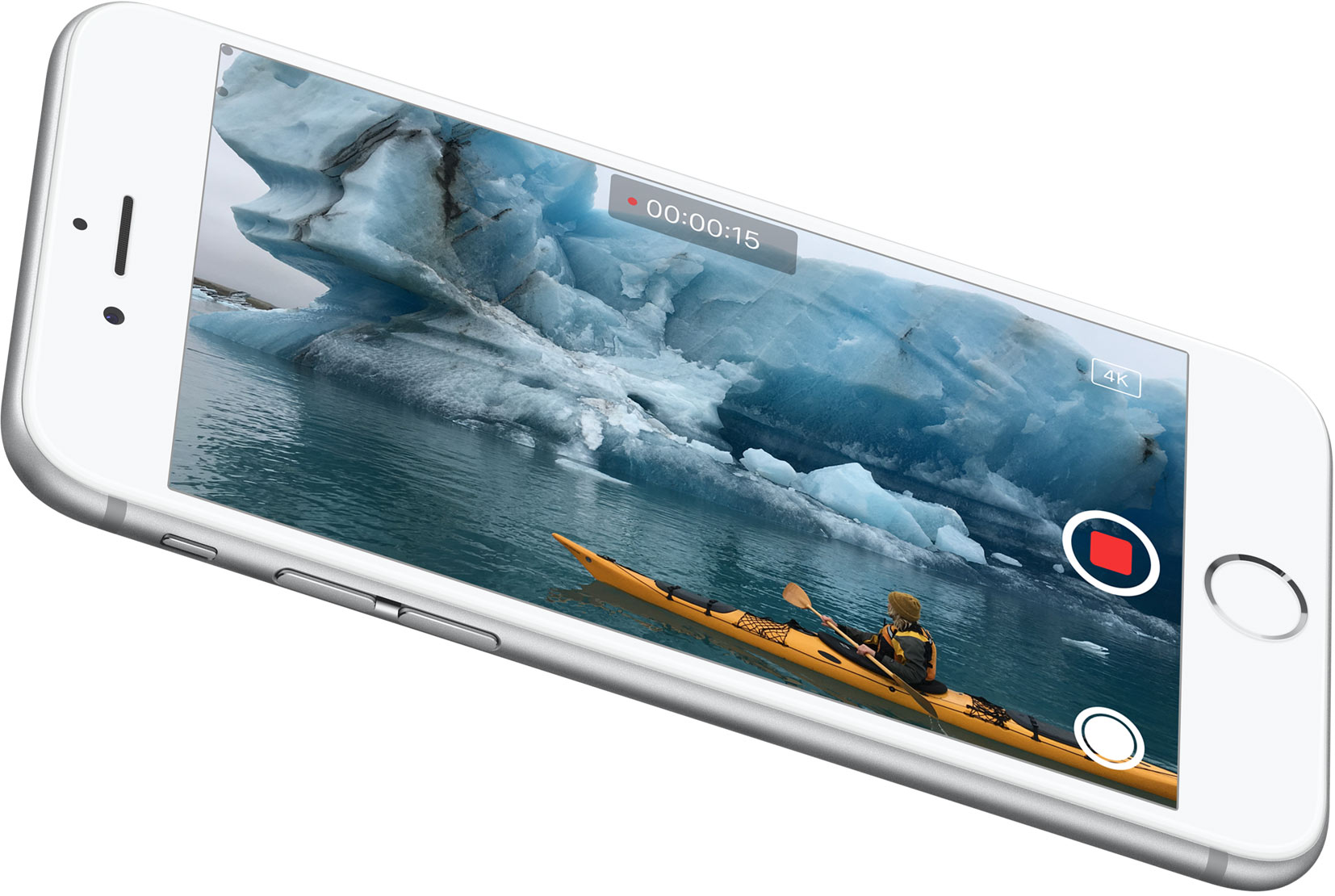
The holidays are a natural time to sit down with friends or loved ones and flip through all of your photos ad nauseam. iDB features help and guides aplenty for confident navigation of the Camera and Photos app, however one little trick has managed to fly under the radar for many, albeit its capability to save you valuable time when browsing your compendium of years and years of photos.
The tutorial below will teach you how to ask your iPhone or iPad to show you all remaining photos captured on the same day the footage you were initially looking at has been taken. In simpler words, say you are laughing at a vacation video taken at the pool and want to reminisce what else went on that day - here is what you should do instead of going back to your collection and painstakingly scanning your catalogue for that day.
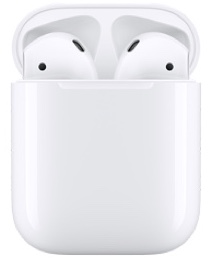
So you've treated yourself to a nice pair of AirPods, Apple's Bluetooth earbuds based on custom silicon that enables low power consumption, reliable connections, automatic pairing, Hey Siri and other perks. To master them, follow our tutorial showing you how to use your AirPods like a pro.