Learn how to configure your Apple TV to automatically remove unused apps to save on precious local storage space.
How to offload unused apps on your Apple TV

Learn how to master your Apple devices with our comprehensive tutorials. From iPhone and iPad to Mac, Apple Watch, AirPods, and more, our expert guides will help you unlock the full potential of your Apple products. Discover new features, tips, and tricks each day to enhance your user experience.
Learn how to configure your Apple TV to automatically remove unused apps to save on precious local storage space.

Learn how to use the Precision Finding feature on your iPhone to locate the item attached to your AirTag.

Learn how to flip a photo on iPhone, iPad, and Mac using the built-in Photos or Preview apps to create a mirror effect.

In this tutorial, we will show you a few simple ways to reduce video size on iPhone, iPad, and Mac. It must be noted that reducing the file size of a video will result in loss of quality to some extent.

Learn about the different ways to see battery percentage on the iPhone 17 lineup, iPhone Air, and other models with Face ID, as well as older models with a Home button.
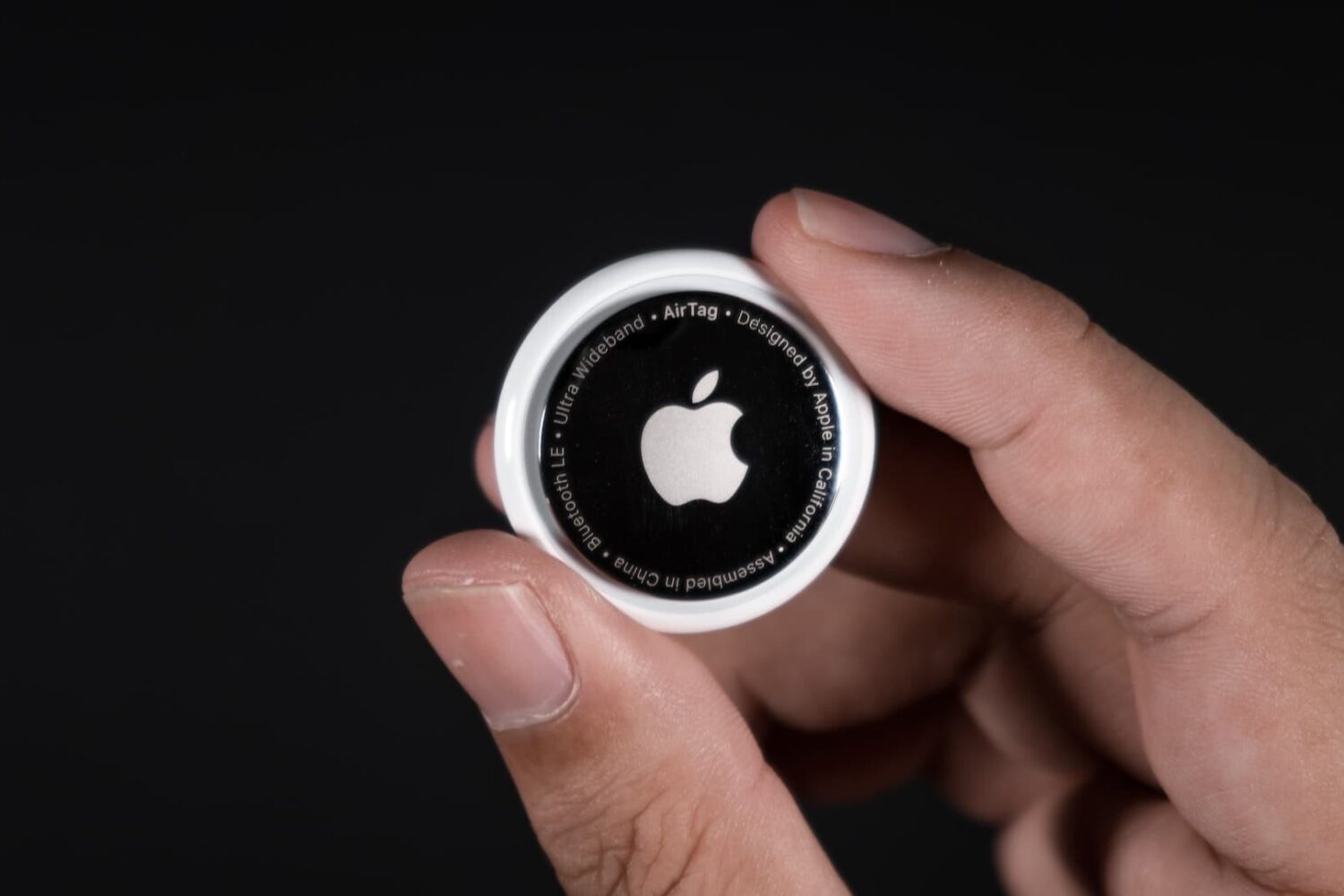
Whether you have lost an AirTag or found one that doesn’t belong to you, knowing its serial number can help you locate the owner or confirm if it is your own. In this post, we’ll show you how to easily find the serial number of an AirTag or AirTag (2nd generation).

The Gmail app for iOS and Android recently received an update, which unlocked some new features. Google has been merging its services over the years and making things more streamlined. Last year, the company launched a redesigned Gmail app for G-Suite (now WorkSpace) users, which offered easy access to Chat, Rooms, and Meet. Now, these features are available for all users.
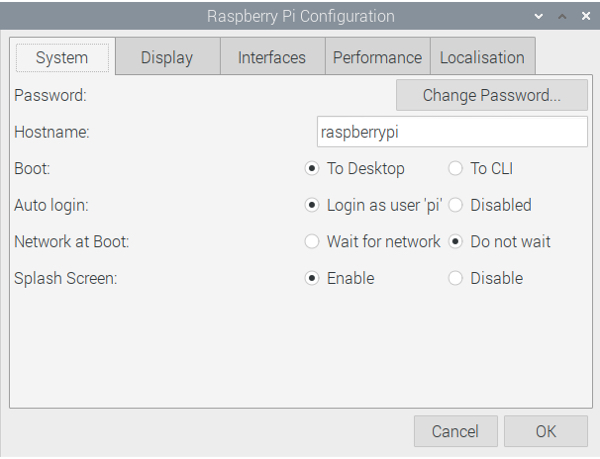
When you first set up your Raspberry Pi, you’re prompted to change the default password. But maybe you want to change it again down the road. As we all know, you’re supposed to do this regularly for security reasons.
So here, we’ll show you how to change your Raspberry Pi password. You can update your password using two methods, the Raspberry Pi Configuration interface or a Terminal command.
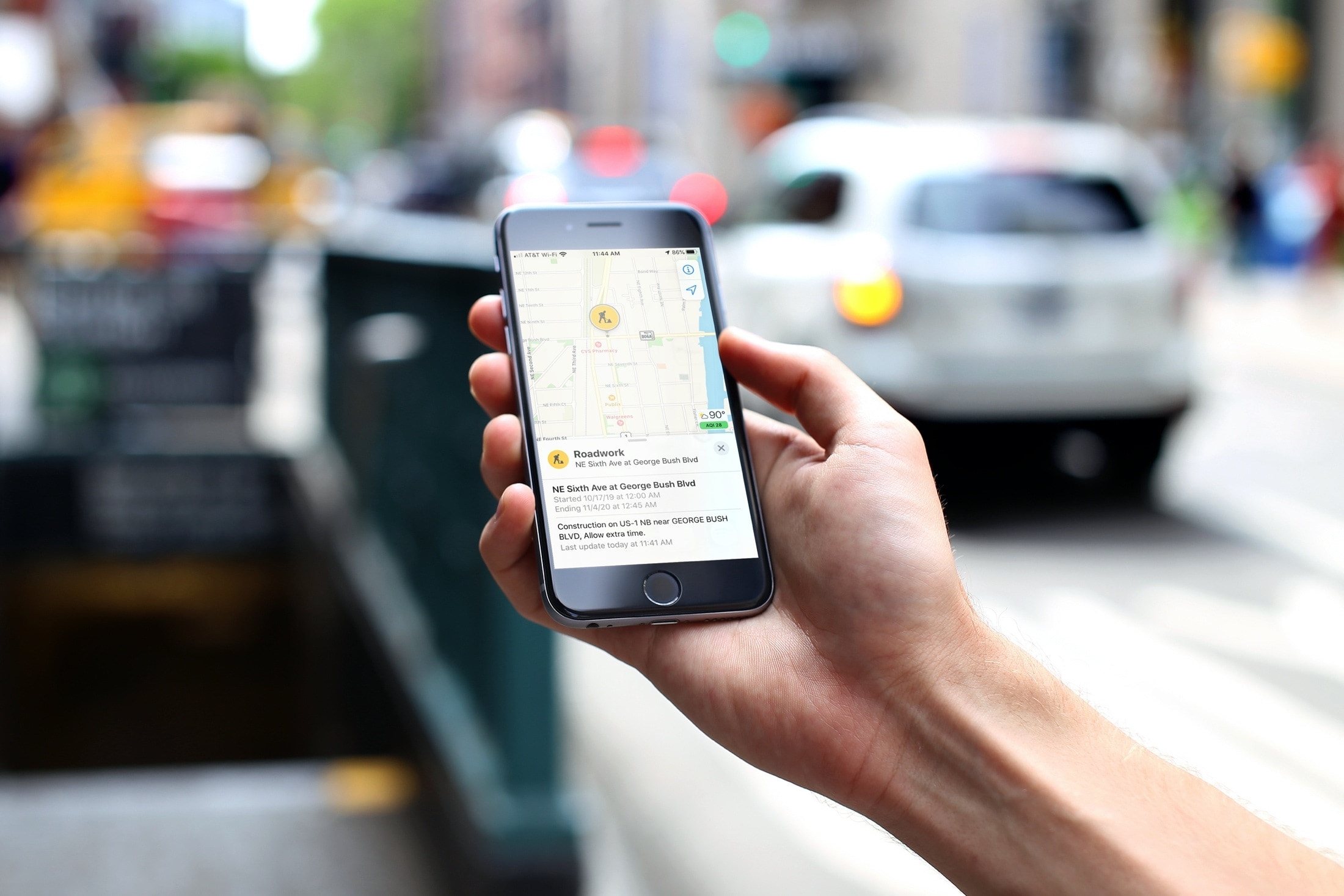
Learn how to report traffic incidents like speed checks and roadworks on Apple Maps on iPhone and CarPlay so other drivers can avoid them.

Check out this simple tip that can easily improve the audio quality of your Bluetooth headphones when connected to your Mac.

Learn how to adjust the color balance of your Apple TV using your iPhone in just a few seconds to enhance your movie-watching experience.
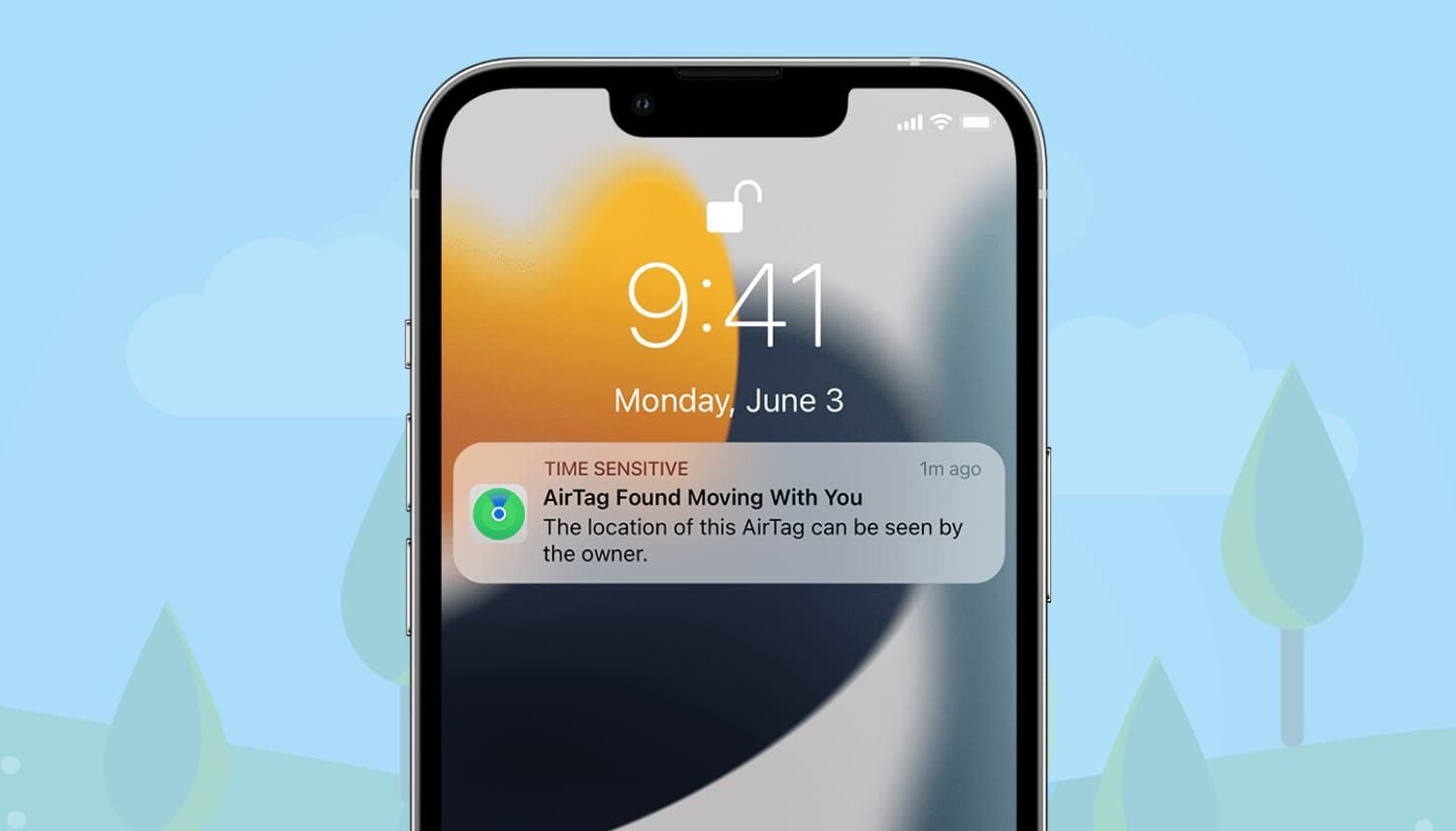
One of the AirTag safety features that Apple designed to discourage unwanted tracking shows a notification when your iPhone senses an unknown AirTag moving with you over time.
Besides AirTag, AirPods (3rd generation, Pro, Max), and other Find My network accessories can also be used to track. When that happens, you may see one of the following notifications:
AirTag Found Moving With You AirPods Detected, AirPods Pro Detected, or AirPods Max Detected "Product Name" Detected: For third-party Find My network accessories like Chipolo ONE Spot. Unknown Accessory Detected: You will see this message when a non-AirTag Find My network accessory is detected near you, but the Find My app on your iPhone has issues connecting to that accessory or the server.This tutorial focuses on what to do when an unknown AirTag is detected and found moving with you.