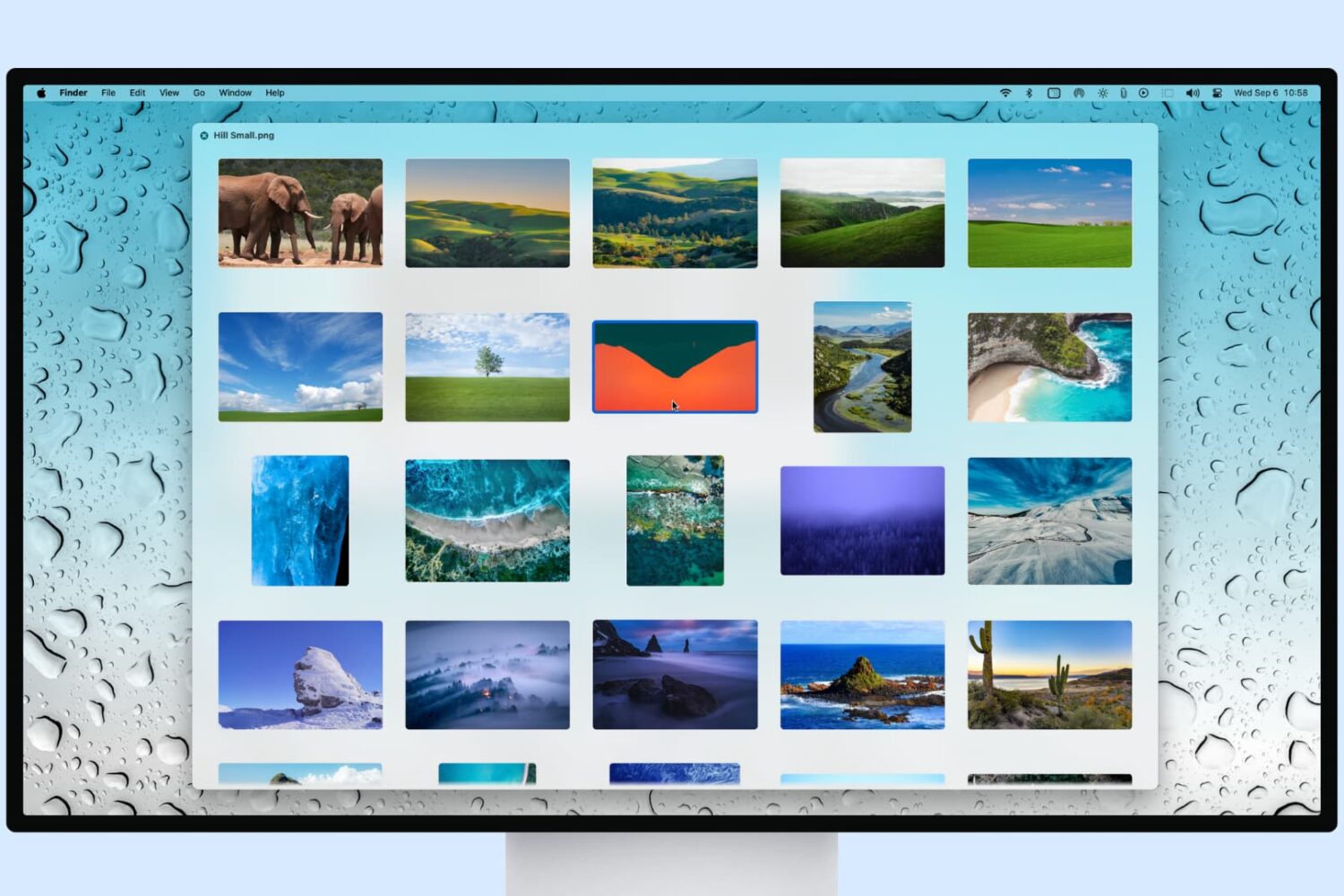
Learn how to preview several selected photos or files at once in Mac’s Quick Look so you can see them all at the same time and supercharge your workflow.
How to preview multiple photos at once in Quick Look on Mac
Stay up-to-date on the latest Mac news, and tutorials. Get expert tips and tricks to optimize your Mac’s performance and learn about the latest Apple products and software updates. Discover the best Mac apps and accessories to enhance your user experience.
Learn how to preview several selected photos or files at once in Mac’s Quick Look so you can see them all at the same time and supercharge your workflow.

Since last year's iOS 8.3 software update iOS devices have had the ability to stop asking for a password when downloading free applications from the App Store. Soon after, that feature found its way into iTunes and iBooks for Mac.
As electronic books are no longer managed through iTunes, disabling password prompts for iBooks Store downloads is now handled in iBooks for Mac. In this post, you will learn how to disable Apple ID password prompts when downloading free electronic books from Apple's iBooks Store, and we'll also show you how you can manage password settings for paid items.

Yahoo today announced it's re-launching its venerable messaging software—Yahoo Messenger—on iOS, Android, on the web and in Yahoo Mail on the desktop.
The app offers a fresh new messaging experience rebuilt from the ground up, integrates the best of the Flickr, Tumblr and Xobni, does photo sharing and animated GIFs and is focused on group messaging with features such as sharing, unsending and liking.

Wouldn't it be nice if you could use the Siri Remote that came with your new Apple TV to control media applications on your Mac? After all, the remote is Bluetooth-based and Mac itself has robust support for Bluetooth networking.
With SiriMote, a new freeware app, now you can. Created by Vienna, Austria-based Eternal Storms Software's Matthias Gansrigler, SiriMote lets you control various functions of the Mac using your Apple TV's Siri Remote.
Google's Chrome browser was updated yesterday to version 47 on Windows, Mac and Linux. The latest stable release of the browser includes bug fixes and removes a rarely used feature: the notification center in the Mac's menu bar.
Chrome for iPhone, iPod touch iPad also received an update yesterday in the App Store, bringing out support for 3D Touch shortcuts on the iPhone 6s and iPhone 6s Plus and enabling more shortcuts via external wireless keyboards.
Ukrainian developer Readdle launched the Mac edition of PDF Expert, its popular PDF viewer app for iOS, in mid-November. Today marks the first major feature-focused refresh of the app in the Mac App Store.
The app now lets you mail a flattened copy of your PDF and rotate a page without entering the Pages mode. It will remember on what page you've left your document so that the next time you open the same file you can continue right where you left off.

Apple logos on the company's retail stores around the world have turned bright red today, and that means one thing: it's honoring the World AIDS Day. In the App Store, Apple and (RED) joined forces with developer Supercell, with 100 percent of proceeds from customers who buy (RED) packs for Supercell's games going to the Global Fund to fight AIDS.
And via its homepage at Apple.com, the company is inviting customers to help the initiative by purchasing (RED)-branded products like Macs, iPhones, iPads, iPods, Watches and accessories such as Beats headphones, the Smart Cover for the iPad Air and the Smart Case for the iPad Air 2.

Apple's MacBook Air notebook is rumored to receive a thorough redesign next year alongside a brand new fifteen-inch model introduction, according to a report Monday by Economic Daily News.
The thinner, faster machine is thought to be up for an official introduction at Apple's Worldwide Developers Conference in the summer of 2016.
If true, it will mark the first major facelift of Apple's MacBook Air notebook since its debut eight years ago.
Happy Thanksgiving to everyone in the United States! And what better way to celebrate this holiday than a not-to-be-missed deal that offers some substantial value for your hard earned cash.
You've probably heard of a Mac developer called Softorino, no? They're behind Waltr, a super fast Mac app that makes converting any video into an iOS-friendly file format a simple drag-and-drop affair.
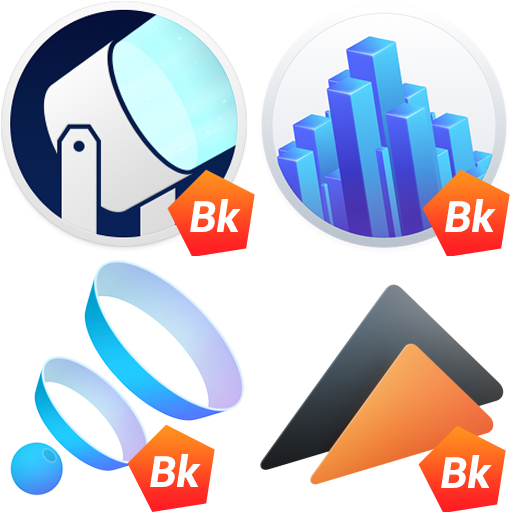
As it happens, Softorino has teamed up with other developers from different parts of the world to bundle four powerful Mac applications at 73 percent off for just $24.95.
All four apps in Blockbuster Kit were created specifically with movie buffs in mind and are well-known to Mac fans: Global Delight's Boom 2, Ben Lenarts and Eelco Lempsink's Beamer 3, Eltima's Elmedia Player Pro and Softorino's own Waltr. These apps regularly retail for a total of $90 so you're looking at some substantial savings here.

Leo's Fortune, a gorgeous action platformer with beautiful artwork that debuted on the iPhone, iPod touch and iPad in April of 2014, is now available on the Mac.
A $6.99 download from the Mac App Store, this premium title is free of advertisements and In-App Purchases. Leo's Fortune has won numerous awards and is one of the best platform games available on any platform.
Our own Lory Gill called it arguably the most gorgeous iOS platformer she has played in a while, writing in her review that fans of platform games should pick up Leo's Fortune in a heartbeat.
Pixelmator for OS X, the Mac edition of the powerful image editing application which debuted on iOS in October 2014, has gone half price in the Mac App Store today. In addition, the iPhone, iPod touch and iPad edition of the software has been discounted to just $1.99 in the App Store.
Selling regularly for $29.99, Pixelmator for Mac can now be downloaded for just $14.99, a steal given the app's rich set of powerful image editing features, tools, brushes and more.
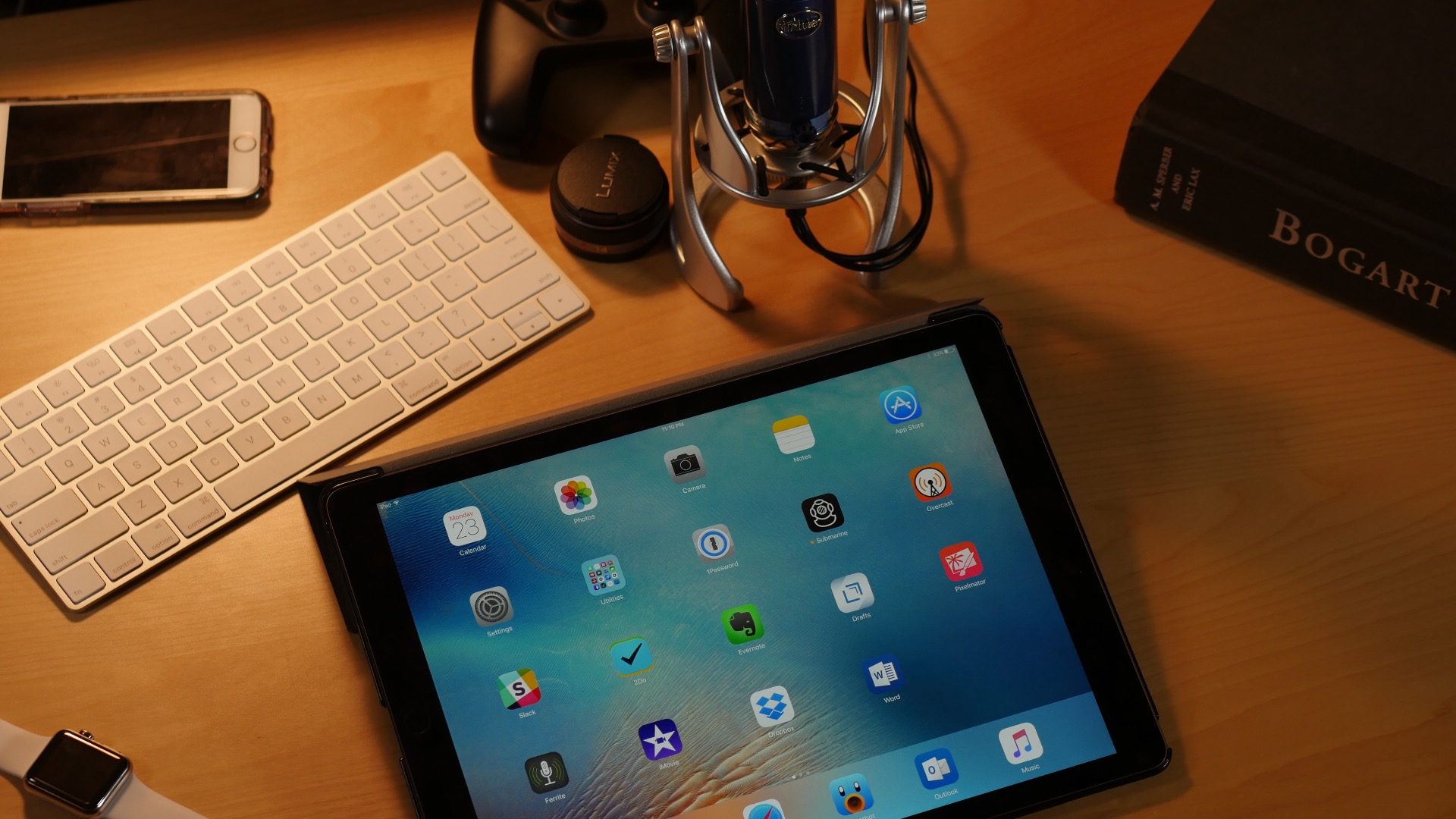
In my review of the iPad Pro, I made sure to establish that it wasn’t necessarily a replacement for your Mac. At the same time, that doesn’t mean that it can’t replace your Mac, or that it doesn’t do some things better than a Mac can.
To be honest, the iPad Pro does quite a few things better than my MacBook Pro with Retina display. In this post, I’ll consider 10 reasons why the iPad Pro might be the better computer of the two for your workflow.