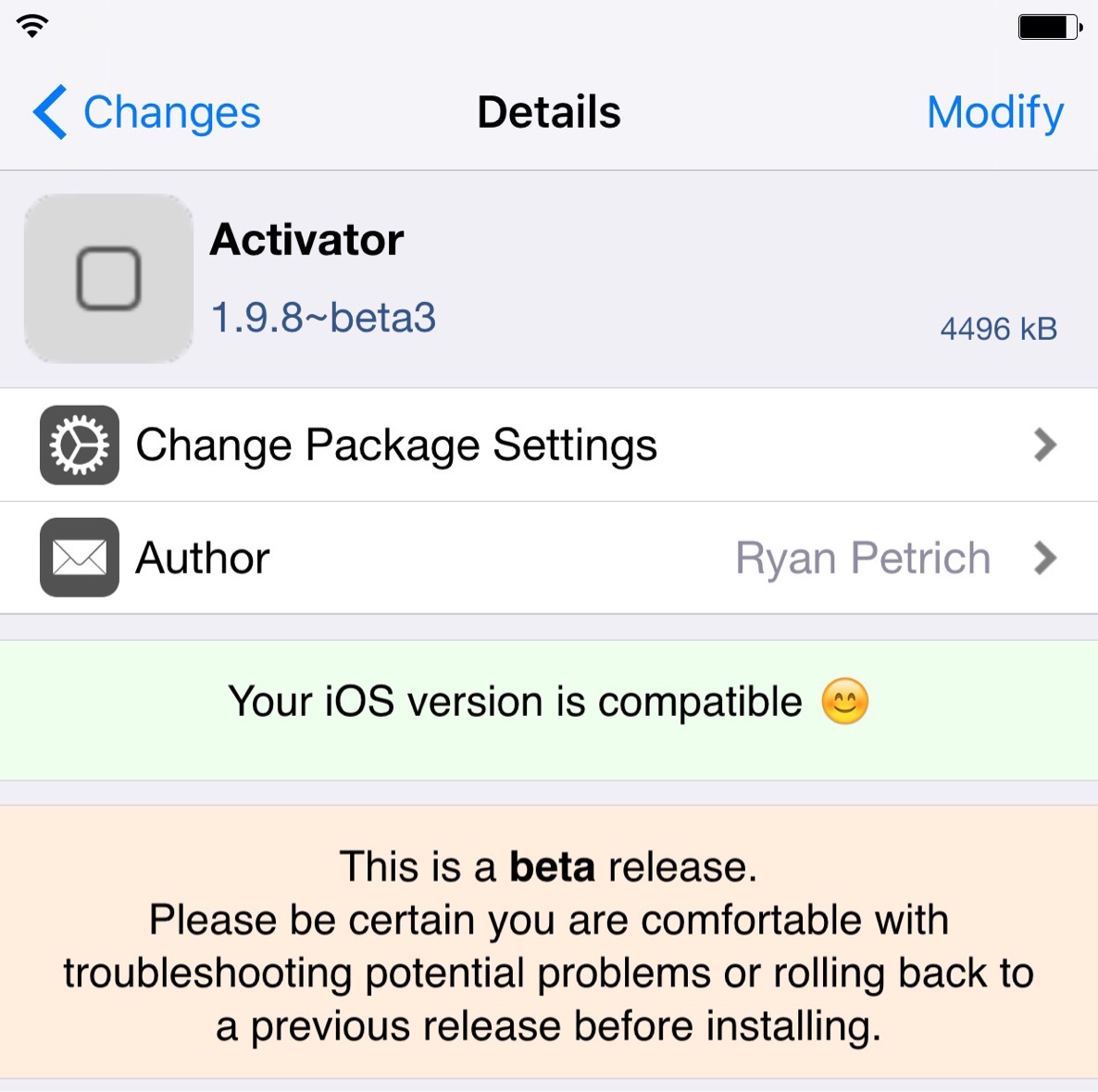
Ryan Petrich has pushed out another update to the Activator beta. This latest release, which brings Activator up to version 1.9.8 beta 3, includes some interesting new features that will make fans of Activator happy.
First and foremost, the new Activator beta now allows users to specify the sequence of actions, and even establish delays in between each action. That means that, for example, you could set up an action sequence to Lock the screen after a specific amount of time elapsed. You can also schedule delays to occur between multiple actions.
There are other new features included with Activator 1.9.8 beta 3 as well, such as new Answer Call and Disconnect Call actions. Have a look at the full change log for all the deets.