You can change the language of your iPhone and your Apple Watch together in one go or only change it for your Apple Watch while your iPhone’s language remains unaffected. Here are the steps for both.
How to change your Apple Watch language
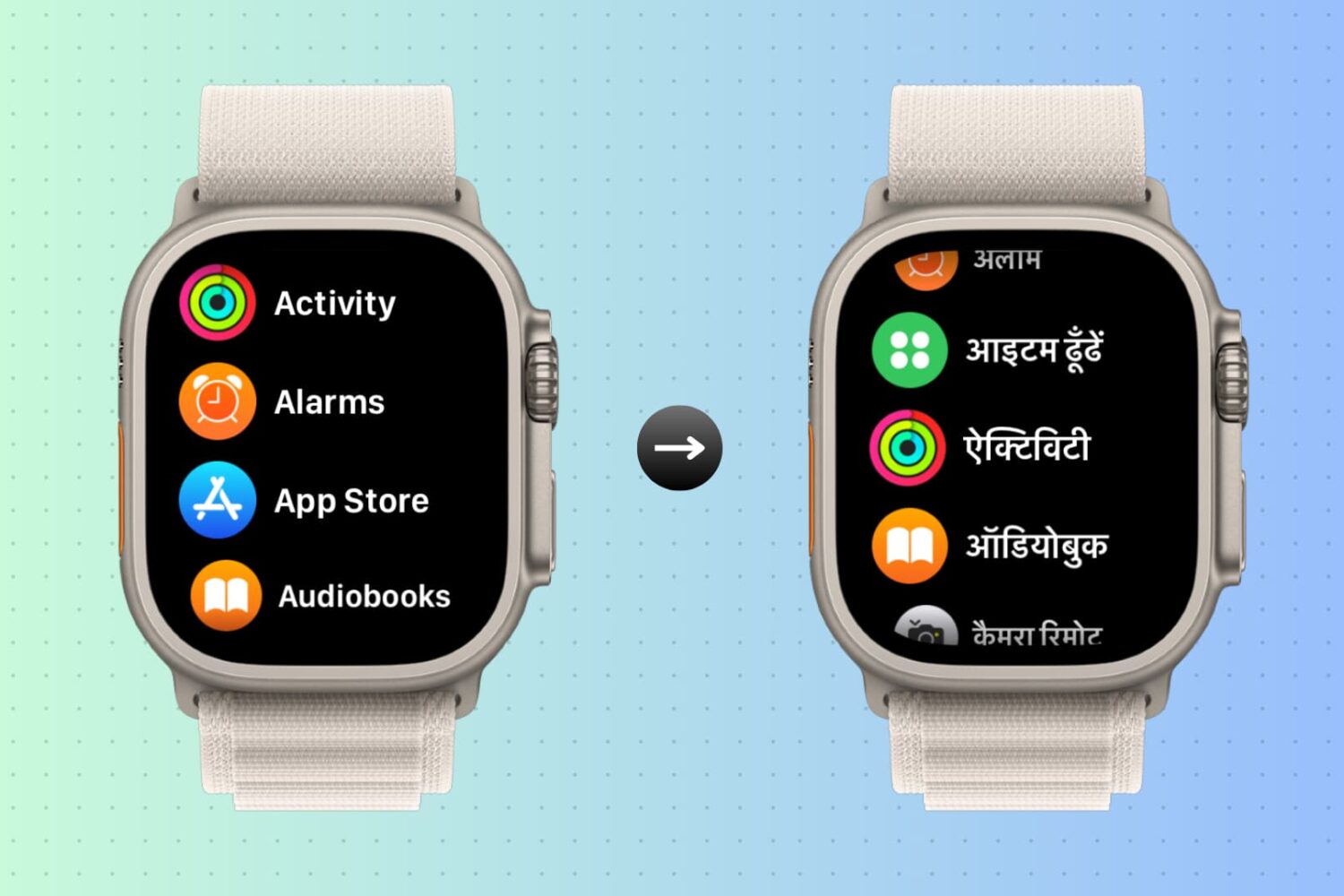
You can change the language of your iPhone and your Apple Watch together in one go or only change it for your Apple Watch while your iPhone’s language remains unaffected. Here are the steps for both.

In this quick tutorial, we’ll show you how to delete apps from your Apple Watch with or without your iPhone.

Go through these simple power-saving tips to save battery on your Apple Watch if you’re experiencing poor battery life.
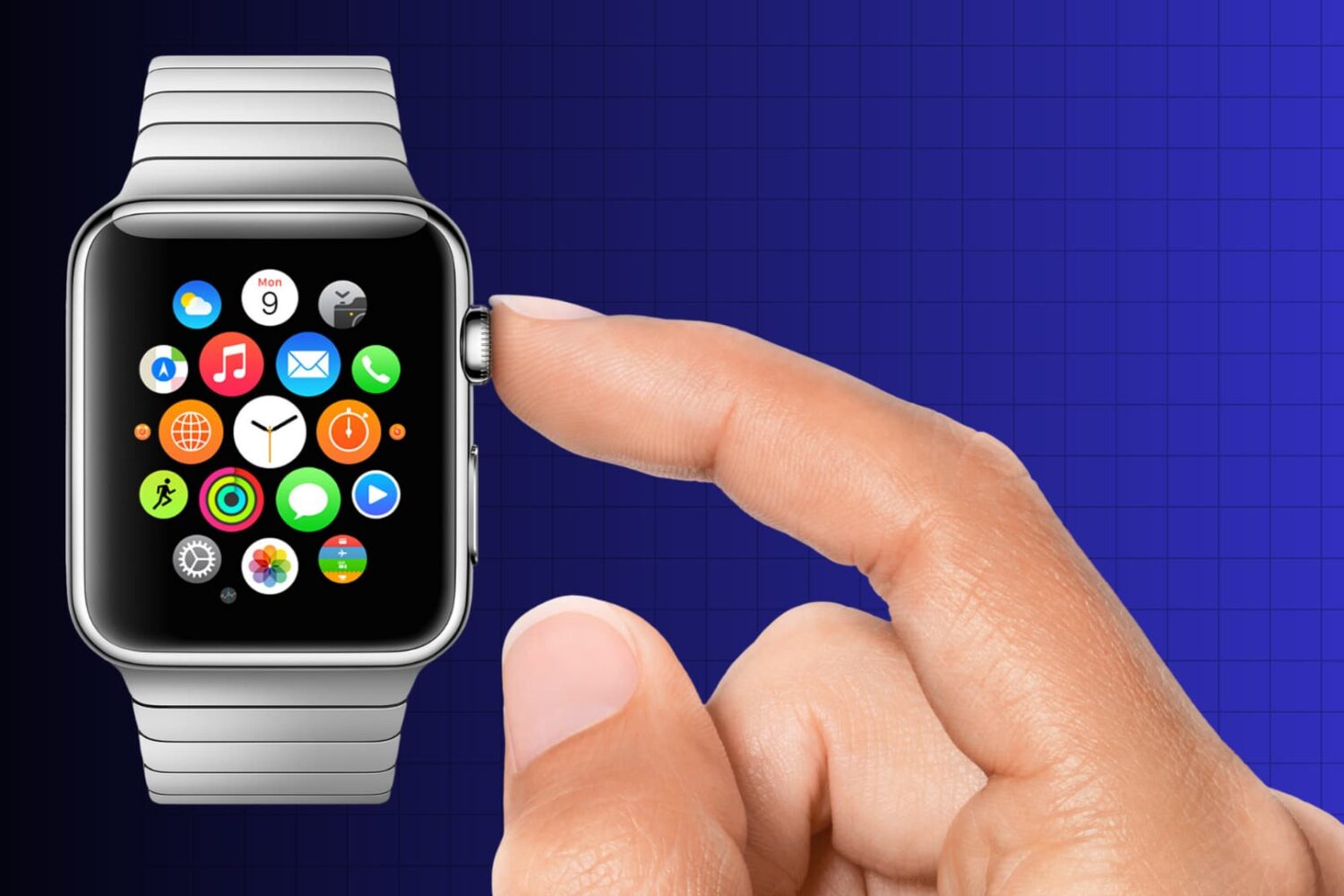
Occasionally, the Digital Crown on your Apple Watch may experience issues such as being stuck or being resistant to rotation. If you encounter these issues, here’s a guide to resolving them and restoring the functionality of your Apple Watch Digital Crown.

Learn how to change the intensity of the haptic feedback you get on your Apple Watch when you receive an alert or new notification.

If you want to take screenshots of your Apple Watch screen, you must first turn this feature on. Here are the steps to enable screenshots. And after that, we will show you how to take a screenshot on the Apple Watch running any version of watchOS.

If you find your Apple Watch screen to be too bright or too dim, you can change the display brightness directly from the watch or from its companion app on the paired iPhone, ensuring a comfortable viewing experience.
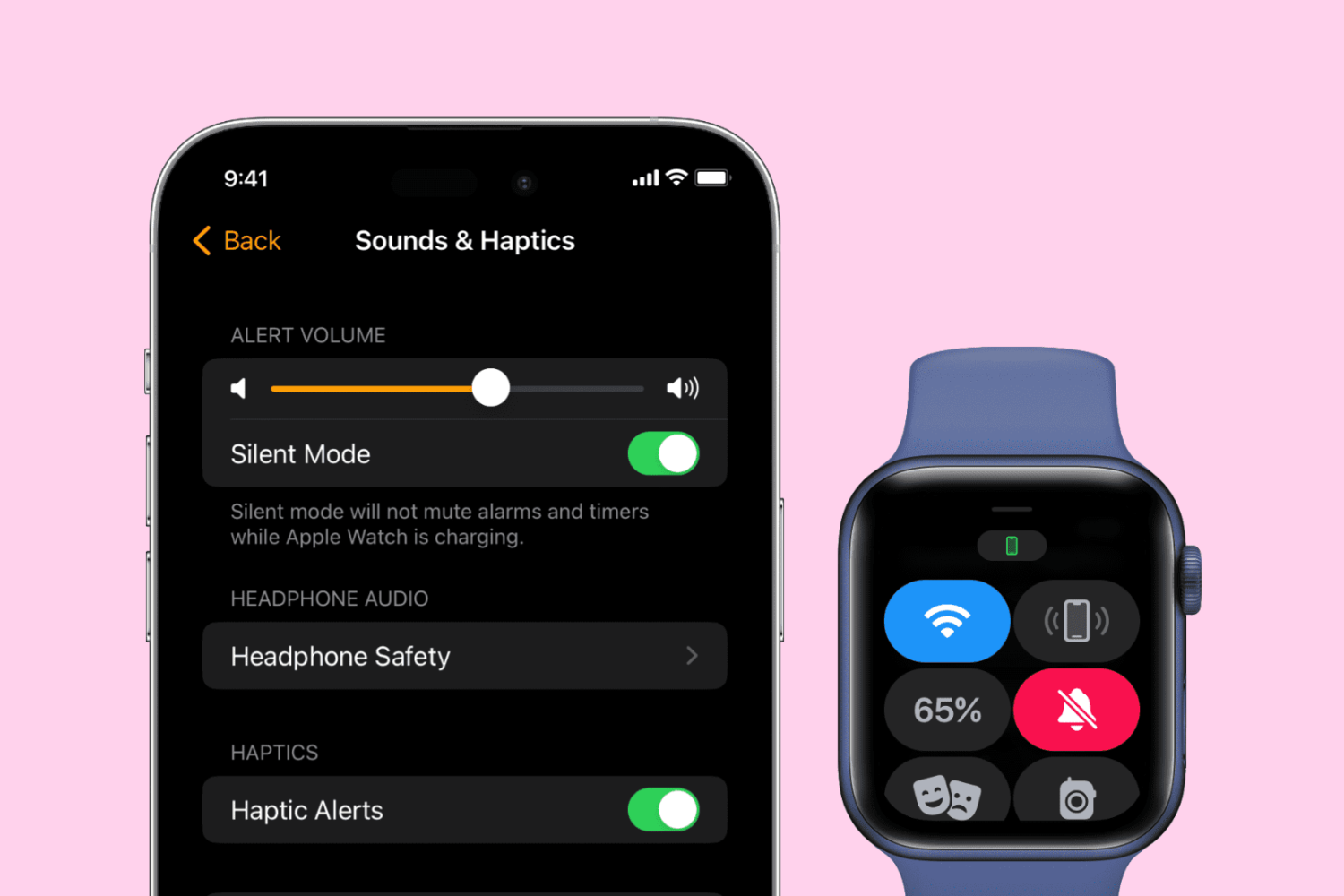
Learn how to mute sounds and silence notifications on your Apple Watch for peace and quiet during meetings, school, the library, or similar situations.
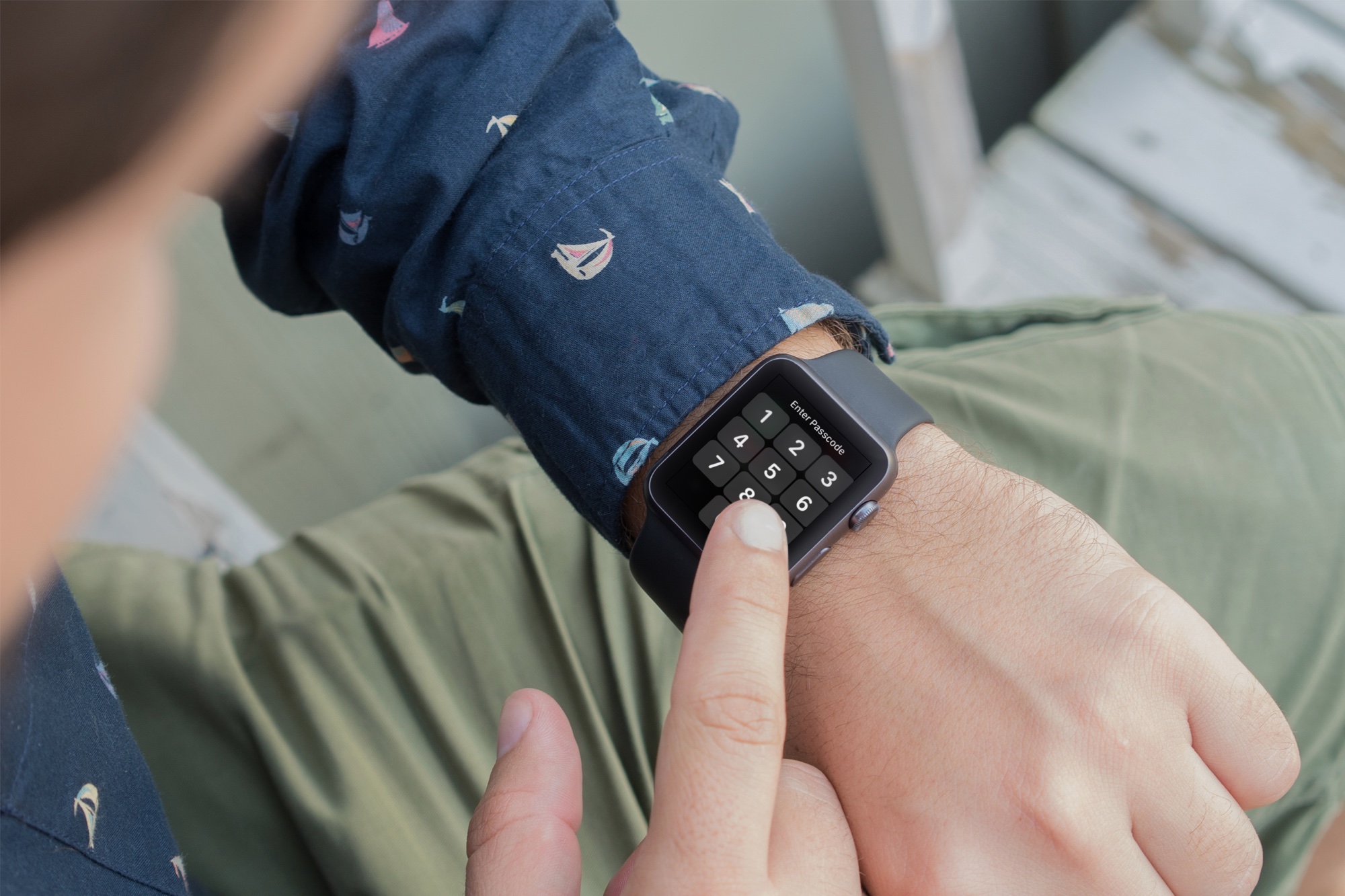
Learn how to secure your Apple Watch with a passcode, change the current passcode, and explore other related security settings.

Learn about the various ways you can wake up your Apple Watch and also put its display back to sleep when you don't need to use it.

Learn how to turn your Apple Watch ON and OFF, or do a force restart in case your watch is frozen and refuses to turn on normally.

You probably already know the two blue check marks you see next to your messages in WhatsApp conversations are Read receipts indicating your contact has indeed read your message. This is a blessing and a curse. It's a blessing because it can be very helpful at times, when you want to make sure your friend read your message for example. It can also be a curse, because you can't really pretend you didn't read a message if you actually have.
These problems are now a thing of the past with WhatsApp recent update that lets you disable and enable Read receipts at will. In this post, I'll show you how to disable WhatsApp Read receipts.