Here are five simple ways to turn off screen rotation on your iPhone and keep the display in portrait mode.
5 ways to turn off iPhone screen rotation

Here are five simple ways to turn off screen rotation on your iPhone and keep the display in portrait mode.
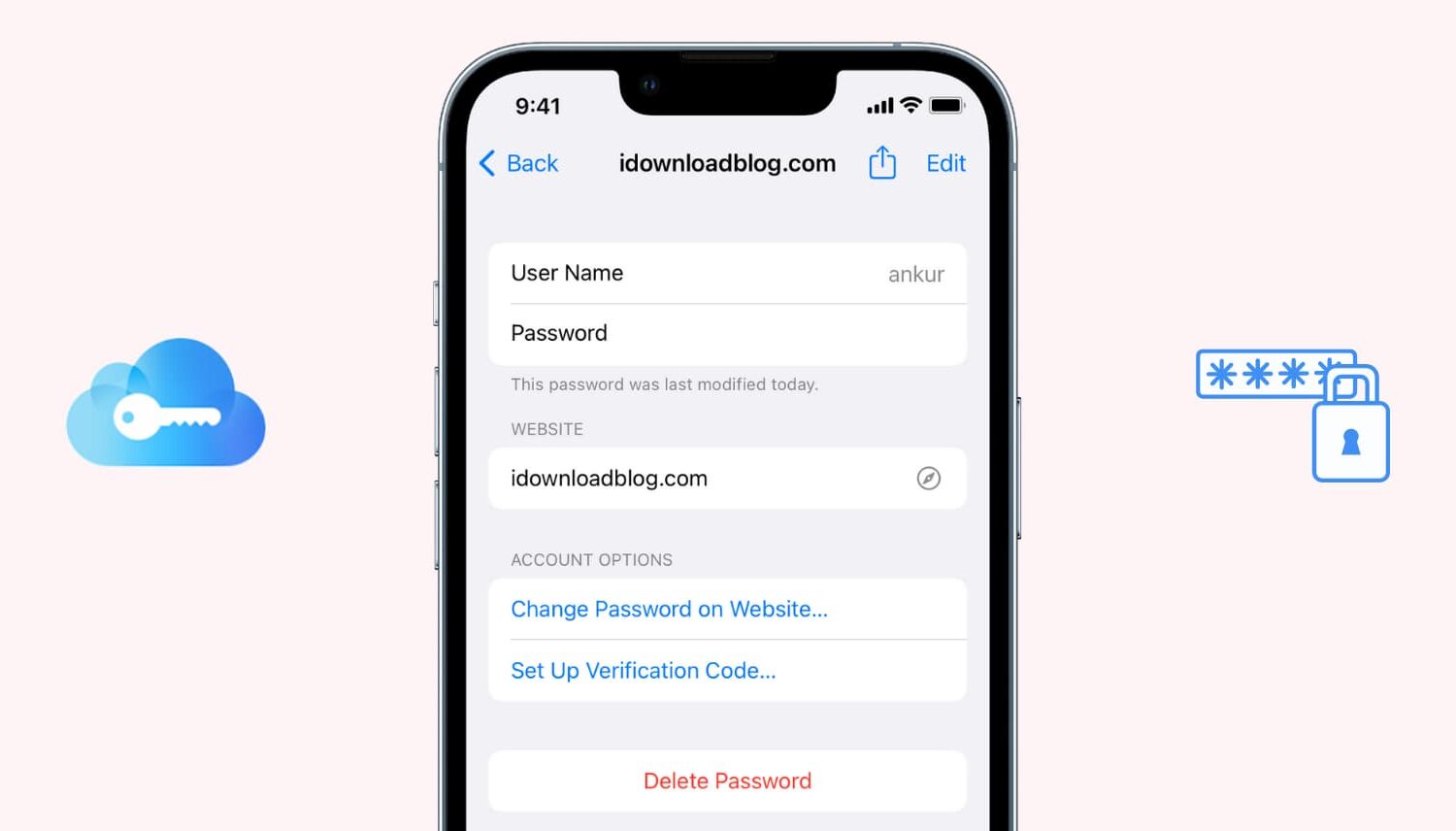
If you use iCloud Keychain to store and remember passwords, there may come a time when you want to view a particular password. Maybe you need it to log in on another device that doesn't have iCloud Keychain, or perhaps you are setting up a new password manager and need those details. Whatever the case, here's how to access iCloud Keychain passwords on iPhone, iPad, and Mac.
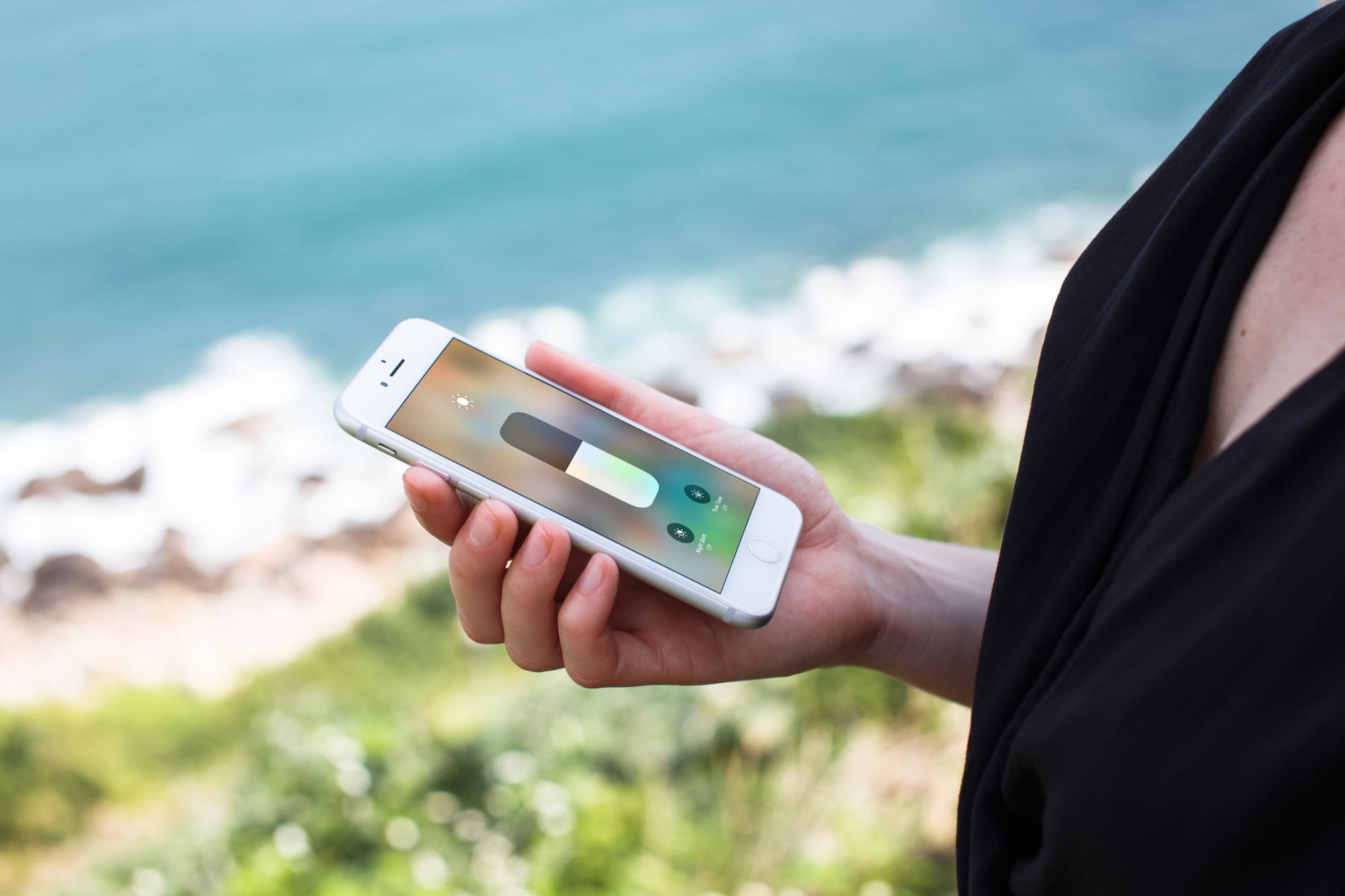
Learn how to stop your iPhone from automatically changing display brightness so you can adjust it manually and keep screen illumination consistent.
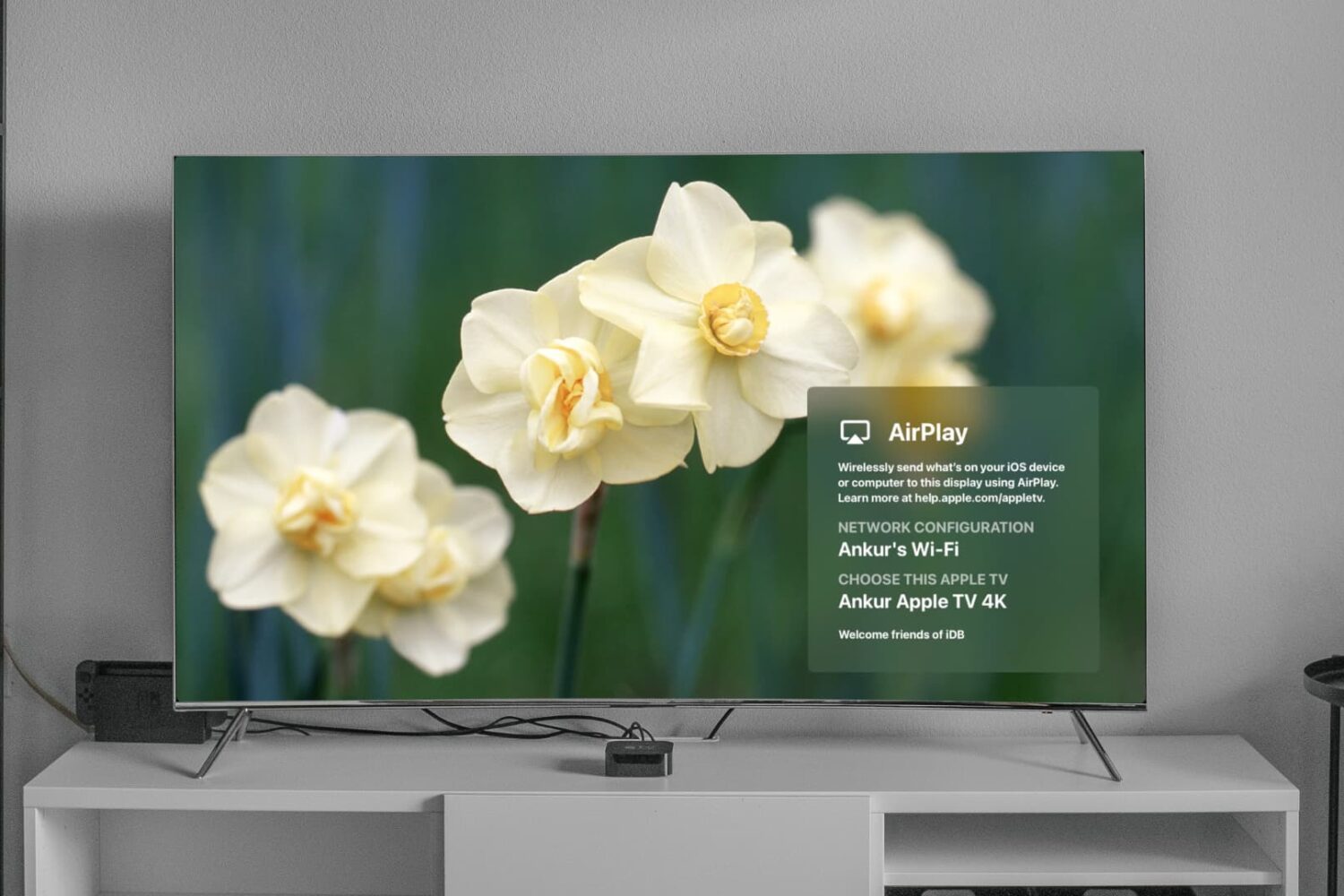
Learn how to turn on and use the Apple TV Conference Room Display mode for your business or classroom so you and others in your team can AirPlay from their iPhone, iPad, or Mac onto the big TV screen.
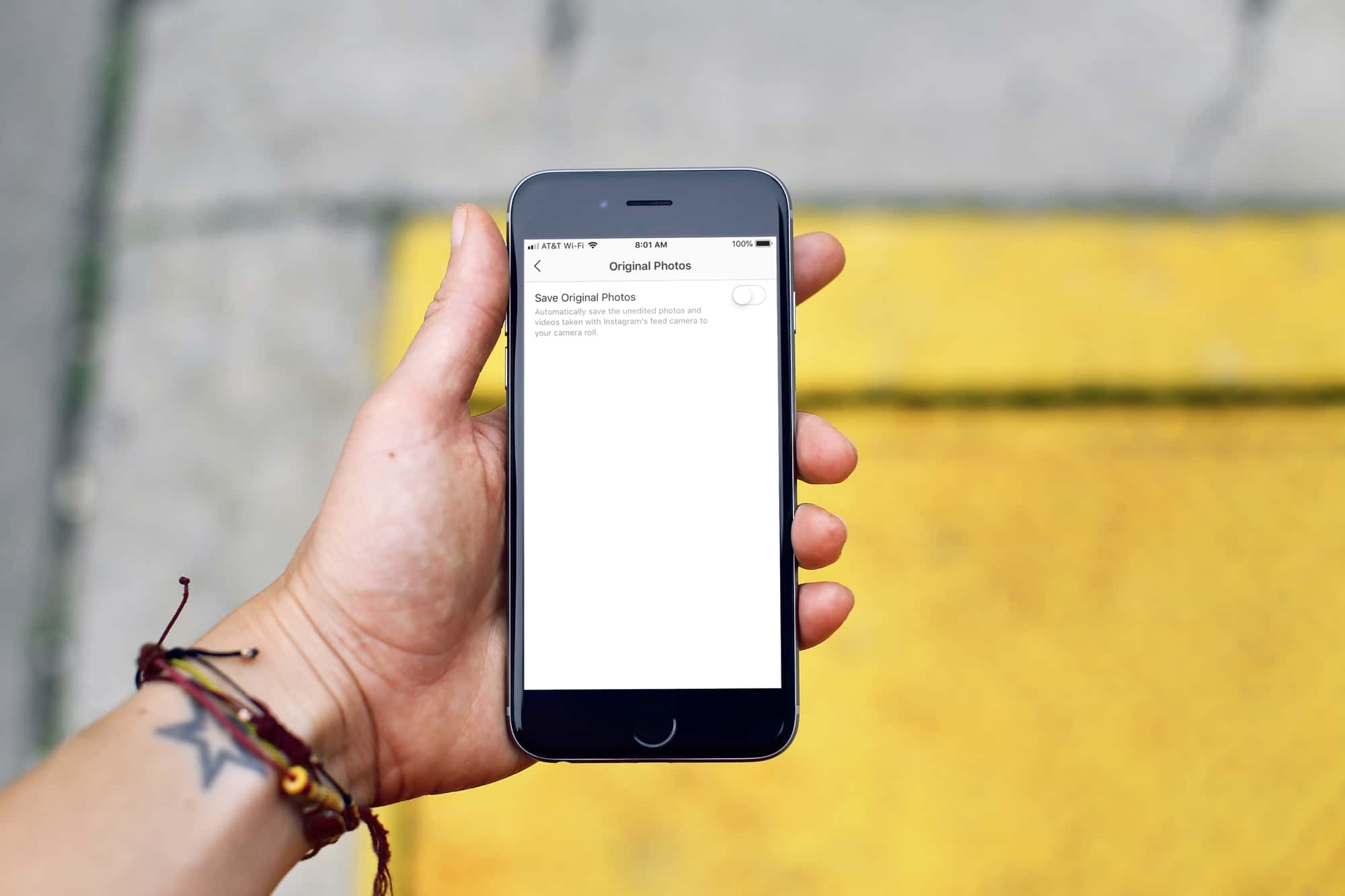
Learn how to prevent pictures you take inside Instagram from automatically saving to your iPhone’s Photos app, which helps declutter your media library and save storage space.
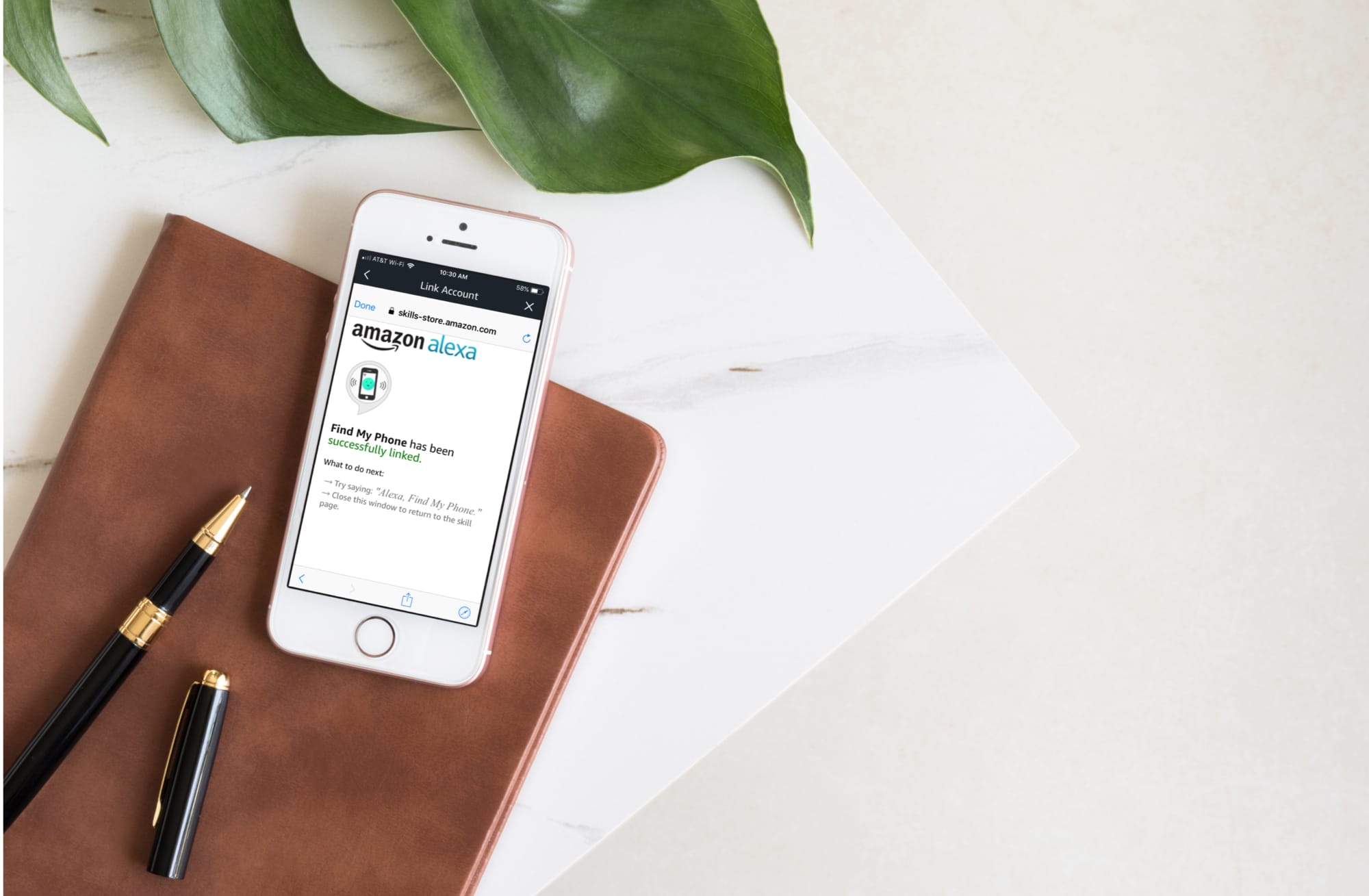
Misplaced your phone? Learn how to use Alexa on your Amazon Echo smart speaker to find your iPhone or Android phone.
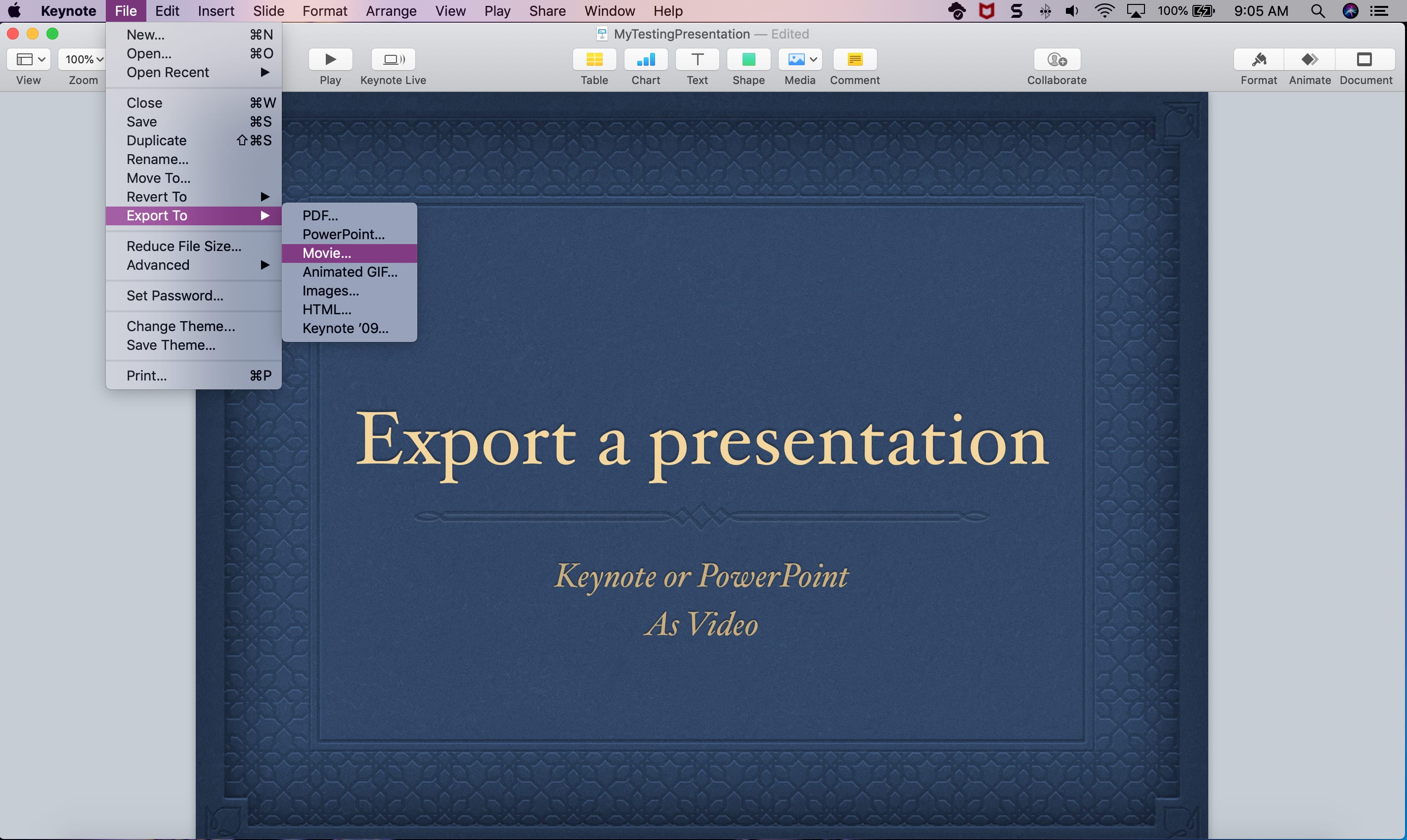
Learn how to convert Keynote or PowerPoint presentations into videos on your Mac using these simple step-by-step instructions.
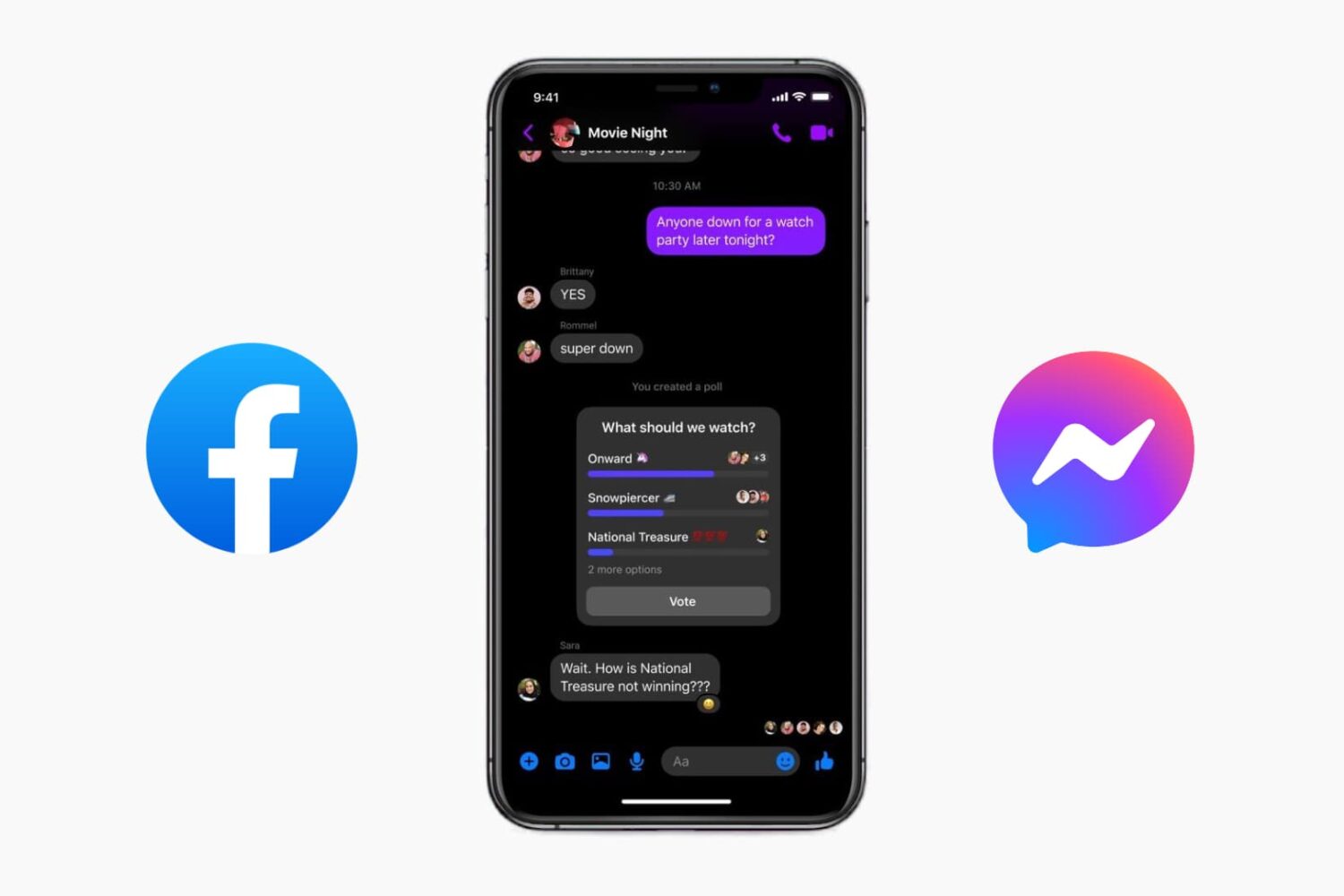
Facebook Messenger is a great app for chatting with your Facebook friends. And you can have one-on-one conversations or chat with a group. But there may come a time when the conversation is over. While you cannot currently leave a one-on-one conversation, you can leave a group chat.
Here's how to leave a group conversation in Facebook Messenger on the app or website.
In this tutorial, we show you which hidden system folders to look for on your Mac to find the default desktop wallpapers that come preinstalled with macOS.
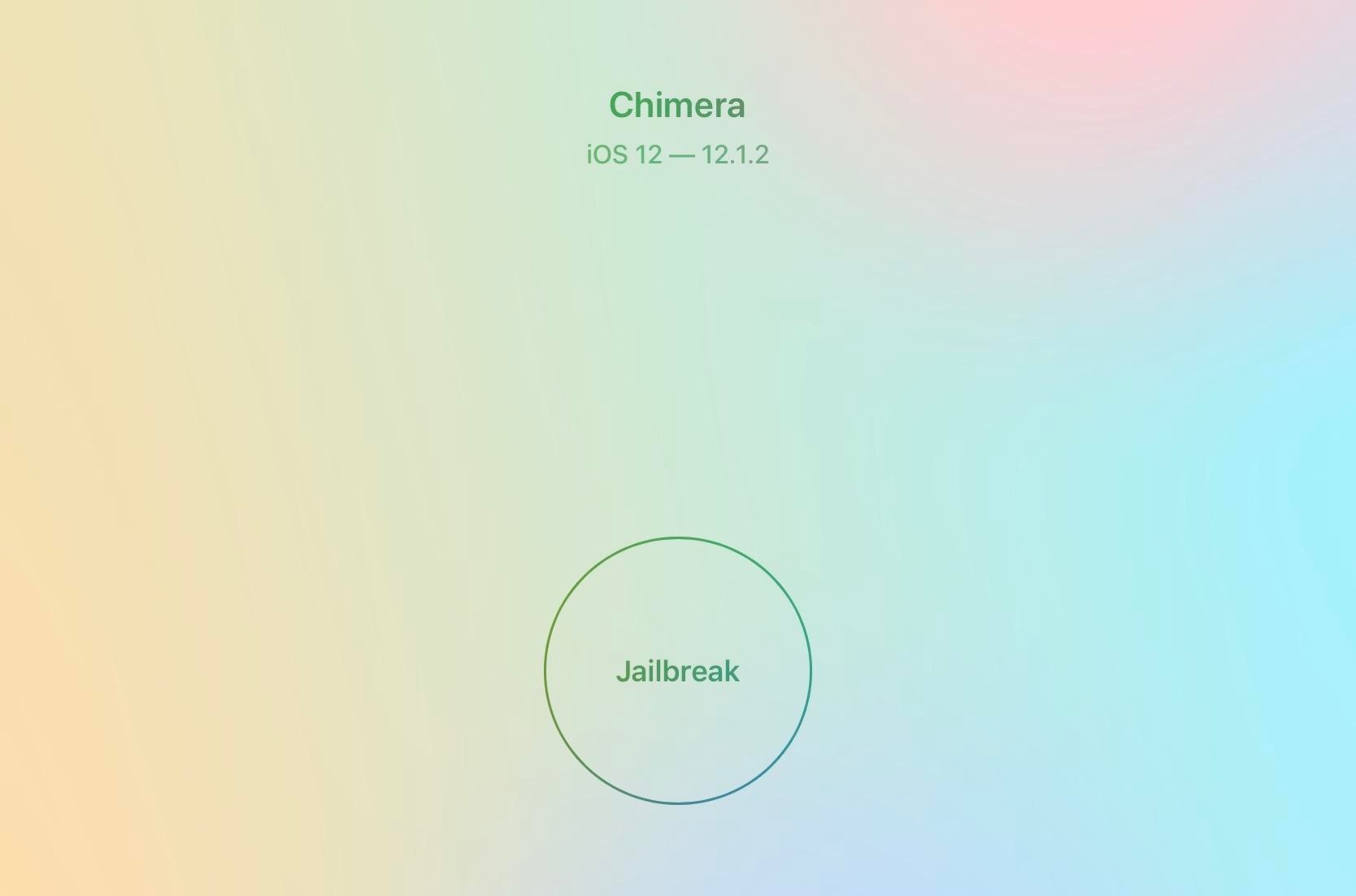
In addition to the unc0ver jailbreak by Pwn20wnd, iOS 12 users have the option to use the Chimera jailbreak by the CoolStar-led Electra Team.
It’s worth noting that the Chimera jailbreak does not support Cydia or Cydia Substrate, and that it instead uses Sileo and libhooker as a part of its Procursus bootstrap for package management and tweak injection. That aside, it is the first public jailbreak tool to officially support A12(X) devices.
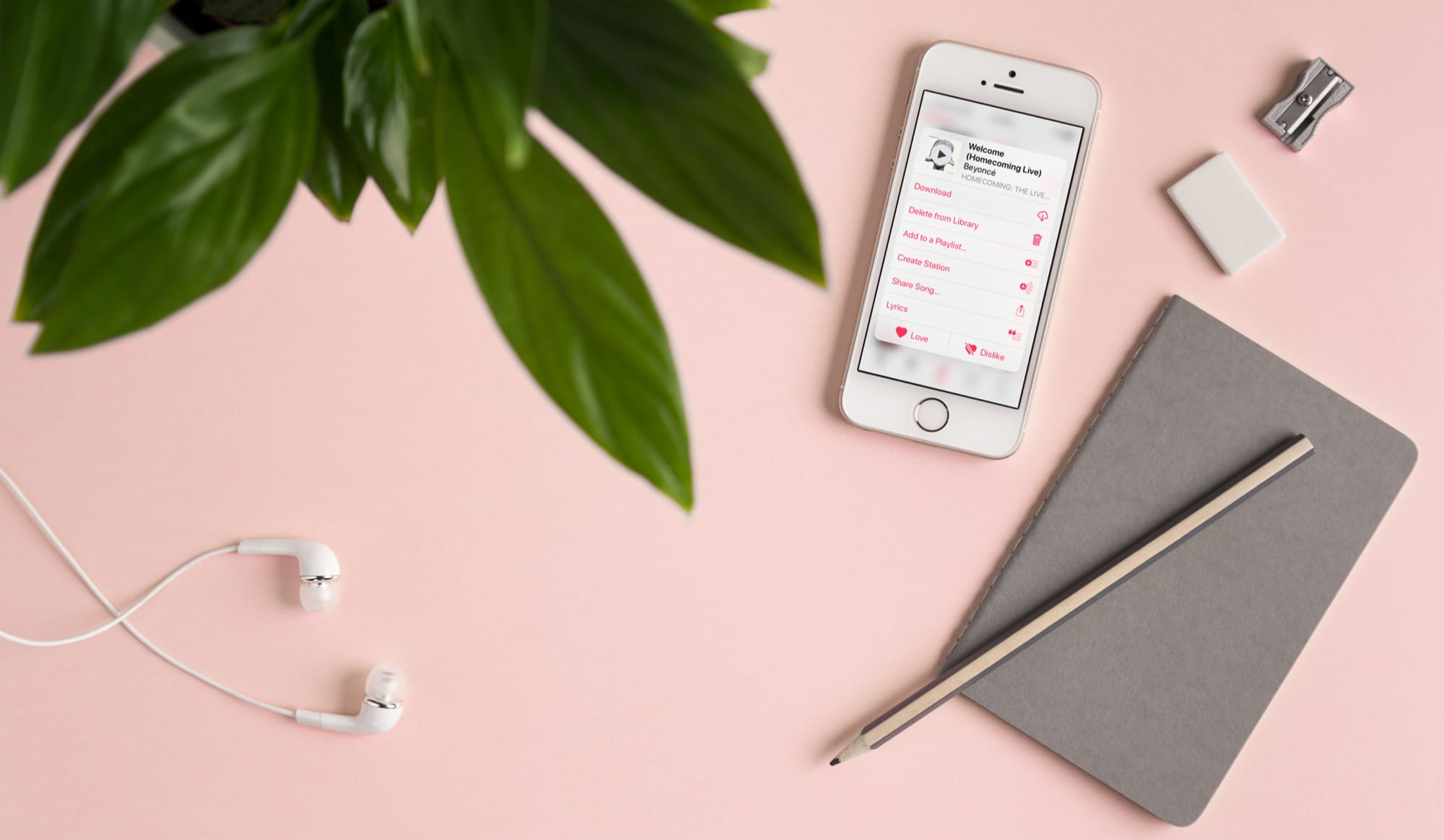
Learn how to create a radio station based on a particular song or artist in Apple Music on your iPhone, iPad, or Mac to listen to similar songs.