Whether you want to keep copies of scans in Notes or just add one as a reference, here’s how to manage your scanned documents in the Apple Notes app on Mac.
How to capture and edit scanned docs in Notes on Mac
Whether you want to keep copies of scans in Notes or just add one as a reference, here’s how to manage your scanned documents in the Apple Notes app on Mac.
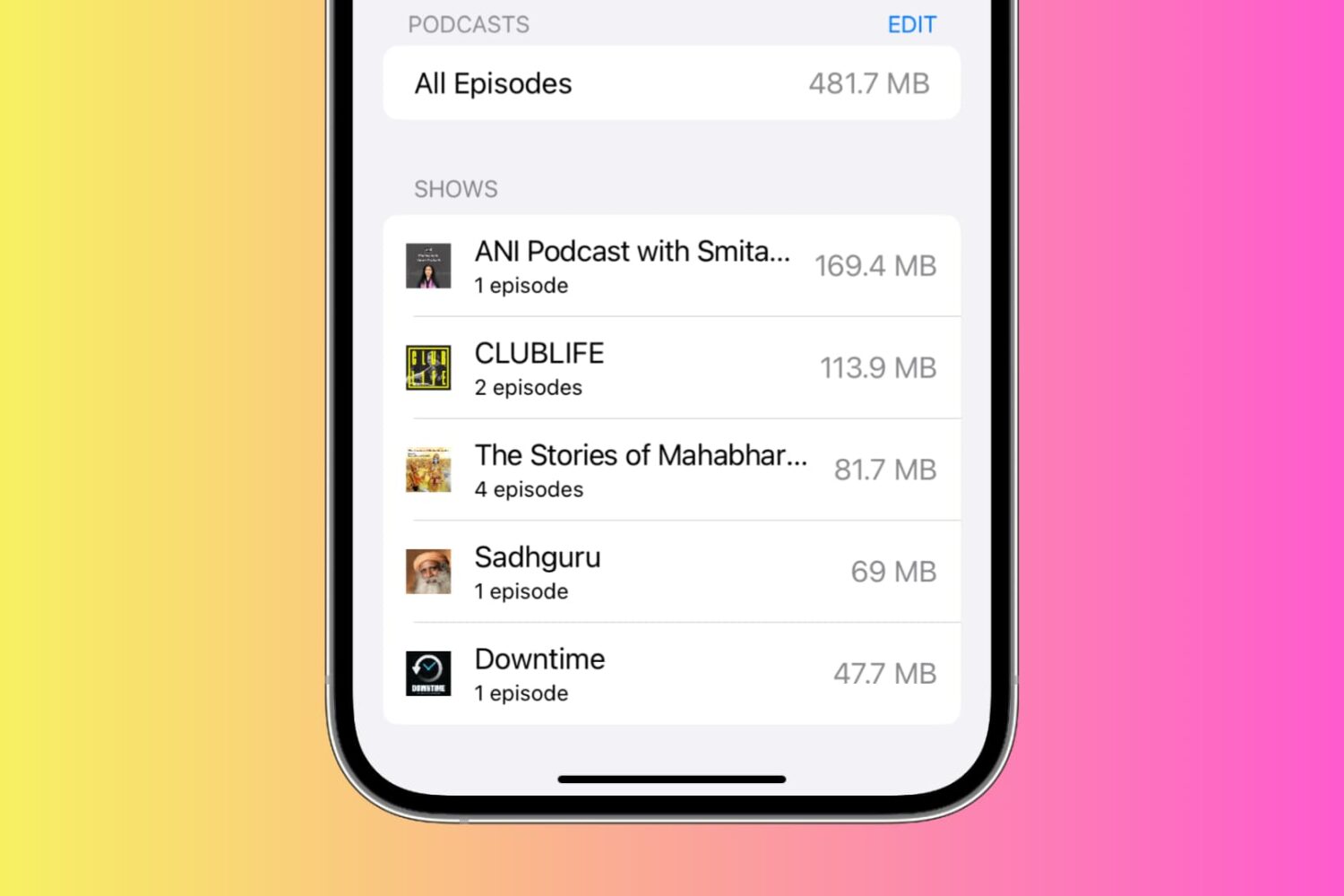
In this tutorial, we will show you how to customize the settings for podcasts and show episodes in the Apple Podcasts app on your Mac.
Learn how to move, copy, and duplicate events in the Calendar app on iPhone, iPad, and Mac to stay organized across all your different calendars.
The iOS 13.4 software update, along with its matching iPadOS 13.4 counterpart, enables more than a dozen major new capabilities on your iPhone, iPad and iPod touch.
Learn how to copy bookmarks between Safari, Firefox, and Chrome on your Mac if you want to switch to another browser or have all your bookmarks everywhere.
If you’re looking for a list of Mac Calendar keyboard shortcuts, we’ve got one. These shortcuts help you navigate the app and work with events quickly.
Learn how to customize the Calendar notifications and alerts on your iPhone, iPad, and Mac to stay on top of your important events and appointments.
Learn how to add a mask, speech bubble, or magnify a part of a photo or screenshot using the built-in Apple Preview app on Mac.
Use these handy keyboard shortcuts to move around Reminders for Mac, add new to-dos, create reminder lists, and more.
Learn how to hide or show certain apps and options from the system-wide sharing menu on your Mac to keep the Share menu relevant to you.
If you’re struggling to make time for everything you need to do in a day, we’ll show you how to use a method called time blocking with the Calendar app.
The Activity Monitor on your Mac is one of those tools that you should become familiar with. You by no means need be an expert on it, but you should know the basics. Why, you ask? Because the Activity Monitors shows all the processes running on your Mac. It’s like a task manager, so you can see how those processes affect your Mac and close any if needed.
Whether you’re new to Mac or simply new to the Activity Monitor, we’ll walk you through the basics you need to know.