Learn how to control your iRobot Roomba with Siri and command your smart vacuum from anywhere using your iPhone, iPad, or HomePod.
How to control your Roomba with Siri
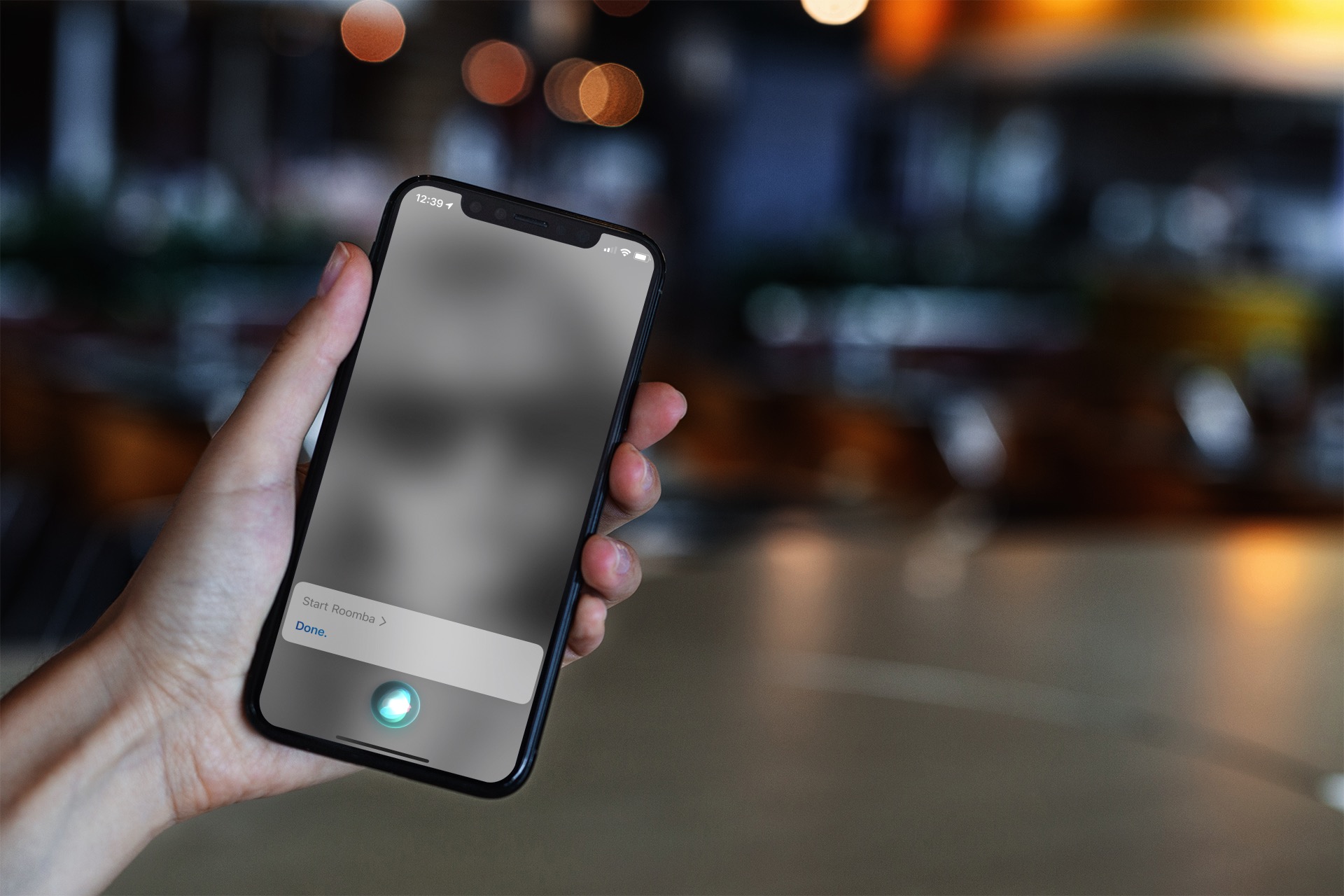
Learn how to control your iRobot Roomba with Siri and command your smart vacuum from anywhere using your iPhone, iPad, or HomePod.

Exposure compensation control allows compatible iPhone cameras to lock exposure independently of focus. If you struggle with balancing exposure and focus, you can lock them both separately. In this tutorial, we show you how it's done, which iPhone models are compatible, and what you need to pay special attention to.
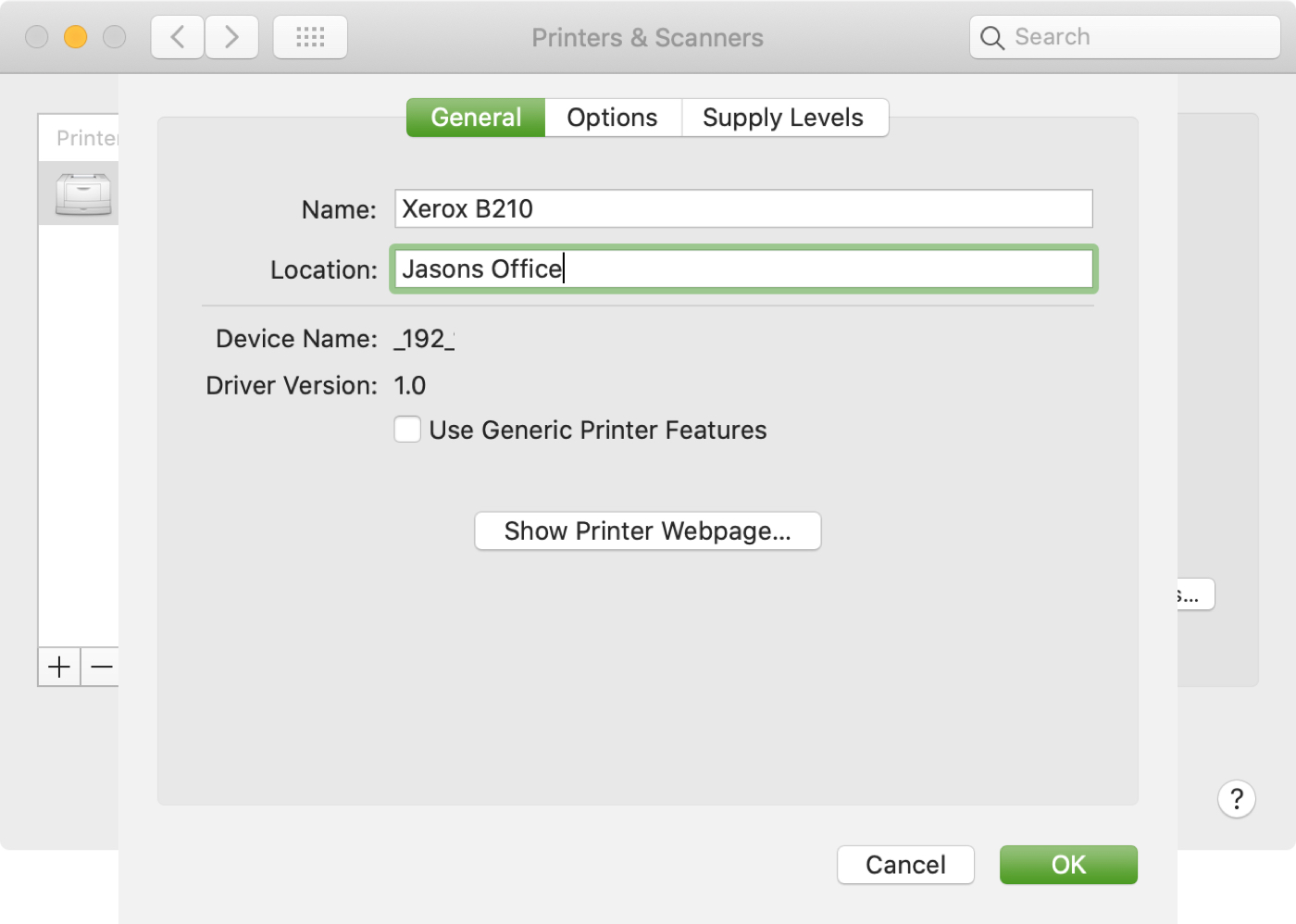
If you use more than one printer with your Mac, it’s important to know how to choose the default printer. This is useful if you take your Mac to your physical office, school, or library and then return to your home office. And if you share your Mac and printer with others, giving a name and location to your equipment is also helpful.
In this tutorial we’ll show you how to set your default printer as well as change its name and location on your Mac.

In this tutorial, we will show you how to narrow down the places you’re looking for using built-in filters in Google Maps in a web browser, or in the iPhone and iPad app.
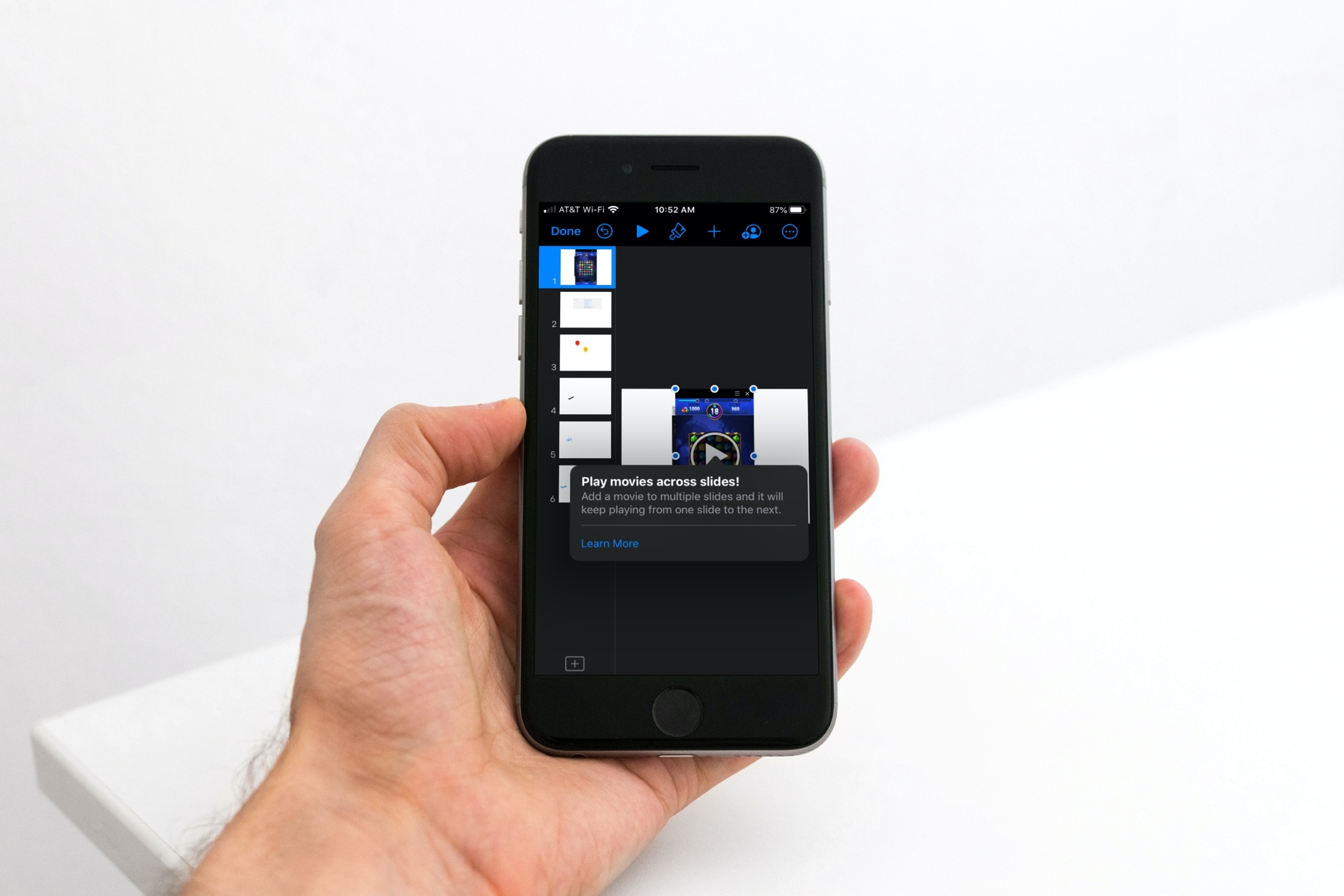
Learn how to insert a video or audio file in your Keynote presentation on Mac, iPad, or iPhone, and set it to play across various adjacent slides.

Not familiar with your Mac Mail Favorites Bar? We’ll show you where it is, tell you what it is, and help you customize and use it to make it even easier to check your emails.

Action Needed: Distribution Certificate Expires in 30 Days. Your Distribution Certificate will no longer be valid in 30 days. To generate a new certificate, sign in and visit Certificates, Identifiers & Profiles.
If you've received this email from Apple and don't know what to do about it, I will walk you through the steps you need to take in order to generate a new Distribution Certificate to replace one that is set to expire soon. You may replicate these steps whether you need to renew an iOS, macOS, watchOS, or tvOS distribution certificate.
All it takes is a Mac, an internet connection, and about 5 minutes of your time.
Finding photos of people, places, or things can become increasingly difficult as you snap more pictures. And if you don’t take the time to add keywords or descriptions, it can be even harder. In this tutorial, we’ll share some tips to help you find what you need inside the macOS Photos app.

Use Reading View in Pages, Numbers, and Keynote apps to prevent accidental changes when reviewing documents, spreadsheets, and presentations on your iPhone or iPad.
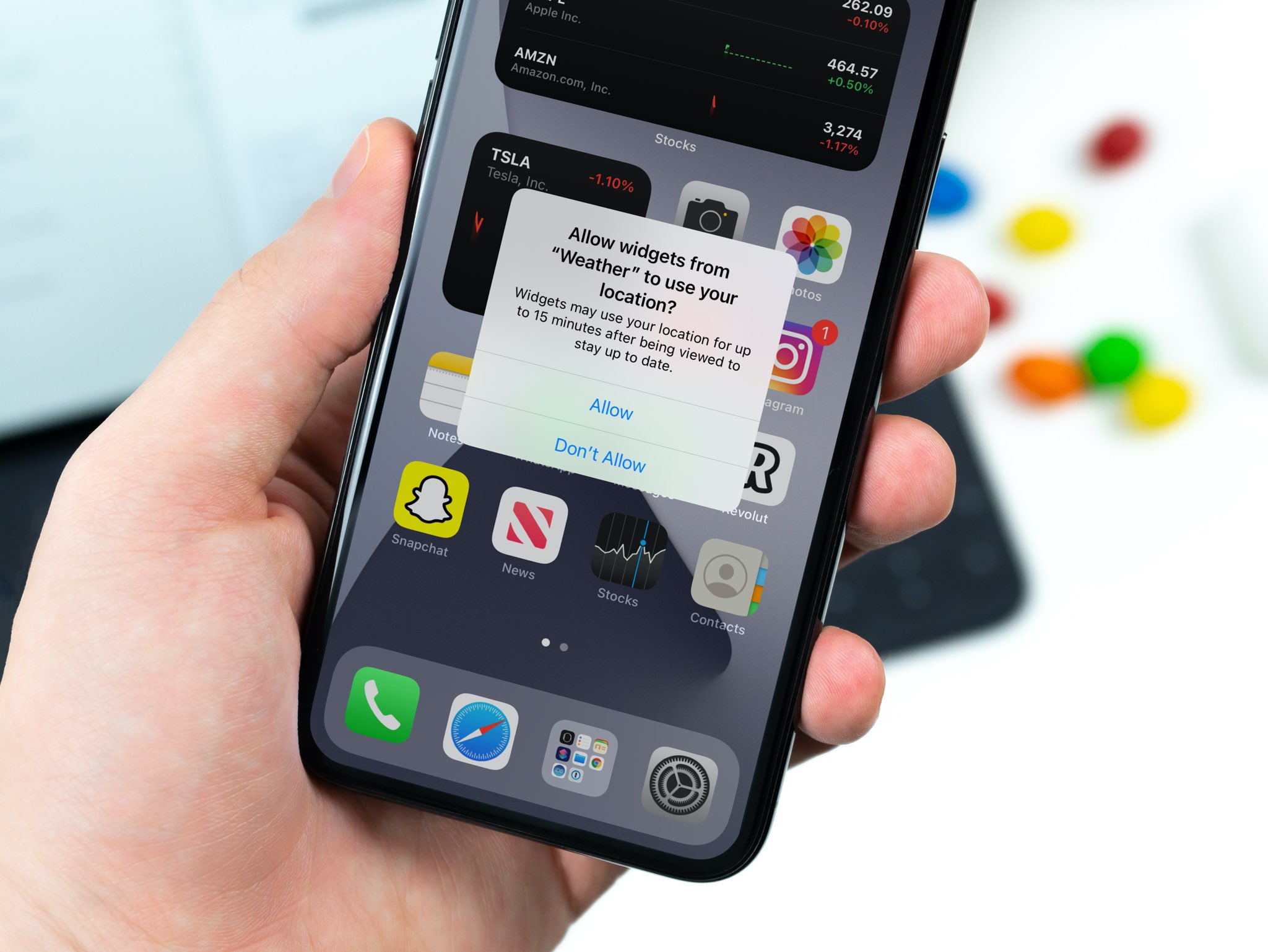
Learn how to adjust location access for widgets on your iPhone and iPad and selectively revoke access to your GPS coordinates for a bit more privacy.
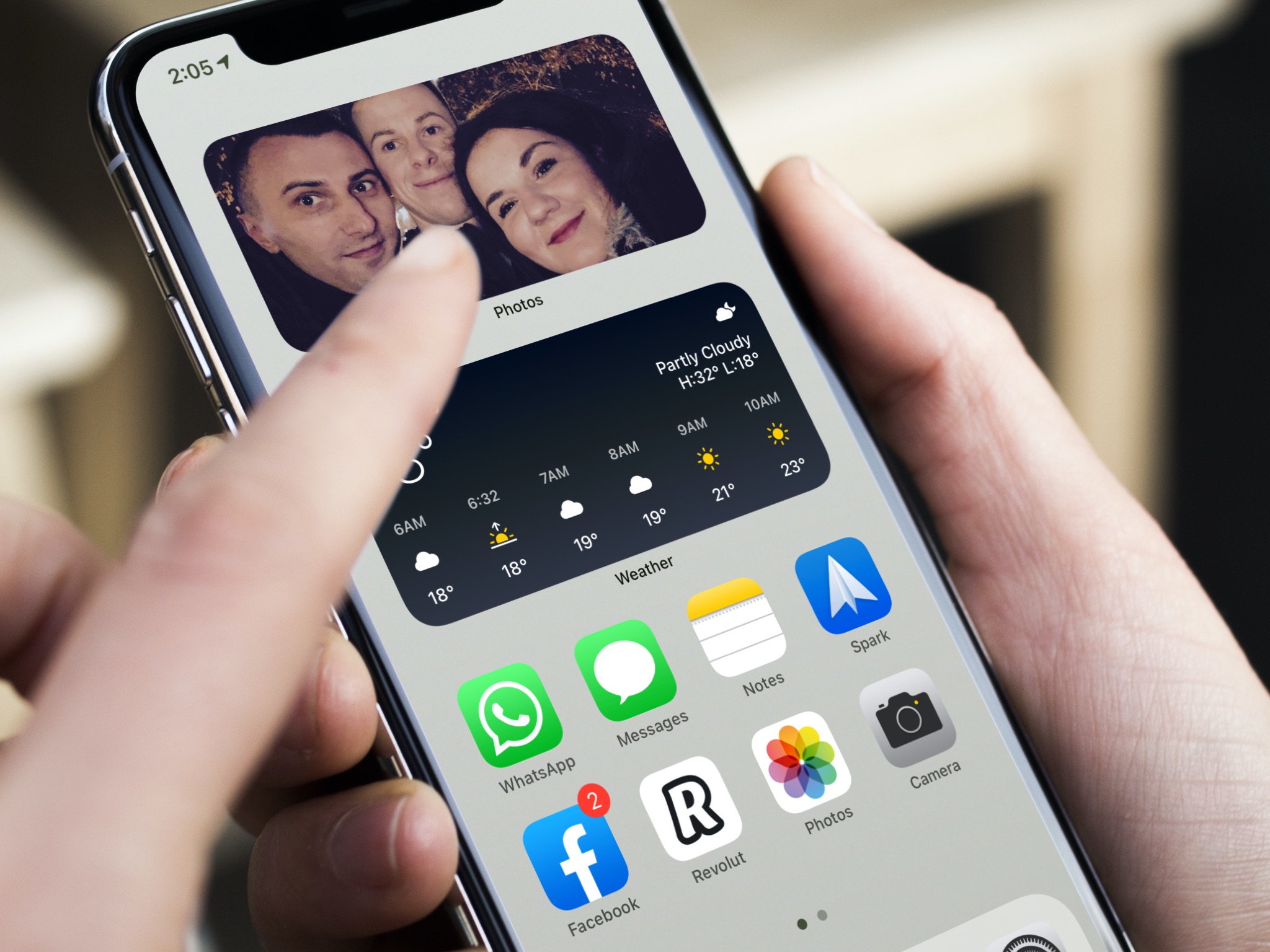
The Photos app widget on your iPhone and iPad Home Screen uses artificial intelligence to surface and rotate images that Siri intelligence thinks you might like. But what if the widget pops up an image you don’t like? In that case, follow our brief tutorial as we walk you through removing a specific featured image from the iOS Photos widget.

Learn how to make a group video call with up to 8 people on Instagram and spice up the call with effects, backgrounds, and more. These steps work for both iPhone and Android users.