Jeff Benjamin

Jeff has been with iDownloadBlog since 2010, acting as resident video specialist, and tutorial expert. He earned his degree in Computer Network Systems back in 2001, but decided Cisco routers and the like just weren’t for him. Since then, he’s been heavily involved with online writing. He’s written for numerous tech and video game sites since the late 1990′s, and has a knack for explaining things in a simple, clear, and concise manner. Jeff works primarily from the east coast on his Retina Macbook Pro, and shoots video with a Canon DSLR. During downtime he likes to travel the world, visiting the various Apple Stores across the globe. You can email him at jeff [at] idownloadblog.com and follow him on Twitter @JeffBenjam or on Google+.

PowerDown Pro: add more options to the iPhone’s power down interface

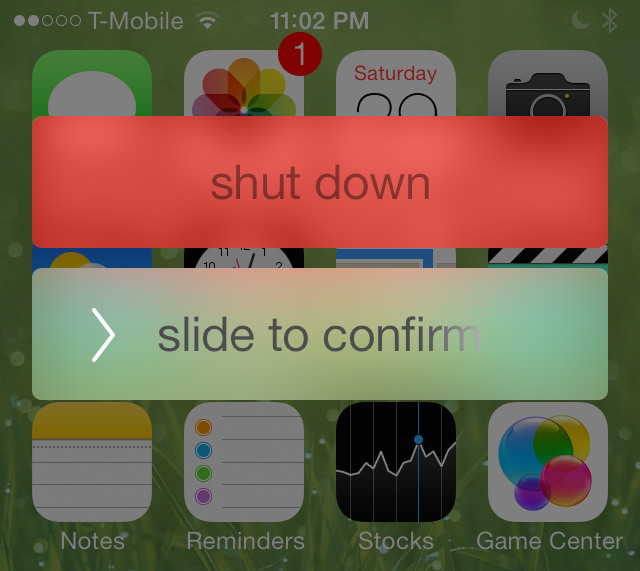
PowerDown Pro is a jailbreak tweak that adds extra options to the power down screen that appears on your iPhone after holding the sleep button. Normally, this menu contains a single option—slide to power off—but with PowerDown Pro, three additional options are put into play.

Each of the available options—reboot, respring, safe mode, and shut down—can be accessed using swipe gestures on the red rectangle box found on the power down screen. Have a look at our video walkthrough after the jump to see how it works in action.
iOS 7: the ultimate Mail app guide

The stock Mail app is the best way to send, receive, and manage email on iOS 7. There are, of course, alternatives to the stock Mail app such as the official Gmail app and Yahoo Mail app, but no third-party app can match the feature-set and integration of the stock Mail application.

One of the primary advantages of the stock Mail app is that it can handle multiple mail accounts from a large variety of providers. There's support for Gmail, Yahoo mail, Outlook.com, Exchange, Aol Mail, and iCloud mail. You can even configure an email account from your own server if you wish to do so.

The Mail app is an extremely versatile app with an insane amount of options, features, and idiosyncrasies. Have a look at our ultimate guide to the stock Mail app for more info on what makes it tick

How to add a rain effect to the iPhone’s Lock screen

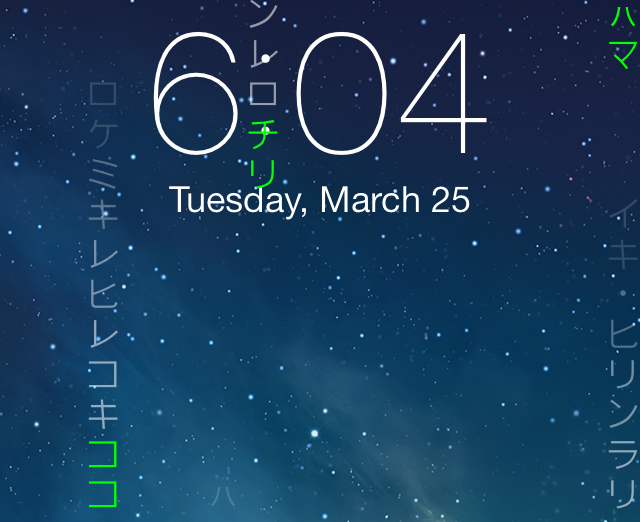
Rain Lock is a jailbreak tweak that lets you add custom "rain" effects to the iPhone's Lock screen. The rain is really just text, which can be custom text or one of the two built-in text effects.

As you may have already figured out, Rain Lock isn't the type of tweak that adds enhanced functionality to your iPhone, neither does it help you work smarter—it's a tweak that's unapologetically centered on visual flair. And that's okay, because that's what Rain Lock does well, and it gets it right for the most part. Mosey on inside for a look into how Rain Lock works via our hands-on video walkthrough...

How to add a fake fingerprint sensor to iOS 7

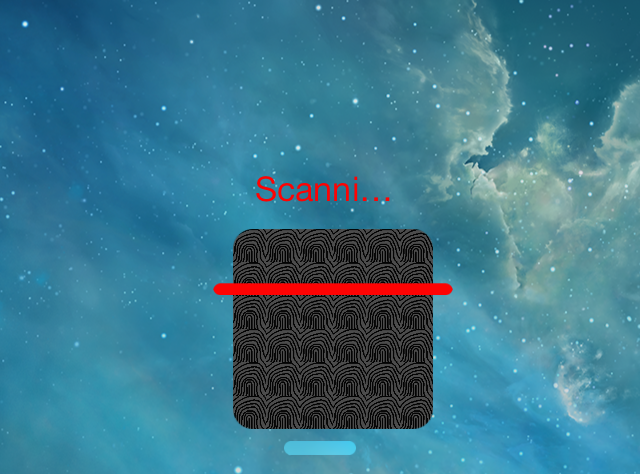
No, that wasn't a typo. There's a new jailbreak tweak available on Cydia that allows you to fake the functionality of a fingerprint scanner on your iOS 7 device. Geared towards folks without a Touch ID enabled device like the iPhone 5s, this tweak does its best to fake the security benefits of a fingerprint scanner.

If only it were possible to actually fake the security of the Touch ID sensor. Spoiler: it's not. And as such, this tweak, ironically entitled Bio, falls squarely into the mix with other "joke" jailbreak tweaks used for comedic effect. Have a look at our video walkthrough after the jump to see Bio in action.

Customize Notification Center with BetterNC7

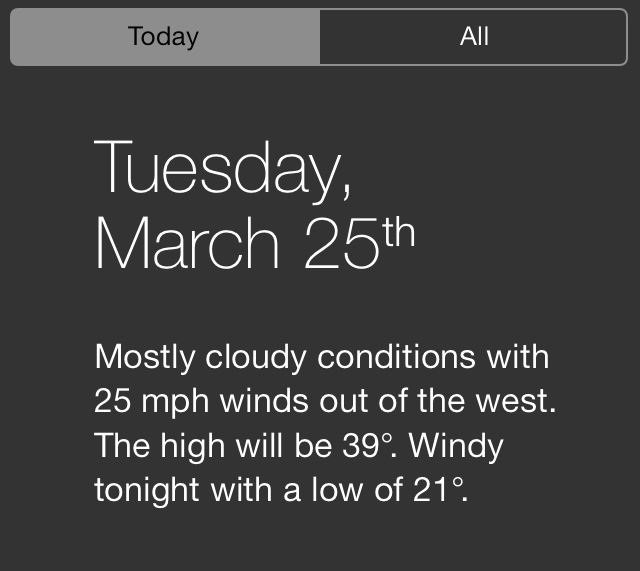
BetterNC7 is a jailbreak tweak geared towards the Notification Center in iOS 7. It's one of those tweaks that contains a ton of different toggles to disable or enable certain features.

I've never been a huge fan of tweaks like this, just because they seem to add features just for the sake of saying they have a lot of features. That said, there are some nice settings to be found within BetterNC7's preferences, so it's worth checking out. Have a look inside to see some of the details on video.

Here’s another way to speed up animations in iOS 7

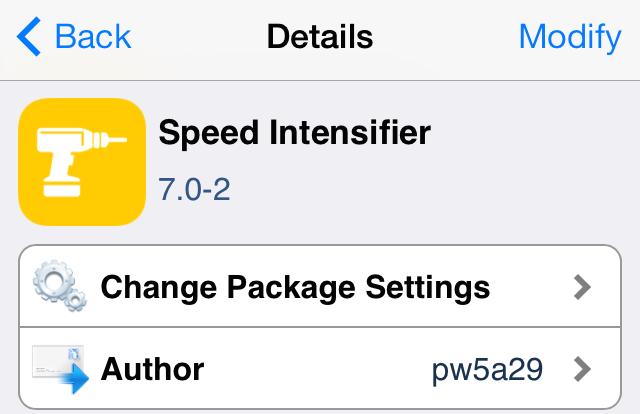
Speed Intensifier is a tweak that's been around for some time, but was just recently updated to play nice with iOS 7 and arm64 devices like the iPhone 5s. The effect, especially when you take into consideration the drastic animation changes present within iOS 7, is nothing short of startling.

If you're looking to speed up, at least in perception, the speed of your device, then look no further. Speed Intensifier allows you to significantly increase the speed of animations found within iOS 7, and it does so while allowing you to keep iOS 7's trademarked style. Check out our full video walkthrough inside, which showcases Speed Intensifier in action.

BlurFolders: force your folders to take up the full screen

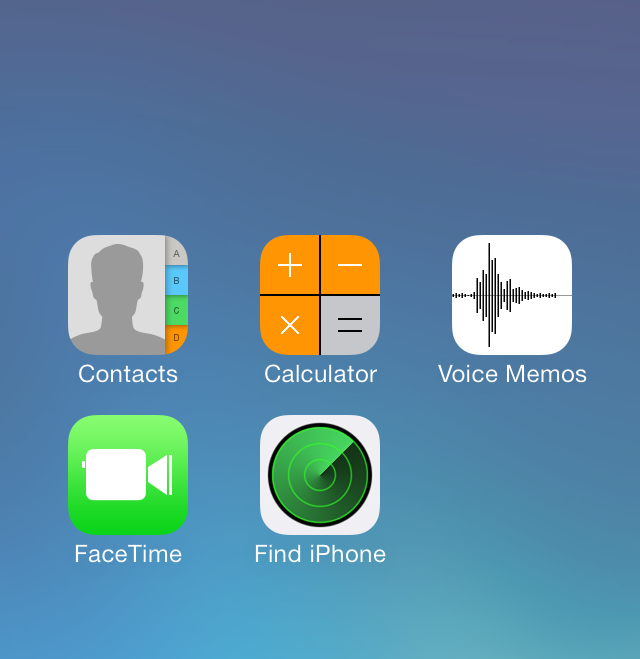
Looking to switch up the look of your folders in iOS 7? If so, then check out BlurFolders, a recently released jailbreak tweak that makes your folders display in full screen view.

BlurFolders essentially takes the normal view of folders within iOS 7, which are blurred to begin with based on the wallpaper, and expands it to take up the full screen. It doesn't provide you with any extra real estate for additional folders, but it's a neat look, if not a bit flawed in execution. Have a glance at our video inside to see for yourself.

TimeForAlarm 2: display the time remaining before an alarm clock sounds

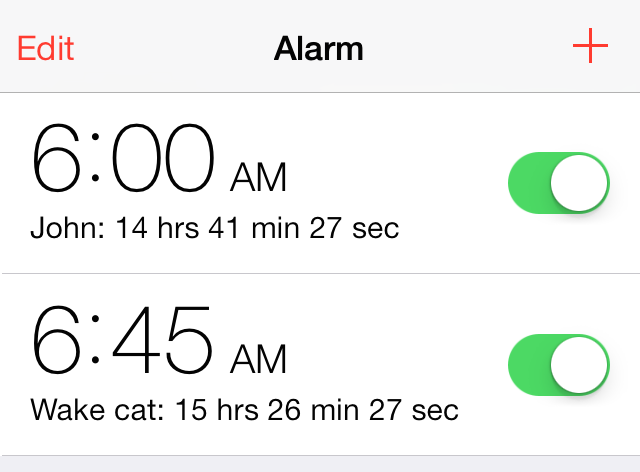
Have you ever tried to calculate in your mind how many hours you have to sleep before you need to wake up? I think we all do that from time to time, and more than not, it ends up with us being anxious about the fact that we don't have much time to sleep. But that aside, there's a new jailbreak tweak available on Cydia that performs this countdown function for your automatically, and it's called TimeForAlarm 2.

TimeForAlarm 2 is a free jailbreak tweak that places a handy countdown timer right beside the alarm clock in your stock Clock app. It's a great way to instantly figure out how much time you have remaining before your alarm clock sounds. Want to see how it works in action? Take a gander at our video walkthrough after the break.

QuickPass: enable or disable the passcode with a handy toggle

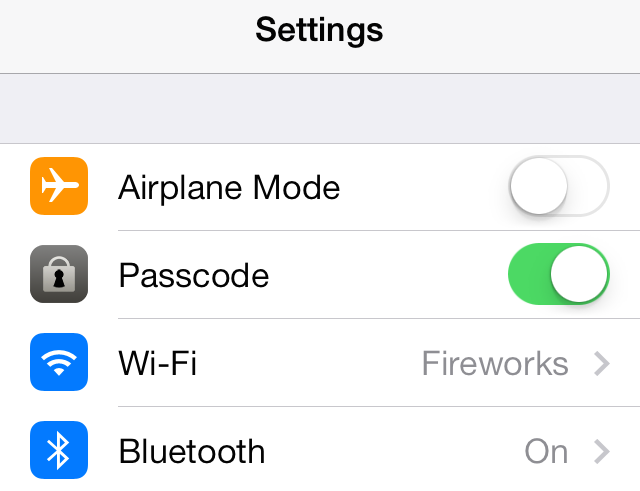
QuickPass is a recently released jailbreak tweak that allows you to quickly disable the passcode lock on your iOS device using a handy toggle found in the stock Settings app. QuickPass is a great tool when you encounter situations where it would be easier to have no passcode on your device at all.

I find QuickPass useful when reviewing jailbreak tweaks, especially tweaks where I'm required to respring a lot. Have a look inside for a full video walkthrough showcasing how the tweak works.

Let’s Talk Jailbreak 50: 33/Male/San Diego

Episode 50: In what is a major milestone of an episode, Sebastien, Jeff, and Cody record the first live episode featuring a live chat. The result is an entertaining mix of jailbreak news, tweak updates, and realtime interaction with listeners. Tune in as we discuss Winocm's iOS 7.1 jailbreak, JailbreakCon 2014, and a host of tweaks like Aria, DockFlow, Metaphrase, and, of course, ProWidgets.

How to add a color keyboard to iOS 7

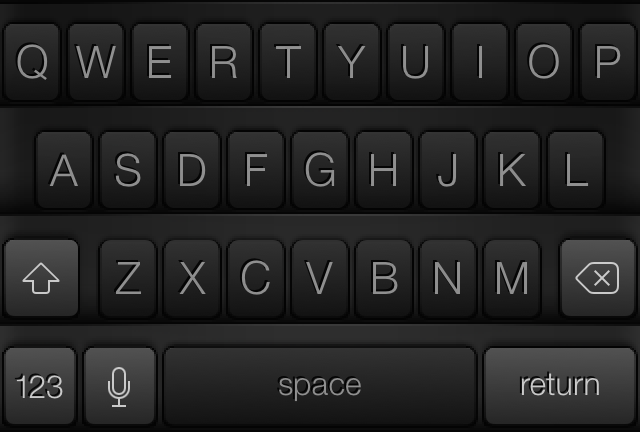
Sometimes you just want to switch up the look and feel of things, and that is what Color Keyboard for iOS 7 allows you to do. As you might have imagined, Color Keyboard is not new to the jailbreak scene. It's a tweak that's been available for lesser firmware, but was just recently updated to cooperate with iOS 7.

Update: with the release of iOS 8, Apple now allows third-party keyboards in the App Store. If you're looking for a different keyboard for your iPhone or iPad, make sure to check out our list of iOS 8 keyboards.

If you've used Color Keyboard in the past, then you'll be intimately familiar with the contents of the iOS 7 version of the tweak. If you want to change up the look of your keyboard, then Color Keyboard for iOS 7 is one of the best tweaks that you can use. Have a look inside as we delve into Color Keyboard for iOS 7's feature-set on video.

How to enable swipe-to-delete in the stock Clock app

I don't know about you guys, but I find it really annoying when there's not a swipe-to-delete option available in an application. One good example of this is found in the stock Clock app. On its world clock tab, you are forced to use the edit button in the upper left-hand corner in order to delete a clock.

Wouldn't it be nice if you could add swipe-to-delete functionality and cut the amount of gestures necessary to delete a clock down from three to two? That's the premise behind Edit Clocks—it makes deleting clocks found in the stock Clock app uber-intuitive and easy. Have a look at our video demonstration of the tweak in action after the break.