Learn how to turn off or fully block the built-in AirDrop feature on your iPhone, iPad, and Mac to control who can send you files for better privacy and security.
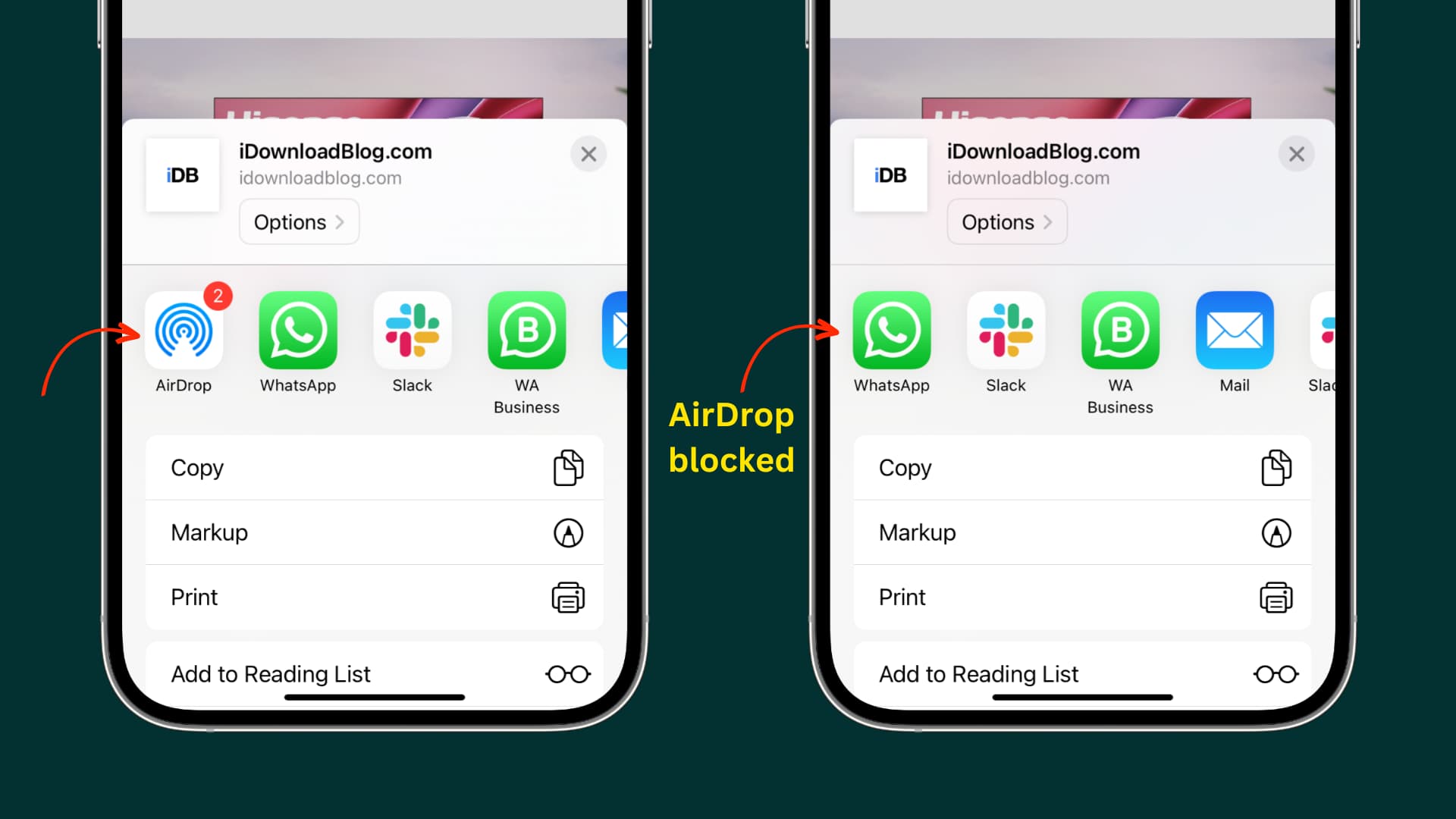
Before you go further, note that turning off AirDrop essentially puts the feature on pause while restricting it blocks it altogether. The latter is particularly handy if you want to stop a child from using AirDrop or prevent customers from sending files to your business iPad.
Additionally, with multiple devices of the same kind, it may be confusing which one is sending files. To help with that, turn off AirDrop on any devices not receiving files, or give unique names to all your Apple devices to easily distinguish them on the AirDrop pane.
Turn off AirDrop
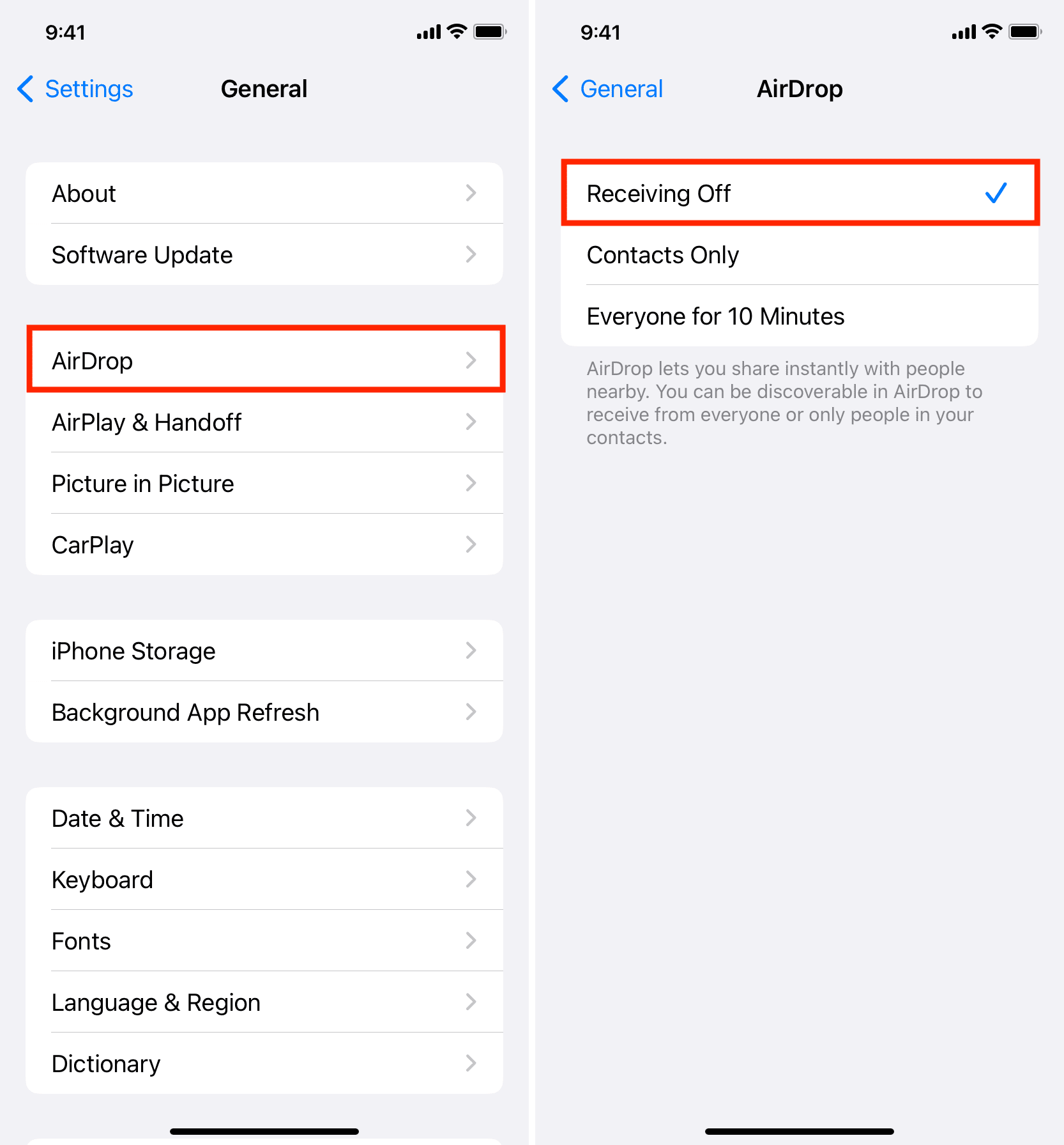
- Open the iOS Settings app on iPhone or iPad or System Settings on Mac.
- Select General.
- Tap AirDrop on iOS or AirDrop & Continuity on macOS.
- Tap Receiving Off to disable AirDrop on your iPhone or iPad. And on Mac, set AirDrop to No One.
Here’s how it looks on Mac:

You can also turn off AirDrop from iOS Control Center or macOS Control Center.

Re-enable AirDrop when needed
You don’t need to change the above settings to send files via AirDrop. But if you’d like to receive files via AirDrop, be sure to follow the above steps and choose Contacts Only, Everyone for 10 Minutes, or Everyone instead.
Turn off Wi-Fi, Bluetooth, or both to disable AirDrop
AirDrop uses a combination of Bluetooth for discovery and Wi-Fi for data transfer. So, AirDrop will stop working if you turn off Bluetooth, Wi-Fi, or both in Settings > Wi-Fi and Settings > Bluetooth (don’t use Control Center for this).
Completely restrict or block AirDrop
You can restrict AirDrop on your device instead of turning it off to stop others with access to your device from re-enabling the feature without your Screen Time passcode. When you restrict AirDrop, the device won’t be able to send or receive files via AirDrop until you turn the feature back on.
- Open the Settings app and choose Screen Time from the main list.
- Make sure you have set a Screen Time passcode.
- Tap Content & Privacy Restrictions.
- Enable Content & Privacy Restrictions and then tap Allowed Apps & Features.
- Toggle off the switch for AirDrop.
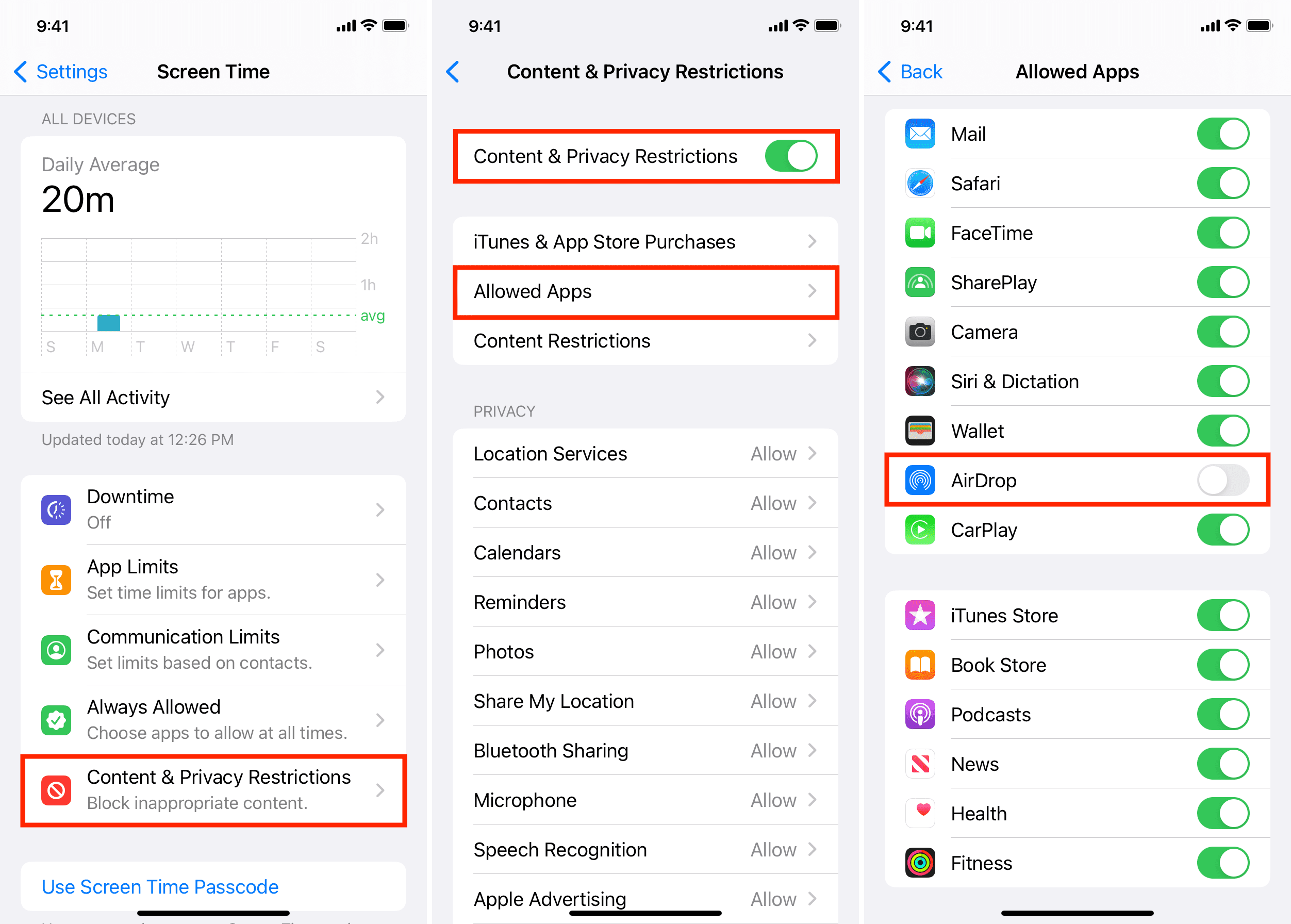
Doing so will restrict AirDrop on this iPhone or iPad, which also removes the AirDrop icon from the systemwide share sheet and the Settings > General section.
More on AirDrop: