Undo send an email in the Apple Mail app on your iPhone, iPad, or Mac to recall the sent email before it reaches the recipient’s inbox.
Sometimes, you might send an email and then quickly want to recall it because you forgot to add the attachment, made a typo, or for other such reasons.
Thankfully, the Mail app on iPhone, iPad, and Mac not only notifies you if you forget to add the recipient, the attachment, or an important part of your email, but also lets you recall an email before it gets delivered.
So, immediately after sending a wrong email, there is no need to regret it. Instead, you can recall the email, fix it, and resend it. Or you can just delete it.
How does Undo Send work?
It’s simple!
Undo Send works by waiting a few seconds before actually sending your email. So the email doesn’t leave your device for a few seconds, giving you a chance to make any last-second edits. After 10 seconds (or the delay you might have chosen on iOS), the email will be sent, and it will then be impossible to recall it.
Recall a sent email on iPhone, iPad, and Mac
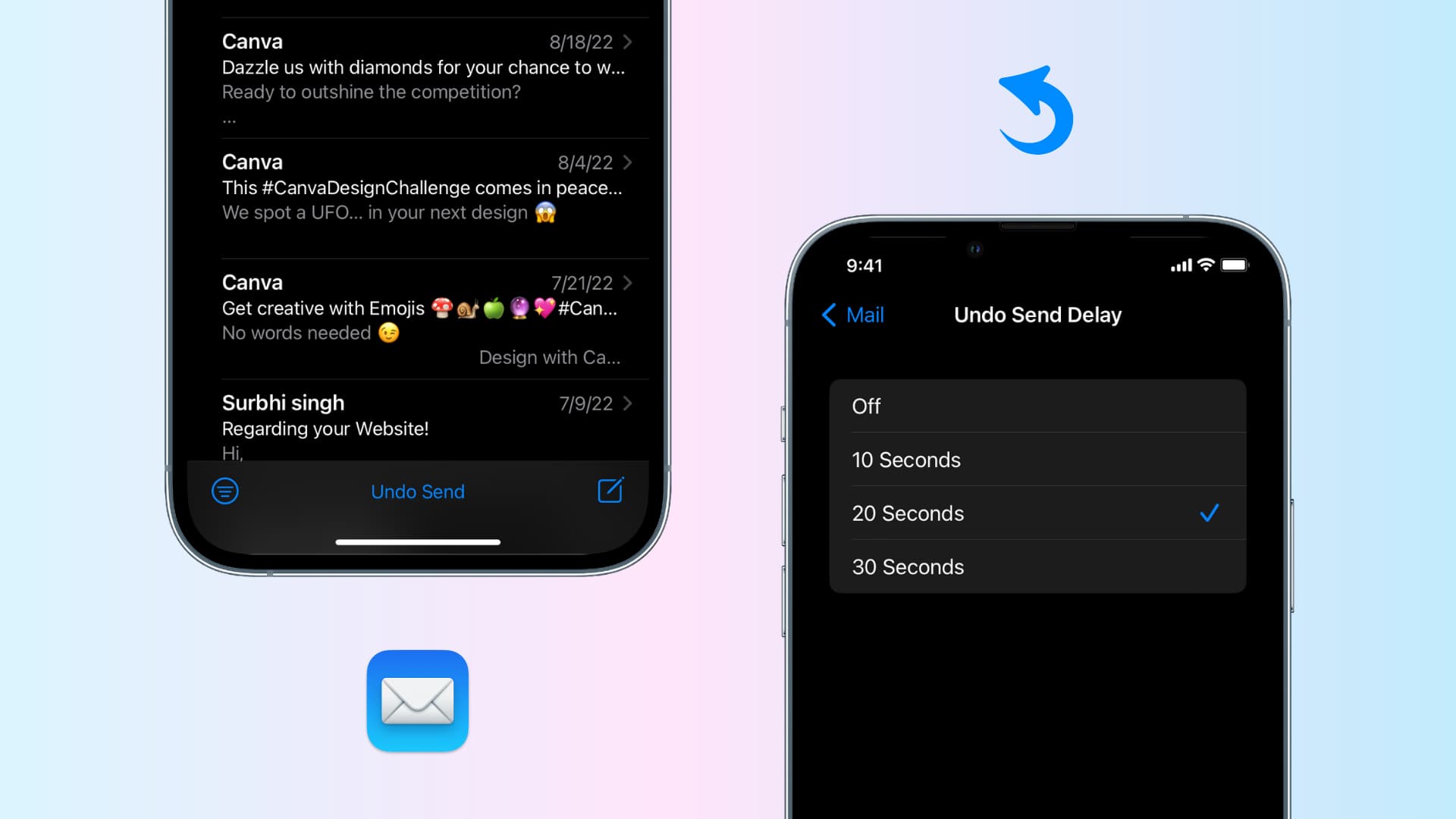
After you hit the send arrow button, you’ll see an Undo Send option. Tap it immediately to recall the sent email. Hitting Undo Send will open the email editor, where you can fix the error, attach the file, or make the desired changes. Once that’s done, you may resend the email.

Important: The option to unsend a sent email also appears in the left sidebar of the macOS Mail app. If you don’t see the sidebar, click View from the top menu bar and choose Show Sidebar. Or, press Control + Command + S to show or hide the Mail app sidebar.

If you’re on a Mac, you can also click Edit > Undo Send from the top menu bar or press Command + Z to recall a sent email within 10 seconds.
Increase the time within which you can recall the sent email
By default, you’ve 10 seconds to undo send an email in the Apple Mail app, but you can change this.
On iPhone or iPad
- Open iOS Settings, tap Apps from the bottom, and select Mail.
- Scroll to the bottom and tap Undo Send Delay.
- Choose 20 seconds or 30 seconds. And if you’d rather send your emails instantly, choose Off. This will disable the undo send feature, and you won’t get the few-second window to recall a sent email.

On Mac
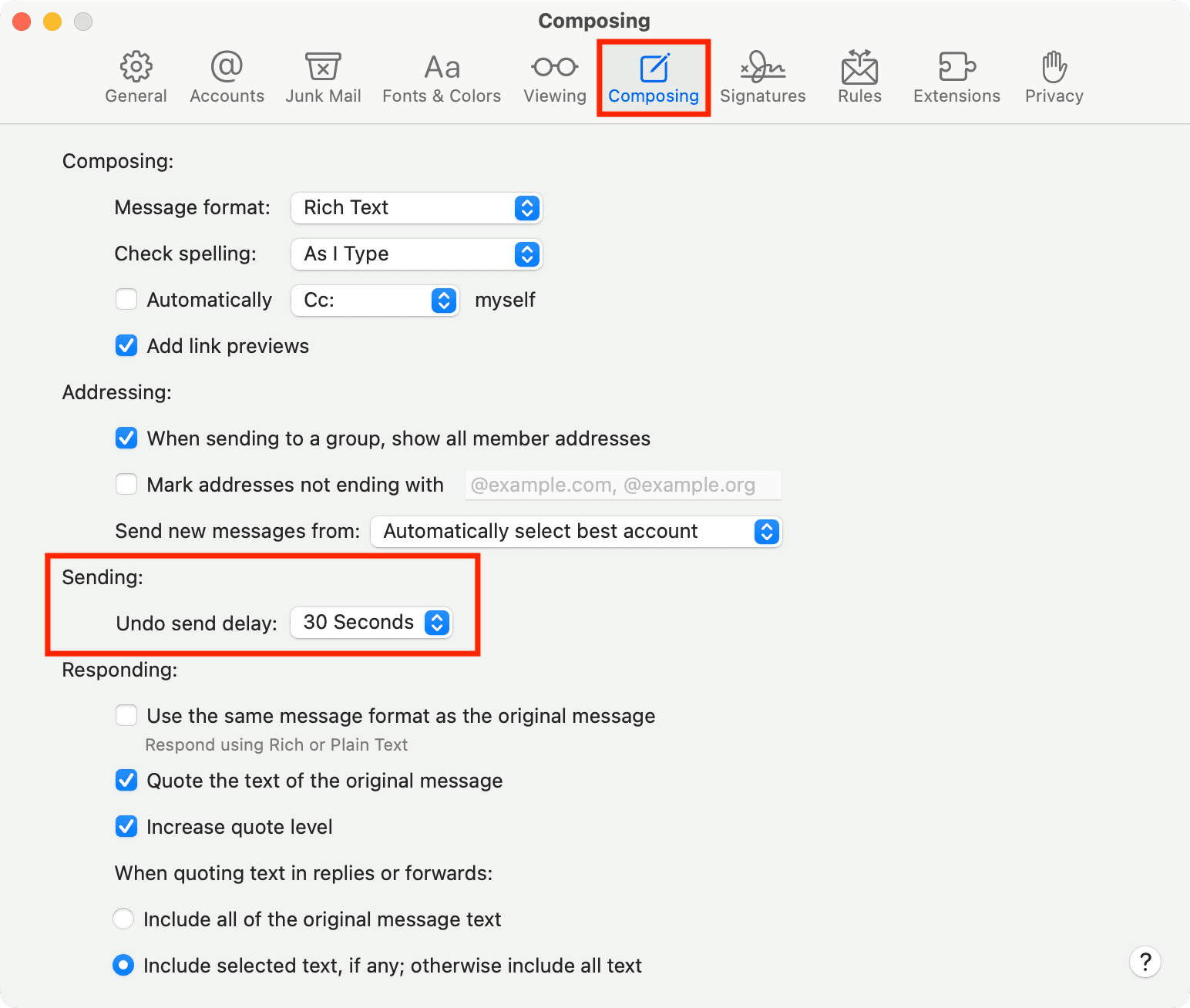
- Open the macOS Mail app and click Mail > Settings from the top menu bar.
- Go to the Composing tab and set Undo send delay to 20 or 30 seconds in place of the default 10 seconds. You can also select Off to deactivate this feature.
Undo Send and Hide My Email
Apple’s Hide My Email generates a new, random email address every time you send an email. If someone replies to that email, it’s automatically forwarded to your main email (which is usually your Apple account email).
If you use Hide My Email on your iPhone and recall a sent email, you may have to generate a new Hide My Email once again. You can do that straight from the Mail app by tapping the From section and choosing the Hide My Email option.
Check out next: How to unsend messages on iPhone, iPad, and Mac