Learn how to show, hide, and rearrange CarPlay apps to have the perfect user experience on your car’s screen when driving.
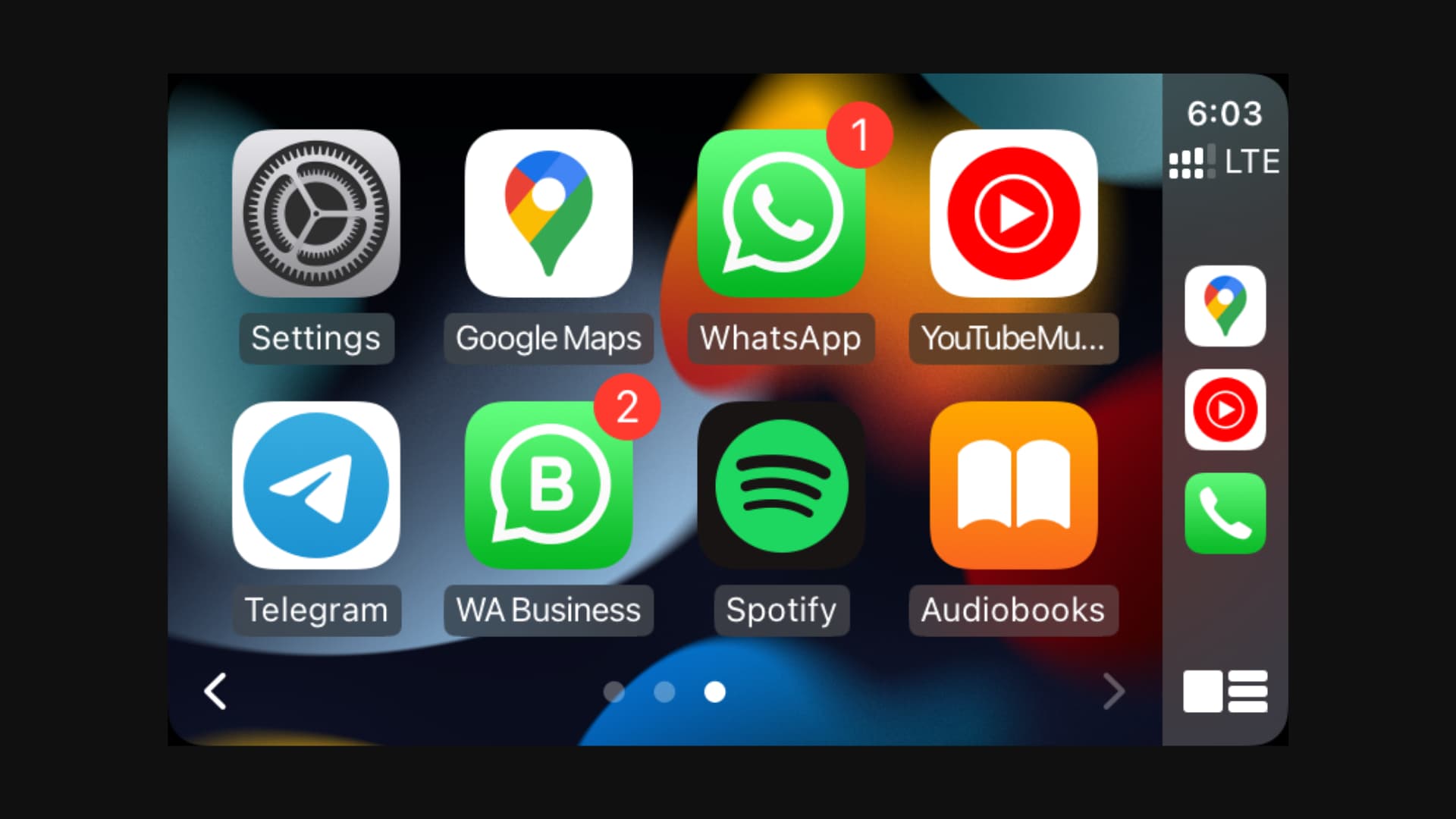
After you set up CarPlay for the first time, you see all the CarPlay-supported apps on your car’s dashboard screen, spread across multiple Home Screen pages.
You’ll see Apple’s own apps like Maps, Messages, Podcasts, Calendar, Audiobooks, and more. Plus, third-party apps you have downloaded on your iPhone that support CarPlay, like Google Maps, Spotify, WhatsApp, Zoom, etc., are also present on your car’s display.
Chances are, you don’t need all those apps there, and thus, you might want to make some changes. For instance, you may want to remove some unnecessary apps from CarPlay, add some helpful ones to it, or change the order of app placement on your car’s infotainment display.
Remove or add CarPlay apps
Follow these steps to hide or show CarPlay apps on your car’s screen.
1) Open the Settings app on your iPhone and tap General > CarPlay.
2) Select your car under the My Car section.

3) Tap Apps in the Customize section, and you’ll see the list of all CarPlay-supported apps installed on your iPhone.
4) Tap the red minus button for an app in the ‘Included Apps’ section, followed by Delete to stop showing that app on your car’s screen. Note: You can’t remove core Apple apps: Phone, Music, Maps, Messages, Settings, Now Playing, and your car manufacturer’s own app from the CarPlay screen.
5) Tap the green plus button next to a removed app to start showing it once again on your car’s screen.

You have successfully added or removed apps on CarPlay. The next time you go inside your car and connect to CarPlay, you’ll see these new changes on your car’s display.
If you ever feel you have personalized too much and would like to return to the default placement, go to the CarPlay app customization screen and tap Reset > Reset to default Apps (or Reset Home Screen Layout). Note that this only resets the apps for CarPlay; it doesn’t affect the apps on your iPhone’s Home Screen.

Move and change the order of CarPlay apps
Unlike on your iPhone or iPad Home Screen, you cannot touch and hold the app icons on your car’s touchscreen and drag them to a different spot. Instead, you’ll have to make the changes in CarPlay settings on your iPhone.
So, go through these steps to move CarPlay apps from one page to another. Doing so changes the order of apps shown on your car’s display.
1) Open the Settings app on your iPhone and go to General > CarPlay > your car > Apps.
2) Touch the hamburger icon next to an app and move it up or down to change the order. The apps at the top of this list will appear on the first page of your car’s screen. The apps at the bottom of the screen will be visible on the second, third, and other pages of your car’s screen.

The next time you go inside your car and connect to CarPlay, you’ll see the new arrangement of apps on your car’s screen.
Fun fact: CarPlay is available on iPhone 5 and later running iOS 7.1 and later. In September 2014, the Ferrari FF was the first car with full CarPlay support.
More tips for your car: