Bored with the same default ringtone? Check out five ways to get ringtones on your iPhone and personalize your device.
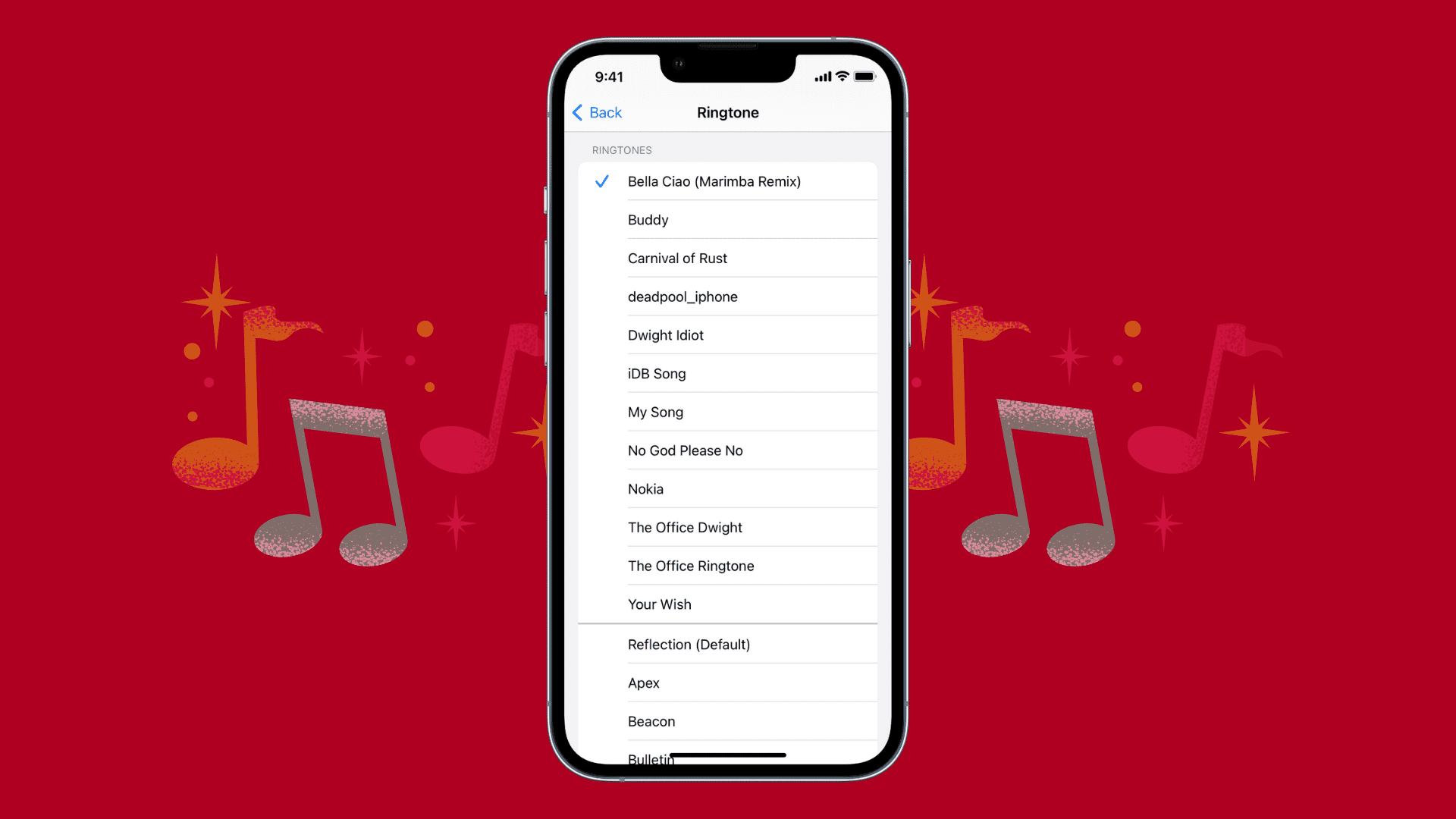
A custom ringtone that you love can make you feel good when your phone rings. Plus, it can personalize your device and make it stand out in a crowd of similar-sounding default iPhone ringtones.
1. Use any audio file as your iPhone ringtone
iOS 26 allows you to use any 30-second MP3, WAV, M4A, M4R, FLAC, AIFF, AAC, or AMR file as your iPhone ringtone. You can get all the nitty-gritty details in our dedicated tutorial: How to use any audio file as your iPhone ringtone

2. Use the iTunes Store
The iTunes Store app that’s preinstalled on all iPhones is the easiest place to get ringtones.
The entire process is quick, the ringtones are high-quality, and you can purchase a ringtone once and use it on any iOS or iPadOS device with the same Apple Account.
1) Open iTunes Store on your iPhone and tap Tones. If you don’t see it at the bottom of the screen, tap More > Tones.
2) Browse the Featured and Charts sections to find a tone you like. Tap the ringtone’s picture to preview it. If you want to find a specific tone, use the Search button, and you should see a relevant Ringtones result section.
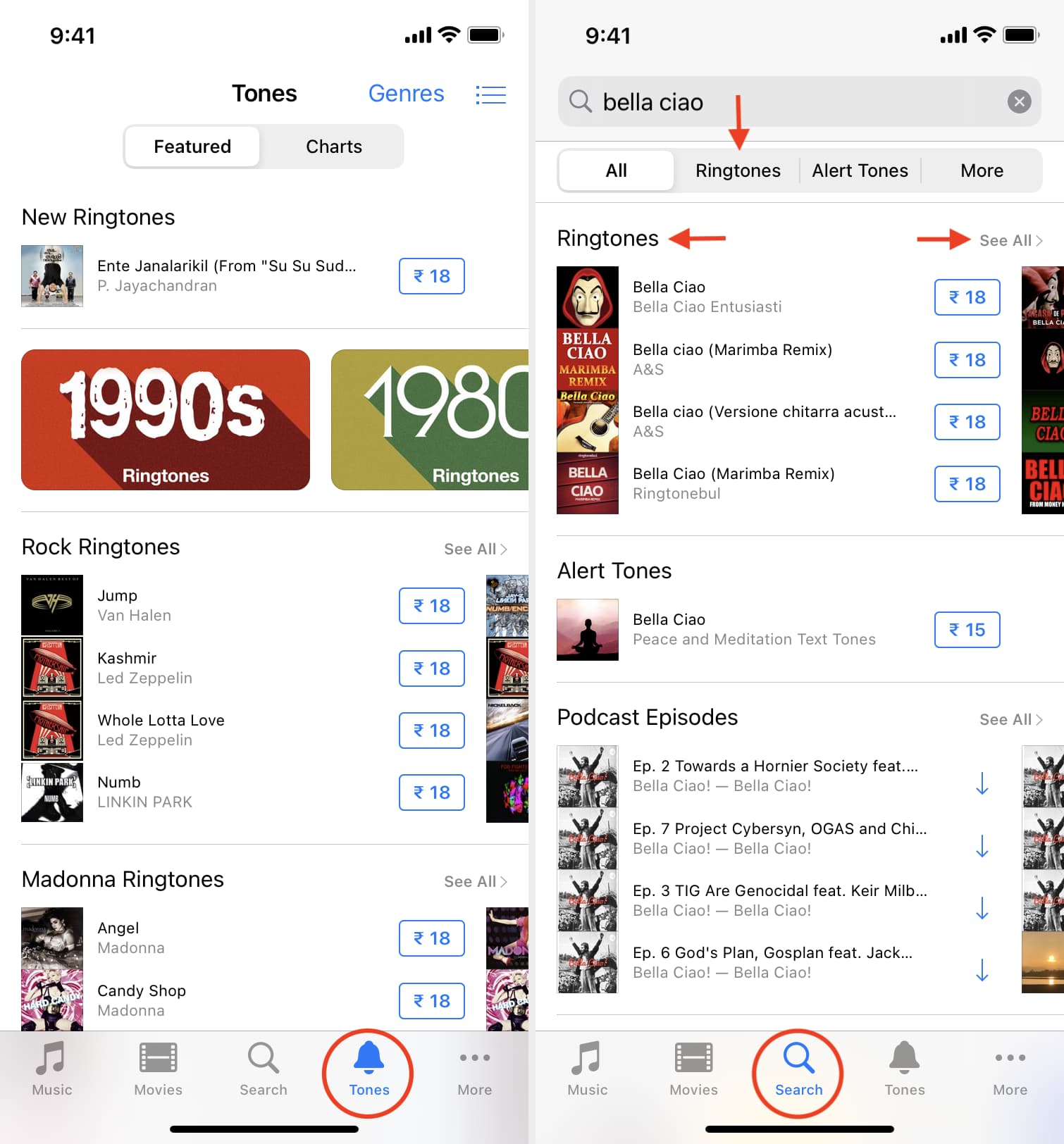
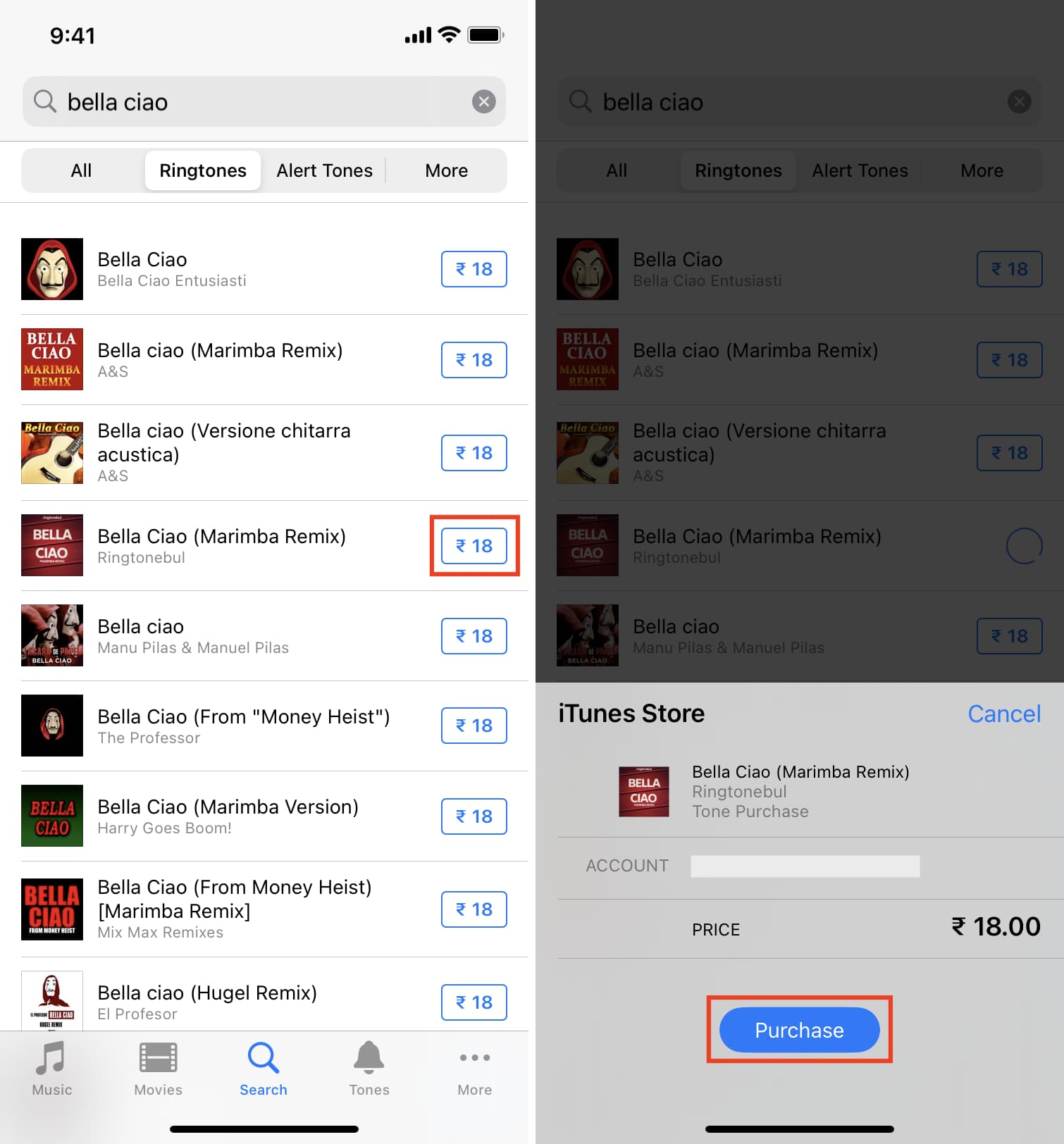
3) When you’re ready to buy, tap the price.
4) Choose to set it as the default ringtone, default text tone, or assign this ringtone for a specific contact. I will go with the default option. You can always change the ringtone later from the settings.
5) Tap Purchase and authenticate to complete the transaction.
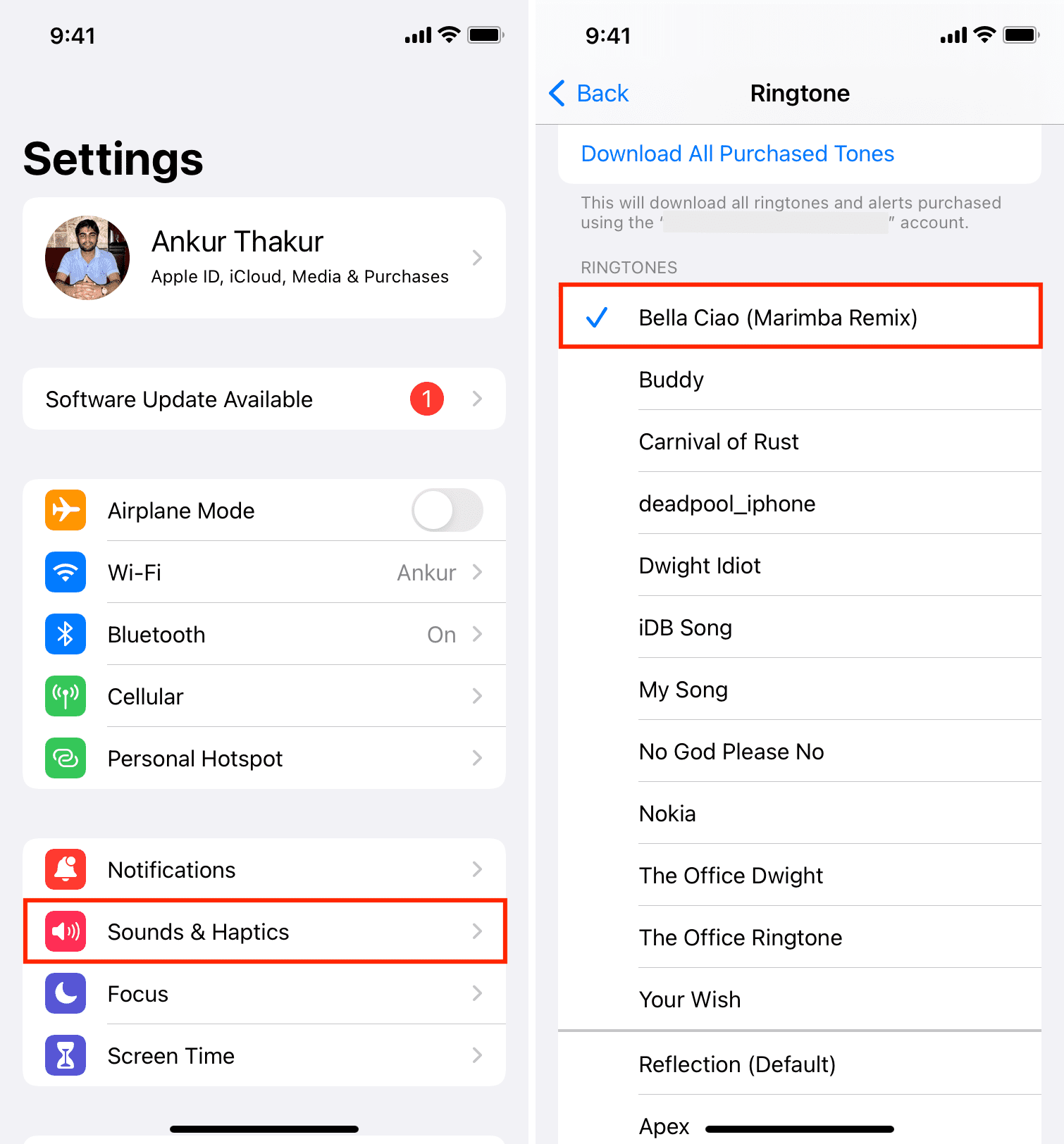
Now, go to iPhone Settings > Sounds & Haptics > Ringtone, and you’ll see the recently purchased ringtone at the top of all the ringtones. Tap to set it as your ringtone, if you haven’t already.
3. Use the Music app and Finder on computer
You can use Mac’s Music app to create the ringtone and then use Finder to add the ringtone to your iPhone. If your old Mac or Windows PC still has iTunes installed, you can use it to create and sync ringtones to your iOS device.
You’ll begin by converting a locally downloaded song inside the Music app into a ringtone. After that, you’ll have to locate the file in Finder, change its extension, and then transfer it to your iPhone. Remember that Apple Music songs are DRM-protected, and you can’t turn them into a ringtone. Here’s our step-by-step tutorial to turn a song into an iPhone ringtone using a Mac.
4. Use GarageBand to create and set a ringtone on iPhone
If you don’t have a computer, you can use Apple’s GarageBand app to convert a non-DRM-protected song in your iOS Music app or Files app into a ringtone. This detailed tutorial will guide you all along: How to create a ringtone or text tone for free on your iPhone using GarageBand
5. Use iOS ringtone apps or websites
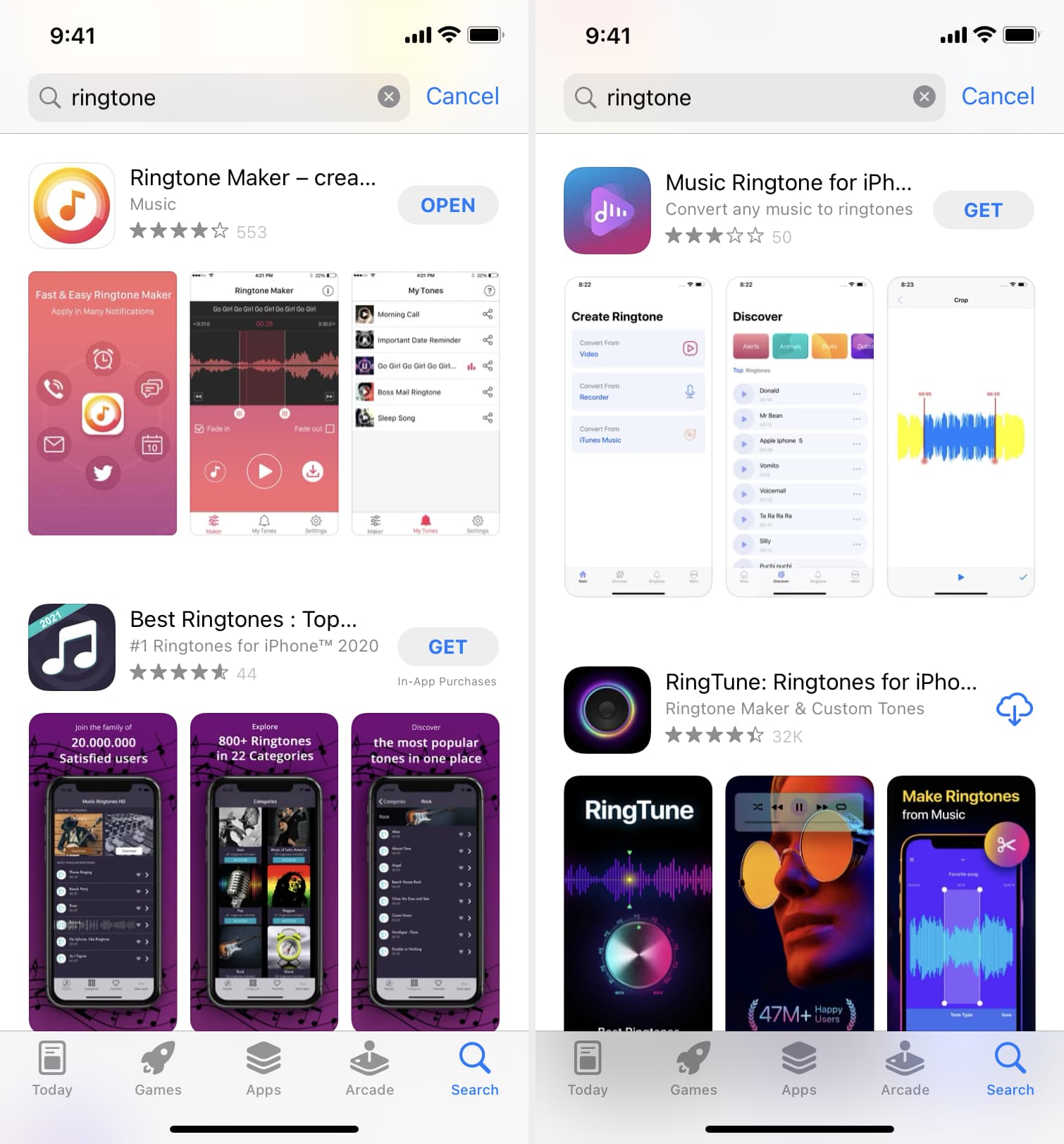
You’ll find many ringtone apps on the iPhone App Store. Simply open the App Store and search for ringtone.
These apps let you preview, download, or create ringtones. But because of restrictions in older versions of iOS, you can’t set a tone from one of these apps as your iPhone ringtone. You’ll have to transfer the ringtone from the app to a Mac or PC and then add it to the iPhone. These apps will guide you on how to do that.
Alternatively, you can export the ringtone from one of these apps into your iPhone’s Files app and then use the GarageBand method to set it as your ringtone.
In addition to these apps, you can also find excellent ringtones on several free and paid websites. For instance, Bensound has a nice collection of copyright-free songs and tones you can use as your iPhone ringtone.
On a related note: