Learn how to manage and customize automatically generated captions for your Instagram videos to enhance accessibility and engagement.
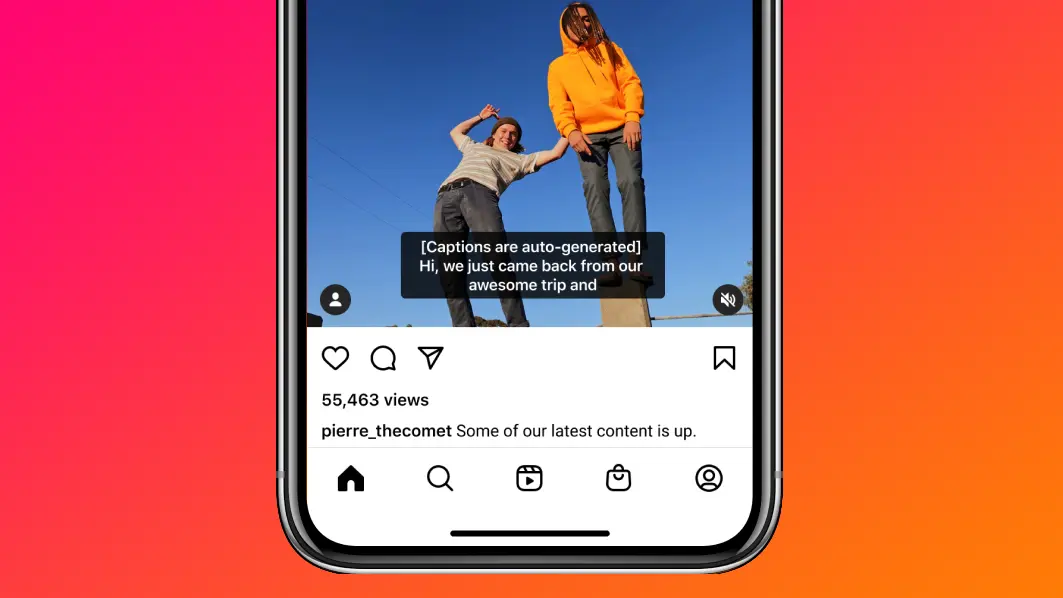
Instagram auto-generates captions for Instagram videos in supported languages. This is particularly convenient for the hard of hearing or for anyone who prefers watching videos on mute.
As a creator, Instagram gives you the option to manage caption settings for the posts you publish. Similarly, as a viewer, you can choose to turn captions on or off.
Manage captions for videos you post on Instagram
You can toggle automatic video captions on a per-post basis or for all your Instagram videos in the advanced settings. With the option turned on, Instagram will analyze the video’s sound to turn spoken words into captions.
When uploading a video
- Open the Instagram app, tap the plus button (+), and start creating a video post.
- When you reach the final share screen, tap More Options from the bottom.
- Turn on or off the switch for Enable closed captions (earlier called Show captions) underneath the Accessibility heading. You can also choose to translate the captions automatically into the viewer’s language.
- Go back to the previous screen and publish your post.

For an existing video
- Open Instagram, go to your profile screen, and select the posted video whose caption settings you want to manage.
- Tap the three-dot icon for the video, then select Edit.
- Tap More options and enable or disable closed captions and translations.

Turn captions on or off when you are watching a video on Instagram
You can also show or hide captions when you are watching an Instagram video posted by someone else.
- Start watching a video on Instagram.
- Tap the three dots icon and choose Closed captions (formerly called Captions and translations).
- Select an option for closed captions and translated closed captions.

You can also go to Instagram settings > Accessibility and choose a setting for captions and translations.
Automatic vs. manual captions: Which is better?
In addition to auto-generating captions, you can also add captions to your video before posting it to Instagram.
The quality and accuracy of automatic captions depend on the source material and Instagram’s artificial intelligence algorithm, which the company says will only get better over time as more people use the feature. We’re certainly not going to claim that machine-generated captions are better than manually-created ones. But for those times when the creator hasn’t painstakingly burned captions in their video, automatic transcription should help increase engagement and accessibility.
Which languages are supported?
At the time of writing, Instagram’s Help Center cautioned that the feature is only initially available in the following languages, with more to follow:
- Arabic
- English
- French
- German
- Hindi
- Indonesian
- Italian
- Japanese
- Malay
- Portuguese
- Russian
- Spanish
- Tagalog
- Thai
- Turkish
More on captions: