Check out these quick ways to unblock one, multiple, or all email addresses on Gmail from your iPhone, iPad, Android phone, or computer.
When you block someone on Gmail, all future emails from them go straight to the spam section. You don’t get notifications for these emails, nor do they increase the unread count.
Over time, you may have blocked the email accounts of several businesses, people, subscriptions, and the like. But do you now want to unblock them for some reason? If so, you have a few different options at your disposal. You can choose to unblock just one email address, a selected few, or even all the blocked emails at once.
Unblock specific emails in Gmail
On a computer or iPad
Using these steps, you can see all the email addresses you have blocked. After that, you may unblock just the desired one, a few selected ones, or all.
1) Visit mail.google.com on your computer or iPad. You cannot follow these steps in the mobile version of Gmail or the app.
2) Click the settings gear icon from the top right and hit See all settings. You may also click this direct link.
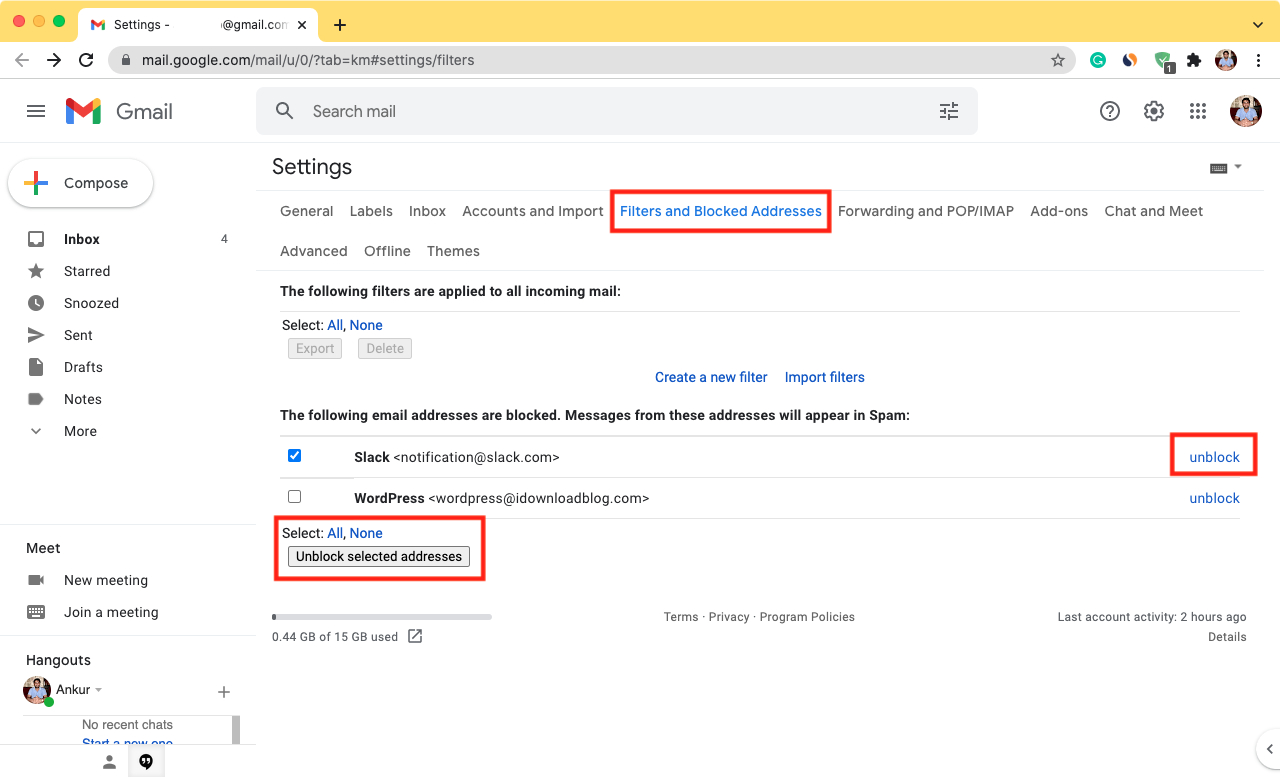
3) Make sure you’re in the Filters and Blocked Addresses section.
4) Click unblock next to an email. You may also select multiple emails or select all and click Unblock selected addresses.
On iPhone or Android
There is no straightforward way to unblock someone on the mobile version of Gmail. Even if you request desktop mode in Safari or other browsers, Gmail will redirect you to the mobile version. If you tap the hamburger icon > Older Version or Desktop > I’d like to use HTML Gmail, it will take you to an old version of Gmail. It has the Settings page, but there is no option to block or unblock.
Therefore, the only way to unblock an email address in Gmail on an iPhone or Android is by using the app.
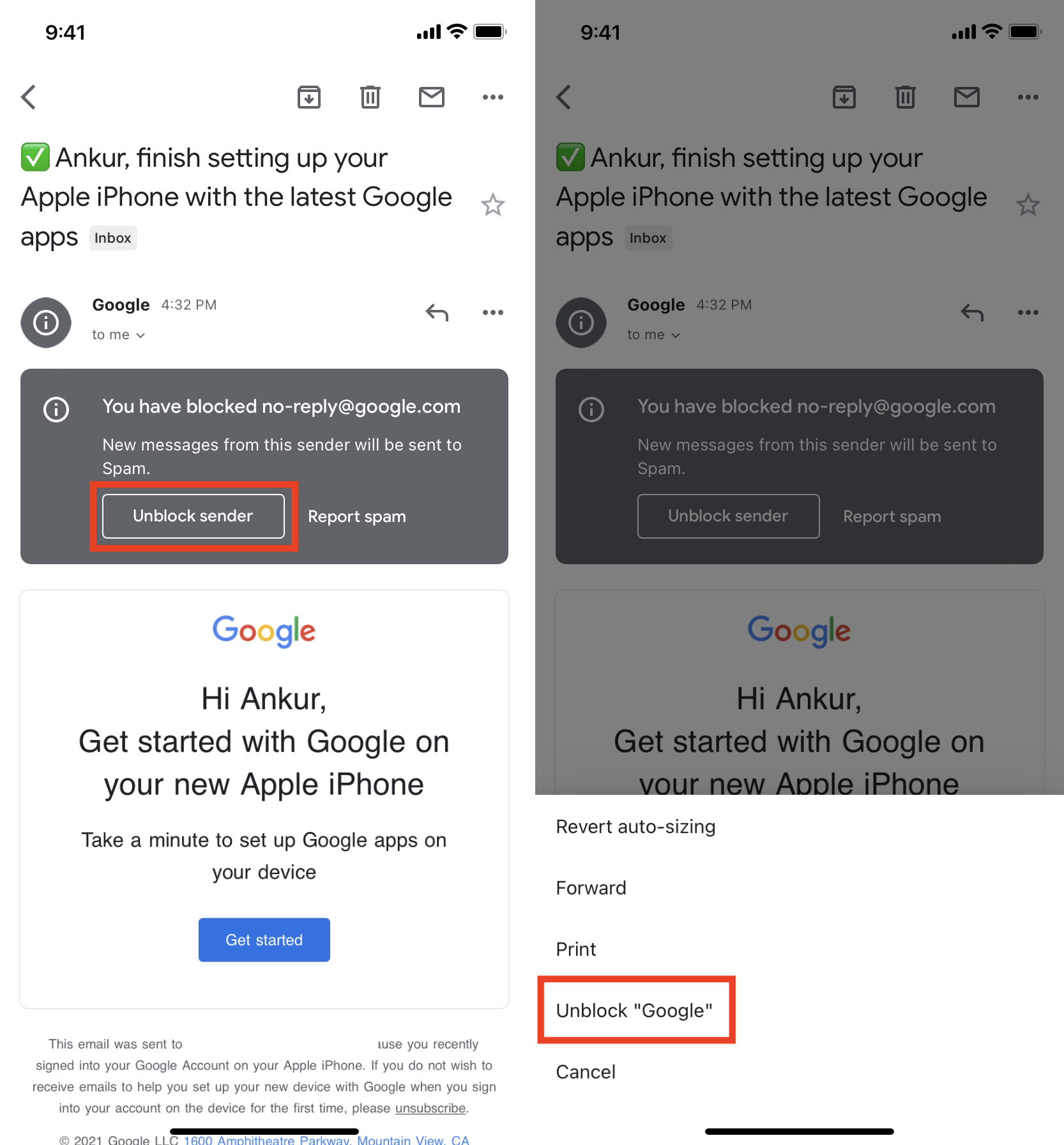
1) Open the Gmail app and search for the blocked email address, find an old email from the blocked account, or look for them in the Spam section.
2) Tap Unblock sender. You may also tap the three dots icon and choose Unblock sender name.
If you use a third-party email app on your phone, it may also offer ways to block and unblock email addresses.
Instantly unblock all email accounts you have ever blocked on Gmail
Before you do this, please understand that once you unblock all the emails, you might start seeing several unnecessary emails from businesses, newsletters, etc., in your primary email feed.
If you’re comfortable with that, follow these simple steps to unblock all email accounts on Gmail in just a few clicks:
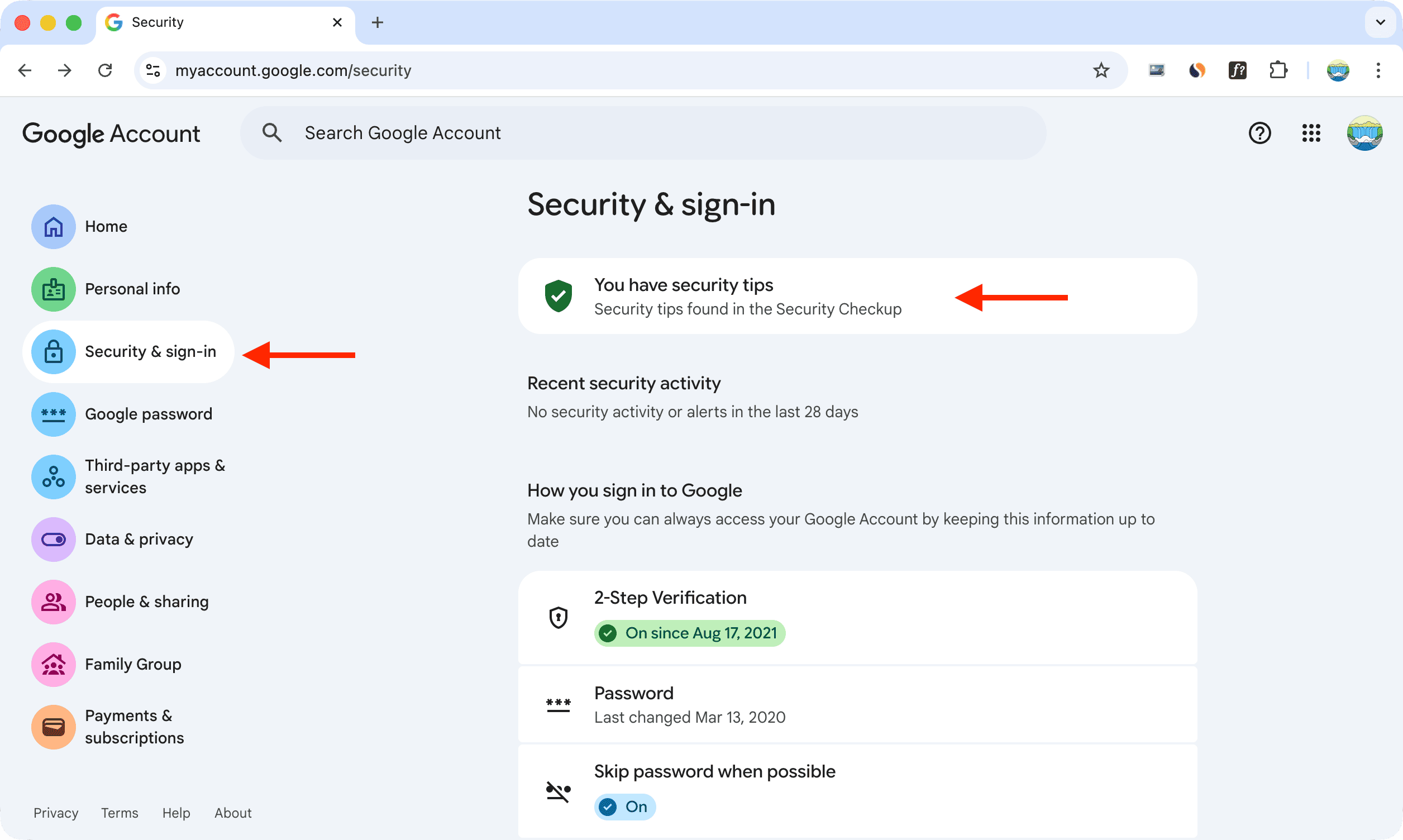
1) Open a computer browser and make sure you’re signed in to your Google Account. Then, visit myaccount.google.com/security-checkup/5. Or go to myaccount.google.com, click Security & sign-in > You have security tips, then expand the Gmail settings section.
2) Click Unblock all.

This is how you can unblock all or selected email addresses in Gmail using your computer or smartphone. To be straightforward, doing this on a computer is easier. On mobile, you may not always be able to find the specific blocked account.
On a related note: