In this tutorial, we guide you through the steps to upload an audiogram to your iPhone and map AirPods or other compatible headphones to your personal hearing profile.
Wait, what’s an audiogram?
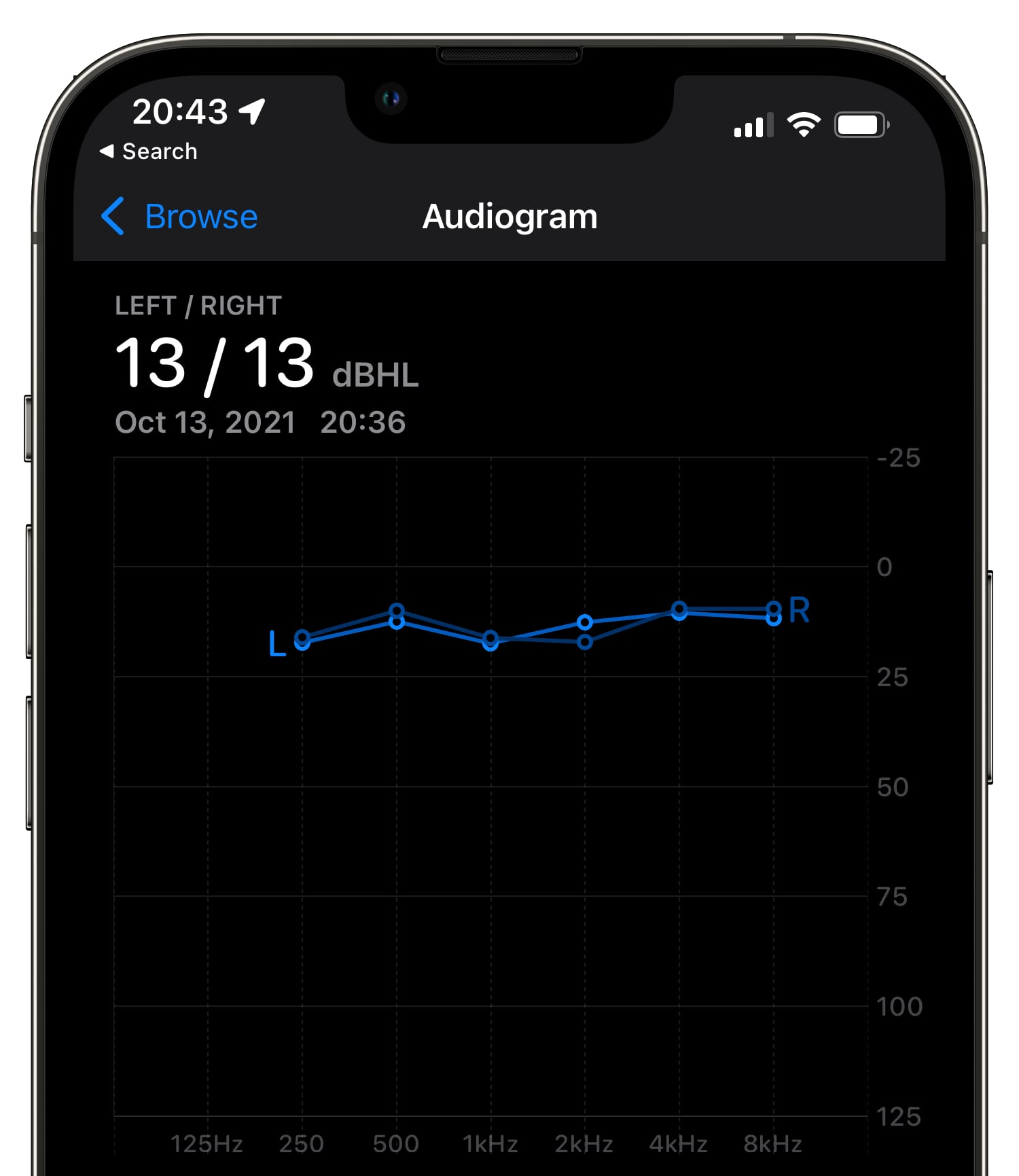
An audiogram is a simple graph that features several numerical values for a set of standardized frequencies. An audiogram is usually created using a specialized device called an audiometer. An audiogram displays audio intensity on the Y-axis, measured in decibels (dB). The X-axis represents frequency as measured in hertz (Hz).
The result of an audiogram test is an average for each ear based on four frequencies: 500Hz, 1kHz, 2kHz, and 4kHz. A person with hearing issues may have 55 dB hearing loss, meaning they’ve lost more of their hearing and may only have 32 percent hearing capacity remaining.
A typical hearing test would require a testee to signal to an audiologist whether they could hear specific frequencies and loudnesses. The tester notes down the quietest sound you can hear. Thanks to the smartphone, your phone can now perform those kinds of hearing tests as well.
Audiometry hearing tests on your iPhone
You can take a hearing test on your iPhone by downloading any of the specialized apps on the App Store, including Apple-recommended apps like Mimi Hearing Test, SonicCloud Personalized Sound, and Streaks. The aforementioned apps typically support exporting audiograms to the Files app or saving them directly in the Health database on your iPhone.

A saved audiogram lets you map your AirPods or other compatible headphones to your personal hearing profile. With that in mind, let’s take a quick look at how you can upload an audiogram to your iPhone. Read: How to create an audiogram on iPhone
How to import your audiogram into the Health app
Before you can map your headphones to your personal hearing profile, you must first import your own audiogram, previously created using one of the apps mentioned above.
1) Connect AirPods 2nd gen or later, Apple EarPods, or Beats headphones to your iPhone.
2) Open the Settings app on your iPhone and go to Accessibility > Audio & Visual.
3) Select Headphone Accommodations at the top.

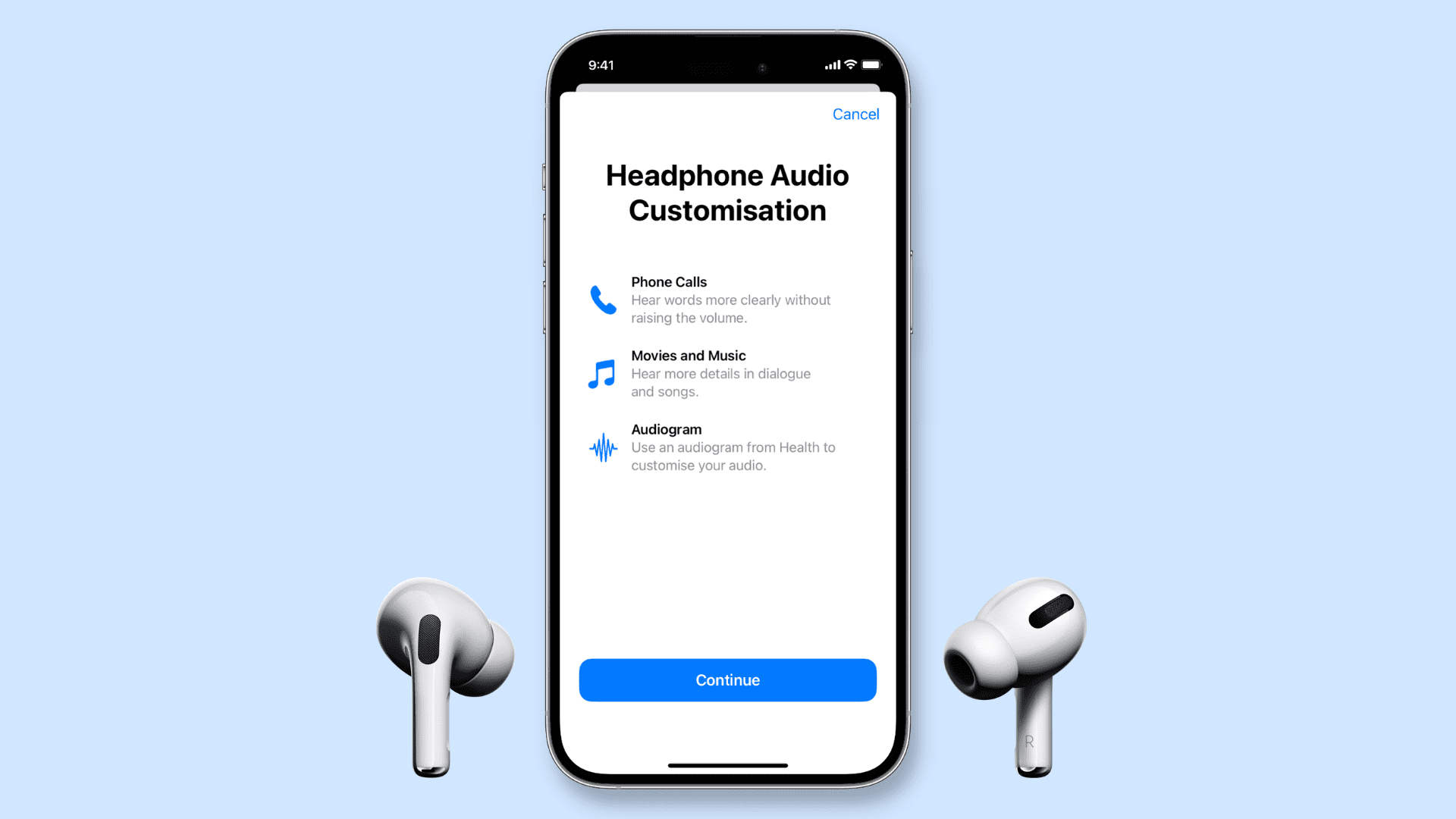
4) Turn on the Headphone Accommodations switch, then tap Customize Audio (formerly Custom Audio Setup). After that, tap Continue on the Headphone Audio Customization splash screen.

5) Tap Add Audiogram, and choose how you’d like to upload your audiogram to your iPhone:
- Scan with Camera: Snap a photo of your audiogram using the Camera app.
- Add Manually: Choose an image of your audiogram from the Photos library or the Files app. You can also add values manually for your left and right ears.

Choosing a photo that’s not your audiogram will display an error message with the option labeled ‘Add Values Manually.’ Choose this to do just that.
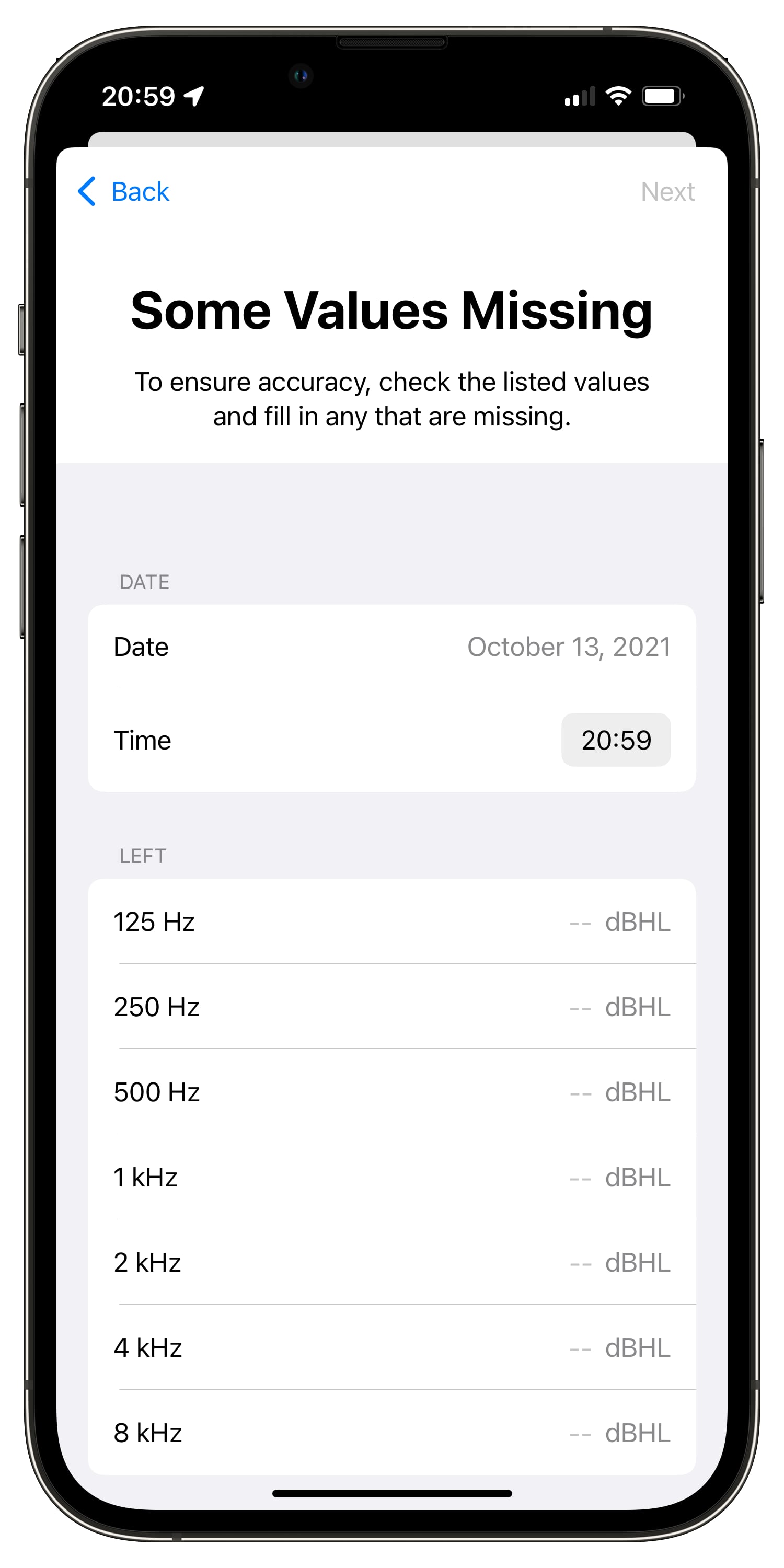
Finally, you can edit your audiogram values manually in the Health app.
How to map your headphones to your audiogram
With your hearing profile created in a specialized app and exported to your iPhone, you’ll set your compatible headphones to map to your audiogram in the accessibility settings.
1) Open the Settings app on your iPhone and go to Accessibility > Audio & Visual > Headphone Accommodations, and turn on Headphone Accommodations.
2) Tap Customize Audio (formerly Custom Audio Setup) and then tap Continue on the Headphone Audio Customization splash screen.
3) Select an audiogram from the list, then tap Use Audiogram. Leave Custom selected and tap Continue.

You may then see the option to customize the transparency level; adjust it as needed and tap Done.

“If you have a nearly symmetric audiogram, Headphone Accommodations will take the average of the two ears and fit the left and right audio channels with that profile,” reads the explanation in a support document on the Apple website. “If you have an asymmetric audiogram, it will fit the left and right audio channels for your better ear.”
After turning on Headphone Accommodations, you can choose to use customized audio for phone calls, media (music and videos), or both. You can also edit or disable/enable custom transparency mode from here.

Supported devices for audio customization
Mapping your headphones to your personal audio profile works with these models:
- AirPods Max
- AirPods Pro (all models)
- AirPods 2nd generation and later
- Powerbeats Pro
- Beats Solo Pro
- Apple wired EarPods
Note: This feature isn’t supported by first-generation AirPods.
Also, check out: How to measure headphone audio levels in real-time on iPhone and iPad to protect your hearing