Learn how to easily share your iPhone, iPad, or Mac screen with colleagues, friends, and family using FaceTime.
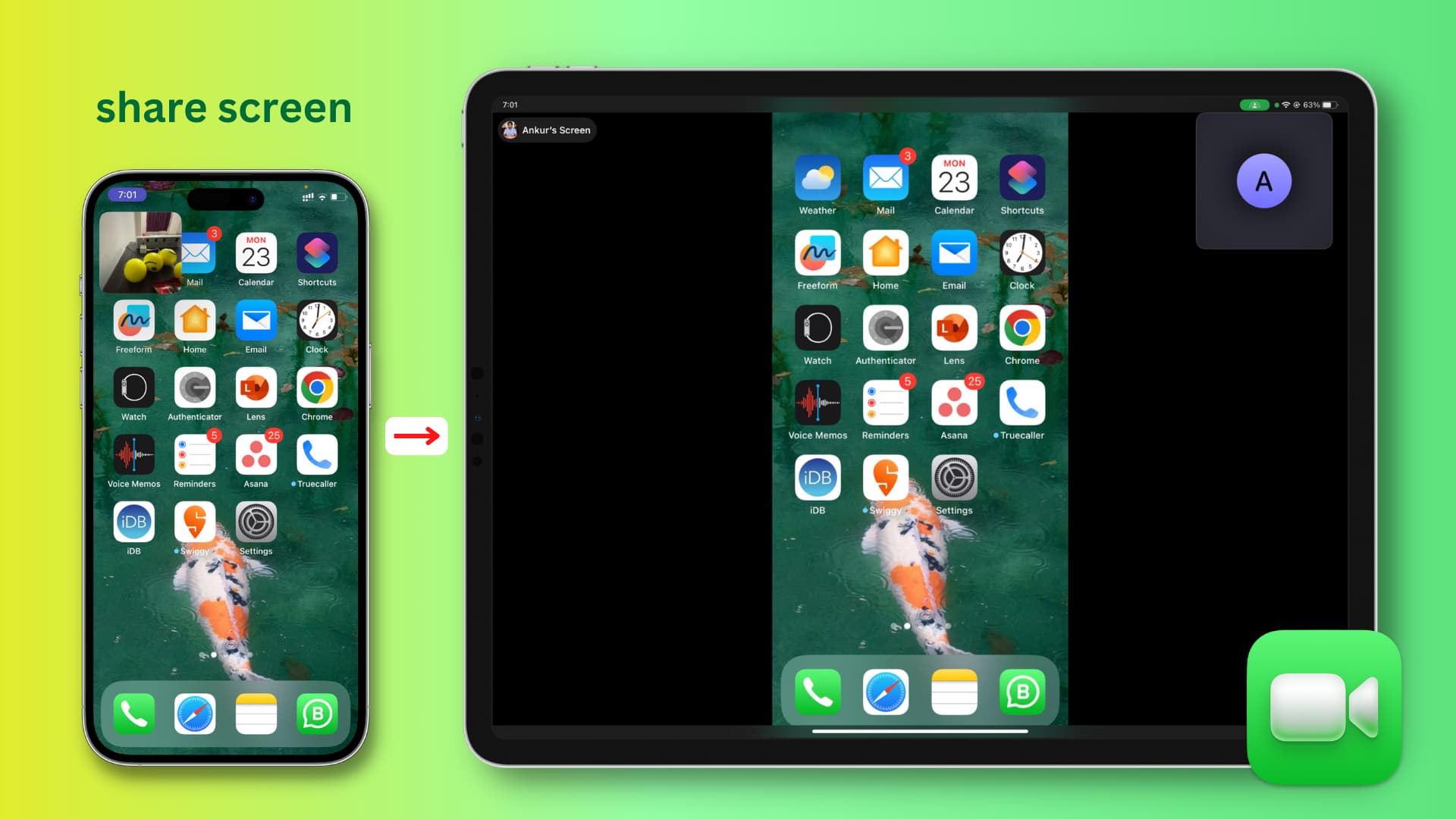
Whether you’re working remotely or just need to show someone something on your screen, FaceTime screen sharing allows you to share your device’s screen with another person, making it easy to collaborate, troubleshoot, or share content.
Note that Android and Windows users can join a FaceTime call from their web browser, but they can’t share their screen.
1) Make sure you’re on a FaceTime call on your device running the latest version of iOS or iPadOS.
2) Tap the three dots menu button on the call screen.
3) Tap Screen Sharing, followed by Share My Screen.
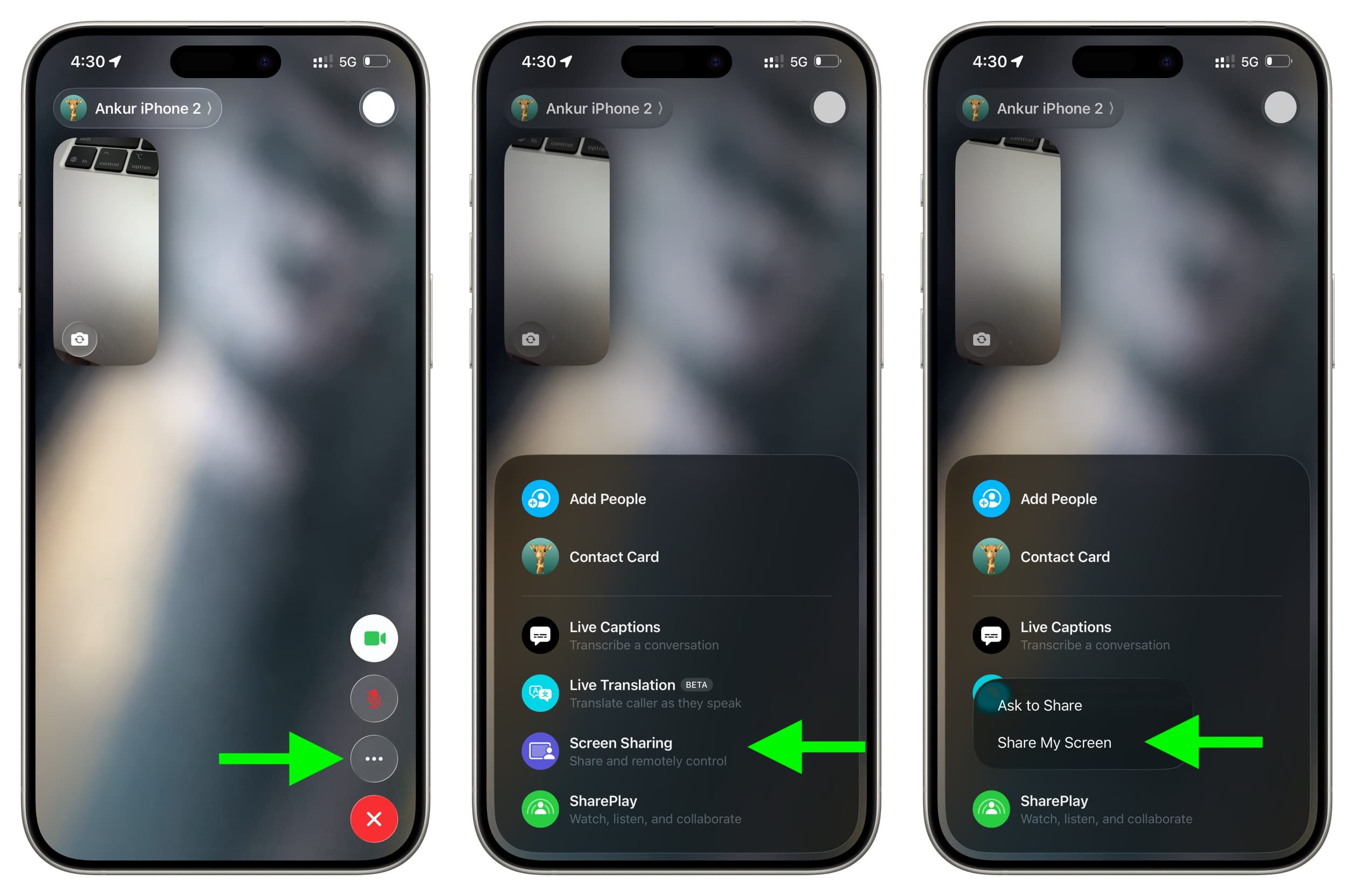
4) A 3-second timer will appear, giving you enough time to exit the FaceTime app and switch to another app or Home Screen. While screen sharing, consider swiping the FaceTime video Picture-in-Picture window to the side so it doesn’t take up a meaningful portion of the screen.

Note: If your iPhone or iPad is running an older version of iOS or iPadOS, tap the Share button, followed by Share My Screen.

You can also remotely take control of an iPhone or iPad when screen sharing via FaceTime.
Accept a screen sharing request
In several repeated tests, I found that when you’re already on a FaceTime call and begin sharing your screen, the other participants automatically start seeing it; they don’t have to accept a screen-sharing request. However, in certain situations, such as when the device is locked, the person on the other end may need to tap Open next to the Join Screen Sharing banner.

3 ways to stop sharing your iPhone or iPad screen
- Tap the FaceTime picture-in-picture tile to return to the FaceTime app and hit the Stop button. You can also tap the three-dot icon, then tap Stop next to Screen Sharing.
- Lock your iPhone’s screen, which will end screen sharing but continue the FaceTime call.
- Tap the red X button to hang up the FaceTime call, which also ends screen sharing.

1) Open the FaceTime app on your Mac running the latest version of macOS and make a call. You can also join an incoming FaceTime call.
2) Click the three dots button, select Screen Sharing, followed by Share My Screen.

3) Now, choose what you want to share:
- Share This Window: Take the pointer over an app and choose to share the current window.
- Share All Application Windows: Take the pointer over an app and choose to share all its windows (like all windows of Safari or Chrome).
- Share Entire Screen: Share everything on your screen, including all apps and windows.

If your Mac is running an older version of macOS, click the green FaceTime button from the top menu bar and hit the Screen Sharing icon. You can also use the Share button on the FaceTime call screen.

When you’re sharing a window
- Even if you switch to another app on your Mac during a window sharing, the person on the other side of the FaceTime call will continue to see the window you have shared.
- When a window is being shared, you’ll see the purple Share Content button in the top left corner of that app. Clicking it shows a few useful controls.

Stop screen sharing on Mac
Click the Share Content button from the top menu bar and click the Stop Sharing button. You can also end the FaceTime call by clicking the red X button, and it will naturally stop sharing the screen.

FAQs
- Everything you speak is shared: If your microphone isn’t muted, whatever you say during screen sharing will be audible to the person on the other side of the call.
- Internal sounds are also transmitted during screen sharing: When screen sharing via Apple FaceTime is in session, and you play a song on that device, start watching a video, play a voice note sent to you in a chat app, or send a WhatsApp message that plays a short confirmation sound, then all these sounds are also shared with the participants of the FaceTime call.
This is interesting.
- iPhone: I can share my iPhone 15 Pro Max’s screen and camera feed simultaneously.

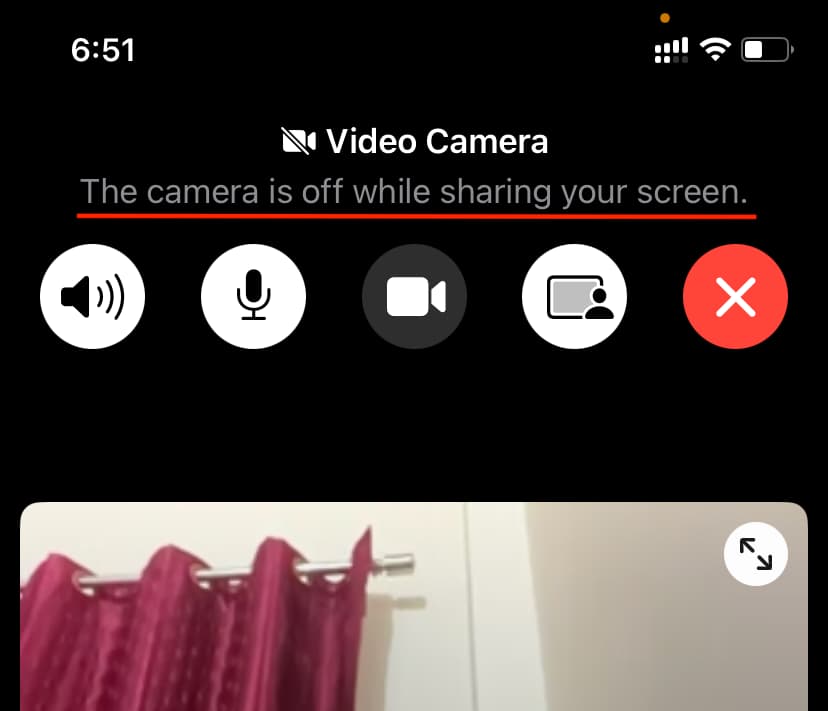
However, when I’m sharing my old iPhone 11 screen running an older version of iOS and tap the video camera button, it says, ‘The camera is off while sharing your screen.’ In other words, I can’t share my iPhone screen and its camera feed simultaneously over FaceTime.
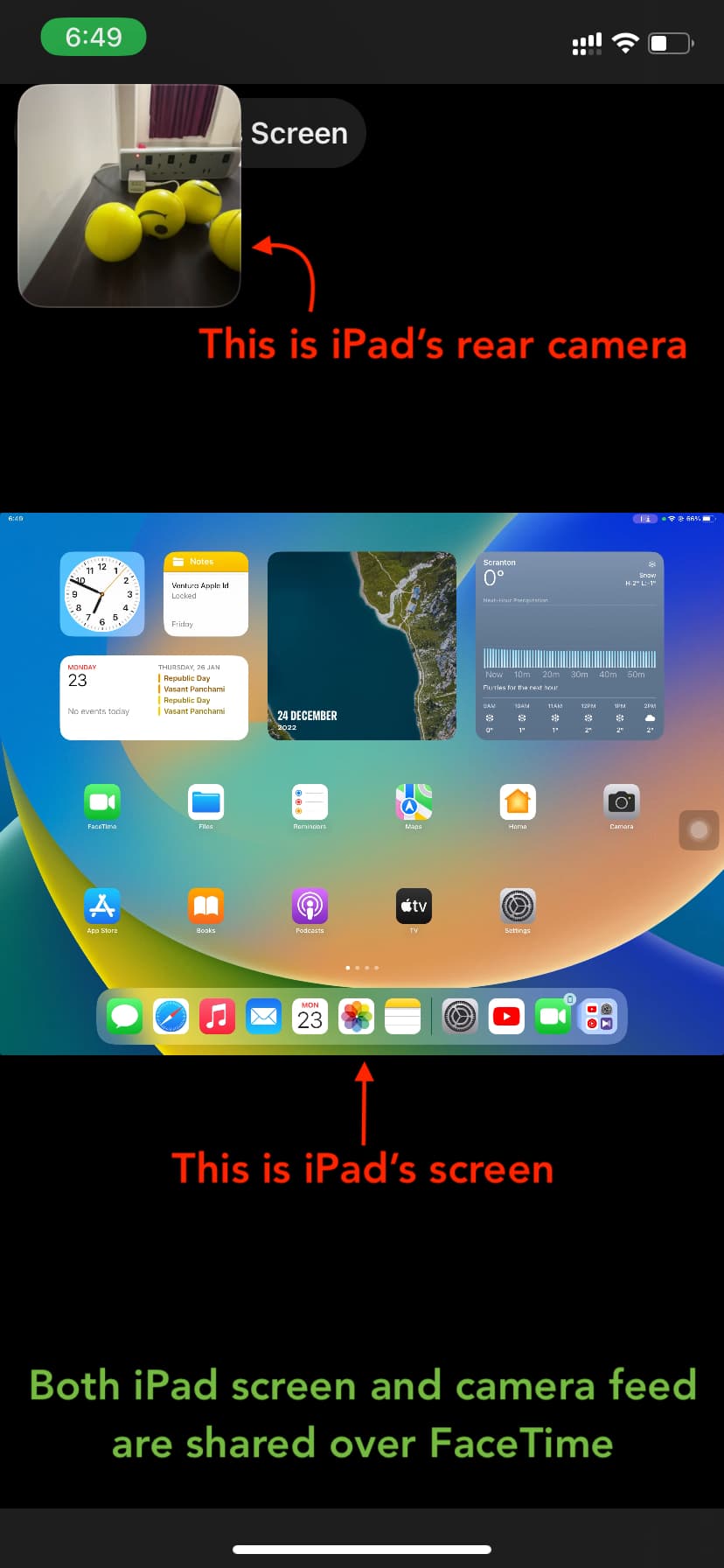
- iPad: However, when I’m sharing my iPad screen, the iPad’s screen and its camera feed are both shared via FaceTime.
- Mac: Similar to iPad, when I’m sharing my MacBook’s screen, both the MacBook’s screen and the video feed from my Mac’s webcam are shared.
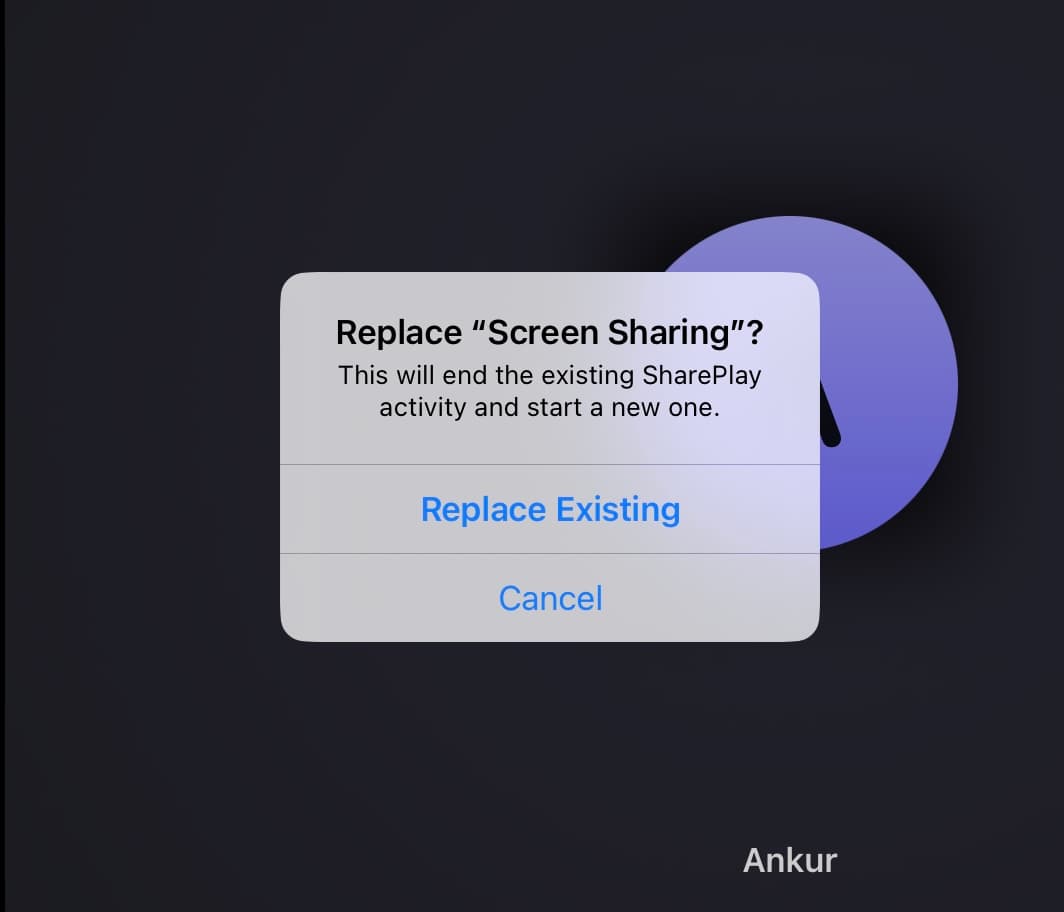
No, only one person can share the screen via FaceTime at a time. If the other person taps the Share Content button to share their screen, a popup appears asking, “Replace Screen Sharing?” If they tap Replace Existing, the current screen sharing stops, and the screen of their device starts being shared.
Check out next: