Learn the difference between your Facebook display name and username and how to change them using the official app or website.

Like most social networking sites, Facebook has display names and usernames.
Your display name is what people see on Facebook when they visit your profile or when your post appears on their timeline. You can change your Facebook name once every 60 days, but even then, the new name has to be something close to your real name.
Your Facebook username, on the other hand, is what separates you from people with the same name as yours. It is essentially a link (facebook.com/YourUsername) that can help others find your profile quickly. Once you change your username, you cannot use the previous link again.
To sum up, the display name is usually your name, and many people on Facebook may have the same one as you. The username, on the other hand, is unique for every account on the platform.
Steps to change your display name or username on Facebook
1) Open the Facebook app, tap the menu icon at the top, then tap Settings & privacy > Settings.

2) Tap Accounts Center at the top.
3) Tap Profiles and personal details.

4) Select your Facebook account on the Profiles screen.
5) Now, you can update both your name and username from here:
- Change your name: Tap Name, enter the new name you want to use, and tap Review change. Preview your new name and tap Save Changes.
- Change your username: Tap the Username section, enter the new one you want to use, and tap Done. Of course, the username has to be available and unique before you can own it.

If you’re on a computer
1) Visit facebook.com and click your profile picture from the top right, followed by Settings & privacy > Settings.

2) Click Personal details in the Meta Accounts Center box on the left side.

3) Select your Facebook account and use the Name or Username fields to change them.

If you see an error when adding or changing your Facebook username
When you try to add a username or change it, you may see an error that says, “You’re currently unable to choose a username.”

If this happens to you, go to your Facebook settings and add a phone number. If your number is already added, remove it and add it again.
1) Go to Facebook Accounts Center settings and select your profile.
2) Tap Contact info > Add mobile number and follow along. If the number was added, tap it, then delete it on the next screen. After that, go through the earlier steps to add the mobile number again.
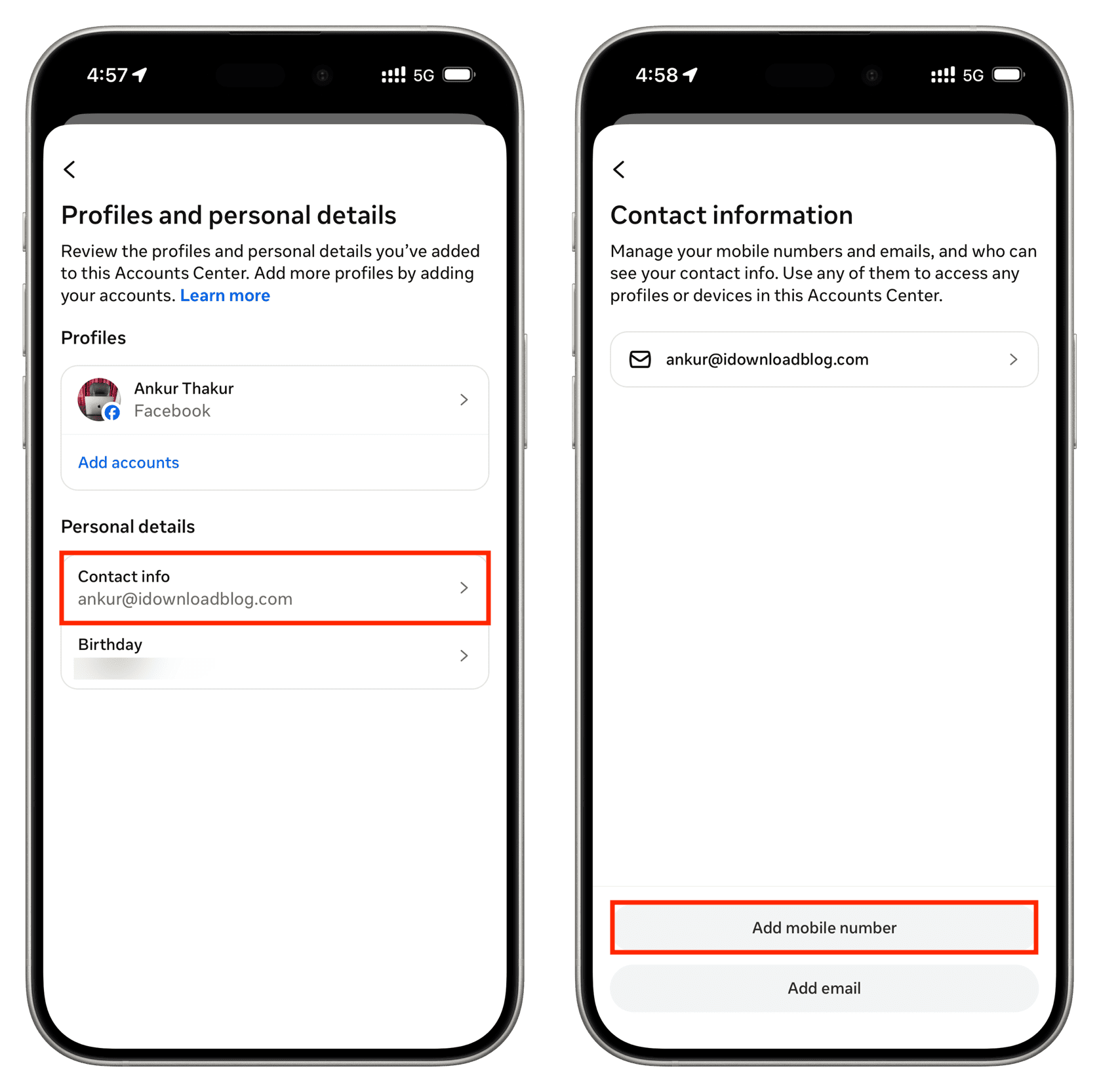
Once you have added your phone number, return to the username editing screen, and you should be able to add or change it.
More Facebook tips for you: