Learn how to use the hidden Secure Notes feature of the Keychain Access app on your Mac running an older version of macOS to store confidential notes, private text, PINs, credit card numbers, 2FA backup codes, cryptographic keys, etc.
Do you have text that needs to be secured, like bank PIN numbers, social security numbers, combinations for locks, and similar items? Most of us do. But where can you store these types of items securely yet have easy access to them when you need them?
You can use the Notes app on your Apple device and set a password. Password-protected notes are end-to-end encrypted. You can also turn on Advanced Data Protection for iCloud and then save those details in Notes. Advanced Data Protection enables end-to-end encryption for all notes, including those without a password.
And while the Notes app is a good option, there is another — Secure Notes in Keychain Access on your Mac.
Keychain Access is an app that holds your keychain passwords along with account information (like Wi-Fi passwords), certificates, private keys, and related items. An awesome built-in feature of Keychain Access is Secure Notes.
So, if you’re looking for a safe spot to jot down information and access it quickly and easily, here’s how to use and store Secure Notes with Keychain Access.
Note:
- This is different from adding a helpful note to your individual saved passwords in Keychain or the Apple Passwords app.
- The new Apple Passwords app, which is the successor of Keychain Access, doesn’t let you save text notes separately.
- You can’t add new secure notes in recent versions of macOS, such as macOS Tahoe. But if you have existing secure notes, you can view them in the Keychain Access app.
Save a note securely to Keychain Access
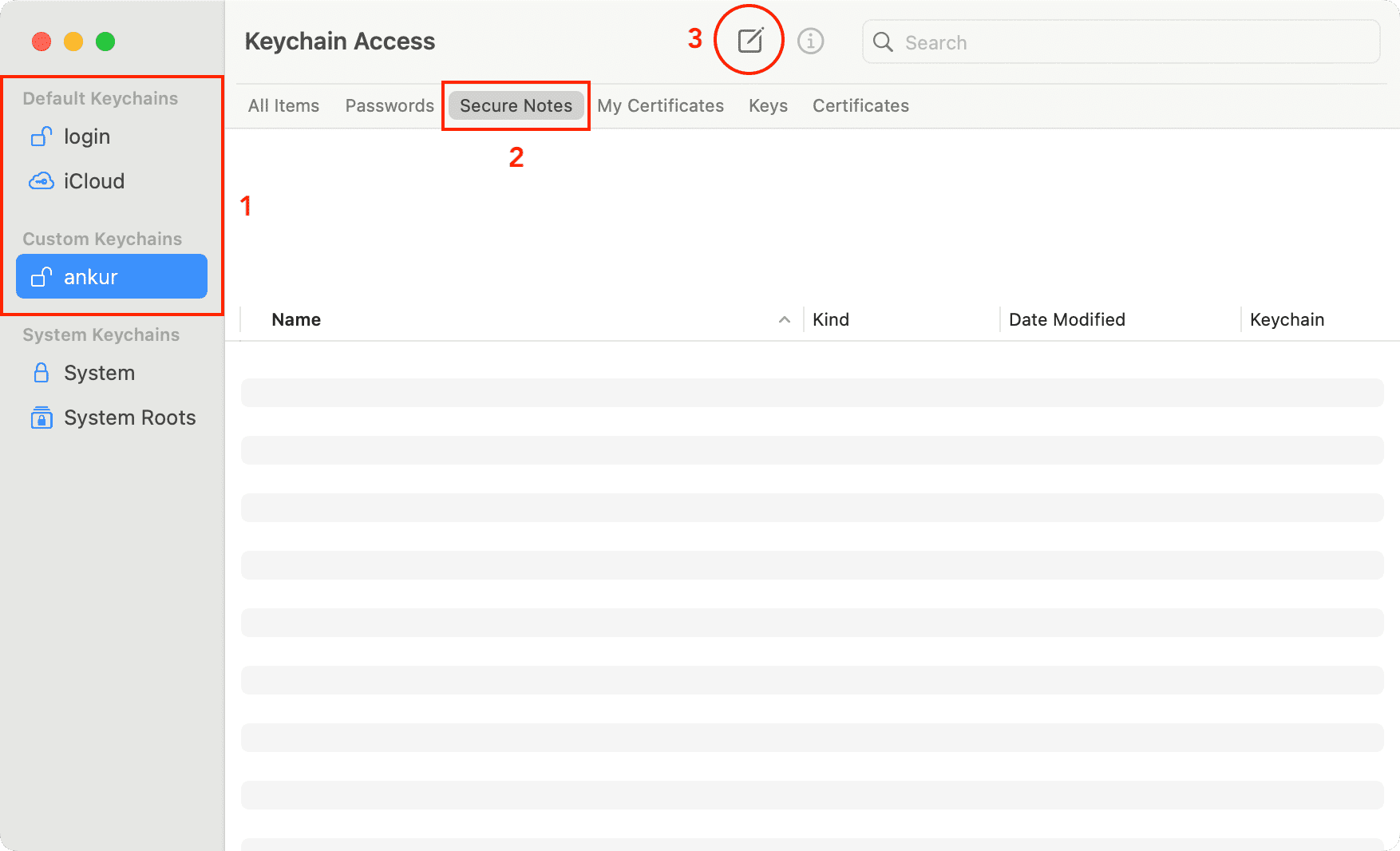
1) Open the Keychain Access app on your Mac. You can do so by entering its name into Spotlight search.
2) Once you have Keychain Access open, you’ll want to choose a Keychain like iCloud from under Default Keychains. Notes added to iCloud Keychain will also be available on your other Macs having the same Apple Account. Alternatively, you can create a new one using File > New Keychain from the menu bar, and it will be listed under Custom Keychains.
3) After choosing the Keychain, click Secure Notes from the top.
4) Click the compose button at the top. You can also click File > New Secure Note Item from the menu bar.
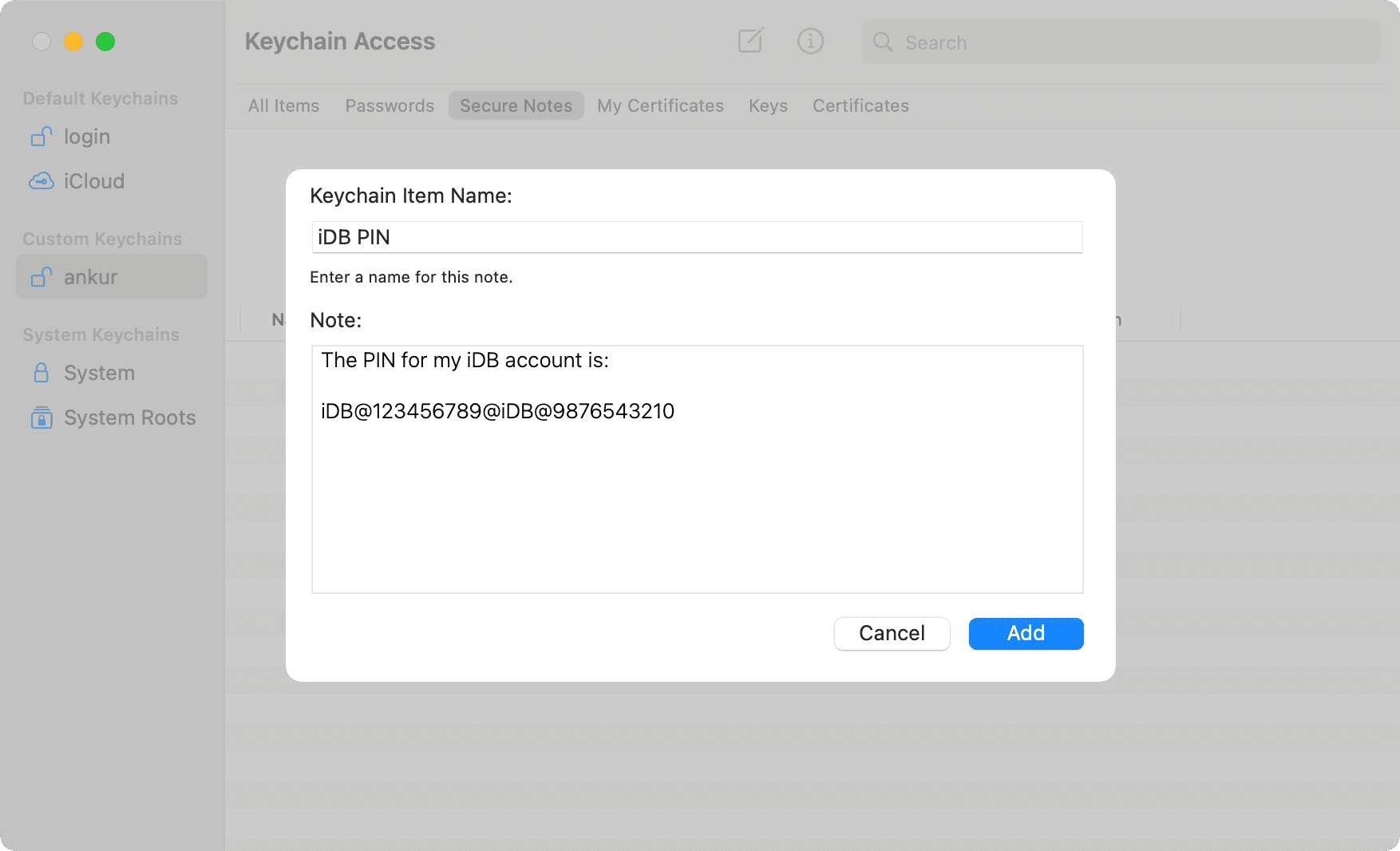
5) In the window that pops open, give your Secure Note a name and then enter the note.
6) Click Add when you finish and enter your keychain password if prompted.
Your new Secure Note will be added and kept safe and sound.
Access and open your Secure Note
1) When you need your note, open Keychain Access, select the Keychain, and then click Secure Notes.
Tip: If you have a lot of notes, you can use the search box or sort using the columns.
2) Select your note and click the Info button ⓘ at the top, or simply double-click the note.
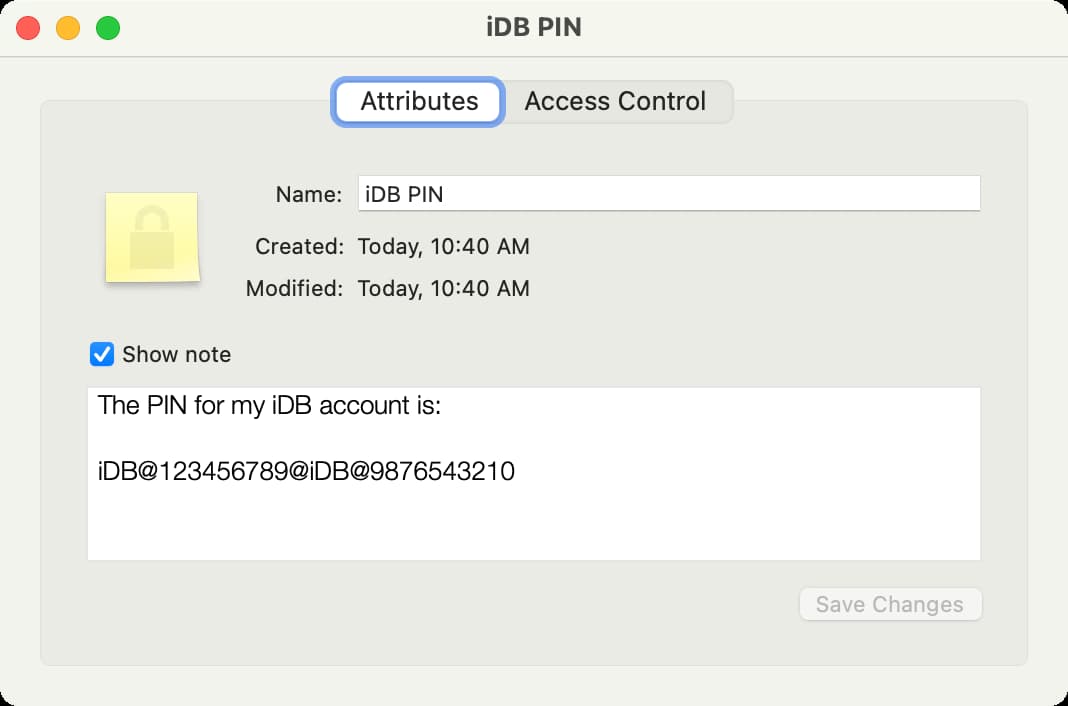
3) When the Secure Note opens, the Attributes tab should be selected by default, but if not, click it.
4) Now, you won’t see the note’s contents right away, only the name and dates. Check the Show note box and then enter your keychain password to view the note’s contents.
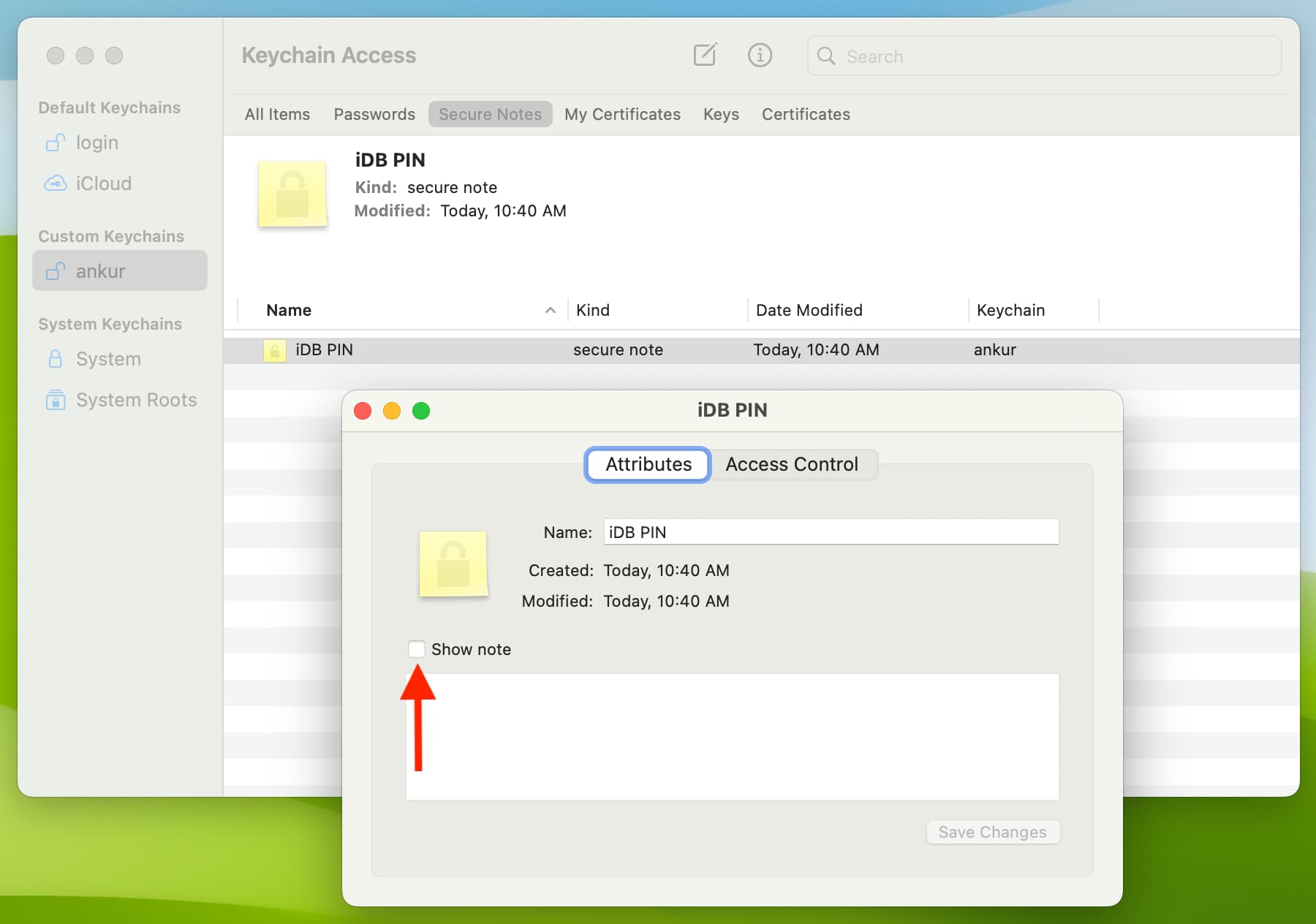
With your Secure Note open, you can make changes if needed and click the Save Changes button. Or, just grab the information you need and close the note.
Delete a Secure Note
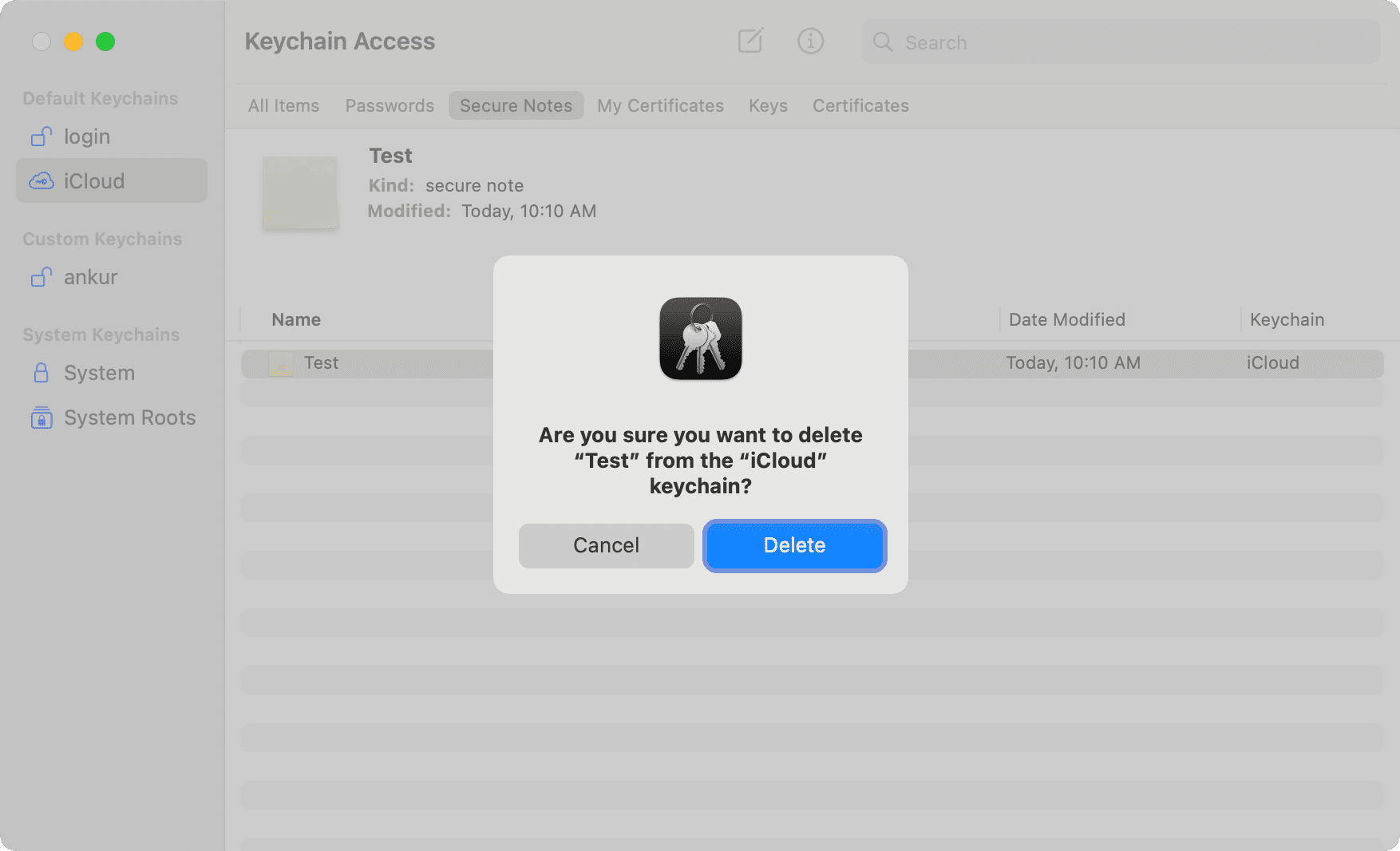
1) Access the note inside the Keychain Access app on Mac and select it.
2) Now press the delete key and confirm or click Edit > Delete from the top menu bar.
Also, check out: